DSH plugin market install failure troubleshooting map
When a DSH plugin market install fails, sort it by symptom first: the command errors out, the download stalls or stops, or it installs but never loads — each one needs a different check and a different article. This page does not repeat the details of individual errors; it routes you by phase. Once you know which category you are in, jump straight to the matching fix.
Three steps to find which phase the DSH plugin install failed in
Every plugin market install runs through three actions — fetch, resolve, write and register — and where the output stops tells you which article to read. Do these three steps:
- Read where the output stops — a download line, a clear error code, or a command that succeeds but adds no feature. Expected: you can tell an install-phase failure from a load-phase one.
- Run the list command once —
dsh plugin --profile web list. Expected: listed means the install worked and the problem is loading; not listed means it failed during install. - Align the profile — confirm the profile the UI runs under matches the
--profilein your command. Expected: only draw a conclusion after the two match, so you do not mistake a wrong profile for a failed install.
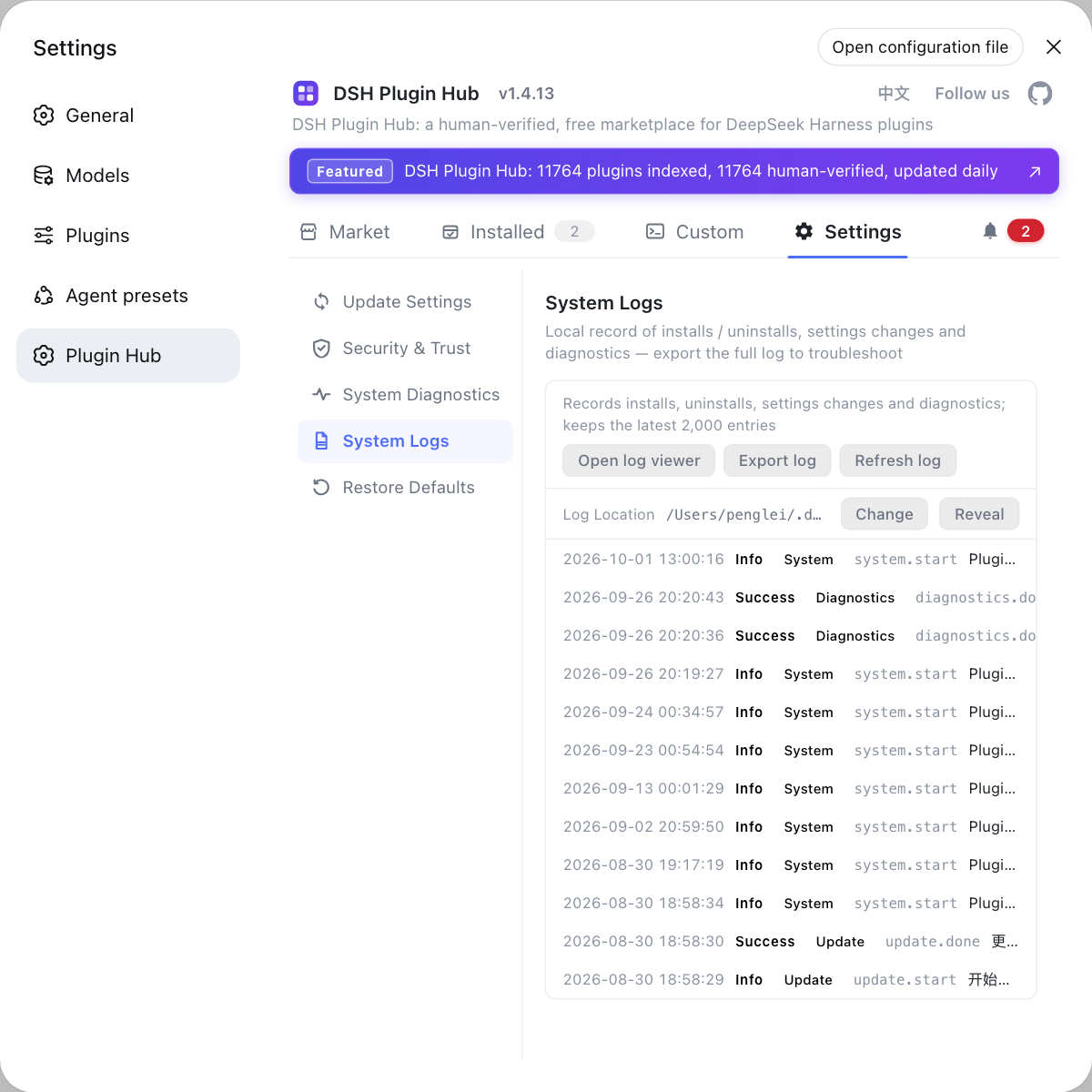
Install DSH Plugin Hub first — both the plugin market and the installed list live in its settings page.
The DSH plugin install failure map: symptom, check command and destination
The table below is organized by symptom; each row gives one check command and one destination, so you can just follow it (source). Read it as a lookup:
| Symptom | Check | Destination |
|---|---|---|
| Immediate failure with a 404-class error code | npm config get registry for the current source | ERR_PNPM_FETCH_404 fix |
| Slow download, stalls halfway | See whether output stops at fetch or at compile | Slow plugin downloads |
| Dependency install fails during resolution | See whether the error names a dependency package | Plugin dependencies fail |
| Build script blocked warning | Read the package name in the prompt | Build script blocked |
| pnpm fails inside the profile directory | Check whether the path points into profiles | pnpm fails in profile |
| Installed but not loaded, no feature appears | list has it, the page does not | Plugin installed but not loading |
| Installed but never activated | Check whether it is enabled in config | Plugin not activated |
| Module format error while loading | Check whether the error mentions ESM | Plugin build and ESM |
| The whole plugin tree fails to load | Check whether the message mentions tree loading | Plugin tree failed to load |
Every article in the table handles one specific cause. Locate first, then jump — do not suspect three or four directions at once.
Check commands for a failed DSH plugin install, phase by phase
Each of the three failure groups has one or two cheapest checks; run the command before drawing a conclusion. By phase:
- Install phase — confirm target and location — run
dsh plugin --profile web listandls "$DSH_HOME/profiles". Expected: the plugin is absent from the list and the profile name matches what you expect, which means the install phase failed. - Fetch phase — confirm registry and network — run
npm config get registry. Expected: the source address is reachable; the distinction between slow and 404 is covered in Slow plugin downloads. - Write phase — confirm the files landed — inspect
$DSH_HOME/profiles/web/node_modules. Expected: top-level folder names match the plugin package names; the layout is detailed in where DSH plugins are installed. - Load phase — confirm activation — read the profile's
package.jsonand the runtime log. Expected: if the dependency is present but no feature appears, it is a load or activation problem — route it through the table above.
DSH plugin installed but not working: how to judge it separately
"Will not install" and "installed but does nothing" are two different things: the second exits successfully and writes the files, it is simply never loaded. Three steps:
- Confirm it is in the installed list — open Settings then Plugin Market then Installed, and run
listagain. Expected: present in both means the install itself succeeded. - Confirm whether a restart is needed — plugin dependencies take effect after a restart according to the load declaration. Expected: the feature appearing after a restart is normal; see plugin installed but not loading.
- Confirm it is not disabled or inactive — check the plugin's enabled state. Expected: enabling it makes it take effect; details in plugin not activated.
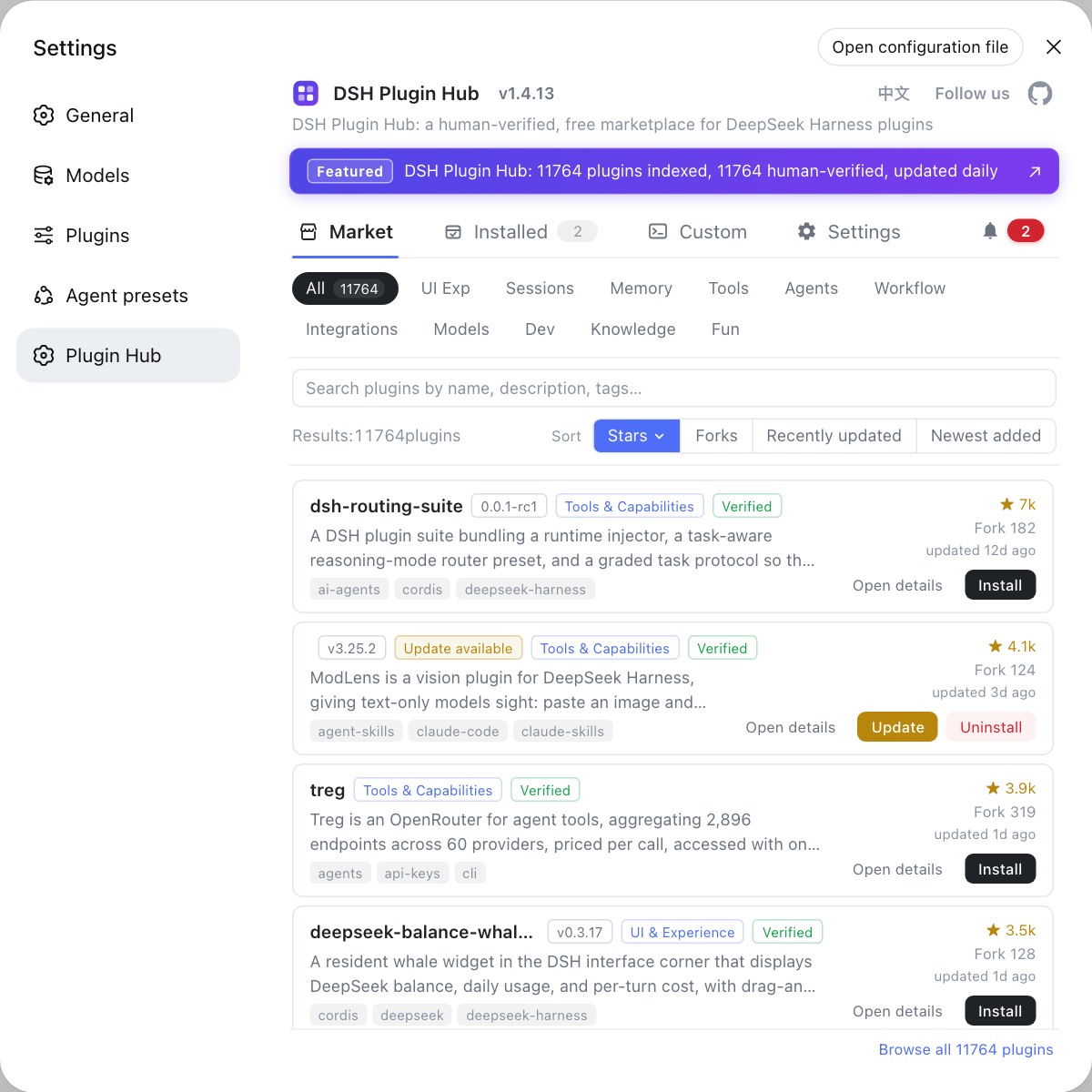
The installed list in the plugin market is the UI-side check and list is the command-side check. Only agreement between the two counts as a successful install; anything else belongs to loading.
Notes and limits of using the DSH plugin install failure map
- Locate the phase before choosing an article — each failure group has its own check command, and jumping to the wrong article only adds a detour.
- Align the profile before concluding — when the UI and the command look at different profiles, "cannot see it" does not mean "not installed".
- One article, one cause — the dedicated articles split by specific error, and this page does not repeat their details. For a concrete cause, follow the table.
- Prefer the literal error text — the dedicated article titles usually quote the error string, so matching by title is more accurate than guessing from symptoms.
- Prerequisites save half the work — environment failures can usually be avoided before you start; see the install prerequisites checklist.
Most install failures have a destination in this table. DSH Plugin Hub is both the plugin market and the management UI, keeping the installed list, logs and diagnostics in one place — the fastest spot to locate a problem.
Sources: dsh CLI README (official repository), dshbase troubleshooting, dshplugin/dsh-plugin-hub
FAQ
**When a DSH plugin market install fails, start with the last few lines of terminal or UI output and see where they stop.** A DeepSeek Harness plugin market install runs in three phases: fetch the package, resolve dependencies, then write and register it. Stopping at the fetch points to the registry and network, stopping at resolution points to dependencies and build scripts, and a successful command that changes nothing points to loading.
**No — a DSH plugin command that errors out and a DSH plugin that installs but does nothing are different failures needing different checks.** The first aborts during install and prints a clear error code. The second exits successfully and writes files into the profile, but the plugin is never loaded. Tell them apart with dsh plugin --profile web list: if the package is listed, the install worked and the problem is in loading.
**When the DSH plugin market does not show an installed plugin, first confirm you are looking at the same profile.** DSH plugins are isolated per profile, and the plugin market lists what is installed for the profile the UI is running under. When you install from the command line into a different --profile, the UI cannot show it. Align the profile names before concluding the install failed.
**When a DSH plugin download stops halfway, work through network, then registry, then proxy.** Confirm the configured registry address is reachable, then check whether the mirror is stale (which shows up as an instant error rather than a slow one), then check whether your corporate network needs a proxy. These symptoms look alike but need different fixes.
**A build script blocked warning during a DSH plugin install means it is blocked, not failed — but the DSH plugin really is not installed yet.** A DSH plugin with native dependencies triggers a build script, and the package manager blocks it by default for safety and asks for confirmation. Allow the package name it prints and reinstall; do not dismiss the prompt.
Related Terms
- troubleshooting map
- A troubleshooting map is a routing page organized by symptom rather than by error code. It first determines which install phase failed, then points to the dedicated article, so you do not keep guessing between several errors.— dshbase troubleshooting
- install phase
- The install phase covers the three actions between starting an install and finishing the write: fetching the package, resolving dependencies, and writing plus registering it. Deciding which phase failed is the first step in choosing a path.— dsh CLI README
- load phase
- The load phase is the step after plugin files are written into a profile, when the host activates the plugin according to the dsh.profile.bundles declaration. Installs that appear to do nothing usually fail here rather than during install.— dsh CLI README
- plugin market
- The plugin market is the built-in plugin catalog and install entry in the DeepSeek Harness web UI, found under Settings then Plugin Market. It lists installed plugins for the profile the UI runs under, making it the UI-side check for whether a plugin is really installed.— dshplugin/dsh-plugin-hub repository
Sources
- dsh CLI README· deepseek-ai
- dshbase troubleshooting (install and environment errors)· dshbase
- dshplugin/dsh-plugin-hub repository· GitHub