DSH plugin not loading? Fix DeepSeek Harness plugin issues
A DSH plugin that does not load is almost always one of three things: no restart or refresh, the wrong profile, or an incomplete package — work through the four-step checklist "restart → dsh plugin list → check profile → read the startup log", fix in the order "reinstall → switch to the npm build → roll back", and with DSH Plugin Hub installed you can read the failure reason straight from the notification center.
DSH plugin not loading: categorize before acting
DeepSeek Harness plugins can fail in many ways, but the root causes cluster tightly — running this checklist saves a lot of time. A DSH plugin is a TypeScript module exporting an apply function; the framework calls apply with ctx on load so the plugin registers its capabilities (source). If it does not take effect, something in that "load" step is wrong. Typical symptoms: no UI entry appears, no new capability in sessions, or the host errors out on boot. Below: causes → checks → fixes, with concrete steps for the debugging part.
Common causes of a DSH plugin not loading
Three causes cover most cases: no restart/refresh, the wrong profile, or an incomplete package. Concretely:
- No restart/refresh: UI plugins mount when the host starts, so you must restart dsh web or refresh the browser after installing — the most common and the easiest to fix.
- Wrong profile: plugins live in profile directories ($DSH_HOME/profiles/<name>); installed anywhere other than web, the app simply cannot see them (source).
- Incomplete package: GitHub-distributed plugins often lack build output — the entry file declared by package.json does not exist in the package, loading fails with ERR_MODULE_NOT_FOUND, and in bad cases the host refuses to boot.
Debug DSH plugin not loading: a four-step checklist
Work through four steps in order; each one rules out one class of root cause. Concretely:
Step 1: restart dsh web and refresh the page. UI plugins mount when the host starts, so restart the service (Ctrl+C, then run npx @deepseek-ai/dsh web again) or refresh the browser — this clears the "no restart/refresh" class. If the feature appears after the restart, you are done; if not, continue.
Step 2: confirm the plugin is in the profile you are using. Run this and check whether the plugin shows up:
# List installed plugins under the web profile
dsh plugin --profile web list
Not in the list → install failed or went to the wrong profile; reinstall with the correct profile. In the list but no visible effect → continue.
Step 3: check the profile directory. Plugins live in profile directories, so confirm the plugin is really under $DSH_HOME/profiles/web (or the profile you are using) rather than some other profile.
Step 4: read the startup log. Restart the host and watch the terminal or log output: ERR_MODULE_NOT_FOUND means a missing entry file (incomplete package); other errors are usually compatibility — the plugin detail page declares the target DSH version, so compare it with the DSH core version you have installed.
Fix DSH plugin not loading: reinstall, switch to npm, or roll back
Treat the root cause: incomplete packages switch to npm, compatibility issues roll back, wrong profiles reinstall. Options:
- Switch to the npm build: when a GitHub source lacks build output, reinstall from the npm package, e.g.
dsh plugin --profile web add <package>— npm packages are published with build output, so the missing-entry problem generally does not occur. - Roll back: if the new version is incompatible with the DSH core, install the previous version or wait for the author to adapt (see Plugin incompatible after update).
- Reinstall:
dsh plugin --profile web remove <package>then install again to clear any leftovers. - Reinstall from the UI: with DSH Plugin Hub installed, search the plugin in Settings → Plugin Market and reinstall with one click.
Debug and reinstall with DSH Plugin Hub
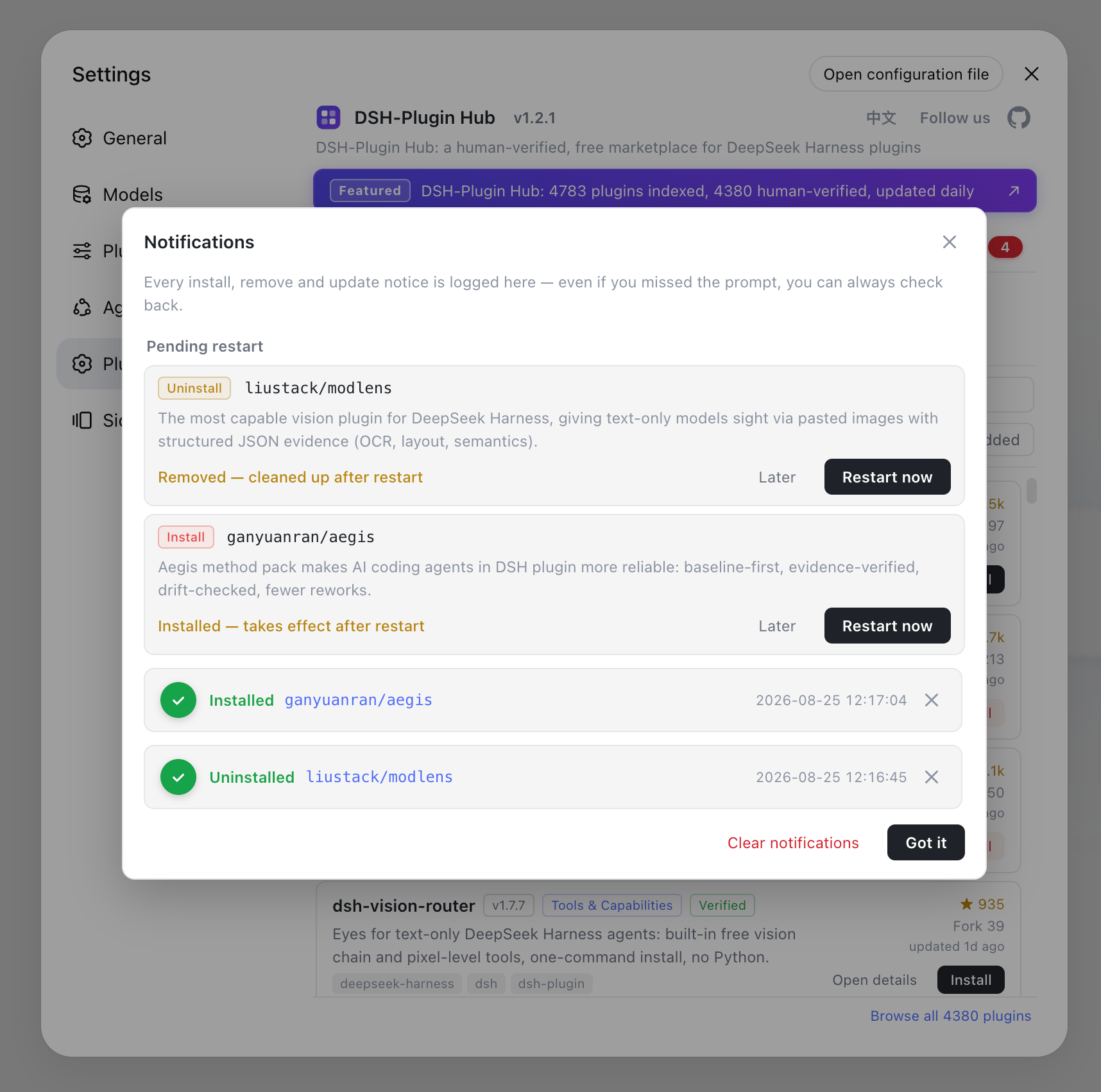
With DSH Plugin Hub installed, plugin failures land in the notification center, so debugging does not require digging through logs. Open Settings → Plugin Market — every install/upgrade/uninstall success and failure is recorded with the reason visible at a glance; failures can be filed as a GitHub Issue for the author with one click, and pending-restart items support "Later / Restart now":
Once the problem is located, reinstall directly from the plugin market — the queue runs in the background, the dialog shows live progress, and most plugins take effect on refresh:
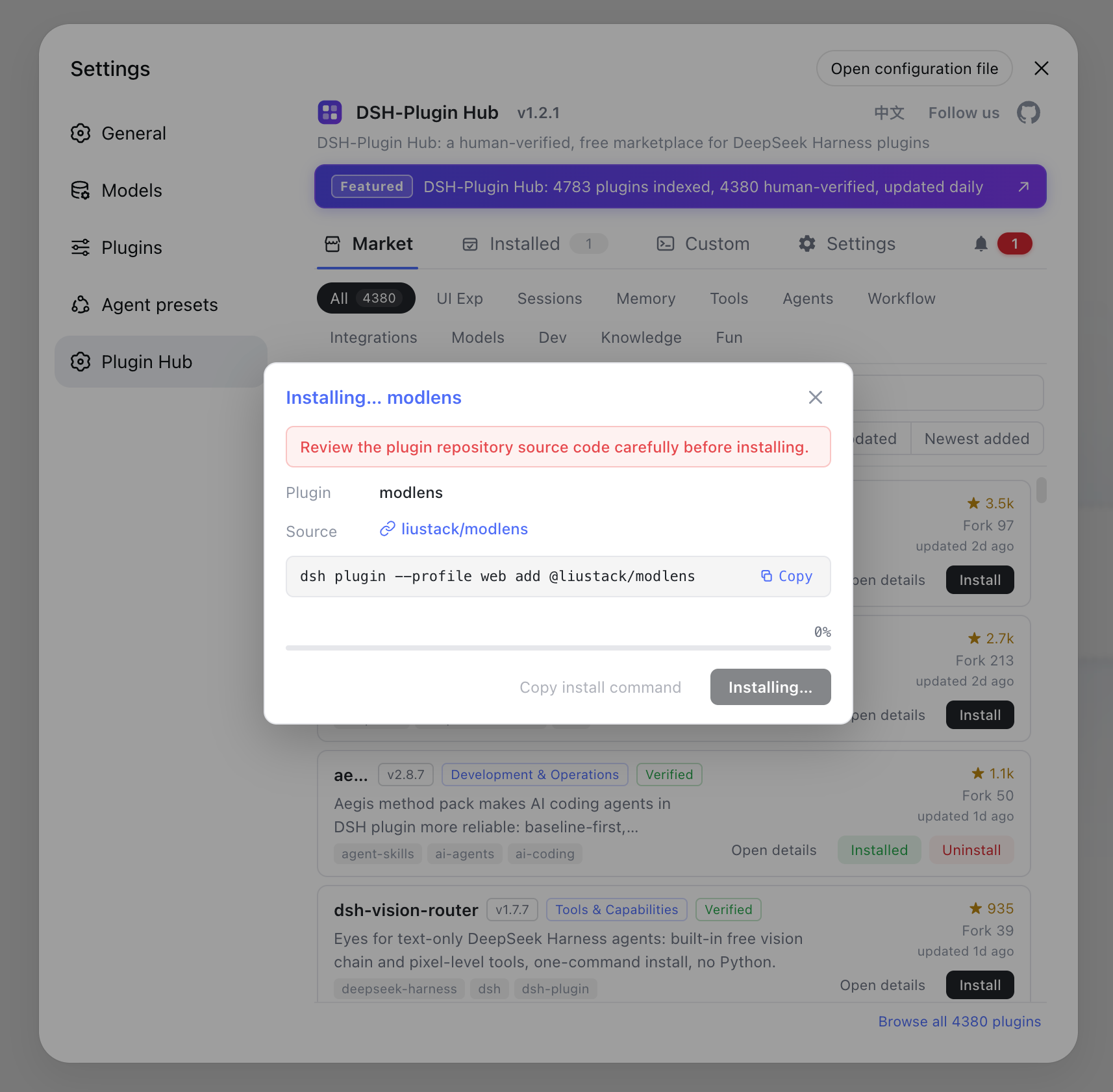
When installing, prefer packages marked verified — this avoids the missing-build-output class of GitHub-source problems. See How to use DSH Plugin Hub for the full workflow.
Common issues and next steps for DSH plugin not loading
- Incompatible after an upgrade: plugins break after a core upgrade, usually a version mismatch — see Plugin incompatible after update.
- Update plugins in bulk: see Updating DSH plugins in bulk; to avoid typing commands, use the one-click updates in Settings → Plugin Market.
- The plugin keeps failing to load: check the target DSH version on the plugin detail page, or file a GitHub Issue from the notification center to contact the author.
- See install error troubleshooting for other DeepSeek Harness install errors.
Sources: DeepSeek Harness Quickstart, dsh CLI README, dshplugin/dsh-plugin-hub
FAQ
To fix a DSH plugin that does not load, troubleshoot in order: restart dsh web and refresh the page; run dsh plugin --profile web list to confirm the plugin is installed and which profile it lives in; then check the startup log error — most often an incomplete package or a mismatched target DSH version.
Nothing happens after installing a dsh plugin — three most common reasons: no restart or refresh (UI plugins mount at startup), the wrong profile (installed outside web so the app cannot see it), or a GitHub distribution missing build output (error on load or the host fails to boot).
ERR_MODULE_NOT_FOUND on a DSH plugin usually means a GitHub-sourced plugin was published without build output: the entry file its package.json points to (e.g. lib/index.js) does not exist in the package. Fix: install the npm-published version, or ask the author to commit build output.
To confirm which profile a DSH plugin is in, run dsh plugin --profile web list. Plugins are stored in the profile directory ($DSH_HOME/profiles/<name>); if installed into another profile, the app cannot see them.
A DSH plugin missing from search: confirm it is in the profile you are using (dsh plugin --profile web list), then restart dsh web and refresh the page. UI plugin entries mount into Settings or the plugin market slot and only appear once the profile is right and the page refreshed.
Yes. With DSH Plugin Hub installed, every install/upgrade/uninstall success and failure is logged in the notification center, failures show the reason and support one-click reinstall or filing a GitHub Issue.
Sources
- DeepSeek Harness Documentation - Quickstart· deepseek-harness
- dsh CLI README· deepseek-ai
- dshplugin/dsh-plugin-hub GitHub repository· GitHub