How to uninstall DeepSeek Harness: remove dsh & ~/.dsh data
Uninstalling DeepSeek Harness takes three steps: back up session data first, then remove the program by your install method (npx leaves no local install so clearing its cache is enough; source builds just delete the repository), and finally clean up plugins and the ~/.dsh data directory as needed. This guide covers backup, removal, plugin uninstall, data cleanup, and reinstall end to end.
Overview: three steps — back up, remove the program, clean the data
dsh has no one-shot uninstall command; uninstalling means backing up, removing the program, and optionally the data. DeepSeek Harness runs via npx or a source build (source), and the two methods leave different traces: npx has no local install, while a source build leaves a repository directory; both leave data under $DSH_HOME, defaulting to ~/.dsh (source). The full flow runs in three steps:
- Back up: copy the ~/.dsh/sessions session data to a safe location first;
- Remove the program: delete the core according to your install method (npx / source build / global install);
- Clean the data: uninstall plugins and delete ~/.dsh as needed for a full removal.
Each step is unpacked below.
Step 0: back up session data before uninstalling
Removing the program does not touch your data, but deleting ~/.dsh does — so the backup always comes first. Session data lives in the ~/.dsh/sessions directory and holds all your history; uninstalling the core keeps them, but a later ~/.dsh cleanup would wipe them. Back up before uninstalling:
# Back up session data first (recommended)
cp -r ~/.dsh/sessions ~/.dsh-sessions-backup
Once backed up, even a mistaken rm -rf ~/.dsh is recoverable — the session files still exist in the backup directory and can be copied back at any time.
Step 1: remove the program by install method
With npx, clear the npx cache; with a source build, delete the repository; if installed globally, use npm uninstall -g. Three install methods map to three removal approaches:
# Method 1: npx (no local install; optionally clear the npx cache)
rm -rf ~/.npm/_npx

# Method 2: source build (delete the cloned repository)
rm -rf ~/path/to/deepseek-harness

# Method 3: if dsh was installed globally
npm uninstall -g @deepseek-ai/dsh
npx pulls packages temporarily from npm on every run and leaves no persistent local install, so the core itself needs no uninstall; ~/.npm/_npx is only a cache. A source-built DeepSeek Harness has no global side effects, so deleting the repository directory completes the uninstall (source).
Step 2: uninstall DSH plugins (optional)
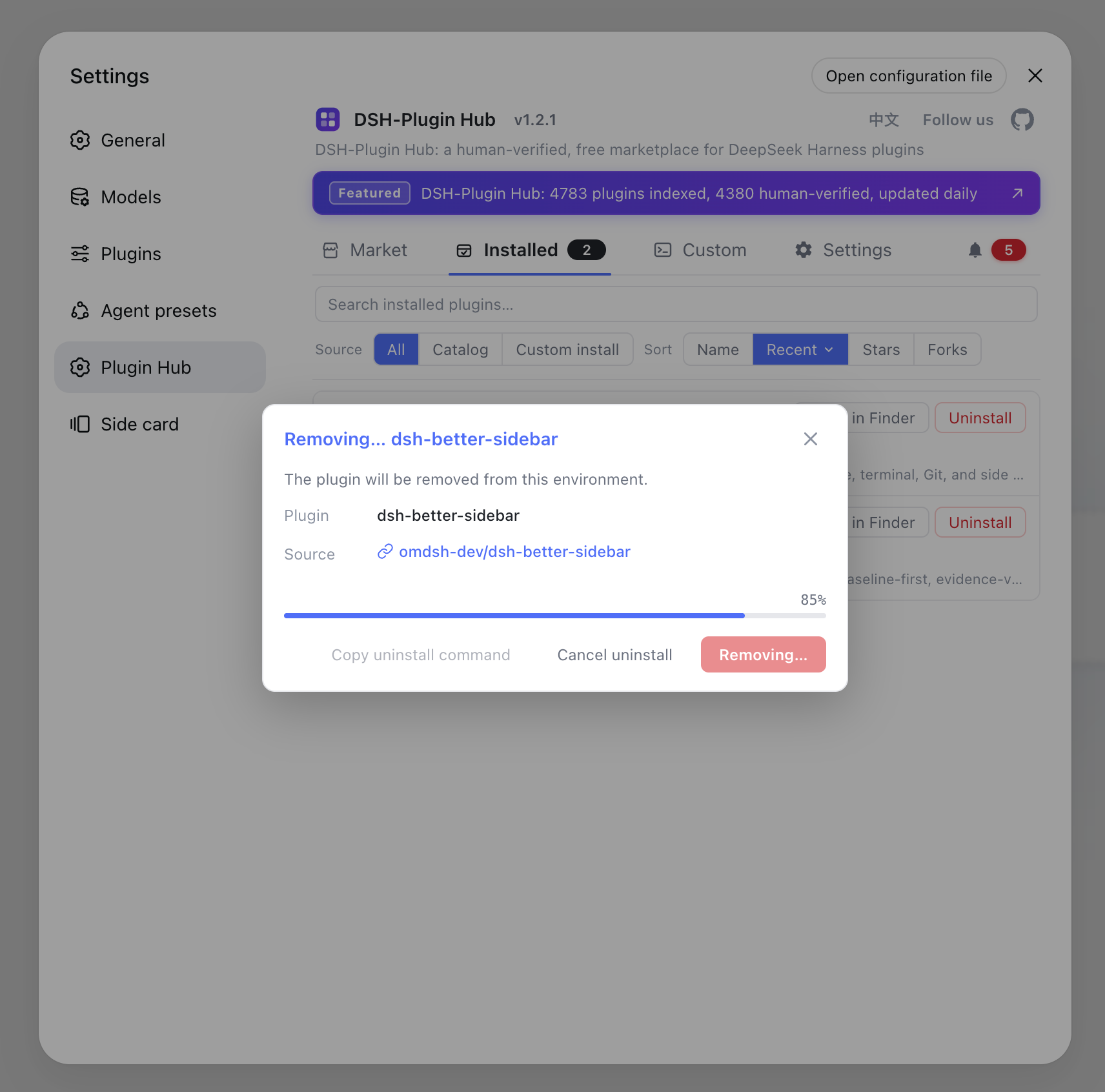
To remove plugins too, the easiest way is a one-click uninstall in Settings → Plugin Market — install DSH Plugin Hub to get it. Plugins live in each profile's node_modules; there are three ways to remove them:
- One-click uninstall (recommended): with DSH Plugin Hub installed, open Settings → Plugin Market, find the plugin and click Uninstall — fully visual, with live progress:
- Command line: to remove a single plugin, run
dsh plugin --profile web remove <package>. - Delete the directory: to clear every plugin under a profile at once, delete the profile directory (e.g.
~/.dsh/profiles/web).
See How to use DSH Plugin Hub for the uninstall and notification-center workflow.
Step 3: clean up the ~/.dsh data directory
The data directory $DSH_HOME (default ~/.dsh) holds profiles and sessions; removing the program does not touch it, so clean it manually and back it up first. Structure of ~/.dsh: profiles stores each profile's plugin dependencies and configuration (the web profile auto-initializes here), and sessions stores session data. For a full removal:
# Back up session data first (recommended)
cp -r ~/.dsh/sessions ~/.dsh-sessions-backup

# Delete the data directory entirely
rm -rf ~/.dsh
After uninstalling: checks and reinstall
Once the uninstall finishes, confirm three things: sessions are backed up, plugin locations are clear, and the reinstall path is known. A few reminders:
- Confirm nothing is left: run
which dsh— no output means the program is fully removed; then confirm both~/.dshand the source repository directory are gone. - Reinstall while keeping data: as long as ~/.dsh is intact, simply run
npx @deepseek-ai/dsh webagain — the web profile re-initializes automatically and your history configuration and sessions remain. - Start completely fresh: delete ~/.dsh entirely and reinstall to get a brand-new setup; restore any needed sessions from the Step 0 backup.
Common issues and next steps
- Remove only some plugins: see the dsh plugin removal syntax in Installing DSH plugins, or use Settings → Plugin Market.
- Leftover errors after uninstall: usually stale node_modules under a profile directory — delete that profile directory; see Cleaning up leftover files after uninstall.
- Uninstall fails: files are locked or permissions are insufficient — see DSH plugin uninstall failed.
Sources: DeepSeek Harness official website, dsh CLI README, Official Quickstart
FAQ
Three steps: back up ~/.dsh/sessions first; then remove the program by install method — npx leaves no local install so clear the npx cache, source builds delete the cloned repository, and a global install runs npm uninstall -g @deepseek-ai/dsh; finally clean up the ~/.dsh data directory as needed.
No. Sessions live under ~/.dsh/sessions and are not touched when you remove the program; only a manual deletion of ~/.dsh removes them, and you should back up the session files first.
It is the DSH data directory (the default of $DSH_HOME): profiles holds each profile's plugins and configuration, and sessions holds session data. These survive uninstalling the core — back them up or delete them as needed.
Plugins live in each profile's node_modules, so deleting the profile (e.g. ~/.dsh/profiles/web) removes them all at once; alternatively run dsh plugin --profile web remove <package> for a single one, or uninstall from Settings → Plugin Market with DSH Plugin Hub installed.
Just run npx @deepseek-ai/dsh web again — the web profile re-initializes automatically; as long as ~/.dsh is intact, your history configuration and sessions remain.
Sources
- DeepSeek Harness official website· DeepSeek
- dsh CLI README· deepseek-ai
- DeepSeek Harness Documentation - Quickstart· deepseek-harness