Update to latest DeepSeek Harness: check version & dsh update
Upgrading DeepSeek Harness is a four-step flow: check your current version, check the latest release, upgrade by your install method, then verify — dsh --version shows what you have, npm view @deepseek-ai/dsh version shows what's new, npx re-run / git pull rebuild / dsh plugin update cover the three install paths, and a final dsh --version confirms the result. rc means release candidate: interfaces can shift, so back up your session data before upgrading.
Overview: answer three questions before you act
This guide runs in four steps: check your current version, check the latest version, upgrade by install method, and verify the result. DeepSeek Harness (DSH) is in active developer preview and releases often (source), so people frequently search for "dsh latest version" — confirming versions before you act avoids most upgrade trouble. The overall flow:
| Step | Purpose | Command / action |
|---|---|---|
| Step 1 | Check current version | dsh --version |
| Step 2 | Check latest version | npm view @deepseek-ai/dsh version |
| Step 3 | Upgrade by install method | npx re-run / git pull rebuild / plugin update |
| Step 4 | Verify the upgrade | dsh --version + launch the Web UI |
Each step below gives the exact commands and what to look for.
Step 1: Check your current version (dsh --version)
Run dsh --version to print the DeepSeek Harness version you are currently running; the output is a single version string. Steps:
- Open a terminal (Terminal on macOS, PowerShell or WSL on Windows).
- Type the command and press Enter:
dsh --version
- The terminal prints a version like
0.1.0-rc.6(the short formdsh -Vworks too). Note it down — you will compare it with the latest in the next step.
If you get dsh: command not found: you are probably using the npx one-liner (npx @deepseek-ai/dsh web), which never installs a global dsh command, so typing dsh in a terminal finds nothing. This is not an error — running it through npx works normally (source); to see the version npx fetched, run npx @deepseek-ai/dsh --version.
Step 2: Check the latest version (npm view and DeepSeek Harness Releases)
Use npm view @deepseek-ai/dsh version to get the newest published release, then read the changelog on GitHub Releases. Steps:
- Run in the terminal:
npm view @deepseek-ai/dsh version
- The output is the current latest version of DeepSeek Harness on npm. Compare it with Step 1's output to see how many versions behind you are.
- For more detail, npm has two more subcommands:
# list every version ever published
npm view @deepseek-ai/dsh versions

# dist-tags: latest is the stable channel, next is usually a preview
npm view @deepseek-ai/dsh dist-tags
- To see what changed in each release and whether anything is breaking, open the Releases page of the
deepseek-ai/deepseek-harnessrepository in a browser — the changelog is the clearest source (source).
If the two versions match, you are already up to date; if you are behind, pick your upgrade path in Step 3.
Step 3: Upgrade by install method (pick one of three)
The upgrade command depends on how you installed DSH: npx users get the latest on every run, source builds pull and rebuild, and global installs use npm. Pick the method that matches your setup:
Method 1: npx one-liner (simplest, recommended for daily use)
The npx method pulls the latest package from npm on every run, so re-running the command is your upgrade (source):
- Stop the running dsh process (press
Ctrl+Cin its terminal). - Re-run the launch command:
npx @deepseek-ai/dsh web
- The command pulls the newest package and starts the Web UI, printing the access address (default
http://127.0.0.1:3080).
Method 2: source build upgrade (for users who built from the repo)
Upgrading a source build means pulling code, installing dependencies, and rebuilding — the official notes require built artifacts for production runs, so the build step cannot be skipped (source):
- Stop the running dsh process.
- Enter the cloned repository:
cd deepseek-harness
- Run three commands in order:
git pull        # pull the latest code
pnpm install    # install new / changed dependencies
pnpm run build  # rebuild the artifacts
- Restart with
pnpm dsh web.
Method 3: global install upgrade (if you used npm install -g)
If you installed with npm install -g @deepseek-ai/dsh:
- Stop the running dsh process.
- Run:
npm install -g @deepseek-ai/dsh
- Or update in place with
npm update -g @deepseek-ai/dsh, then restart.
Step 4: Upgrade DSH plugins (a separate track from the core)
DSH plugins and the DSH core are two independent update tracks; plugins are upgraded with dsh plugin update. Steps:
- Update all plugins in the current profile (default: web):
dsh plugin --profile web update
- To update a single plugin, append its package name:
dsh plugin --profile web update <package-name>
- Restart
dsh webafterwards so the plugins reload.
dsh plugin forwards its arguments straight to pnpm inside the profile directory, so pnpm's add / remove / update / why usages all work (source). To skip the CLI entirely, install DSH Plugin Hub and update inside the app: the Hub detects new versions and prompts an update in Settings → Plugin Market, installing with one click:
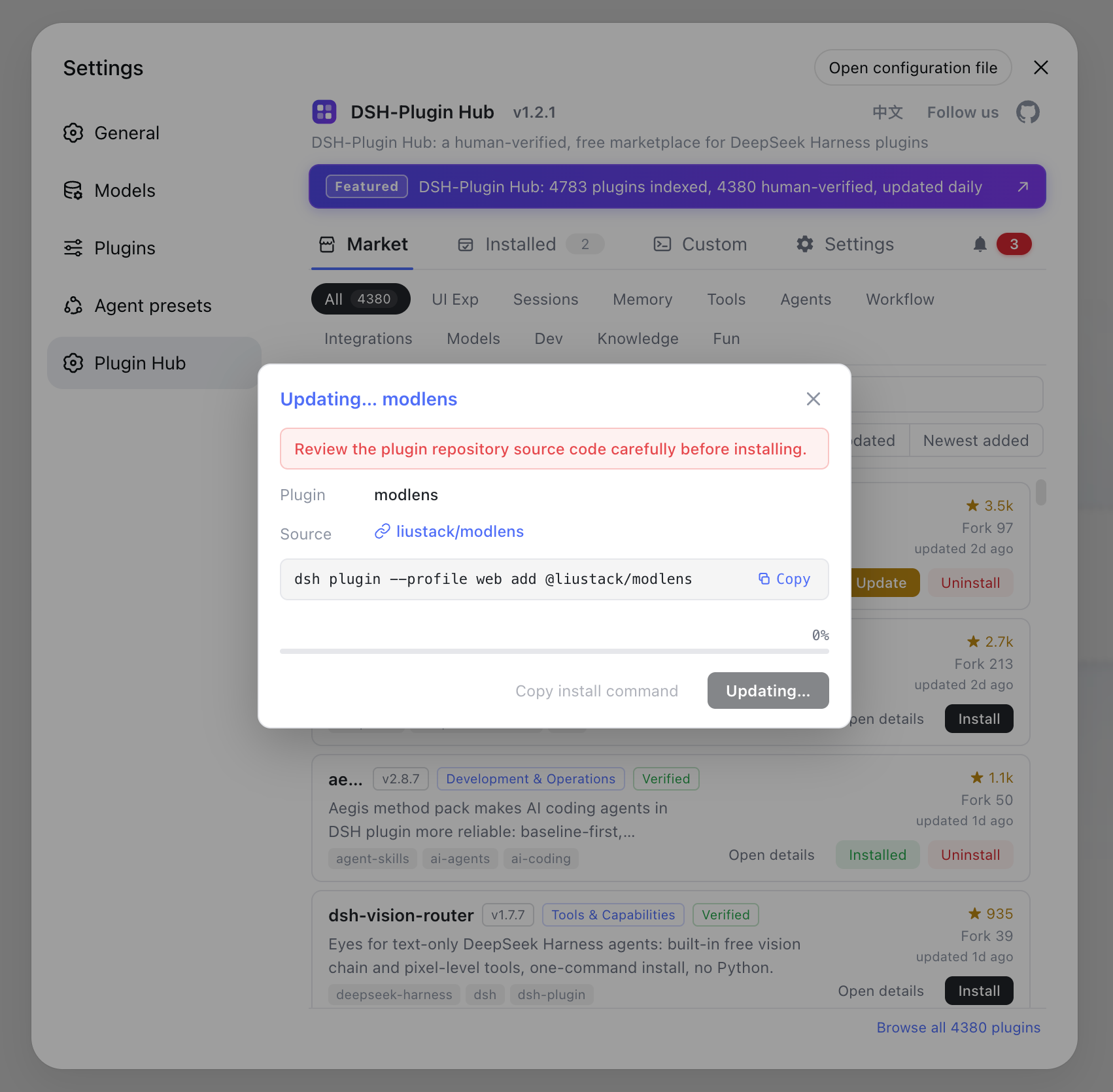
The Hub also shows which DSH version each plugin is compatible with, so you can avoid breakage after upgrading. See How to use DSH Plugin Hub for installing and using it.
Step 5: Verify the upgrade result
An upgrade is only done when verified — confirm the version and run a quick smoke test. Steps:
- Re-run
dsh --versionand confirm it matches the latest version found in Step 2. - Launch the Web UI (
npx @deepseek-ai/dsh webordsh web) and send a simple task to confirm core features work. - If plugins fail to load or the UI misbehaves after upgrading, see DSH troubleshooting.
How to read rc versions in the DeepSeek Harness release cadence
rc means release candidate: 0.1.0-rc.6 is the 6th candidate before the 0.1.0 stable release. This follows semantic versioning — major.minor.patch with a -rc.N suffix for the candidate stage. DeepSeek Harness is still in developer preview, so several rc releases ship before a stable release for community testing and feedback; seeing rc on Releases or npm is normal, not a broken build. Interfaces can shift between rcs, which can affect plugin compatibility — when a version contains rc, check each plugin's stated compatibility status (verified / unconfirmed) before upgrading.
Notes before upgrading
Back up session data before upgrading and verify core features afterwards — standard practice for preview releases. Three things:
- Back up session data: sessions live under
~/.dsh/sessions; copying them before an update is the safest rollback:
cp -r ~/.dsh/sessions ~/.dsh-sessions-backup
- Check plugin compatibility: preview releases can carry breaking changes, so check the compatibility status shown on each plugin before upgrading plugins.
- Smoke-test after upgrading: send one task and switch workspaces once to confirm nothing broke.
Sources: DeepSeek Harness official site, Official Quickstart, deepseek-ai/deepseek-harness
FAQ
Run dsh --version (or dsh -V) to print your current version. If you use npx, every launch pulls the latest package so there is no local install to check; use npm view @deepseek-ai/dsh version for the newest one.
Two ways: run npm view @deepseek-ai/dsh version in the terminal for the newest npm release, or open the Releases page of the deepseek-ai/deepseek-harness repository to read the changelog.
It depends on how you installed it: npx users just re-run npx @deepseek-ai/dsh web; source builds run git pull, pnpm install, and pnpm run build; plugins are updated with dsh plugin --profile web update.
rc stands for release candidate. 0.1.0-rc.6 means the 6th candidate before the 0.1.0 stable release. DeepSeek Harness is in developer preview, so rc releases ship first and interfaces may still change.
Back up your session data under ~/.dsh/sessions and check each plugin's compatibility status. Preview upgrades can carry breaking changes, so verify your main workflows after updating.
Sources
- DeepSeek Harness official site· DeepSeek
- DeepSeek Harness docs - Quickstart· deepseek-harness
- deepseek-ai/deepseek-harness· GitHub