DeepSeek Harness update stuck or slow? Fix dsh update hanging and speed up
A stuck or slow DeepSeek Harness update is handled in five steps: decide whether it is really stuck, interrupt with Ctrl+C, clear the cache, speed up the network (npm mirrors, git proxies), then retry. For plugins, install DSH Plugin Hub and update with one click from Settings → Plugin Market.
Overview: the debugging route for a stuck update
This guide breaks the debug flow into five steps: decide if it is really stuck, interrupt safely, clear the cache, accelerate the network, and retry. DeepSeek Harness is in preview and iterates fast, so updates happen in three stages: npm package downloads (npx and plugins), git code pulls (source builds), and build artifacts. All three depend on the network, so the root causes cluster around connectivity — the official npm registry is slow in some regions, git connections to GitHub can be unstable, and misconfigured proxies leave requests hanging. Less often, corrupted local caches or dependency conflicts surface as errors rather than a silent freeze (source). The route:
| Step | Purpose | Key action |
|---|---|---|
| Step 1 | Decide if it is really stuck | watch staged output, throughput, time |
| Step 2 | Interrupt safely | Ctrl+C |
| Step 3 | Clear the cache | npm cache clean --force |
| Step 4 | Speed up the network | npm mirror / git proxy |
| Step 5 | Retry the update | re-run the command and verify |
Step 1: Decide whether the update is really stuck
A normal update keeps printing staged progress; a long freeze on one stage with zero throughput and an unresponsive process is what counts as stuck. How to tell:
- Watch the staged output: npm prints download progress, git prints
remote: ...andReceiving objectswhile fetching, and builds print compile logs. As long as the output keeps moving, it is not stuck. - Watch the time: a single large dependency taking tens of seconds to a few minutes is normal; the same stage frozen for minutes is effectively stuck.
- Watch the throughput: open Task Manager / Activity Monitor — if network usage is zero while the command prints nothing, the connection has likely died.
Source builds need extra patience: the first install fetches the entire dependency tree over the network and is much slower than npx — that is normal, and incremental builds get faster (source).
Step 2: Interrupt the stuck update safely
When it is stuck, interrupt decisively: press Ctrl+C to stop the current command. Key points:
- Press
Ctrl+Cin the stuck terminal window; the command receives the interrupt signal and exits. - Wait until the prompt returns and confirm the process really quit; if nothing happens, press it again or check whether another dsh process is still running.
- The interruption never corrupts data — updates only touch code and dependencies, and session data under
~/.dsh/sessionsis unaffected.
Do not kill the whole terminal or force-quit the system: Ctrl+C is the clean interrupt and avoids leaving partial download temp files behind.
Step 3: Clear the cache and leftovers
Clear the cache before retrying so a corrupted cache cannot stall or error again. Handle it by case:
# 1. Clear the npm cache (affects npx downloads and plugin updates)
npm cache clean --force

# 2. Check the configured npm registry to see which source you are on
npm config get registry
For source builds that stalled on git, confirm the repository state after interrupting:
# Enter the repository
cd deepseek-harness

# Check status for leftover merge / pull intermediate states
git status
If there is an unfinished operation or conflict, resolve it before retrying; if node_modules looks half-installed, delete it and run pnpm install again.
Step 4: Speed up the network (npm mirrors and git proxies)
Acceleration is about picking a faster path: switch npm to a mirror registry and route git through a proxy or a mirror repository. Concretely:
# Switch npm to a mirror registry (npmmirror as an example)
npm config set registry https://registry.npmmirror.com

# Check the current registry to confirm the switch
npm config get registry
Both npx downloads and DSH plugin updates go through npm, so switching the registry gives a visible speedup. When git cannot reach GitHub, configure a proxy (git config --global http.proxy http://127.0.0.1:your-port) or use a mirror repository. Note: switching the registry only affects npm downloads — it does not affect DeepSeek Harness features or session data; restore the official source with npm config set registry https://registry.npmjs.org.
Step 5: Retry the update and verify
After clearing the cache and fixing the network, re-run the original update command. Pick the one matching your install method:
# npx: re-running the launch command re-fetches packages
npx @deepseek-ai/dsh web

# source build: pull code + install deps + rebuild
cd deepseek-harness
git pull
pnpm install
pnpm run build
pnpm dsh web

# plugins: update all plugins in the current profile
dsh plugin --profile web update
If it still stalls at the same place, the network environment itself is likely the problem — try a different network (e.g. a phone hotspot) or wait for the connection to recover. Confirm the version with dsh --version after the update finishes.
Stuck plugin updates: one-click updates in DSH Plugin Hub
A stuck dsh plugin update is usually the same npm network issue; to skip the CLI, install DSH Plugin Hub and update in-app. dsh plugin forwards its arguments to pnpm inside the profile directory, so a stuck plugin update shares the same root cause as npx downloads — the network (source). With the Hub installed, the flow becomes:
- Open Settings → Plugin Market; the Hub flags plugins with a newer version using an "Update" button.
- Click "Update" for a one-click overwrite install, with live progress shown in the UI.
- On failure, the UI shows the error directly — no digging through terminal logs.
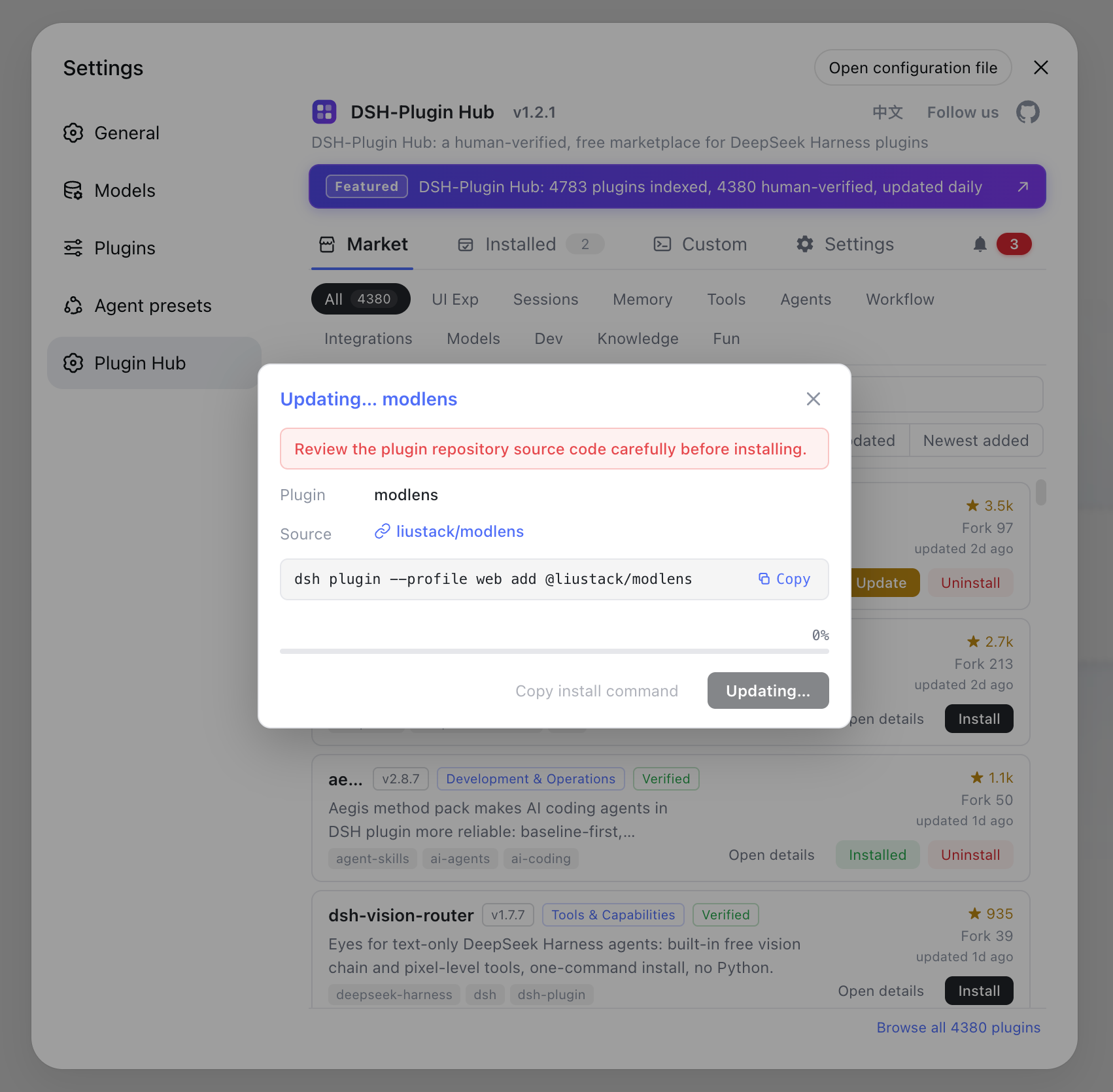
The Hub indexes 10000+ community plugins, 10000+ of them hand-verified; see How to use DSH Plugin Hub for installing and using it.
After a stuck update: what to check next
Do not give up after an interruption — debug in order: network → cache → repository state → retry. A few reminders:
- Updates only touch code and dependencies, so a stuck update loses no data; backing up
~/.dsh/sessionsbefore updating is still recommended. - Repeated force interruptions can leave broken dependencies — confirm the git repo is clean and
node_modulesis healthy before retrying, deleting and reinstalling if needed. - If plugins fail to load or the UI misbehaves after an update, that is not a network issue — see DSH troubleshooting.
Sources: DeepSeek Harness official website, DeepSeek Harness Documentation - Reference, dsh CLI README
FAQ
Watch the progress output. npm downloads and git fetches both print staged progress; if output stays frozen on one stage, the network speed hits zero, or the process stops responding for minutes, it is effectively stuck. A large dependency download of tens of seconds to a few minutes is still normal.
Press Ctrl+C to stop the command, then run npm cache clean --force to clear the cache, remove any leftover temporary files, and re-run the original command in a cleaner network environment. For source builds, read the git output first and confirm the repository is clean before retrying.
If the official npm registry is slow, switch mirrors with npm config set registry https://registry.npmmirror.com. If git stalls pulling code, configure a proxy or use a mirror repository. A first-time source build fetches a large dependency tree and is naturally slower than npx.
dsh plugin update forwards its arguments to pnpm inside the profile directory, so a stuck plugin update is usually the same npm network issue. Alternatively update in-app: with DSH Plugin Hub installed, Settings → Plugin Market flags new versions and updates with one click while showing live progress.
No. Updates only touch code and dependencies; session data under ~/.dsh/sessions is unaffected. Frequent force interruptions can, however, leave broken dependencies — confirm the git repo is clean and node_modules is healthy before retrying.
Sources
- DeepSeek Harness official website· DeepSeek
- DeepSeek Harness Documentation - Reference· deepseek-harness
- dsh CLI README· deepseek-ai