DSH plugin market install prerequisites checklist
Five checks come before any DSH plugin install: dsh runs, the target profile exists, the package manager is available, the registry is reachable, and $DSH_HOME is writable. They map to the three things an install always does — resolve dependencies, write into the profile directory, and record the dependency — so failing any one of them shows up as an install error. This is the before-you-start checklist; if you are already stuck mid-install, read when a plugin install gets stuck instead.
Check 1: dsh runs, and it is the right dsh for DSH plugins
The install command comes from dsh, so confirm the command actually runs first (source). Two steps:
- Check the version — run
dsh --version. Expected: a version number prints; a command-not-found error means it is not on PATH, see dsh command not found. - Know where it came from — the desktop app's built-in dsh and an npm-installed dsh share one implementation, but the desktop app owns the desktop profile exclusively. Expected: you know which one you are using, so plugins do not land in the wrong profile; see desktop commands.
Check 2: the target DSH plugin profile exists
DSH plugins are isolated per profile, so the profile has to exist before you install into it (source). Two steps:
- List existing profiles — run
echo $DSH_HOMEthenls "$DSH_HOME/profiles". Expected:web,headlessor your own names appear; if nothing is there, the host has never run. - Initialise as needed — start
dsh webonce, or launch the desktop app once. Expected: the profile directory acquirespackage.jsonandnode_modules, giving the install a destination.
Check 3: package manager and network for a DSH plugin install
The install delegates package fetching to the package manager, so you do not type pnpm yourself, but the machine must be able to resolve packages. Three steps:
- Check Node — run
node -v. Expected: a version number; npx and global installs bring their own Node, so nothing extra is required. - pnpm matters only for a source build — run
pnpm -v. Expected: required only if you installed the host from source, in which case complete that step first. - Confirm the registry is reachable — run
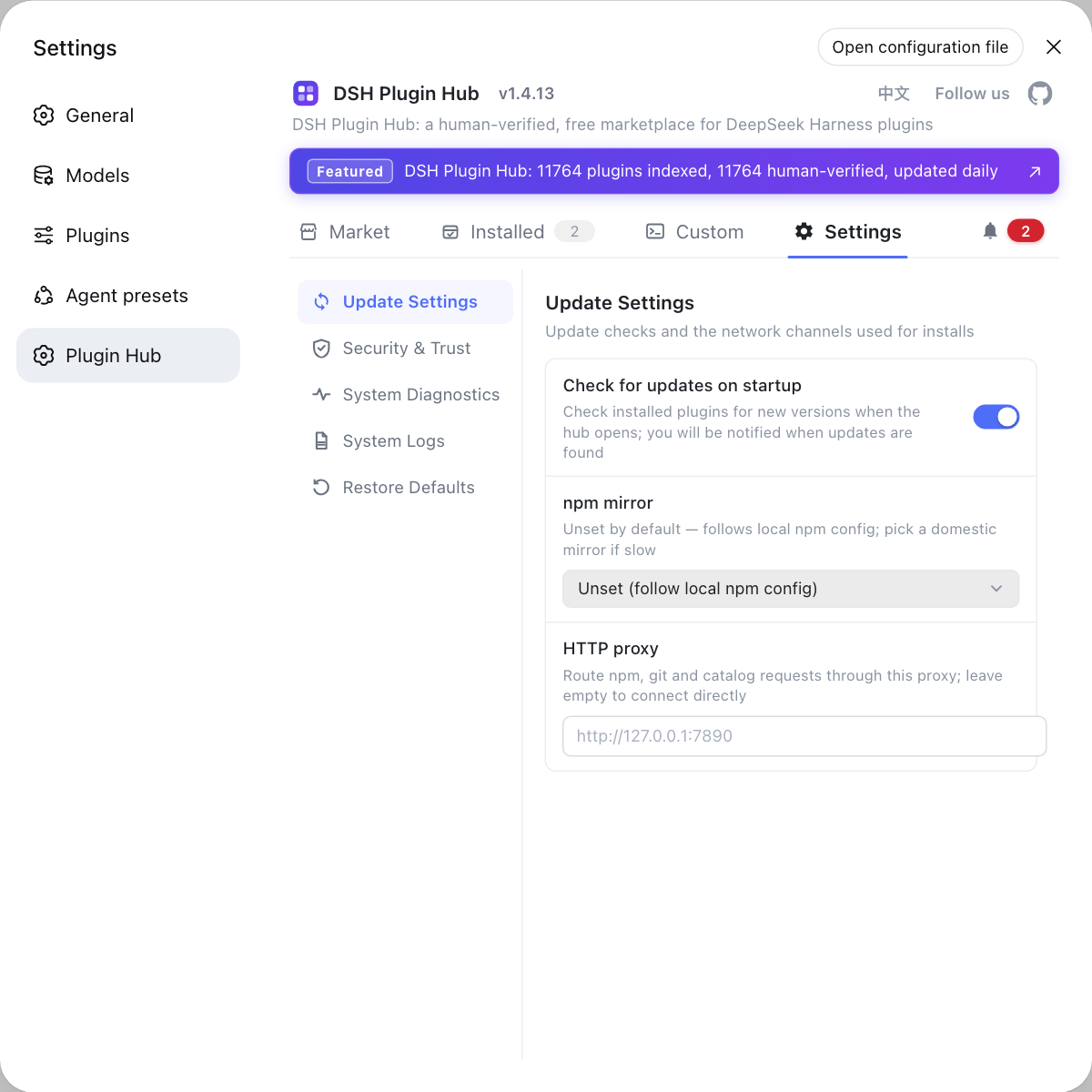
npm config get registry. Expected: a usable source address; slow downloads and 404s are handled in slow or half-finished plugin installs.
Check 4: directory permissions and disk space for a DSH plugin install
Plugins finally land in $DSH_HOME/profiles/<name>, so that directory must be writable by your account and the disk must have room (source). Two steps:
- Confirm you own the directory — inspect the owner of
$DSH_HOME. Expected: your own account; if a past sudo install left it owned by root, every install will fail with a permission error until ownership is restored. - Check free space — run
df -h. Expected: plenty of room on the data volume, since plugin dependencies occupy both the profile'snode_modulesand the global pnpm store.
Check 5: have the plugin market ready
With the prerequisites met, the first thing to do is make sure the plugin market is available, since it is the main surface for finding, installing and reviewing plugins. Two steps:
- Install DSH Plugin Hub — run
dsh plugin --profile web add dsh-plugin. Expected: after restartingdsh web, a plugin market entry appears in Settings. - Confirm it opens — open Settings → Plugin Market. Expected: plugin cards are listed; an empty list behind a working entry usually means the network or catalog endpoint is unreachable, so return to check 3.
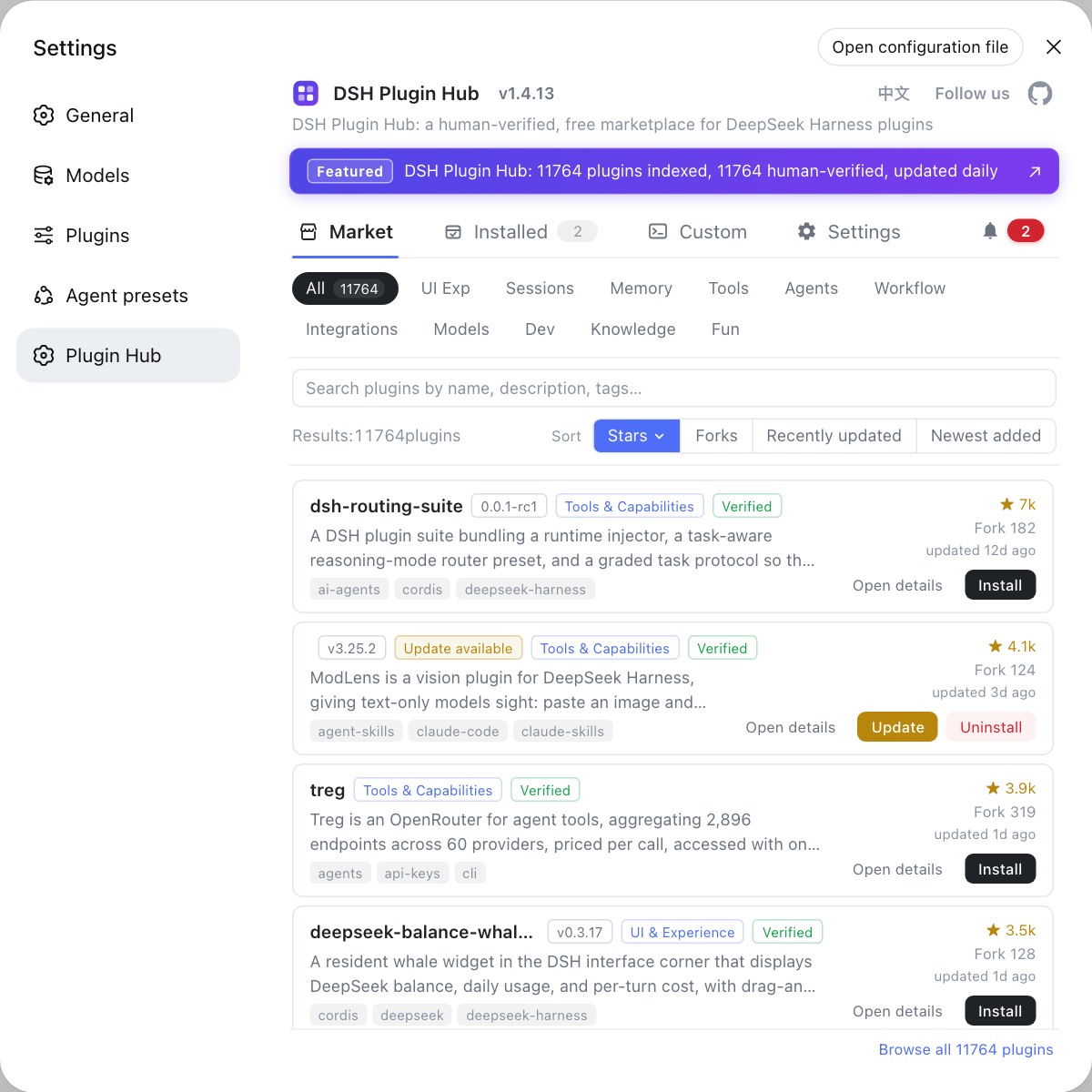
The plugin market is both the install entry and the review surface, so installing it now saves a trip back to the terminal. See using the plugin market.
Notes and limits for DSH plugin prerequisites
- These checks cover the environment, not the plugin: every item points at local conditions, so do not suspect the plugin first.
- The profile must exist: this is the most common cause of a plugin that installs but stays invisible, so initialise the web UI or the desktop app once.
- Never reach for sudo: a wrong directory owner breaks every later install, so fix ownership first.
- Network problems come in two kinds: slow and 404 are source issues, timeouts and authentication failures are path issues, and they are fixed differently.
- Still verify afterwards: passing the checks means the install can run, not that it landed correctly, so confirm with
listand the plugin market's installed list.
Sources: dsh CLI README, DeepSeek Harness README, dshplugin/dsh-plugin-hub
FAQ
**Before a DSH plugin install, five items must pass: dsh runs, the target profile exists, the package manager is available, the registry is reachable, and $DSH_HOME is writable.** A DeepSeek Harness plugin install resolves dependencies and writes into the profile directory, so any one of these failing surfaces as an install error. A minute of checking saves a longer troubleshooting session.
**No — the plugin market cannot find the profile because it has not been created yet.** DSH plugins are isolated per profile, and the profile must exist before you install into it. Start dsh web once for the web profile, or launch the desktop app once, and the profile is initialised so the install has a destination.
**A DSH plugin install is driven by the dsh command, so you do not run pnpm by hand.** What you do need is a working dsh: npx and global installs bring their own Node, a source build needs pnpm and a completed build first, and the desktop app ships its own runtime so no separate Node install is needed.
**When a DSH plugin install fails, rule one cause out at a time: check registry reachability, then directory writability.** Run npm config get registry to confirm the source and retry against the official registry if needed. If the error mentions EACCES or permission denied, $DSH_HOME is not writable, usually because an earlier sudo install changed its ownership.
**Yes, a full disk can make a DSH plugin install fail, and the error is rarely obvious.** DeepSeek Harness plugins land in the profile's node_modules while pnpm also keeps a global store, and both consume space. A full disk can interrupt an install or leave a half-written package behind, so check free space on the data volume with df -h before you start.
Related Terms
- prerequisites check
- A prerequisites check verifies that the environment is ready before you install a DSH plugin. It targets environment-not-ready failures and runs in the opposite direction from troubleshooting articles that start after an install gets stuck.— dsh CLI README
- profile
- A profile is the unit that organises the plugin layer in DeepSeek Harness, located at $DSH_HOME/profiles/<name>, with its own dependencies and configuration. Plugins are isolated per profile, so the target profile has to exist first.— dsh CLI README
- $DSH_HOME
- $DSH_HOME is the data root environment variable for DeepSeek Harness, holding profiles, plugins and caches; it defaults to ~/.dsh when unset. Installing plugins requires that directory to be writable by the current user.— dsh CLI README
- registry
- The registry is the npm package repository address, set by the registry key in .npmrc and shared by npm and pnpm. A plugin install needs it to be reachable from the current network, otherwise fetching times out or returns 404.— dsh CLI README
Sources
- dsh CLI README· deepseek-ai
- DeepSeek Harness README· deepseek-ai
- dshplugin/dsh-plugin-hub GitHub repository· GitHub