'dsh' is not recognized as a command: fix PATH & install
'dsh' is not recognized as an internal or external command is the most common dsh error on Windows - it means the dsh executable is missing from PATH. Locate it in three steps: confirm the environment with node -v, check the global install with where dsh, then find the npm bin directory with npm config get prefix and add it to PATH. If you would rather skip PATH entirely, npx @deepseek-ai/dsh web runs without installing anything (source).
Overview: locate the problem in three steps
"Not recognized as an internal or external command" has exactly two possible causes: dsh is not installed, or it is installed but its directory is not on PATH. Diagnose in three steps:
- Check the Node environment:
node -v,npm -v- without Node, nothing else matters; - Check the global install:
where dsh- output means the command is visible; if empty, checknpm ls -g @deepseek-ai/dsh; - Fix PATH: run
npm config get prefix, add the global directory to PATH, and reopen the terminal.
Each step is detailed below with commands.
Step 1: common causes - not installed, not global, or missing PATH
Before touching PATH, rule out the four possibilities below - most people are stuck on "installed but not on PATH". Run these in order:
# 1. Is Node installed?
node -v
npm -v

# 2. Is dsh installed globally? (check the global package list)
npm ls -g @deepseek-ai/dsh

# 3. Can the system find dsh? (printing a path means it is fine)
where dsh
Match your output:
| Symptom | Conclusion | Fix |
|---|---|---|
node -v errors | Node not installed | Install Node.js LTS first |
npm ls -g says empty | dsh not installed globally | Run npm install -g @deepseek-ai/dsh |
npm ls -g shows it, where dsh empty | Installed but PATH missing | Go to step 2 |
where dsh works but still errors | Terminal cached old PATH | Open a new terminal |
The third row is the most common: the package is there, the system just cannot find it - that is a PATH problem.
Step 2: fix PATH on Windows - npm config get prefix + setx
The fix is to add the npm global bin directory to PATH: find the directory, add it, then open a new terminal. Three commands:
# 1. Find the npm global directory (commonly C:\Users\<user>\AppData\Roaming\npm)
npm config get prefix

# 2. Append the npm global directory to the user PATH (takes effect in a new terminal)
setx PATH "%PATH%;%APPDATA%\npm"

# 3. Open a new terminal window and verify
where dsh
dsh --version
Two traps to remember:
setxtruncates PATH at 1024 characters: if your PATH is already long,setxwill drop entries. The safer route is Settings > Environment Variables > user PATH > Edit > New, and paste the directory from step 1;- A new terminal is mandatory:
setxonly writes the registry; already-open windows will not pick it up. Reopen CMD/PowerShell before verifying.
To confirm the PATH is complete, where dsh should print something like C:\Users\<user>\AppData\Roaming\npm\dsh.
Step 3: skip PATH entirely - npx one-liners
If you only need dsh occasionally or would rather not touch PATH, npx @deepseek-ai/dsh web bypasses global install entirely: npx pulls the latest package on the fly without installing anything to your system, so the PATH problem never arises. Usage:
# Start the Web UI without installing (first run downloads the package)
npx @deepseek-ai/dsh web
Trade-offs of this route:
- Pros: zero configuration, always the latest release, the "command not found" error disappears;
- Cons: every launch hits the network and the prefix is long - for daily use a global install is more comfortable;
- More: the full global-vs-npx comparison is in npm install -g @deepseek-ai/dsh: global install vs npx.
Once the CLI works: add plugins with DSH Plugin Hub
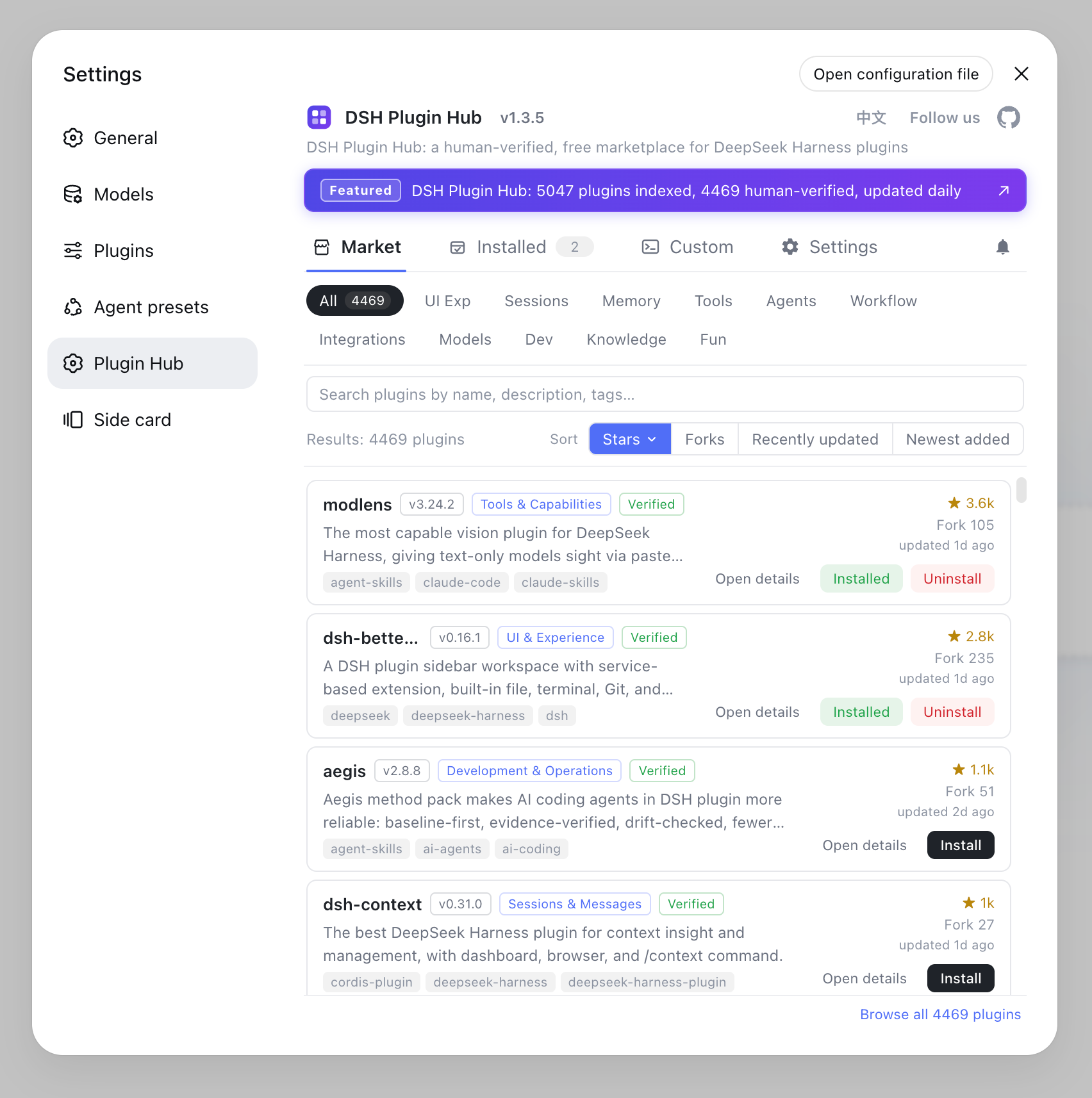
With the command line working, the most convenient way to install plugins is DSH Plugin Hub under Settings > Plugin Market - click buttons instead of memorizing package names or touching PATH. Install the Hub itself:
dsh plugin --profile web add dsh-plugin
Restart dsh web and open Settings > Plugin Market: browse 10000+ community plugins by category, click a card to install with live progress. When the CLI does report errors, the Hub's result dialogs give you a visual fallback instead of staring at a terminal.
Notes
One sentence: confirm it is installed first, then fix PATH, and only then consider alternatives. Three reminders:
- Not just Windows: on macOS/Linux the error reads
command not found- usewhich dshand add the npm bin directory (the bin dir undernpm config get prefix) to your shell's PATH; - Reopen the terminal after changes: PATH is read at shell startup; without a new window, the change is invisible;
- npx also fails: npm itself is broken - check
npm -vfirst, or see DSH plugin download failures and slow downloads for registry and network issues.
Sources: DeepSeek Harness docs - Quickstart, dsh CLI README, npm docs
FAQ
It means Windows cannot find the dsh executable on PATH. There are only two common causes: dsh is not installed, or it is installed but its bin directory is missing from PATH. Follow the three diagnostic steps in this article to locate which one applies.
The npm global bin directory is probably not on PATH. Run npm config get prefix to find it (commonly C:\Users\<user>\AppData\Roaming\npm on Windows), verify with where dsh, add that directory to PATH, and open a new terminal.
Run npm config get prefix in cmd, then setx PATH "%PATH%;%APPDATA%\npm". If your PATH is very long, setx may truncate at 1024 characters - use Settings > Environment Variables instead. Reopen the terminal and verify with where dsh.
Yes - run npx @deepseek-ai/dsh web. npx fetches the latest package on the fly without installing anything to your system, so there is no PATH problem at all. Great for a quick try or just launching the Web UI.
Three checks: node -v and npm -v for the Node environment; where dsh for the command path (output means it is installed and visible); npm ls -g @deepseek-ai/dsh for the global package list. If where dsh is empty but npm ls -g shows it, that is a PATH issue.
Sources
- DeepSeek Harness docs - Quickstart· deepseek-harness
- dsh CLI README· deepseek-ai
- npm docs - global bin directory· npm