Fix DSH plugin install stuck on allowBuilds and unpublished dependencies
A DSH plugin install stuck on dependencies comes from two errors: an allowBuilds prompt (pnpm blocks build scripts by default and requires whitelisting) and @deepseek-ai/dsh-type-meta not found (a dependency not yet published to the registry — no client-side fix). Approve allowBuilds for the first, confirm the dependency is published for the second, then switch to a published build. Handle it in three steps.
DSH plugin install errors: the allowBuilds prompt and the missing dependency
Error one: the allowBuilds prompt. A plugin installed from GitHub ships a prepare build script; pnpm blocks it by default and prints a hint asking you to edit allowBuilds to decide (source):
- You run
dsh plugin --profile web add git+https://github.com/xxx/repo.git; - pnpm resolves the package and finds a
preparebuild script; - pnpm blocks the script by default and prompts you to edit
allowBuilds; - Key judgment: this is a safety mechanism, not a network error — the script really exists and is merely held back by the default policy.
Error two: @deepseek-ai/dsh-type-meta not found. A dependency of the plugin cannot be resolved (source):
- You install a plugin and pnpm reports the package is missing while resolving dependencies;
- Search for the package on npmjs.com — if the name does not exist, the dependency has not been published to the registry;
- Note that the name may also be dead after an official rename (the corresponding package was renamed to
@deepseek-ai/dsh-typert-protocol), so older plugins referencing the old name report it missing; - Key judgment: there is no client-side fix — this is a publishing-side problem.
Why DSH plugin installs get stuck: blocked build scripts, unpublished dependencies
The two errors have different roots: allowBuilds is pnpm's default safety policy (build scripts need a whitelist), while the missing dependency is a publishing gap (or a package rename). In detail:
- Blocked by default: pnpm blocks any package's build scripts by default for safety, and
allowBuildsis the explicit whitelist mechanism (source); the DeepSeek Harness repo itself maintains such a whitelist in itspnpm-workspace.yaml. - Publishing gap: a plugin declares a dependency that has not been published to the registry, so pnpm cannot resolve it — this is a publishing-side problem; reinstalling will never help, the author must publish first (source).
- Package rename: after an official rename the old name no longer exists on the registry, and older plugin versions still referencing the old name report it missing — the dependency must be updated to the new name.
- Both make the install "stuck", but the fixes differ completely: whitelisting is a config change, a publishing gap just requires waiting.
Fix DSH plugin dependency issues: approve allowBuilds, confirm publish, switch build
Split by error: an allowBuilds prompt gets a safe approval; a missing dependency gets a publish check; a stubborn install gets replaced by a published build. Step by step:
- Safely approve allowBuilds — edit
pnpm-workspace.yamlin the workspace and add the package pnpm hints at to the whitelist:Save and rerun the original install command; only approve packages you trust and that genuinely need build scripts — never enable everything (source);yamlallowBuilds: <the package pnpm pointed at>: true - Confirm whether the dependency is published — search for the package name from the error:
- On npmjs.com: found → use
npm view <package>to confirm the version matches what your plugin requires; - Not found → the dependency is unpublished; there is no client-side fix — report it to the author and wait for the publish;
- If it is a rename case → update the plugin's dependency to the new name (
@deepseek-ai/dsh-typert-protocol) and reinstall;
- On npmjs.com: found → use
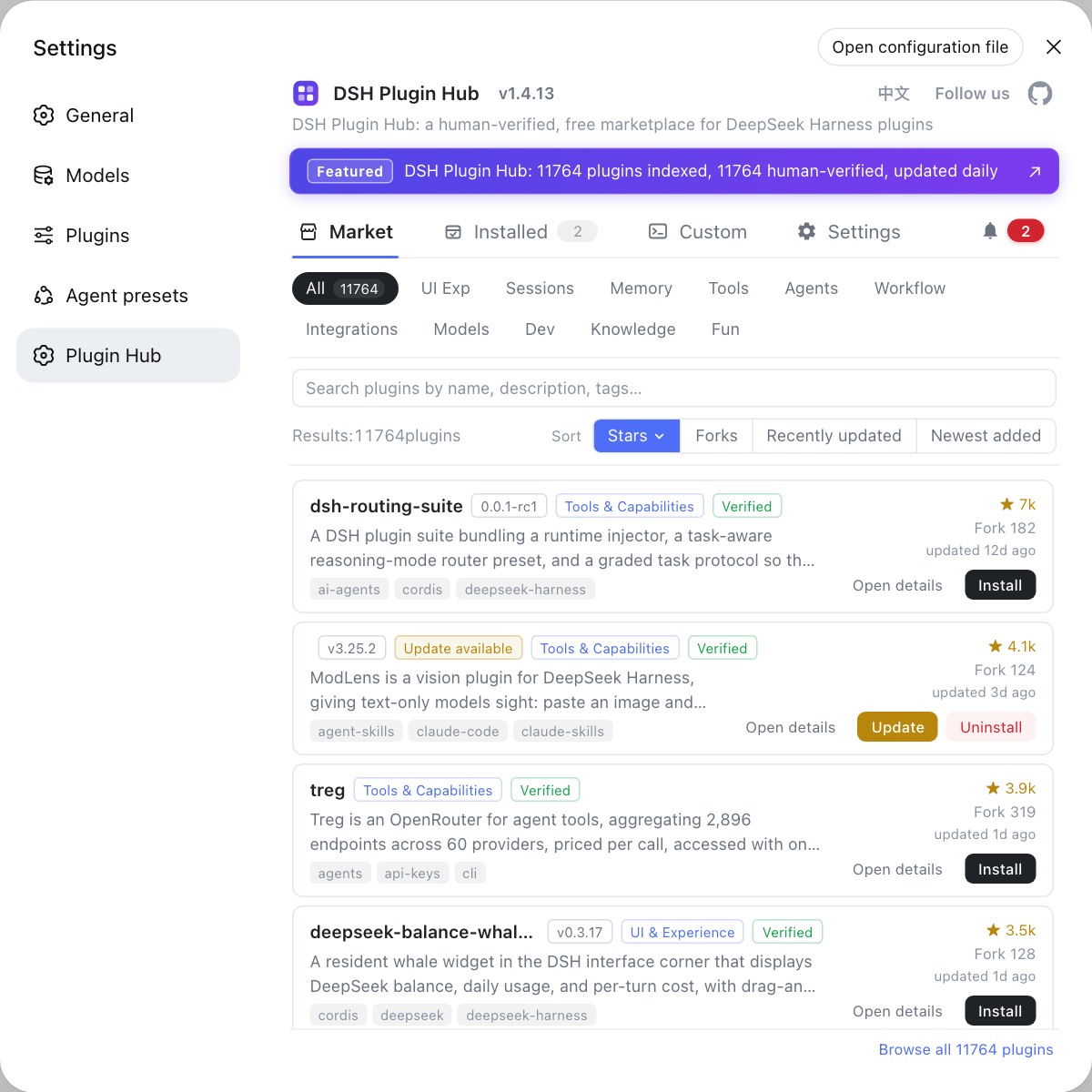
- Switch to a published build — go back to Settings → Plugin Market (DSH Plugin Hub), search for the same plugin, and install a verified published build instead of the broken package; uninstall the stuck install and install the hub version;
- Verify — rerun the install command; the dependency resolves and neither allowBuilds nor the missing-package error appears, then restart the host and confirm the plugin loads.
How to verify a DSH plugin dependency fix: clean reinstall, resolvable dependency, and host load
Verification has four gates: the reinstall no longer prompts, the whitelist and the dependency are confirmed, the plugin enters the list, and the host restarts cleanly — only when all four pass is the fix complete. In order:
-
Rerun the install command:
bashdsh plugin --profile web add <package>No allowBuilds prompt, no
not founderror, and a normal dependency resolution means the first gate passes. -
Confirm the whitelist entry is saved — check the workspace you edited:
bashgrep -A2 'allowBuilds' pnpm-workspace.yamlSeeing the package name you added (value
true) means the approval took effect; if it is missing, save the file and retry the install. -
Confirm the dependency exists on the registry (for the
not foundcase):bashnpm view @deepseek-ai/dsh-type-meta versionA version number means the dependency is published; a 404 means you are still waiting on the author; for the rename case, verify against the new name
@deepseek-ai/dsh-typert-protocol. -
Confirm the plugin entered the installed list:
bashdsh plugin --profile web listThe package you just installed appears → the install succeeded.
-
Restart the host and confirm the plugin loads:
bashdsh webNo
not found-style errors in the startup log and the plugin capability works in the Web UI means the whole chain is clear.
Notes: DSH plugin — approve allowBuilds safely
- The allowBuilds whitelist is a safety mechanism — only approve packages you trust; do not enable everything for convenience.
- For a missing dependency, first check whether the package exists on the registry — do not keep reinstalling; reinstalls never fix a publishing-side gap.
- For a rename case, update the package name — older plugins referencing the old name will keep reporting it missing.
- For plugins that repeatedly fail to install, switching to a verified published build on DSH Plugin Hub is the fastest path.
- See install error troubleshooting for other DeepSeek Harness install errors.
Sources: dshbase troubleshooting, pnpm official settings docs, DeepSeek Harness pnpm-workspace.yaml
FAQ
A DSH plugin installed from GitHub ships a prepare build script, and pnpm blocks every package's build scripts by default for safety — it prints the allowBuilds hint so you can decide. Add the package name pnpm points at to allowBuilds in pnpm-workspace.yaml and rerun the install (source: dshbase troubleshooting).
A DSH plugin install reporting "not found" means the plugin depends on a package that has not been published to the npm registry yet — there is no client-side fix; the author must publish the dependency first. It can also mean the old name no longer exists after an official rename (the official package was renamed to @deepseek-ai/dsh-typert-protocol). Check whether the name exists on npmjs.com, then either wait for the publish or update the package name.
To approve allowBuilds safely for a DSH plugin: add a whitelist entry in pnpm-workspace.yaml in the plugin workspace: write the package name pnpm hints at into the allowBuilds map (value true or a dependency policy), save, then rerun the install command. Only approve packages you trust and that genuinely need build scripts — never enable everything (source: pnpm settings).
For a DSH plugin stuck on an unpublished dependency, switch to a published build: go back to the DSH Plugin Hub store and install a verified published version of the plugin instead of the broken package. If the only available version depends on an unpublished package, wait for the author to publish the dependency rather than forcing the install.
Related Terms
- allowBuilds
- allowBuilds is pnpm's build whitelist configuration declaring which packages may run their install scripts (such as prepare); packages not on the list have their builds blocked by default.— pnpm official settings docs
- build script (prepare etc.)
- Build scripts are lifecycle scripts a package runs during installation (such as prepare running a build); pnpm blocks them by default for safety, and they must be explicitly allowed via the allowBuilds whitelist.— pnpm official settings docs
- registry
- The registry is the public repository of npm packages; "dependency not published" means a dependency declared by a plugin has not been published to the registry, so the client cannot resolve it and must wait for the author.— dshbase troubleshooting
- pnpm-workspace.yaml
- pnpm-workspace.yaml is the pnpm workspace configuration file; DeepSeek Harness and plugin projects use it to declare dependencies and the allowBuilds build whitelist.— DeepSeek Harness official repo