DeepSeek Harness desktop commands: dsh plugin, profile, CLI
DeepSeek Harness desktop commands fall into three layers: Manage dsh Command in the app menu installs the command-line entry into the system, dsh plugin --profile desktop manages desktop plugins, and ordinary profile commands share one implementation with the npm-installed dsh. The one hard limit is that the CLI cannot start the desktop profile.
This article covers the desktop-specific layers only. For general dsh web, dsh plugin add arguments and exit codes, see the dsh command cheatsheet.
DeepSeek Harness desktop commands: the three layers
Desktop-related commands split into three layers: the Manage dsh Command menu handles installing and removing the command-line entry, dsh plugin --profile desktop handles desktop plugins, and ordinary dsh commands share one implementation with the npm-installed dsh (source).
| Command or entry point | Belongs to | Purpose |
|---|---|---|
| Manage dsh Command (app menu) | Desktop app | Install, repair or remove the dsh command-line entry |
dsh plugin --profile desktop <add|list|remove> | Bundled desktop command | Manage plugins inside the desktop profile |
dsh --version, dsh plugin --profile web add <package> | Regular dsh CLI | Same implementation as an npm-installed dsh |
There is a single prerequisite: the command-line entry must first be installed through Manage dsh Command before a dsh command exists on the system, and that registration is an optional step after installing the desktop app (source).
DeepSeek Harness desktop: using Manage dsh Command
Manage dsh Command sits below Check for Updates in the app menu, and its dialog shows the current command with Install, Repair and Remove; installing creates /usr/local/bin/dsh on macOS and registers into the current user's PATH on Windows (source).
Four steps to install and verify:
- Open the dialog — app menu → Manage dsh Command. Expect the current command status plus Install, Repair and Remove.
- Click Install — macOS may ask for administrator authentication and does not modify shell startup files. Expect
/usr/local/bin/dshon macOS and a new PATH entry for the current user on Windows. - Verify in a new terminal — run
dsh --version. Expect a version number, which confirms the entry works; an already-open terminal may not see the new PATH, so reopen it. - Close the app and try again — quit the desktop app fully and run
dsh --versionin a fresh terminal. Expect the command to keep working, because it reuses the runtime the desktop app installed and does not need the app running.
Choosing between the three actions:
- Moved the app? Repair or reinstall — after moving the app, use Repair on macOS (it preserves and restores a replaced launcher) and Install again from the new location on Windows. Expect the command to point at the right app again.
- Higher-priority dsh found? Read the prompt — if another command has higher PATH precedence, the dialog shows its location. Expect to decide whether to switch, and switching between existing commands asks for confirmation first.
- Done with it? Remove — Remove leaves unrelated installations untouched, and on Windows it also keeps other PATH entries that predate registration. Expect the
dshcommand to disappear without affecting other installs. This step comes before uninstalling the app, as covered in How to uninstall the DeepSeek Harness desktop app.
Managing desktop plugins with dsh plugin --profile desktop
Installing a desktop plugin requires launching the desktop app once to initialise its profile, quitting it completely, then running dsh plugin --profile desktop add <package>; the change takes effect when the app is reopened (source).
Four steps:
-
Launch the desktop app once — open it, let it finish preparing the profile, then quit completely. Expect
$DSH_HOME/profiles/desktopto be ready so later commands are not refused for an uninitialised profile. -
Run the plugin commands — in a terminal:
shdsh plugin --profile desktop add <package> # install dsh plugin --profile desktop list # enumerate dsh plugin --profile desktop remove <package> # uninstallExpect them to run the way any profile does, keeping the shared profile write lock and compatibility checks.
-
Reopen the desktop app — start the app after closing the terminal. Expect added or removed plugins to take effect in the interface.
-
Note where the command comes from — it runs through the app's bundled runtime at
resources/runtime/cli/bin/dsh(dsh.cmdon Windows). Expect it to work even when the desktop app is not running, and not to open the app window.
DeepSeek Harness desktop profile limits: the CLI cannot touch it
Electron owns the desktop profile: the app takes a process-lifetime single-instance lock before touching any profile and owns $DSH_HOME/profiles/desktop, so a regular CLI cannot start or modify it (source).
Three limits, in order of importance:
- The CLI cannot start the desktop profile — a command like
dsh --profile desktopis not an entry point to the desktop app, and only the app itself can raise the graphical interface. Expect to launch the app by clicking its icon rather than from a terminal. - The bundled command refuses an uninitialised profile — running
dsh plugin --profile desktopbefore the app has ever started will be refused, and the command will not create a regular CLI profile in its place. Expect to launch the app once first, then return to the terminal. - End CLI commands before updating or uninstalling — the installer does not coordinate with a running command. Expect to wrap up first; the update flow is in How to update the DeepSeek Harness desktop app.
One more thing: an npm-installed dsh also cannot modify the desktop profile, and the only command that can manage desktop plugins is the one bundled with the app (source).
Notes on DeepSeek Harness desktop commands
- Register the command before typing
dsh— registration is optional, and without it the graphical interface is the only way to use the desktop app. - Commands share data, not executables —
dshand the desktop app share sessions, settings and credentials under$DSH_HOME, but keep executable packages,node_modulesand lockfiles separate. - Do not edit PATH by hand after moving the app — prefer Repair or Install in the dialog, which preserves other path entries.
- The CLI and the desktop app are two independent paths — the CLI's own commands are in the dsh command cheatsheet, and desktop installers come from the official site, as covered in DeepSeek Harness desktop download.
- The CLI does not expose Office authoring skills — the Office document skills shipped with the desktop app are only available inside the desktop app.
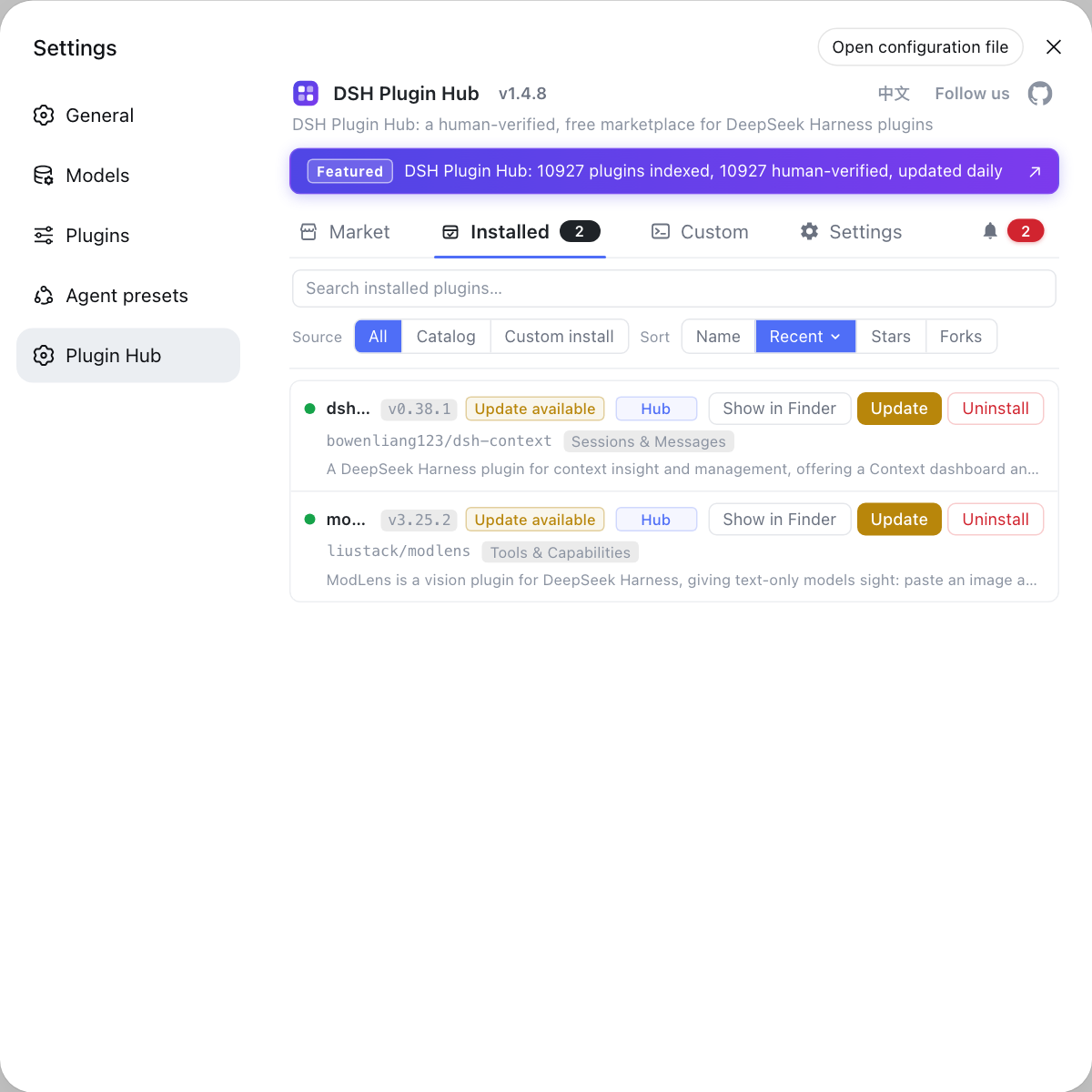
Managing desktop plugins does not have to mean typing commands. The built-in DSH Plugin Hub handles installing and removing DSH plugins in the interface, flags updatable entries in its installed list, and shows a confirmation dialog before uninstalling.
Sources: DeepSeek Harness desktop README, dsh CLI README, dshplugin/dsh-plugin-hub
FAQ
The command registration entry is Manage dsh Command in the DeepSeek Harness desktop app menu, sitting below Check for Updates, and it offers Install, Repair and Remove. After installing, open a new terminal and run dsh --version to verify. macOS creates /usr/local/bin/dsh, Windows registers into the current user's PATH, and the command keeps working after the app is closed.
Launch the desktop app once so it initialises its profile, then quit it completely, then run dsh plugin --profile desktop add <package> for installs, list to enumerate and remove <package> to uninstall; reopen the app to use the change. The bundled command refuses an uninitialised desktop profile and will not create a regular CLI profile in its place.
The DeepSeek Harness desktop profile is owned by Electron, so a regular CLI cannot start it: the desktop app takes a process-lifetime single-instance lock before touching any profile and owns $DSH_HOME/profiles/desktop together with its package manager state. A regular CLI cannot start or modify that profile, while the app's bundled command can still manage its plugins after the app exits; an npm-installed dsh cannot either.
The DeepSeek Harness desktop app's bundled dsh is the same implementation as an npm-installed dsh: it runs the ordinary CLI dispatch entry with the Electron executable and bundled pnpm, so regular profiles, configuration and plugin commands behave exactly as they do for an npm-installed dsh, except that it does not open the desktop app. The difference is profile ownership, since only the desktop app owns the desktop profile.
If the dsh command broke after moving the DeepSeek Harness desktop app, use Repair or Install in Manage dsh Command: on macOS use Repair after moving the app, which preserves and restores a replaced launcher, and on Windows use Install again from the new location. Switching between existing commands asks for confirmation first, while repairing the currently selected command does not ask again.
Related Terms
- Manage dsh Command (desktop menu item)
- Manage dsh Command is the command registration entry in the DeepSeek Harness desktop app menu, sitting below Check for Updates; it shows the current command and offers Install, Repair and Remove, reusing the runtime already installed by the desktop app.— DeepSeek Harness desktop README
- dsh plugin --profile desktop
- dsh plugin --profile desktop is the command form that manages DeepSeek Harness desktop plugins, paired with the add, list and remove subcommands, and it must run after launching the desktop app once and quitting it fully.— DeepSeek Harness desktop README
- bundled command runtime
- The bundled command runtime is the CLI launcher shipped inside the DeepSeek Harness desktop app at resources/runtime/cli/bin/dsh (dsh.cmd on Windows), running the ordinary CLI dispatch entry with the Electron executable and bundled pnpm.— DeepSeek Harness desktop README
- profile
- A profile is the unit DeepSeek Harness uses to organise plugin layers, each with its own dependencies and configuration; the desktop app owns the desktop profile, which does not start the web or headless profiles.— DeepSeek Harness desktop README
Sources
- DeepSeek Harness desktop README· deepseek-ai
- dsh CLI README· deepseek-ai
- dshplugin/dsh-plugin-hub GitHub repository· GitHub