DeepSeek Harness desktop uninstall: CLI registration, data
The one thing that matters when uninstalling the DeepSeek Harness desktop app is order: remove the dsh command registration before removing the app, because the app uninstaller will not do it for you. On Windows the uninstaller clears app data and update caches but never touches the sessions, settings, credentials and plugins under ~/.dsh.
This covers what to do first, what Windows clears, how to handle macOS, and when to choose Reset. The desktop app and the command-line version are separate, so removing the desktop app leaves the CLI alone, as outlined in DeepSeek Harness desktop download.
Before uninstalling the DeepSeek Harness desktop app: remove the dsh command registration
Remove the CLI command registration before uninstalling: open Manage dsh Command in the app menu and click Remove, because the official documentation states the app uninstaller does not remove that registration (source).
Four steps, in this order, before removing the app:
- Open Manage dsh Command — on macOS it sits in the app menu below Check for Updates; on Windows open the app menu in the top bar. Expect a dialog showing the current command with Install, Repair and Remove.
- Click Remove — this deletes the dsh command registration on the machine. Expect macOS to clear
/usr/local/bin/dshand Windows to drop the entry from the current user's PATH; Remove does not disturb unrelated installations. - End running CLI commands — close every
dshprocess in your terminals. Expect the uninstaller to avoid competing with a live command and no conflicts during removal. - Uninstall the app itself — use the normal system method. Expect the app to disappear without leaving a dangling
dshcommand pointing at it.
Why step 2 is not optional: command registration is an optional step after installing the desktop app, but once registered, the uninstaller does not undo it (source). Skip it and your terminal is left with a dsh command that goes nowhere.
Windows uninstall of the DeepSeek Harness desktop app: what it clears and what it keeps
The Windows uninstaller deletes the Electron user data directory, the product directory under %APPDATA%, and the update download cache under %LOCALAPPDATA%, then removes ordinary empty scope directories below %APPDATA%; the Harness home directory ~/.dsh (or DSH_HOME) is never touched (source).
Two checks afterwards:
- Confirm app data is gone — look under
%APPDATA%and%LOCALAPPDATA%for the desktop app's browser storage, caches and update download cache. Expect those directories to be deleted or reduced to empty scope directories. - Confirm your data is intact — check
~/.dshfor sessions, settings, credentials and plugins. Expect the directory to be complete with past sessions and installed plugins still present, which confirms only the executable layer changed.
One exception is worth knowing: an uninstaller launched with --updated or /KEEP_APP_DATA preserves data, which is how electron-builder performs in-place updates or replaces an older install from another directory (source). So in-place updates take the keep-data path and will not clear your sessions and plugins. Note also that this uninstall behaviour applies to Windows only.
Uninstalling the DeepSeek Harness desktop app on macOS: no official steps
The official README documents Windows uninstall behaviour only and gives no macOS uninstall steps, so there are no citable official steps for macOS; what can be verified is limited to removing the /usr/local/bin/dsh registration beforehand and the fact that deleting the app does not clear ~/.dsh (source).
Three things to do, without guessing:
- Remove the command registration first — use Manage dsh Command → Remove. Expect
/usr/local/bin/dshto be cleared; if the directory lacks permission, the system asks for administrator authentication. - Remove the app the normal macOS way — move it out of Applications, for example to the Trash and empty it. Expect the app to be gone from Launchpad and the Applications list.
- Decide what happens to your data — the official docs never say uninstalling clears
$DSH_HOME, so assume it is kept. Expect doing nothing to keep past sessions and plugins, and deleting~/.dshyourself to erase them only after you are sure.
Be careful with step 3: ~/.dsh holds your sessions, settings, credentials and plugins, and deleting it leaves no backup. If your goal is to repair the desktop app rather than wipe it, Reset is the better fit, because it clears only the desktop app's own layer and leaves shared data alone.
DeepSeek Harness desktop app: uninstall or Reset?
Reset is not uninstall: Reset deletes every entry under $DSH_HOME/profiles/desktop except the held transaction lock and reinitialises the built-in profile, removing desktop configuration and installed third-party packages without keeping a backup, while shared tasks, settings and the Harness-home .env stay unchanged (source).
Three paths by goal:
- The desktop app will not start and you want to repair it with data intact — use Reset. Expect the desktop app to return to a clean state while sessions, settings and plugin data stay as they are.
- You want the desktop app gone but the CLI to keep working — remove the command registration, then uninstall the app;
~/.dshstays. Expect no desktop app on the system and the CLI's sessions and settings still usable. - You want everything erased — uninstall the app, then delete
~/.dshyourself. Expect sessions, settings, credentials and plugins to be gone for good.
Notes on uninstalling the DeepSeek Harness desktop app
- The order cannot be reversed — remove the command registration and end CLI commands first, then uninstall; doing it backwards leaves a dangling
dshor makes the uninstaller compete with a running command. - Uninstalling does not touch
~/.dsh— on Windows and macOS alike, only app-side data is cleared and sessions, settings, credentials and plugins survive. - In-place updates keep data — the Windows
--updated//KEEP_APP_DATApath preserves data, so updating and uninstalling have different data consequences. - macOS has no official uninstall steps — the official docs cover Windows only, so do not treat web-sourced macOS steps as official.
- Uninstalling is not the same as cleaning up — the full leftover checklist is in How to clean up DeepSeek Harness leftovers.
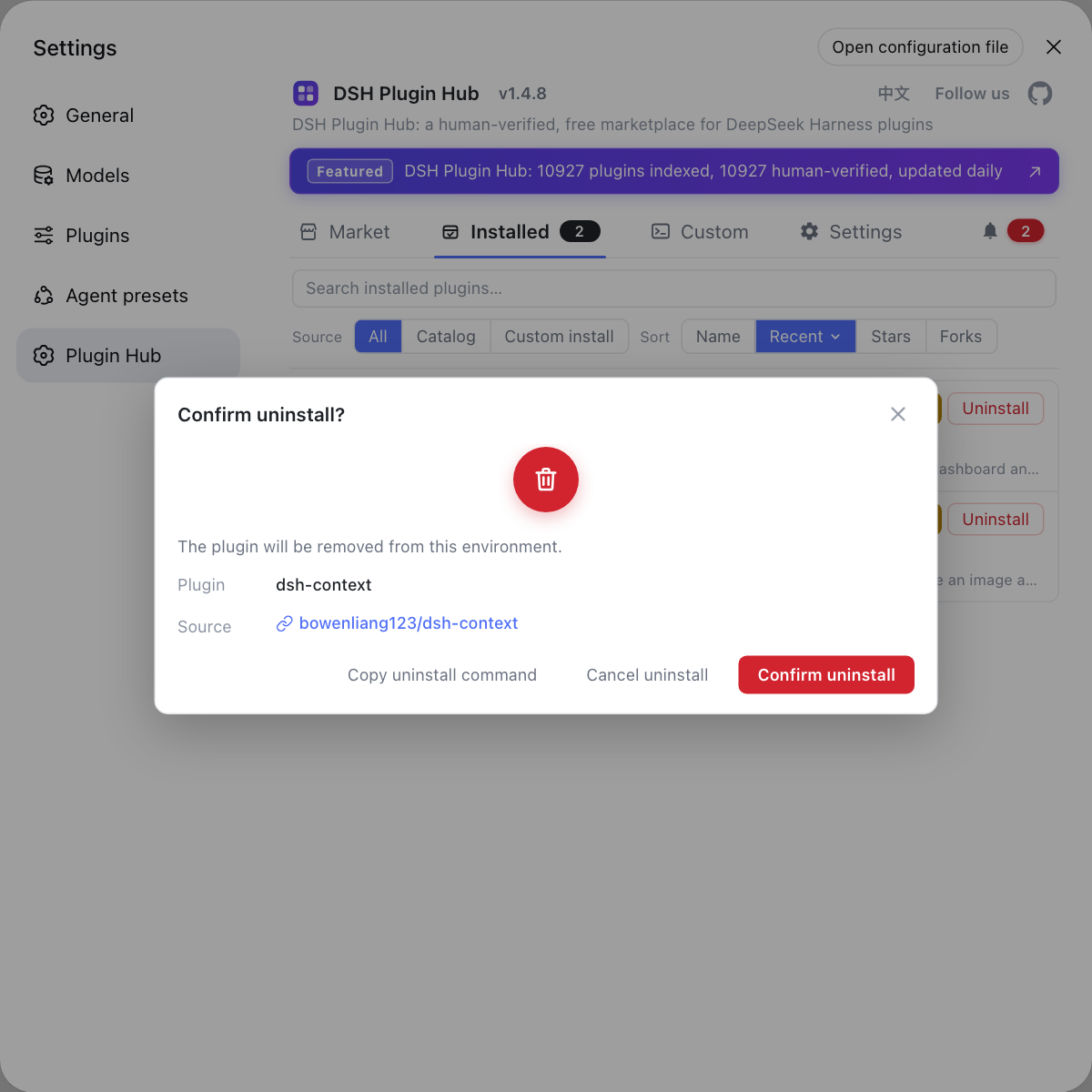
If you reinstall or reset, plugins need setting up again. Rather than adding them one by one, use the built-in DSH Plugin Hub: it is the official plugin market for DSH plugins, shows a confirmation dialog before uninstalling, and handles reinstalls and bulk tidying on the same screen.
Sources: DeepSeek Harness desktop README, DeepSeek Harness for desktop - download, dshplugin/dsh-plugin-hub
FAQ
The DeepSeek Harness desktop app uninstaller does not remove the CLI command registration, so you have to delete it yourself first. The Manage dsh Command entry in the app menu offers Install, Repair and Remove; run Remove before uninstalling, otherwise a dsh command pointing at a deleted app is left behind. The official guidance also says to end running CLI commands before updating or uninstalling.
On Windows, uninstalling the DeepSeek Harness desktop app deletes the Electron user data directory, the product directory under %APPDATA%, and the update download cache under %LOCALAPPDATA%, then removes ordinary empty scope directories below %APPDATA%. The Harness home directory (~/.dsh or DSH_HOME: sessions, settings, credentials, plugins) is never touched, so sessions and plugin data survive.
The official DeepSeek Harness desktop README documents Windows uninstall behaviour only, so there are no citable official macOS uninstall steps. Two things can be verified: macOS installation creates /usr/local/bin/dsh, which you remove first through Manage dsh Command, and deleting the app itself does not clear the data under ~/.dsh.
Uninstalling the DeepSeek Harness desktop app leaves ~/.dsh in place: the desktop app and the command-line version share sessions, settings, credentials and plugins under $DSH_HOME, which defaults to ~/.dsh, and uninstalling the desktop app does not clear that directory. To wipe data too you delete ~/.dsh yourself; to restore the desktop app to a clean state while keeping data, use Reset instead of uninstalling.
In the DeepSeek Harness desktop app, Reset clears only its own executable layer: it deletes every entry under $DSH_HOME/profiles/desktop except the transaction lock it holds, reinitialises the built-in profile, and removes desktop configuration and installed third-party packages without keeping a backup, while shared tasks, settings and the Harness-home .env stay as they are. Uninstalling removes the whole app from the system, so choose Reset when you only need to repair the desktop app and keep your data.
Related Terms
- Manage dsh Command (desktop menu item)
- Manage dsh Command is the command registration entry in the DeepSeek Harness desktop app menu, sitting below Check for Updates; it shows the current command and offers Install, Repair and Remove.— DeepSeek Harness desktop README
- /usr/local/bin/dsh
- /usr/local/bin/dsh is the launcher path the DeepSeek Harness desktop app creates when registering the command-line entry on macOS; when the directory lacks permission the system asks for administrator authentication and shell startup files are not modified.— DeepSeek Harness desktop README
- $DSH_HOME
- $DSH_HOME is the DeepSeek Harness product data root, defaulting to ~/.dsh, holding sessions, settings, credentials and plugins; uninstalling the desktop app does not clear it, and the desktop app only owns the profiles/desktop layer inside it.— DeepSeek Harness desktop README
- Reset (desktop)
- Reset is the profile recovery operation in the DeepSeek Harness desktop app; it deletes every entry under $DSH_HOME/profiles/desktop except the held transaction lock and reinitialises the built-in profile, keeping no backup.— DeepSeek Harness desktop README
Sources
- DeepSeek Harness desktop README· deepseek-ai
- DeepSeek Harness for desktop - download· DeepSeek
- dshplugin/dsh-plugin-hub GitHub repository· GitHub