DeepSeek Harness desktop update: check, cadence, prep
DeepSeek Harness desktop updates happen inside the app: the Check for Updates menu item triggers a check on demand, and after launch the packaged app also checks the fixed Nightly channel asynchronously and keeps polling about every ten minutes. The important part is that automatic checks only check, they never pop up a dialog or download an installer, so the download and install wait for your confirmation.
This covers how to update manually, how the automatic check behaves, and what to prepare first. Desktop, core and plugin updates are three separate layers, compared in DeepSeek Harness auto-update.
How to update the DeepSeek Harness desktop app
The DeepSeek Harness desktop update runs entirely in-app through the Check for Updates menu item, which sits above Manage dsh Command and reuses a check already in progress (source).
Four steps for one update:
- Open the update menu — on macOS choose Check for Updates from the app menu; on Windows open the app menu in the top bar. Expect a check to start at once, reusing any check already running rather than sending a second request.
- Watch the account row — the status area shows update available, a loading spinner with download percentage, verifying, and ready. Expect an available update to appear as a selectable state, and selecting it to start the download.
- Let the download and verification finish — the app verifies the package once the download completes. Expect a restart confirmation to appear automatically after preparation succeeds.
- Confirm the restart and install — after confirming, the app closes during installation and reopens when done. Expect the new version number and your workspace reopened.
Step 4 has one precondition worth knowing in advance: end any running CLI command before updating or uninstalling the desktop app, because the installer does not coordinate with a running command (source). If dsh is running in a terminal, wrap it up before clicking update.
DeepSeek Harness desktop automatic update checks: cadence and backoff
Automatic checking is a measured poll: the packaged app checks the fixed Nightly channel asynchronously after launch, regular polling uses a ten minute base interval with an independent ±20% jitter per sample, a failed check doubles the base delay up to a one hour ceiling, and success resets it (source).
Three behaviours to remember:
- Automatic checks never install — automatic checks never open a dialog and never download an installer; a new version first shows as available, and the download starts only if you choose it. Expect an untouched app to keep running the version it has.
- Manual checks return one of three outcomes — the interface reports checking, failure, or an up-to-date message that includes the installed version number. Expect a matching version number to mean you are current, so there is no point clicking repeatedly.
- The cadence is configurable — set the base interval with
DSH_DESKTOP_UPDATE_CHECK_INTERVAL_MS, the backoff ceiling withDSH_DESKTOP_UPDATE_CHECK_MAX_BACKOFF_MS, and the jitter ratio withDSH_DESKTOP_UPDATE_CHECK_JITTER, which defaults to0.2. Expect all three to affect regular checks only, leaving the forced update policy poll untouched.
DeepSeek Harness desktop update prep: interrupts, data and version binding
Two things are worth doing before an update: end any running CLI command, and read the interruption confirmation the app raises. The update itself leaves sessions, settings and plugins alone, because that data lives under the shared $DSH_HOME.
Three checks before you click install:
- End CLI commands — close any
dshprocess running in a terminal. Expect the installer to avoid competing with a live command and no version conflicts during the update. - Read the interruption warning — the restart confirmation after preparation warns about running agents, queued input, and background tasks that are running or stopping; API requests alone do not trigger it. Expect a warning to mean work is still in flight, so let it finish or confirm the interruption deliberately.
- Confirm your data stays — sessions, settings, credentials and plugins all live under
$DSH_HOME(default~/.dsh), and the update only swaps the executable layer. Expect past sessions and installed plugins to still be there after restarting.
One last point about versions: the bundled dsh and the published @deepseek-ai/dsh are always the same exact version, and the Electron shell, matching dsh runtime, Node.js and pnpm form one signed update unit (source). Do not replace the in-app runtime yourself to "upgrade dsh" — that breaks version consistency, because the desktop app's dsh version follows the app.
Notes on updating the DeepSeek Harness desktop app
- Stop the CLI before updating or uninstalling — the installer does not coordinate with a running command, and operating from both ends at once tends to hang.
- Automatic checking is not automatic installing — the desktop app installs nothing in the background; the available-update badge is your cue to act.
- A forced update policy is a separate thing — the server can issue a forced update policy that produces a blocking window you cannot dismiss, and it does not change the regular check cadence.
- Plugins do not ride along — a desktop upgrade replaces the runtime only, so version changes for installed DSH plugins are handled separately in the plugin manager, covered in DeepSeek Harness desktop commands.
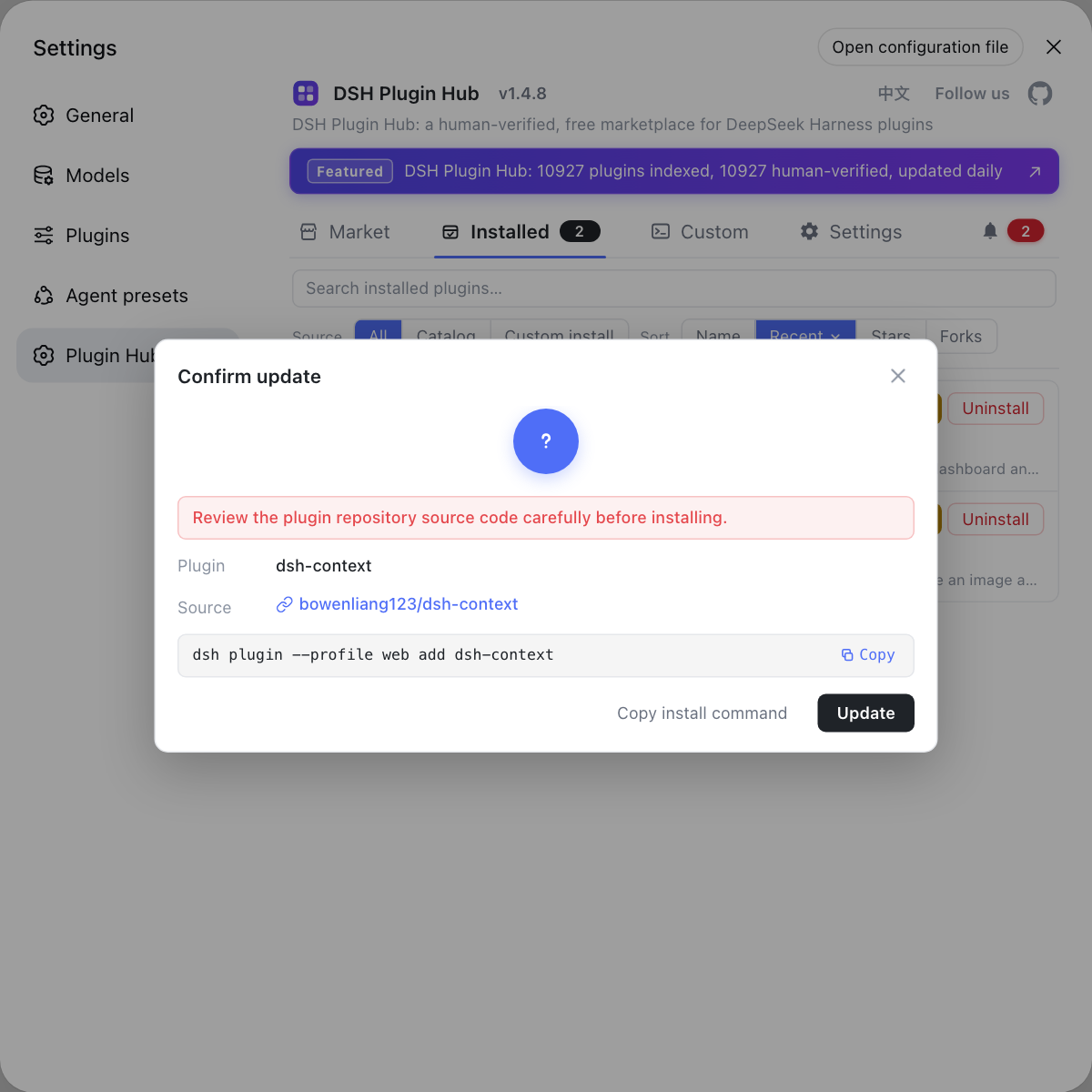
If you want to catch up on plugins after updating, use the built-in DSH Plugin Hub instead of tracking versions package by package: its installed list flags plugins with an available update, handles them in a click, and shows a confirmation dialog before anything changes.
Sources: DeepSeek Harness desktop README, DeepSeek Harness for desktop - download, dshplugin/dsh-plugin-hub
FAQ
The DeepSeek Harness desktop update check lives in the app menu as Check for Updates, which sits directly above Manage dsh Command. Clicking it runs a check immediately and reuses any check already in progress instead of firing a second request, so you never queue duplicate checks.
The DeepSeek Harness desktop app never installs an update in the background: it checks automatically but never pops up a dialog and never downloads an installer on its own. A new version simply shows as an available update in the interface, and the download only starts after you pick it, so an idle app will not restart underneath you.
The DeepSeek Harness desktop app polls on a ten minute base interval, and each sample adds an independent ±20% random jitter. Every failed check doubles the base delay up to a one hour ceiling, and a successful check resets it. You can change these with DSH_DESKTOP_UPDATE_CHECK_INTERVAL_MS, DSH_DESKTOP_UPDATE_CHECK_MAX_BACKOFF_MS and DSH_DESKTOP_UPDATE_CHECK_JITTER.
Before updating the DeepSeek Harness desktop app, end any running CLI command, because the installer does not coordinate with a running command. Once the in-app download finishes, a restart confirmation appears, and that confirmation warns about interrupting running agents, queued input and background tasks. After you confirm, the app closes during installation and reopens when it finishes.
A DeepSeek Harness desktop update keeps sessions, settings and plugins: it only replaces the executable layer, while sessions, settings, credentials and plugin data live under the shared $DSH_HOME and are left alone. The bundled dsh and the published @deepseek-ai/dsh always share one exact version, so updating the app refreshes the whole runtime at once.
Related Terms
- Check for Updates (desktop menu item)
- Check for Updates is the update entry in the DeepSeek Harness desktop app menu, sitting above Manage dsh Command; it runs an update check immediately and reuses a check that is already in progress.— DeepSeek Harness desktop README
- Nightly channel
- Nightly is the fixed update channel the DeepSeek Harness desktop app checks; a packaged app queries it asynchronously after launch, and the build offers no channel switcher in the interface.— DeepSeek Harness desktop README
- DSH_DESKTOP_UPDATE_CHECK_INTERVAL_MS
- DSH_DESKTOP_UPDATE_CHECK_INTERVAL_MS is the environment variable that sets the base interval of regular desktop update checks; it accepts an integer of 1000 to 2147483647 milliseconds and defaults to ten minutes.— DeepSeek Harness desktop README
- forced update policy
- A forced update policy is a server-side policy the desktop app queries at startup and during polling; when it matches, a blocking window asks you to upgrade, and it neither follows the regular check cadence nor authorises download retries.— DeepSeek Harness desktop README
Sources
- DeepSeek Harness desktop README· deepseek-ai
- DeepSeek Harness for desktop - download· DeepSeek
- dshplugin/dsh-plugin-hub GitHub repository· GitHub