How to update a DSH plugin offline on an air-gapped network
The hard part of an offline DSH plugin update is not the command but "where the package comes from" and "where it goes": the intranet cannot reach a public registry, so you first prepare the new plugin's tgz on a networked machine and carry it in, then overwrite the target profile with dsh plugin --profile <name> add ./<package>-<newversion>.tgz; afterwards verify in two places with dsh plugin --profile <name> list and dsh --profile <name> --dump-config, and if it breaks, add the old tgz once more to roll back (source).
How offline and online DSH plugin updates differ: fetching vs installing
An online update sends pnpm to a registry for the new version; an offline update splits that "fetch" step onto a networked machine, leaving only "install" for the intranet — and both land in exactly the same place, the $DSH_HOME/profiles/<name> directory (source). So the whole path reduces to two questions:
- Where the package comes from: a tgz packed on a networked machine, a private registry, or a tarball the author published;
- Where it goes:
dsh plugin --profile <name> add <local path>, with the directory written exactly.
Separate the subjects before you start: installing the DSH core offline and updating a plugin offline are two different paths. The former is in how to install dsh on an intranet or offline; this article covers only moving an already-installed DSH plugin to a new version.
Three ways to get the new DSH plugin package offline
Since the intranet cannot reach a public registry, the new plugin package must be prepared in a networked environment first: a tgz published by the author or official channel, a tgz you pack yourself with pnpm pack, or a package in a private registry (source). Each route has its use case:
-
Carry the author's published tarball directly — the least work. The target of
dsh plugin addalready accepts a.tgzpath, so simply bring in the artifact the author packed; no rebuild needed. -
Pack your own copy on a networked machine — use this when you hold the source:
# networked machine: enter the plugin source directory, then pack
pnpm pack
# → dsh-hello-plugin-0.2.0.tgz
Mind the packing order: pnpm pack only collects existing output, so build scripts such as prepare must already have run on the networked machine — otherwise you carry in an empty shell with no build output.
- Go through a private registry — if the intranet has something like Verdaccio, publish the new version to the internal source and install by package name as usual, with the registry pointing at the internal address. This route also solves dependency resolution, see the next note.
The easiest trap to hit: a tgz contains only the plugin body. If the new version introduces dependencies that did not exist before, and the profile does not have them, pnpm will still go to a registry to resolve them at install time — fully disconnected, you must either bring the dependencies along or cover them with a private registry, or the command fails at the resolution stage.
Overwriting the right profile: how to write the dsh plugin add local path
An in-place upgrade is just running add again against the new tgz: dsh plugin --profile <name> add ./<package>-<newversion>.tgz, and pnpm replaces that dependency entry in package.json and the old contents in node_modules (source). The full action has four steps:
- Confirm which profile you are targeting first.
--profileis required with no short form, and it decides which$DSH_HOME/profiles/<name>directory is modified:
ls "$DSH_HOME/profiles"
Intranet machines often carry several profiles, and installing into the wrong directory wastes the whole trip — the isolation details are in installing one DSH plugin into multiple profiles.
-
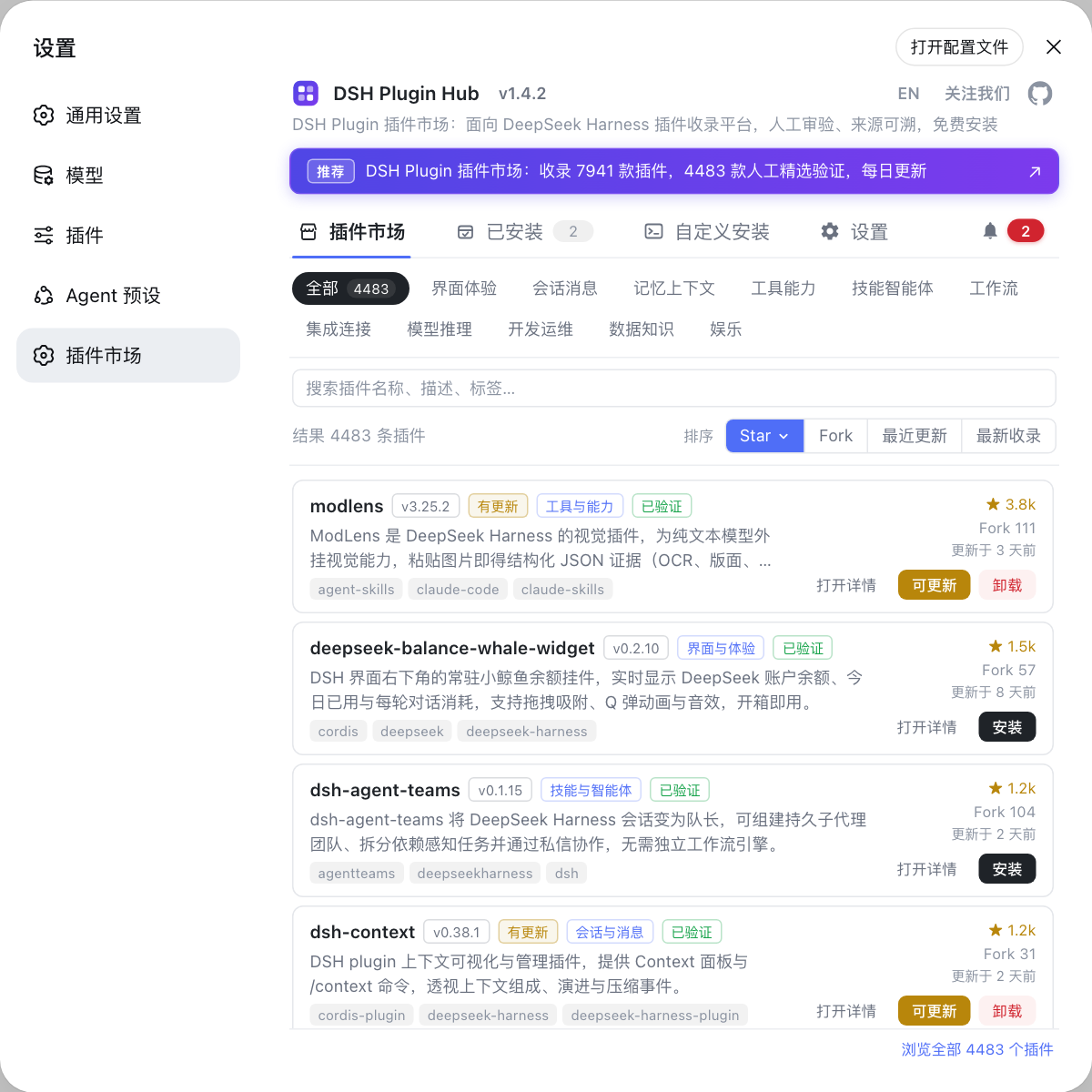
Check "is this the version I should upgrade to". In a networked environment, open Settings → Plugin Marketplace in DSH Plugin Hub and check the plugin name, author, and latest version on the card before deciding which tgz to carry in. When the version does not match, suspect the transfer step first.
-
Run the in-place install. Arguments after
--profileare forwarded whole to the pnpm inside that profile directory, so both the local tarball and the local directory forms work:
# local tgz: the most common offline update
dsh plugin --profile web add ./dsh-hello-plugin-0.2.0.tgz

# local directory: installed as a link, effective right after edits, good for iterating on the intranet
dsh plugin --profile web add ./dsh-hello-plugin
- Watch how
dsh.bundleis handled. If the new package declaresdsh.bundle, dsh appends it to the profile'sdsh.profile.bundles; when the package name is already in the manifest it is not appended twice, keeping one config layer (source).
While carrying a package to another machine, glance at the dependency syntax: a plugin installed from a local path is recorded in the profile's package.json as a file: relative path, and that relative path must also hold on the new machine or the new version will not install.
Verifying DSH plugin version and load after the swap, and rolling back
Verification has three layers: the version from list, the dependency value in the profile package.json, and the bundle tree in --dump-config; rolling back is one more add of the old tgz (source). Do it in four steps:
- See whether the version actually changed:
dsh plugin --profile web list
The result comes from the pnpm inside the profile directory and shows the package name and its current version.
- See whether the config layer is still there:
dsh --profile web --dump-config | grep -n "# =="
When the plugin is live the bundle tree has a # == <package> layer, and after an upgrade that layer should still be present (the package name is unchanged).
-
See whether new capabilities appeared: tools or settings introduced by the new version should show up in the tool list and on the settings page. This is the dividing line between "the package changed but is not live" and "the upgrade really succeeded".
-
If it broke, roll back to the old package with the same command, only swapping in the older tgz:
dsh plugin --profile web add ./dsh-hello-plugin-0.1.0.tgz
Back up the whole directory before rolling back, so a mangled package.json from the new package can be restored in one move:
cp -r "$DSH_HOME/profiles/web" "$DSH_HOME/profiles/web.bak"
If your problem is not "the wrong package" but "the new version is incompatible with the current DSH", the approach differs — see DSH plugin incompatible after a DeepSeek Harness update?.
DSH plugin offline update notes
In one line: an offline update moves packages, not the registry — so the package must be complete, the directory exact, and the version reversible. Seven reminders:
- Separate the core from plugins first: this article only covers offline upgrades of installed plugins; installing the dsh core offline is in how to install dsh on an intranet or offline;
--profileis required with no short form: omitting it exits non-zero; runls "$DSH_HOME/profiles"first to confirm the target directory;- Pack the tgz completely:
pnpm packonly collects output, so build scripts must have run on the networked machine or the package arrives missing files; - Dependencies need a home: a local tgz's transitive dependencies still have to be resolvable — fully disconnected, cover them with a private registry or carry them along;
- Go by the version number: check the version with
dsh plugin --profile <name> listafter upgrading, rather than concluding from a successful exit alone; - Back up the profile before upgrading:
cp -r "$DSH_HOME/profiles/<name>" "$DSH_HOME/profiles/<name>.bak"; restoring the whole directory is the sturdier rollback; - Verify before carrying: when the version is uncertain on the intranet, confirm the plugin and version first in a networked environment via DSH Plugin Hub to avoid a wasted trip.
If you would rather not carry packages by hand, the Plugin Marketplace in DSH Plugin Hub updates directly when you have network access, and its version badges and trust confirmation dialog tell you what the upgrade changes; only a genuinely disconnected intranet needs the offline path above.
Sources: dsh CLI README, DeepSeek Harness docs - Packaging and installing a plugin.
FAQ
Updating a DSH plugin offline changes where the package comes from, not how it is installed: build the new version into a tgz or publish it to a private registry on a machine with network access, carry the package in, and run dsh plugin --profile <name> add ./<package>-<newversion>.tgz to overwrite. Because a local tgz never touches a public registry, this path works fully disconnected — as long as the package's dependencies can still be resolved inside that profile.
dsh plugin supports local tgz files: the target after add already accepts local paths, so the full command is dsh plugin --profile <name> add ./hello-plugin-0.2.0.tgz, with --profile required and deciding which profile directory is modified. When a plugin of the same name is already installed, this command is an in-place upgrade — pnpm replaces the old dependency entry and the old contents in node_modules with the new version.
Confirm a DSH plugin offline upgrade in three places: the version number printed by dsh plugin --profile <name> list, the dependency entry in the profile's package.json, and whether the # == <package> layer still appears in dsh --profile <name> --dump-config. All three must agree before the upgrade counts as done — a zero exit code alone is not enough.
Rolling back a DSH plugin means installing the old package again: run dsh plugin --profile <name> add ./<package>-<oldversion>.tgz and pnpm overwrites with the old version. A sturdier approach is to back up the whole profile directory before upgrading (cp -r "$DSH_HOME/profiles/<name>" "$DSH_HOME/profiles/<name>.bak") and swap the backup directory back in when needed.
A DSH plugin tgz you pack yourself contains only the plugin body, while transitive dependencies still have to be resolved by pnpm — so a fully disconnected network fails at the resolution stage. Either stand up a private registry on the intranet to cover those dependencies, or pack the dependencies in alongside it. Another common cause is not running the build script before packing: missing build output makes the load stage fail right after install.
Related Terms
- tarball (tgz)
- A tarball is the npm ecosystem's package archive format, with a .tgz extension, containing build output plus package.json. The target of dsh plugin add may be a local tgz path, which makes it a natural fit for carrying plugin packages into an intranet without a public registry.— dsh CLI README
- pnpm pack
- pnpm pack generates a tgz inside the package directory, producing an archive identical to what would be published to a registry. It only packs existing output, so build steps such as prepare must be run separately beforehand or the package will be missing files.— DeepSeek Harness docs - Packaging and installing a plugin
- in-place upgrade
- An in-place upgrade means running add again for a package that is already installed; pnpm replaces that entry's dependency value in package.json with the new version and updates node_modules. Offline plugin updates are exactly this action, only with the target changed to a local tgz path.— dsh CLI README
- private registry
- A private registry is a package source deployed inside the intranet for controlled environments, typically something like Verdaccio. Once configured in the profile's npm settings, intranet machines can install by package name as usual, and pnpm fetches packages and dependencies from the internal source without reaching a public registry.— dsh CLI README
Sources
- dsh CLI README· deepseek-ai
- DeepSeek Harness docs - Packaging and installing a plugin· deepseek-harness