Install one DSH plugin into multiple profiles: isolation
The same DSH plugin only takes effect in the profile you installed it into — installing into web will not make it show up in the desktop app, and vice versa. That is because each profile has its own $DSH_HOME/profiles/<name>/package.json and node_modules, while only sessions, global settings, and credentials are shared. To make a plugin available everywhere, install it once per profile; the only profile you cannot touch this way is the desktop-exclusive desktop profile.
DSH plugin profiles are invisible to each other: web is not desktop
Plugins hang off profiles, not off the machine — that is the root cause of "I cannot see it". Three points:
- Each profile is a self-contained set:
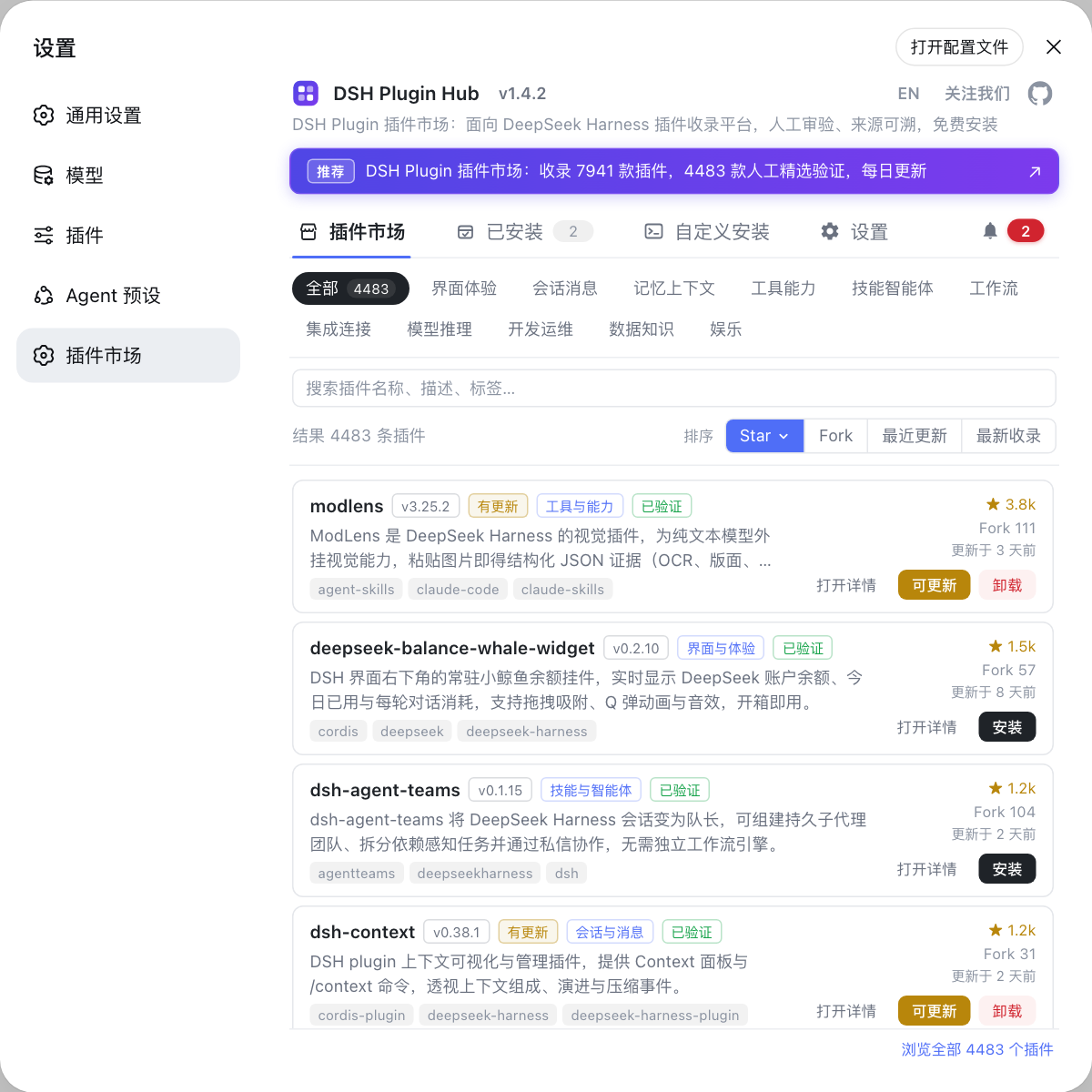
$DSH_HOME/profiles/<name>holds its ownpackage.json(dependenciesanddsh.profile.bundles),cordis.patch.yml, andnode_modules. A plugin installed in A never appears in B. - Marketplace installs also target a profile: when you click install in DSH Plugin Hub, the plugin still lands in one specific profile rather than applying globally. To install into several profiles, install once inside each one.
- One plugin in two profiles is two independent instances: they each have their own config and lifecycle, and changing a setting in one does not affect the other.
The one exception is the desktop profile: it is exclusively owned by the desktop app — before touching any profile the desktop app takes a process-lifetime single-instance lock and exclusively owns $DSH_HOME/profiles/desktop and its package manager state, so neither a plain CLI nor an npm-installed dsh can start or modify it; only the desktop app's built-in commands can manage its plugins after the app quits (source).
Installing the same DSH plugin profile by profile: syntax, order, and what is shared
The syntax is simple: run the same add command once per --profile value. Three cases:
- Two known profiles, one install each:
dsh plugin --profile web add <package>
dsh plugin --profile desktop add <package>
--profile is required and decides which manifest and which node_modules gets touched; the two commands have no ordering dependency on each other (source). The full form of add is in the dsh plugin add command.
-
Installing into a brand-new profile name: no manual creation needed. When the profile directory does not exist, dsh plugin initializes it from a template before running pnpm — built-in profiles such as
webuse the bundled template, other names use@deepseek-ai/dsh-base. So the firstdsh plugin --profile <newname> add <package>creates the profile along the way. -
Installing into the
desktopprofile: you must launch the desktop app once so it prepares the profile, then quit the app completely and install with the desktop app's built-in commands — a plain CLI is refused and will not create a same-named ordinary profile for you either. Full prerequisites and limits are in desktop dsh commands.
Distinguish what is shared from what is not: under one $DSH_HOME, sessions, settings.yaml, and .credentials.yaml are shared, so switching profiles does not mean reconfiguring model credentials; profiles/<name> stays separate, with plugins and dependency manifests kept per profile. The directory layout is in where the DSH config file lives.
Verifying profile by profile which DSH plugin went where
The rule: query each profile once and never reuse another profile's result. Three steps:
- List the profiles on this machine:
ls "$DSH_HOME/profiles"
Expected: names such as web, headless, desktop that you have used; if unsure about $DSH_HOME, run echo $DSH_HOME first.
- Query the package per profile:
dsh plugin --profile web list | grep -n "<package>"
dsh plugin --profile desktop list | grep -n "<package>"
Output means it is installed in that profile; no output at all means it never went there. How to read list is in how to use dsh plugin list.
- Check the load layer, not just the package:
dsh --profile web --dump-config | grep -n "# =="
Only when a # == <package> layer appears will it actually be loaded in that profile. A package present in list without that layer means it was installed as an ordinary dependency that does not declare dsh.bundle.
Note: verifying the desktop profile requires the desktop app's built-in commands — a plain CLI list will not read it for you.
DSH plugin multi-profile install notes
Remember one line: plugins follow the profile, settings and sessions follow $DSH_HOME.
- Decide which profile you are targeting before installing: installing into the wrong one wastes the install and forces an uninstall later.
--profilecannot be omitted: omitting it exits non-zero, and it decides the target — a wrong name installs into a brand-new empty profile.- Do not treat the
desktopprofile as an ordinary profile: a plain CLI cannot modify it; plugin installs must go through the desktop app's built-in commands. - The
desktopprofile must be initialized first: running the built-in commands before ever launching the desktop app is refused with "profile not initialized". - Multiple profiles mean multiple maintenance costs: one plugin in three places must later be upgraded three times, so install only where needed.
- To find out how many profiles hold a plugin: run
listonce per candidate profile, rather than trusting your memory. - Switching profiles does not affect credentials:
settings.yamland.credentials.yamlare shared, so switching profiles does not mean reconfiguring the API key.
Sources: DeepSeek Harness CLI README, DeepSeek Harness desktop README, official docs - Packaging and installing a plugin.
FAQ
**Because a DSH plugin is installed onto a profile, not onto the machine: installing into web only affects the web profile.** Each profile has its own $DSH_HOME/profiles/<name>/package.json and node_modules, and plugins are invisible across them; the desktop app uses its exclusively owned desktop profile, so you must install there separately to see it.
**Installing the same DSH plugin into several profiles means running the same add command once per --profile value.** For example dsh plugin --profile web add <package> and dsh plugin --profile desktop add <package>, one run each; --profile is required and decides which manifest and which node_modules gets touched, with no ordering dependency between the runs.
**When several profiles share one $DSH_HOME, only the layer outside the DSH plugin profiles is shared: sessions, global settings, and credentials.** Under $DSH_HOME, sessions, settings.yaml, and .credentials.yaml apply to every profile in the same home, so switching profiles does not mean reconfiguring your API key; profiles/<name> stays separate, with plugins, dependency manifests, and overlays kept per profile.
**Yes, but a DSH plugin can only be installed into the desktop profile with the desktop app's built-in commands — a plain CLI or an npm-installed dsh cannot modify it.** Before touching any profile the desktop app takes a process-lifetime single-instance lock and exclusively owns $DSH_HOME/profiles/desktop plus its package manager state; you also need to launch the desktop app once first so it initializes that profile, otherwise even the built-in commands refuse with a "profile not initialized" error.
Related Terms
- profile isolation
- Profile isolation means DeepSeek Harness organizes plugin layers per profile: each profile has its own package.json, node_modules, and config overlay, so a plugin installed in one profile does not appear in another. It is the mechanism behind "installed into web is not installed into desktop".— https://github.com/deepseek-ai/deepseek-harness/blob/master/apps/cli/README.md
- desktop profile
- The desktop profile is the profile exclusively owned by the DeepSeek Harness desktop app, at $DSH_HOME/profiles/desktop. The desktop app takes a process-lifetime single-instance lock before touching any profile and exclusively owns this one and its package manager state, which is why a plain CLI or an npm-installed dsh cannot start or modify it.— https://github.com/deepseek-ai/deepseek-harness/blob/master/apps/desktop/README.md
- shared layer
- The shared layer is the data under one $DSH_HOME used by all profiles: the sessions directory, the settings.yaml global settings, and the .credentials.yaml credentials. This layer does not change when you switch profiles, so model configuration and chat history need not be redone in each profile.— https://github.com/deepseek-ai/deepseek-harness/blob/master/apps/cli/README.md
- profile initialization
- Profile initialization means that when the profile directory does not exist, dsh plugin first generates it from a template before running pnpm: built-in profiles such as web use the bundled template, other names use @deepseek-ai/dsh-base. So a new profile name needs no manual creation — the first command carrying --profile creates it along the way.— https://github.com/deepseek-ai/deepseek-harness/blob/master/apps/cli/reference/README.md