dsh plugin add: --profile, targets, and how to verify
The full form of dsh plugin add is dsh plugin --profile <name> add <target>, and each part does one job: dsh plugin enters the plugin management channel, --profile picks which profile to change, and add <target> is simply pnpm's add verb. --profile is required with no short form, and everything after it is forwarded verbatim to the pnpm inside the profile directory; run dsh --profile <name> --dump-config afterwards to confirm the plugin really took effect (source).
DSH plugin overview: one command, three parts
dsh plugin --profile <name> <args...> is the DSH plugin management channel, and it forwards everything after --profile to the pnpm running in that profile's directory, so add, remove and list are pnpm verbs (source). Remember the three parts:
dsh plugin— declares "I want to manage a profile's plugin dependencies", not "boot the app";--profile <name>— selects the target profile at$DSH_HOME/profiles/<name>; required, no short form;add <target>— forwarded to pnpm wholesale, so add, remove, list, update and pnpm's own flags all work.
In one sentence: dsh runs pnpm in the right directory for you and maintains the profile manifest along the way.
The dsh plugin add syntax: --profile is required, add is forwarded to pnpm
--profile is required and has no short form, so omitting it exits nonzero; everything after --profile — including add <target> — is forwarded verbatim to the pnpm in the profile directory (source). Walk through it:
-
Confirm the profile name. The built-in
webandheadlessprofiles auto-initialize from shipped templates on first use, and any other profile must be created through thedsh pluginchannel.dsh webboots the profile literally namedweb. -
Run the install command against the web profile:
# Full form
dsh plugin --profile web add <package>

# The equals form works too
dsh plugin --profile=web add <package>
-
Read the output. pnpm prints dependency resolution and install progress; a wrong target makes pnpm raise the error and the command exit nonzero — at the CLI level, invalid commands, options from another mode, configuration errors and boot failures all exit nonzero (source).
-
Watch what dsh does next. If the package declares
dsh.bundle, dsh appends it to the profile's bundle list — a step pnpm does not perform:
{
  "name": "dsh-profile-web",
  "private": true,
  "dependencies": {
    "<package>": "…"
  },
  "dsh": {
    "profile": {
      "bundles": ["@deepseek-ai/dsh-base", "<package>"]
    }
  }
}
On first use the profile initializes with @deepseek-ai/dsh-base as its first bundle; after that, every bundle-declaring package you add is appended in installation order (source).
One boundary worth knowing: a package without a dsh.bundle declaration still installs, but only as a plain dependency — dsh plugin prints a warning and activates no layer. Those packages are libraries for other plugins to import, not things users enable (source).
Target formats for dsh plugin add: npm, GitHub and local paths
The target after add decides where the plugin comes from: a bare npm package name is the easiest, github:owner/repo fetches sources and needs a build allowance, and local directories or .tgz files suit self-testing and internal distribution. Three copy-paste forms:
- npm package — prebuilt artifacts, no allowance needed:
dsh plugin --profile web add <package>
- GitHub source — sources rather than built artifacts, so the author needs a
preparescript and you must allow the build:
# Basic form
dsh plugin --profile web add github:owner/repo

# Pin a commit so a later push cannot silently change what runs
dsh plugin --profile web add github:owner/repo#<sha>
The first run usually fails: pnpm ≥10 refuses to run a git dependency's build script, and dsh points you at the fix — copy the exact package key pnpm printed into that profile's pnpm-workspace.yaml:
allowBuilds:
  <package>: true
Save it and re-run the add. Treat that allowance as permission to execute the package's code on your machine at install time, and only grant it to source you trust (source).
- Local directory and tarball — self-testing and internal distribution:
# Local directory (installed as a link, so edits apply immediately)
dsh plugin --profile web add ./hello-plugin

# A tarball produced by the author with pnpm pack
dsh plugin --profile web add ./hello-plugin-0.1.0.tgz
For the trade-offs between the three routes and their allowance differences, see the comparison in Where DeepSeek Harness plugins come from.
How to verify a dsh plugin add really took effect
dsh --profile <name> --dump-config prints the composed configuration tree without booting the app, and a working plugin shows up as a # == <package> layer; cross-check the profile's package.json, where the package must appear in both dependencies and dsh.profile.bundles (source). Four steps in order:
- Inspect the layer without booting:
dsh --profile web --dump-config | grep -n "== <package>"
Seeing a # == <package> layer means the bundle's patch made it into the composed tree.
- Read the profile manifest and confirm the package sits in both places:
cat ~/.dsh/profiles/web/package.json
- List installed plugins to confirm pnpm knows about it too (arguments after
--profilego to pnpm, solistworks):
dsh plugin --profile web list
- Boot the app and read the logs. Plugin loading is printed in the terminal during
dsh webstartup, and the interface's plugin panel should list the entry afterwards.
Also worth memorizing is the layer order, which explains most "my config did nothing" reports: bundle layers apply in dsh.profile.bundles order, then the profile's own cordis.patch.yml, then $DSH_HOME/cordis.patch.yml, and finally any --patch overlay — later layers win per row, and a patch replaces a row's whole config instead of deep-merging it (source).
DSH plugin add: things to watch out for
In short: you cannot skip --profile, the target format decides whether you need a build allowance, and a package without dsh.bundle installs without activating anything. Five reminders:
--profileis required with no short form. It is the only thing locating the profile directory, and there is no default profile fallback when you omit it.- Launcher flags come first. In
dsh --profile web --port 8080the--portbelongs to the web app; the launcher parses only its own flags, and the first token it does not recognize starts the app's arguments (source). - A GitHub source is a security decision.
allowBuilds: truepermits install-time code execution, so always pair it with a#<sha>pin. - Installed but inactive means a missing
dsh.bundle. If you saw the warning and no layer appeared, the package is a library, not a plugin. - Remove through the same channel.
dsh plugin --profile web remove <package>drops both the dependency and the layer, leaving no empty row behind.
Prefer not to hand-write the command? Use DSH Plugin Hub
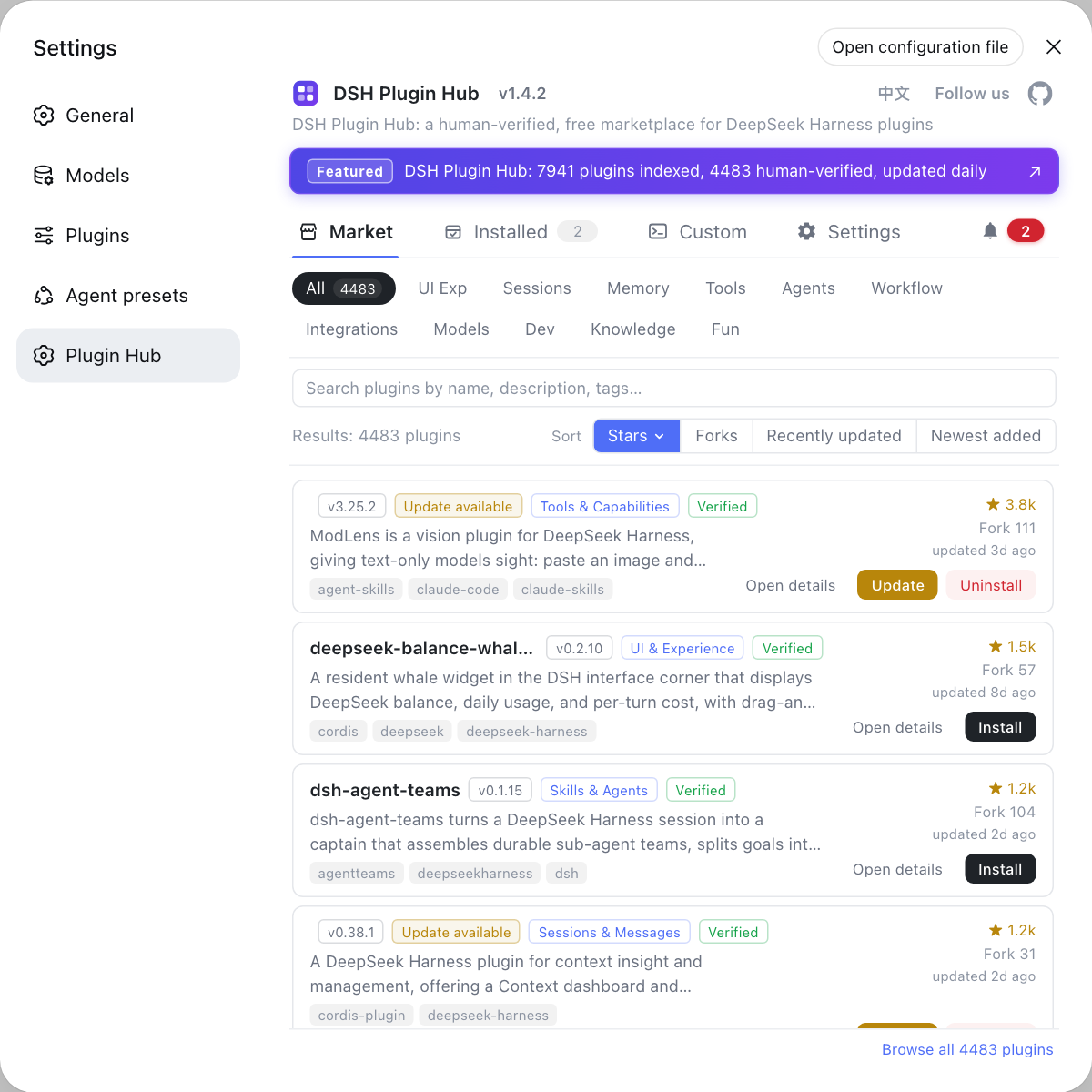
Every pitfall above — forgetting the target format, GitHub build allowances, installing something that never activates — disappears in a graphical flow. Once DSH Plugin Hub is installed, open Settings → Plugin Market: browse 10000+ community plugins by category, install with one click, watch live progress, and review a trust confirmation dialog with the exact install command before anything runs. GitHub sources missing build artifacts are pre-checked and blocked before installation, so you never end up with a plugin that crashes the host on restart. The command line is great for scripting and local testing; for daily use, let the market pick the right channel for you.
Sources: DeepSeek Harness docs - Package and install a plugin, dsh CLI README, deepseek-ai/deepseek-harness
FAQ
Yes, it is required for dsh plugin add. Without --profile the command exits nonzero and installs nothing, because the flag is the only thing telling dsh which profile directory to work in. There is no short form such as -p, but the equals form --profile=<name> works. The flag points at $DSH_HOME/profiles/<name>.
dsh plugin add accepts three main forms: a bare npm package name, github:owner/repo for a git checkout, and a local path such as ./hello-plugin or ./hello-plugin-0.1.0.tgz. A local directory installs as a link, so edits show up immediately during development. You can also pin a commit with github:owner/repo#<sha>.
To verify a dsh plugin add took effect, run dsh --profile <name> --dump-config: it prints the composed configuration tree without booting anything, and a working plugin adds a # == <package> layer. Then open package.json in the profile directory and confirm the package name appears in both dependencies and dsh.profile.bundles.
A dsh plugin add that succeeds but has no effect usually means the package does not declare dsh.bundle. A package without that declaration still installs, but only as a plain dependency: dsh plugin prints a warning and activates no configuration layer. Those packages exist to be imported by plugins, not enabled by users, so pick a package that ships a dsh.bundle manifest.
The dependency install itself is the same action, because dsh plugin --profile <name> <args...> forwards its arguments to pnpm inside the profile directory. The difference is the bookkeeping: when the package declares dsh.bundle, dsh appends it to dsh.profile.bundles, whereas a bare pnpm add will not.
Related Terms
- dsh plugin add
- dsh plugin add is the DSH command that installs a plugin package into a named profile, written in full as dsh plugin --profile <name> add <target>. It forwards its arguments to pnpm in the profile directory, so it is equivalent to running pnpm add there, and it appends the package to the profile manifest when the package declares dsh.bundle.— DeepSeek Harness docs - Package and install a plugin
- --profile
- --profile is the required flag shared by the dsh launcher and the dsh plugin management channel, selecting which profile a command applies to. It has no short form, and both --profile <name> and --profile=<name> are accepted.— dsh CLI README
- profile
- A profile is a runnable plugin composition living in $DSH_HOME/profiles/<name>, described by the dsh.profile manifest in its package.json plus its cordis.patch.yml overlay. It is what dsh --profile <name> boots.— DeepSeek Harness docs - Package and install a plugin
- bundle
- A bundle is an npm package that ships a configuration layer, declaring dsh.bundle in its package.json to describe which plugin rows it inserts or overrides. Bundles are what authors publish; a profile is what users boot, and nothing is both.— DeepSeek Harness docs - Package and install a plugin
Sources
- DeepSeek Harness docs - Package and install a plugin· deepseek-harness
- dsh CLI README· deepseek-ai
- deepseek-ai/deepseek-harness GitHub repository· GitHub