Batch install DSH plugins from the plugin market in one go
The right way to batch-install DSH plugins is market for selection plus a script for execution: pick the set in the plugin market, write the package names into a list file, then loop dsh plugin --profile web add over that list and verify with list. The official documentation documents add with a single target, so batching is a loop rather than one multi-target command.
Batch DSH plugin install is two halves: the plugin market and the script
Batch installing is not one command but two jobs — deciding which plugins, and getting them on disk — and the plugin market handles the first while a script handles the second. The split:
| Stage | Who does it | What happens |
|---|---|---|
| Selection | Plugin market | Browse by category, check versions and authors, fix the list |
| Execution | Terminal script | Loop the list through add |
| Verification | CLI plus market | Compare list with the input file |
Install DSH Plugin Hub first (dsh plugin --profile web add dsh-plugin) so the plugin market appears in Settings.
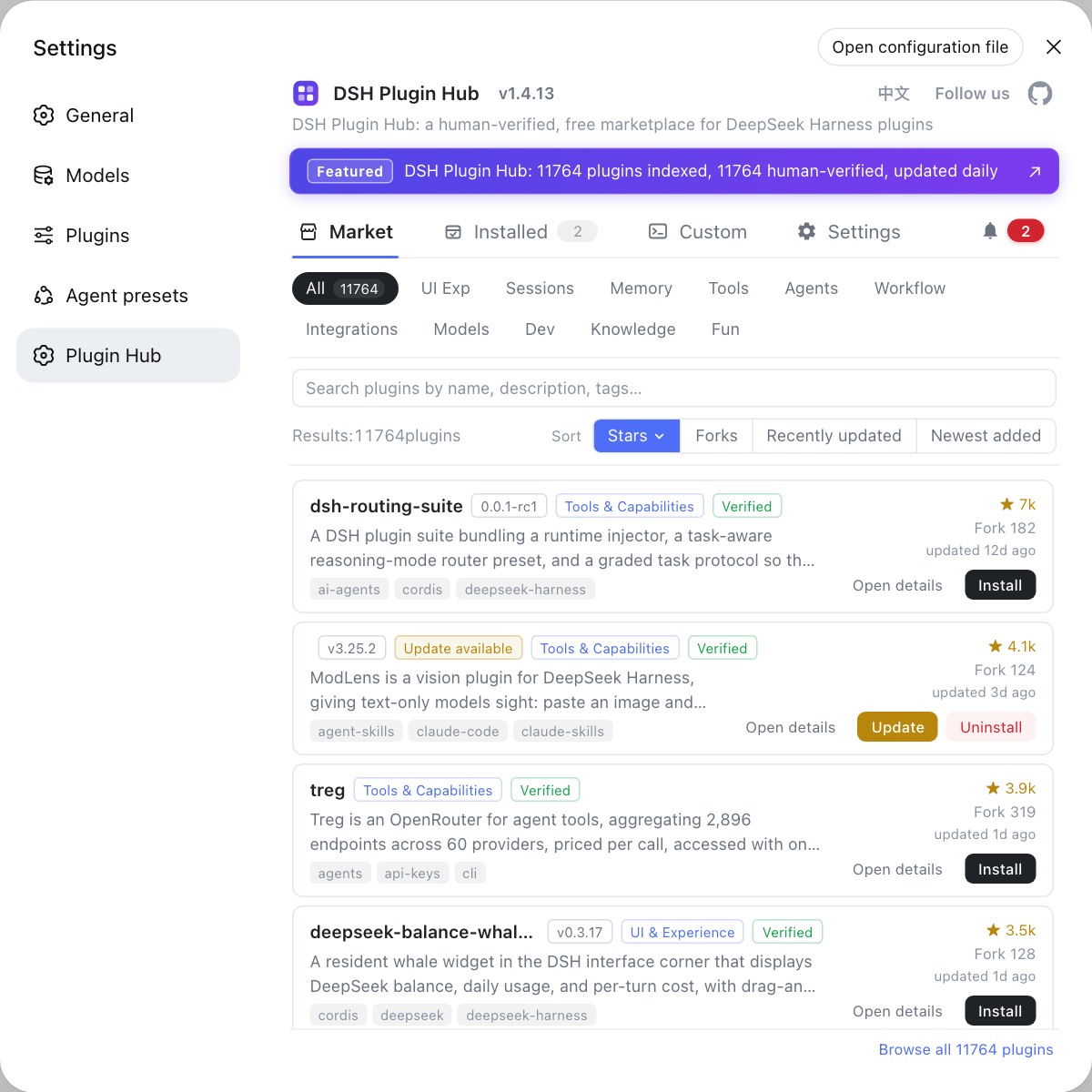
Step 1: build the list from the plugin market
A batch needs a list, and the plugin market is the most reliable place to derive one. Three steps:
- Search by category — open Settings → Plugin Market and filter down to the plugins you actually want. Expected: note each candidate's package name or source.
- Check the name and the source — confirm author and source repository on the detail view. Expected: npm packages are recorded as a bare name, GitHub sources as
github:owner/repo, and the two are never mixed. - Write the list file — create a plain text file with one target per line:
cat > plugins.txt <<'EOF'
dsh-plugin-rag
github:owner/repo
dsh-memento
EOF
Expected: nothing but targets and blank lines, so the loop can read it directly.
Step 2: install the DSH plugin list with a script
The official add form is a single target — dsh plugin --profile web add <package-or-repo> — so batching means putting it in a loop. On macOS and Linux, a shell loop:
# Read the list line by line, skip blanks, install each target
while read -r p; do
  [ -z "$p" ] && continue
  dsh plugin --profile web add "$p" || { echo "failed: $p"; break; }
done < plugins.txt
On Windows, PowerShell:
Get-Content plugins.txt | ForEach-Object {
  if ($_ -ne "") { dsh plugin --profile web add $_ }
}
Three rules:
- Pass
--profile webon every iteration — omitting it installs into an unintended profile and the final comparison will not line up. - Stop on failure and print the name — a short stop such as
|| breakkeeps errors attributable instead of running the whole batch on top of a mistake. - Trial the first couple of lines — confirm the syntax, especially whether a
github:source can be fetched. Expected: both trial installs succeed before you run the full list.
Step 3: verify the whole DSH plugin batch
Verification means comparing the list output with the input file rather than trusting the last command's exit code. Four steps:
- List what is installed — run
dsh plugin --profile web list. Expected: most entries from the list appear in the output. - Find the stragglers — diff the list against the output and note missing names. Expected: the missing ones are a typo or a failed install, fixed by re-running a single line.
- Check the plugin market — Settings → Plugin Market → Installed. Expected: it agrees with the command output, proving both views read the same data.
- Confirm on disk — inspect
$DSH_HOME/profiles/web/node_modules. Expected: top-level directory names match the installed plugins; see where DSH plugins are installed.
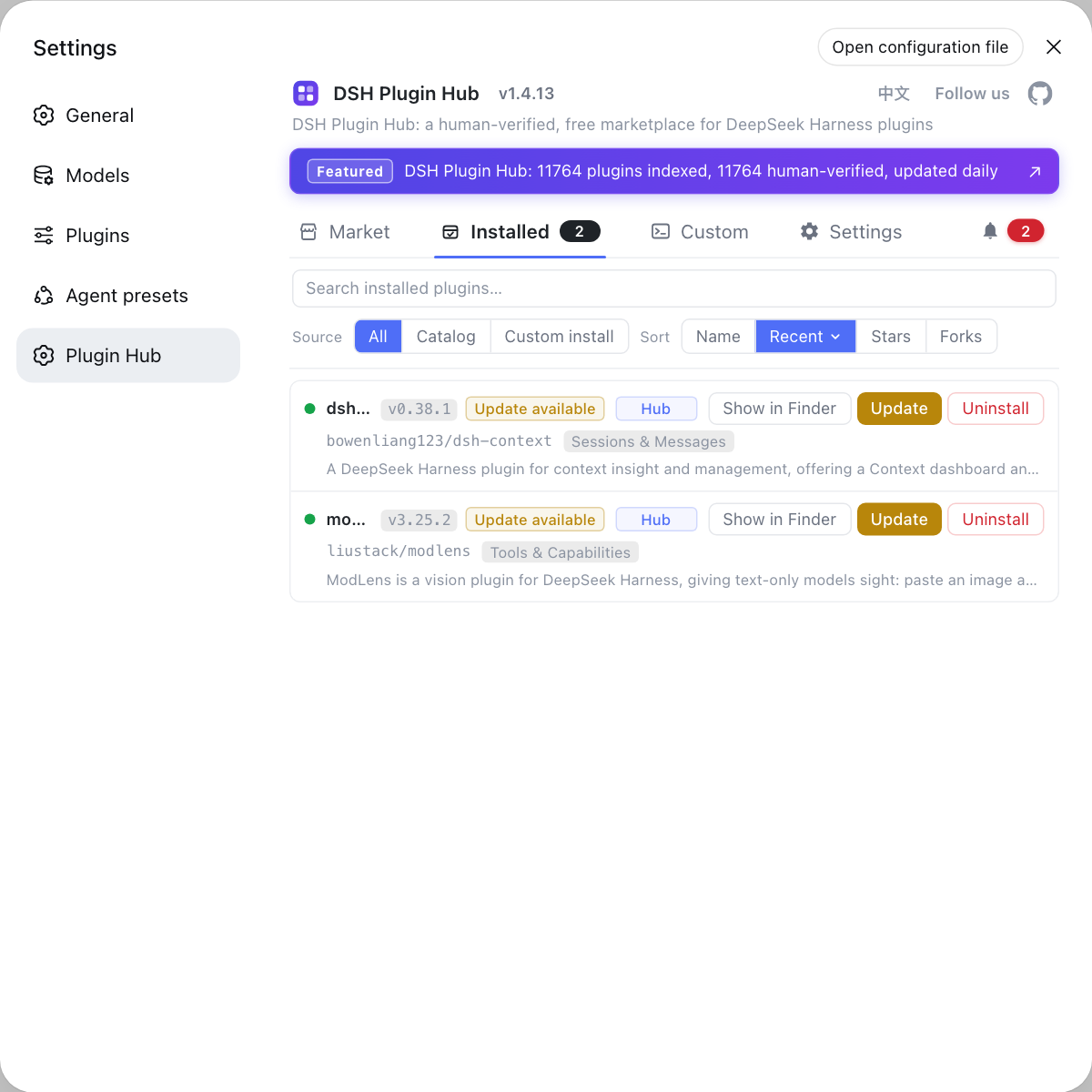
The plugin market handles selection and review while the script handles execution; both act on the same installed list. For installing one at a time, see using the plugin market.
Notes and limits for batch DSH plugin installs
- Do not expect one command with many targets: the documented add form is single-target, so keep to a list plus a loop, which works in any environment.
- Keep the list file in version control: storing
plugins.txtin a repository lets one loop reproduce the same plugin set on a new machine. - Do not mix source forms: npm packages take a bare name, GitHub sources require the
github:prefix. - Make failures attributable: a loop without output or exit-code checks forces a full re-run and hides the real problem.
- Air-gapped hosts need a different route: with no registry reachable, batch installs must pre-stage tarballs, as covered in offline DSH plugin installs.
Sources: dsh CLI README, Packaging and installing plugins (official docs), dshplugin/dsh-plugin-hub
FAQ
**To batch-install DSH plugins, dsh plugin add takes a single target, so the reliable way is a loop.** dsh plugin --profile web add <package-or-repo> handles one package per invocation; to install a whole set, write the package names into a list file and loop over it with a shell or PowerShell loop, then verify the batch once at the end.
**The DeepSeek Harness plugin market is built for picking, not for batch-installing DSH plugins.** It collects search, categories and versions on one page so you can decide which plugins you want and install them one by one from the same page. There is no bundle-install entry, so hand the chosen list to a terminal script for the actual batch.
**Copy DSH plugin names from the plugin market detail view after checking them.** Open the DSH Plugin Hub plugin market at Settings → Plugin Market, confirm the plugin name, author and source on the card, then write them into the list. npm packages use the bare name while GitHub sources need github:owner/repo, and mixing the two forms makes the install fail.
**To confirm every DSH plugin in a batch installed, compare the list output against your input file line by line.** Run dsh plugin --profile web list, then look for the entries from your list that never appeared. A mismatch is usually a misspelled package name or one failed install, and re-running that single line is enough instead of redoing the batch.
**If a batch DSH plugin install fails halfway, whether the rest keep installing depends on your script; stopping on first failure is the safer default.** A loop that ignores exit codes keeps going while carrying the error, leaving you unsure which plugins are missing. Better to print the failing package name and stop, then resume from that point once the name or the network is fixed.
Related Terms
- list file
- A list file is the recommended batch input format here, plain text with one install target per line, either an npm package name or a github:owner/repo reference. It separates what to install from how to install it, which makes review and version control easy.— dsh CLI README
- loop over the list
- Looping over the list means feeding each line into its own add invocation, one after another. It is the most reliable way to batch-install DSH plugins because it relies on no undocumented multi-target syntax and failures point at a specific line.— dsh CLI README
- plugin market
- The plugin market is the catalog entry built into the DeepSeek Harness Web UI at Settings → Plugin Market. In batch scenarios its role is to decide which plugins to install and to verify names and sources, not to provide a bundle-install button.— dshplugin/dsh-plugin-hub GitHub repository
- --profile
- --profile decides which runtime stack receives the plugin, mapping to $DSH_HOME/profiles/<name>. A batch script must pass it on every add, otherwise plugins land in an unintended profile and the list no longer matches the installed set.— dsh CLI README
Sources
- dsh CLI README· deepseek-ai
- DeepSeek Harness Docs - Packaging and installing plugins· deepseek-harness
- dshplugin/dsh-plugin-hub GitHub repository· GitHub