DSH plugin market: install from desktop, web UI or CLI
There are three entry points for installing a DSH plugin — the desktop app, the web UI in a browser, and the CLI — and although all three work, they install into different profiles and take effect differently. This guide covers how to reach each entry point, which profile it writes to, and how to choose between them, so you never end up with a plugin that appears missing.
Three entry points: installing a DSH plugin from desktop, web UI or CLI
All three entry points share one plugin mechanism; what separates them is the interface and the profile they own (source). The comparison table:
| Entry point | How to reach it | Profile | Takes effect |
|---|---|---|---|
| Desktop app | Open the app → Settings → Plugin Market | desktop | Restart the app |
| Web UI | dsh web, then http://127.0.0.1:3080 | web | Refresh the page |
| CLI | dsh plugin --profile web add <package-or-repo> | whatever --profile names | Immediately on disk |
Install DSH Plugin Hub first so the plugin market entry appears in Settings; it doubles as the management surface with the installed list and update checks.
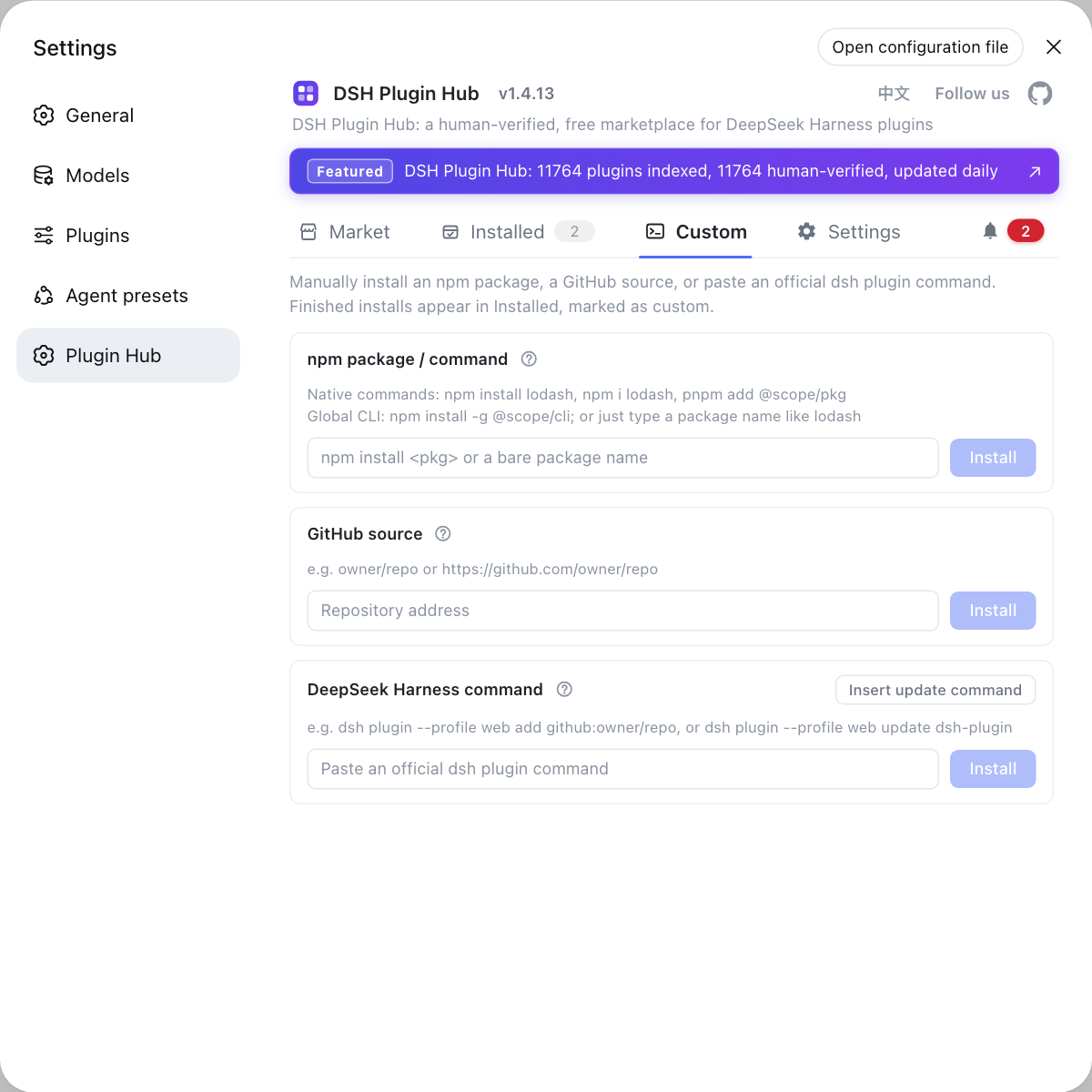
Entry point 1: the plugin market in the desktop app
The desktop app puts the plugin market inside the application: Settings → Plugin Market, pick a plugin, click Install. Three things to know:
- Register the command line through the app menu — the desktop app installs
dshinto your system from the Manage dsh Command menu entry, which is the prerequisite for terminal use. Expected: rundsh --versionin a new terminal and get a version number; see desktop commands. - Plugins belong to the desktop profile — the desktop app owns the desktop profile exclusively, and its own plugins install there. Expected: do not look for them in the web UI or the CLI list, because profiles never share plugins.
- Quit the app before installing via CLI — start the desktop app once to initialise its profile, quit it completely, then run
dsh plugin --profile desktop add <package>. Expected: built-in commands refuse an uninitialised profile, so the order matters.
The desktop app is the least effort, but its plugins only serve the desktop app and do not affect a dsh web you run in a terminal.
Entry point 2: the plugin market in the web UI
The web entry point starts with dsh web in a terminal and the http://127.0.0.1:3080 address it prints, which you open in a browser to reach the plugin market (source). Three points:
- No service, no page — if the process has exited there is no plugin market to open. Expected: the terminal is still printing the listening address in the foreground; if the page will not load, work through port 3080 unreachable.
- Install is still a command — clicking Install in the market runs the same
dsh plugin addin the background, with the progress made visible. Expected: after the install finishes, refreshing the page shows the plugin under Installed. - It works on remote hosts — run
dsh webon a server and forward the port over SSH, and the plugin market behaves the same. Expected: a remote start prints only the host URL, which is normal.
The web UI suits the case where the host runs on a server and you operate it from a browser; plugins land in the web profile.
Entry point 3: direct DSH plugin install from the CLI
The terminal is the most direct and most scriptable entry point: dsh plugin --profile web add <package-or-repo> fetches and writes in one command. Three points:
- Always name the profile — the command must carry
--profile, otherwise plugins can land in an unintended stack. Expected: the installed list then matches what the web UI shows. - All three sources use the same form — an npm package name, a
github:owner/reporeference or a local path are all valid targets. Expected: the command enters the install flow rather than rejecting an argument; see the dsh plugin add command. - Best for batches and scripts — the CLI can loop over a list and replay the same installs on CI or a remote host. Expected: verify everything afterwards with
dsh plugin --profile web list.
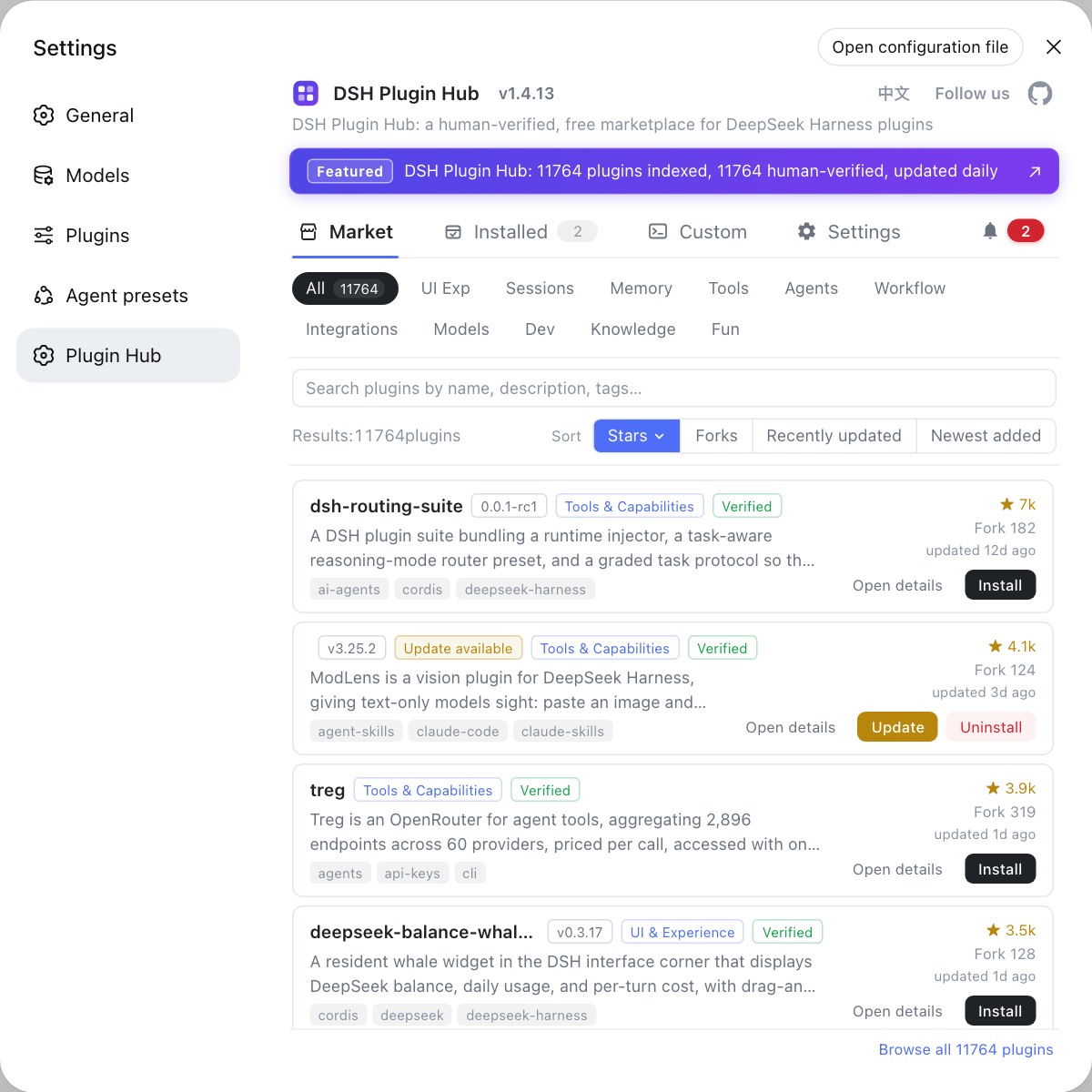
Picking plugins and checking versions is easiest in the plugin market; reinstalls and batches go to the terminal. Both act on the same installed list, just through different doors. See using the plugin market.
Which entry point to use to install a DSH plugin
- Everyday browsing: the plugin market in the desktop app or web UI, where search, categories, versions and update notices are visual and one click installs a plugin.
- Servers and remote hosts: the web UI, with the host on the far machine and the browser on yours, installing into that machine's own profile.
- Batches, scripts and CI: the CLI, because only the command line can loop over a list or run where there is no graphical interface.
- Never hunt across profiles — desktop plugins live in desktop and web plugins in web, so a missing entry usually means you are looking at the wrong profile.
- Keep host and plugin concerns apart — the three entry points differ only in profile ownership, while per-platform host differences are covered in installing DSH plugins on any OS.
Sources: DeepSeek Harness desktop README, dsh CLI README, dshplugin/dsh-plugin-hub
FAQ
**The DSH plugin market is the same interface in the desktop app and the web UI, but the two manage different profiles.** DeepSeek Harness desktop and the web UI both reach the plugin market at Settings → Plugin Market and show the identical catalog page. The difference is ownership: the desktop app manages the desktop profile, the web UI manages the web profile, and their installed lists never overlap.
**You restart the desktop app after installing a DSH plugin because the desktop app owns the desktop profile exclusively.** After installing a DeepSeek Harness plugin into the desktop app, reopen the app so the runtime stack rebuilds from the new dependencies and load declarations. If you use the command line instead, start the app once, quit it completely, then run dsh plugin --profile desktop add.
**Yes — to install a DSH plugin in the web UI you must start the Web UI service first.** The DeepSeek Harness web entry point is the http://127.0.0.1:3080 address printed by dsh web, so if that service is not running or has exited there is no plugin market to open. Confirm the service is still in the foreground, then refresh.
**Which profile a DSH plugin lands in depends on whether you pass --profile.** Clicking Install in the plugin market writes into the profile that the interface belongs to, while dsh plugin --profile web add clearly targets web. If the command omits --profile or names a different one, you get a plugin that is installed but invisible in the plugin market you are looking at.
**The command line is the best fit for installing several DSH plugins in batches.** The DeepSeek Harness plugin market is built for browsing and picking plugins one at a time, while dsh plugin --profile web add is what you can loop over a list, check into a repo and replay on a remote host that has no graphical interface.
Related Terms
- desktop profile
- The desktop profile is the runtime stack owned exclusively by the DeepSeek Harness desktop app, which holds both its directory and package manager state. A plain CLI cannot start or modify it, but the app's built-in commands can manage its plugins after the app exits.— DeepSeek Harness desktop README
- web profile
- The web profile is the runtime stack used when dsh web starts the Web UI. The plugin market you open in a browser acts on this profile, so plugins added with dsh plugin --profile web add appear in its installed list.— dsh CLI README
- plugin market
- The plugin market is the catalog and install entry built into the DeepSeek Harness Web UI at Settings → Plugin Market, shared by the desktop app and the web UI. It lists installed plugins for whichever profile the interface belongs to.— dshplugin/dsh-plugin-hub GitHub repository
- --profile desktop
- --profile desktop is the flag form used to manage plugins for the DeepSeek Harness desktop app with add, list and remove. It only works after the app has been started once and then fully quit, because built-in commands reject an uninitialised profile.— DeepSeek Harness desktop README
Sources
- DeepSeek Harness desktop README· deepseek-ai
- dsh CLI README· deepseek-ai
- dshplugin/dsh-plugin-hub GitHub repository· GitHub