Fix 127.0.0.1:3080 connection refused: start the DSH web UI
127.0.0.1:3080 is the default address of the DeepSeek Harness Web UI started by dsh web. When the page fails to open with connection refused (ECONNREFUSED), the service is almost certainly not running — start it first, then check port usage, system proxy, and the browser in that order, and most issues are resolved within three steps.
What this DeepSeek Harness address is: dsh web and 127.0.0.1:3080
The dsh web: http://127.0.0.1:3080 line in your terminal is the startup notice of the DeepSeek Harness Web UI, not an error. It tells you the Web UI is listening on port 3080 on this machine, and the browser should open it at that address (source).
Key facts:
dsh webis an alias ofdsh --profile web— in the official CLI definition,webis a shortcut for--profile web(source).- 3080 is the default port:
http://127.0.0.1:3080is confirmed in the official README, with no configuration needed. - A local launch auto-opens the browser: since v0.1.0-rc.8, starting dsh web opens the page in the default browser; pass
--no-opento skip that (source). - 127.0.0.1 is local only: only your own machine can reach it. An SSH launch prints only the host URL, and the local address must be forwarded by the SSH client (source).
If the notice appears but the browser did not open, just visit http://127.0.0.1:3080 manually.
Debugging a refused DeepSeek Harness connection (ECONNREFUSED)
Connection refused means nothing is listening on that port — in other words, dsh web is not running. Work through these 5 steps:
- Confirm dsh web is running: check the terminal that started it. If the window was closed or the process exited, the service has stopped.
- Restart dsh web:
or, if installed globally:bash
npx @deepseek-ai/dsh web # one-off run (no global install)Wait for thebashdsh webdsh web: http://127.0.0.1:3080line, then open the browser. - Check whether the port is occupied: another program on 3080 can stop dsh web from binding. On macOS / Linux:
On Windows:bash
lsof -i :3080If a process other than dsh holds the port, stop it or switch ports withpowershellnetstat -ano | findstr :3080dsh web --port 8080. - Check the system proxy: a global proxy (Clash, VPN, etc.) whose rules also forward
127.0.0.1can block local addresses. Add the local address to the proxy's direct/whitelist rules, or temporarily disable the global proxy and retry. - Try another browser / clear the cache: browser extensions or a stale cache can block local addresses — try an incognito window at http://127.0.0.1:3080.
gateway proxy error: connect econnrefused 127.0.0.1:3080
This error points to the same root cause: the local service is not listening. A model gateway call tried to reach 127.0.0.1:3080 and failed. Fix it the same way: start dsh web; if the port is occupied, free it first. It often happens when the Web UI tab is still open but the background dsh web process has exited — restart the service and refresh the page.
DeepSeek Harness dsh web flags: --no-open and more
Use --no-open to run the server without auto-opening the browser. The official CLI behavior reference confirms web accepts --host, --port, --trusted-host, and --no-open (source):
--no-open: run the server only, without opening a browser. Useful for SSH sessions, servers, or when you manage browser windows yourself:The terminal still prints the address — copy it into the browser.bashdsh web --no-open--port <n>: change the port. Use it when 3080 is occupied or you need to avoid a proxy rule:Then visit http://127.0.0.1:8080.bashdsh web --port 8080--host <ip>: change the listening address;--trusted-host <host>: declare a trusted origin (repeatable). The official CLI behavior reference lists exactly these three web flags (--host,--port, repeatable--trusted-host) and notes that--host 0.0.0.0is not supported yet — it exits with a usage error. For remote or LAN access, add hostnames via--trusted-hostso they join the/apibrowser-trust fence, instead of opening the listener to every interface (source).- Production runs need built artifacts: the npm-installed dsh ships with them; running from a source checkout without
pnpm run buildmakesdsh webfail at startup with an explicit "run build" instruction. This applies to the service itself, not to plugins (source). - Stop with Ctrl+C: the first Ctrl+C starts a graceful drain — the plugin tree gets up to five seconds to dispose; a stuck process exits immediately on a second signal. SIGINT exits with code 130 (source).
- These are web-app arguments and must come after
dsh web—dsh web --port 8080, notdsh --port 8080 web.dsh web --helpprints the web app's help, not the launcher's.
Notes: DeepSeek Harness — check the service first
127.0.0.1:3080is a local address — phones and other machines cannot reach it; remote access needs port forwarding.- Connection refused almost always means the service is not running — do not change config first.
- When the port is occupied, locate the process with
lsof -i :3080(macOS/Linux) ornetstat -ano | findstr :3080(Windows). - If you use a global proxy, add 127.0.0.1 to direct/whitelist rules so local addresses are not hijacked.
- Visit the page only after the
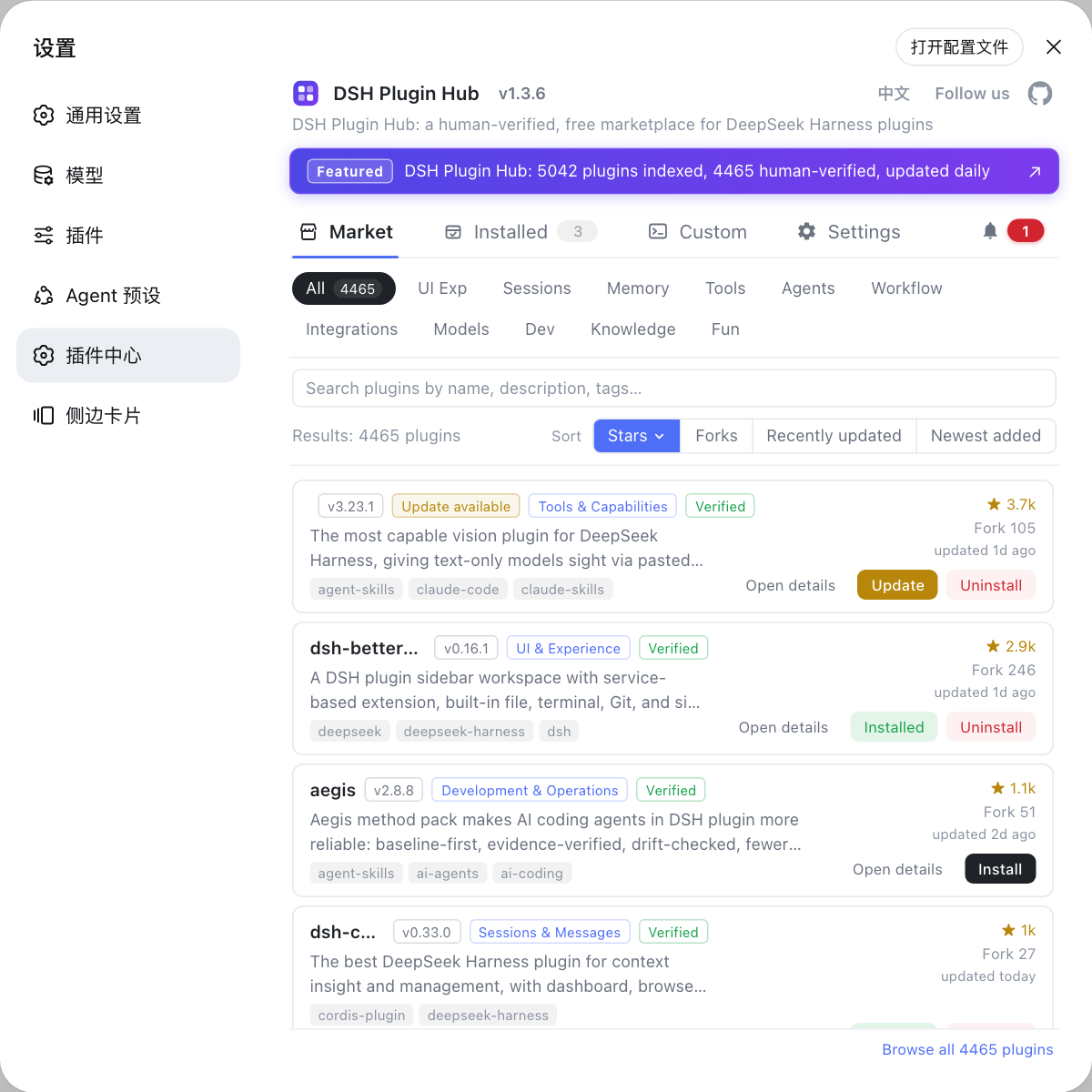
dsh webstartup notice appears; if it never appears, the service did not start. - Once the Web UI is open, install plugins from Settings → Plugin Market — the community channel DSH Plugin Hub — for a graphical alternative to the command line.
- See install error troubleshooting for other DeepSeek Harness install errors.
Source: DeepSeek Harness README, dsh CLI behavior reference, v0.1.0-rc.8 Release Notes
FAQ
It is the default address of the DeepSeek Harness Web UI started by dsh web. 127.0.0.1 means the address is only reachable from your own machine, 3080 is the default port, and a local launch auto-opens the page in the default browser (since v0.1.0-rc.8).
In nine cases out of ten the DeepSeek Harness dsh web service is not running. Restart dsh web first, then check whether port 3080 is occupied (lsof -i :3080), whether a global proxy is hijacking 127.0.0.1 traffic, and whether the browser cache needs a refresh.
It means the DeepSeek Harness web service on 127.0.0.1:3080 is not listening when a model gateway call is made. Start dsh web so the service runs; if the port is occupied, free it first, then restart.
Open DeepSeek Harness manually: visit http://127.0.0.1:3080. Since v0.1.0-rc.8 a local launch auto-opens the browser by default; if you passed --no-open, remove it to restore auto-open. An SSH launch only prints the host URL and needs port forwarding.
To change the DeepSeek Harness port, pass dsh web --port 8080 at startup and visit http://127.0.0.1:8080. This helps when the port is occupied or you need to avoid a proxy rule. Note --port belongs to the web app, so it goes after 'dsh web'.