Open & browse the DSH plugin market in DeepSeek Harness
The DSH plugin market in DeepSeek Harness lives in Settings → Plugin Market: install DSH Plugin Hub, open the entry, browse curated community DSH plugins by card, category, search and sort, then click Install, confirm, and the plugin is installed in one click — no terminal commands required. Compared with dsh plugin --profile web add <package> on the command line, the market turns the same job into visual buttons; this guide breaks down the entry, browsing and installing steps one by one.
Overview: the plugin market at a glance, four things in one table
The plugin market concentrates four tasks — enter, browse, install, verify — behind a single entry on the Settings page. The market is the official storefront of DeepSeek Harness, hosting curated community plugins (source):
| Stage | How to do it | Key action | Command-line comparison |
|---|---|---|---|
| Enter the market | Install Hub → Settings → Plugin Market | dsh plugin --profile web add dsh-plugin | the Hub plugin must be installed via CLI first |
| Browse the market | cards + category + search + sort | click Not installed to see what you lack | dsh plugin --profile web list only shows what you have |
| Install a plugin | Install → confirm dialog → progress | verify the source and command in the dialog | equivalent to add <package>, run by the system |
| Verify the result | card flips to Installed + badge +1 | refresh the page to activate | re-run list to double-check |
Each stage below offers multiple ways — pick whichever fits.
Entering the plugin market: two ways
The entry is Settings → Plugin Market, and the prerequisite is having DSH Plugin Hub installed; a fresh environment and an existing one take different routes. Two ways:
Way 1: fresh environment — install DSH Plugin Hub from the command line first
If you have never installed the Plugin Market, one command brings the market itself in. Prerequisite: DeepSeek Harness is installed and has been started at least once. Steps:
- Open a terminal and run the install command:
# Install DSH Plugin Hub (npm package name, source in the official repo)
dsh plugin --profile web add dsh-plugin
- Wait for npm to finish downloading; a success message appears;
- Restart the dsh web service (
npx @deepseek-ai/dsh webor restart your host); - Open the Web UI, go to Settings, and click Plugin Market in the sidebar.
Fallback: a 404 means a mistyped name or a stale mirror — confirm the package with npm view dsh-plugin, then switch the npm mirror and retry.
Way 2: Hub already installed — open the Web UI directly
Once the Hub is in place, every visit follows the same path with no commands involved. Prerequisite: DSH Plugin Hub is installed and active after a restart. Steps:
- Open the DeepSeek Harness Web UI (the local service address, e.g. http://127.0.0.1:3080);
- Go to Settings;
- Click Plugin Market in the sidebar to enter the plugin market.
Fallback: if Plugin Market is missing from Settings, the Hub is probably not installed or not active — redo Way 1, restart and refresh; if it persists, run dsh plugin --profile web list to confirm the plugin is really there.
Browsing the plugin market: cards, categories, search, sorting
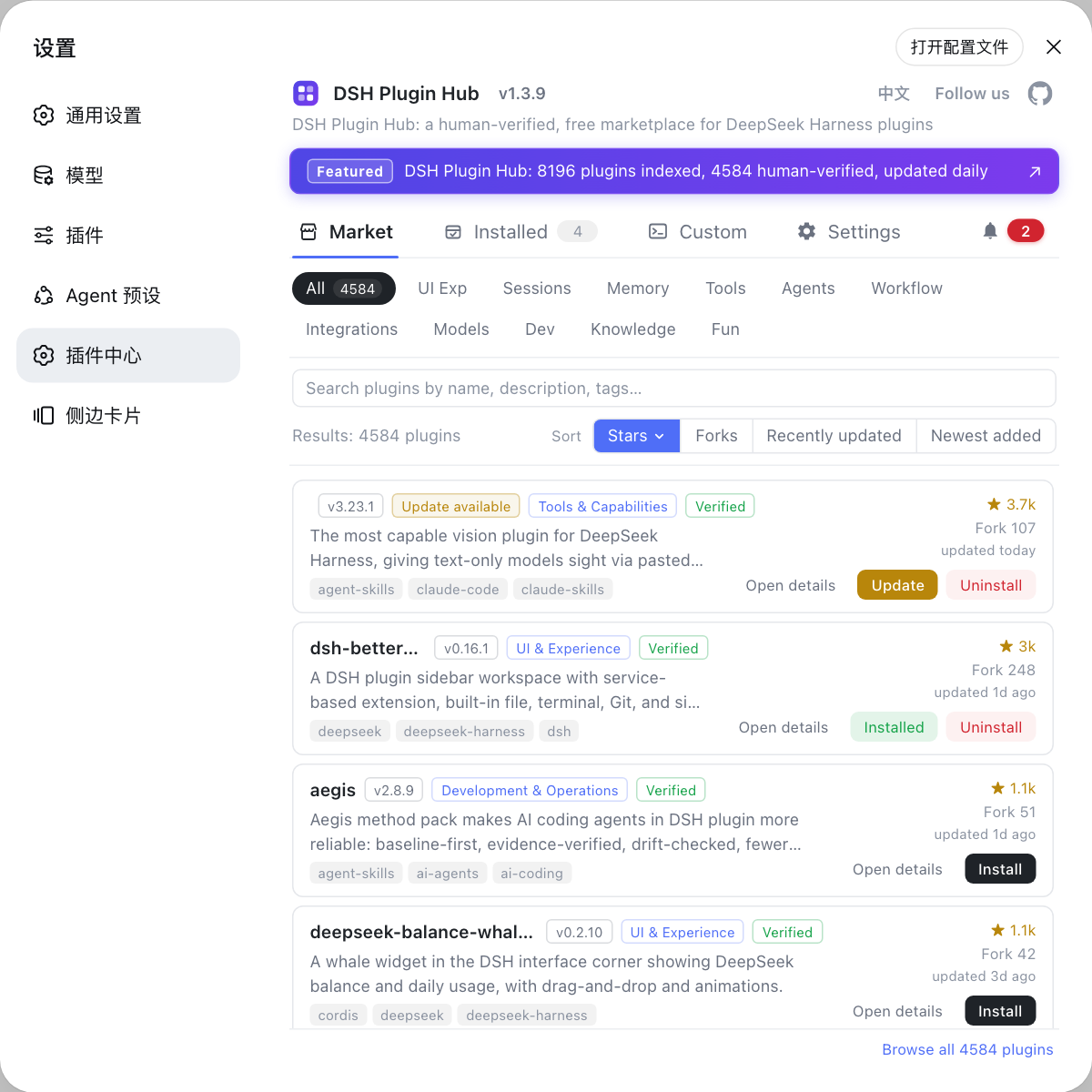
The market is a card list where every card answers "what is it, can I install it, is there a new version". The screen has three zones from top to bottom (source):
- Top navigation: Plugin Market / Installed / Custom install / Settings, with a language switch on the right;
- Toolbar: a search box, a result count and a sort button group (Name / Recent / Stars / Forks — click the same button to toggle ascending/descending);
- Category filters: All / Installed / Not installed, to see only plugins you have not installed yet.
Each card shows the plugin name, version, installed and update badges, category, verified badge, description, topics, and star/fork/update timestamps. Three ways to browse:
- By category: click the Not installed filter to see only plugins missing from your environment and avoid repeats;
- By keyword: type a plugin name or a feature word (e.g. memory, translate) into the search box — the list filters as you type;
- By popularity: click Stars to put the most popular first; click again for reverse order.
Open details takes you to the plugin page with the full intro and install command.
Installing a plugin: market one-click vs. the command line
The market and the command line install the same plugin to the same result — the difference is only in how you operate: buttons vs. commands. Two ways:
Way 1: one-click install from the market (recommended for beginners)
Find the plugin, click Install, check the confirmation dialog, confirm, and the live progress runs to completion. Steps:
- Find the target plugin in the card list and click Install;
- Read the confirmation dialog: the plugin name, source repo and the exact
dsh plugin addcommand are shown — confirm only after verifying them; - Wait for the live progress: tasks run in a serial queue, the dialog shows progress and can be cancelled;
- Done: the card button turns into "Installed", and the plugin takes effect after refresh.
Installing a plugin you already have switches to an "Update" meaning and reinstalls it in place to the latest version when one is detected (source).
Way 2: command-line install (for scripts and batch work)
When you would rather skip the UI, the command does the same job. Prerequisite: you know the package name. Steps:
# The command-line equivalent of a market install
dsh plugin --profile web add <package>
Confirm it appears with dsh plugin --profile web list. Fallback: a mistyped name returns 404 — verify with npm view <package> first.
Troubleshooting common issues
Look at the symptom first, then fix accordingly. Common issues:
| Issue | Likely cause | Fix |
|---|---|---|
| No Plugin Market entry in Settings | Hub not installed or not active | reinstall with dsh plugin --profile web add dsh-plugin, restart dsh web, refresh |
| The market list is blank | network restricted, catalog not fetched | check network/proxy; restart dsh web to re-pull the catalog |
| No verified badge on a card | plugin just listed, review pending | follow the dsh-plugin.org status; check back later |
| Install progress is stuck | slow network, unstable npm mirror | cancel and retry, or switch the npm mirror and install again |
| Card still says Install after finishing | page not refreshed, progress unfinished | refresh the page; wait for the dialog progress to end |
| Cannot find the plugin I want | not in the catalog, keyword too narrow | try a feature word, or use Custom install with an npm/GitHub address |
| Install error | incomplete package, untrusted source | reinstall the npm build; copy the full error from the system logs |
If you cannot pinpoint it, open Settings → System logs for the full error and follow the matching guide.
Quick recap
In short: install the Hub, go to Settings → Plugin Market, browse the cards and click Install — no commands involved. Four reminders:
- Install DSH Plugin Hub first:
dsh plugin --profile web add dsh-pluginopens the entry in one command; - Three browsing moves: filter Not installed + search keywords + sort by Stars — combine them for the fastest result;
- Check the confirmation dialog before installing: verify the plugin name, source repo and the command that will run;
- Refresh and verify after installing: the card flips to Installed, the badge increments, or re-check with
dsh plugin --profile web list.
Sources: dshplugin/dsh-plugin-hub, dsh-plugin.org, DeepSeek Harness docs - Packaging and installing plugins
FAQ
Install DSH Plugin Hub first (one command: dsh plugin --profile web add dsh-plugin), then open the DeepSeek Harness Web UI, go to Settings and click Plugin Market. If the entry is missing, restart dsh web (npx @deepseek-ai/dsh web) and refresh the page.
The market is a card list: each plugin card shows the name, version, category, verified badge, description and topics, plus stars, forks and update time. Installed plugins show an Installed state and an Update badge when a newer version is available.
Market plugins are curated and reviewed daily by dsh-plugin.org, and cards carry a verified badge. Clicking Install opens a confirmation dialog showing the plugin name, source repo and the exact dsh plugin add command that will run; nothing executes until you confirm.
Make sure DSH Plugin Hub is installed and restart the dsh web service (npx @deepseek-ai/dsh web), then refresh the browser. Still missing? Run dsh plugin --profile web list to confirm the plugin is really installed, then reinstall the Hub once.
It is the same source as dsh-plugin.org: the site collects, reviews and publishes community plugins daily, and the market pulls the latest catalog from that source automatically — no manual catalog updates. For plugins missing from the market, use Custom install with an npm or GitHub address.
Sources
- dshplugin/dsh-plugin-hub GitHub repository· GitHub
- dsh-plugin.org plugin market· dsh-plugin.org
- DeepSeek Harness docs - Packaging and installing plugins· deepseek-harness