Search, sort & filter DSH plugins in DeepSeek Harness
Find any DSH plugin in the DeepSeek Harness plugin market with three moves: type keywords in the search box for instant filtering, toggle the sort buttons (Name / Recent / Stars / Forks) for ascending or descending order, and filter by Installed or Not installed — all three conditions stack, so you can lock onto your target in seconds and click Install. All three live on the same toolbar of the DSH Plugin Hub plugin market; this guide walks through each move step by step.
Overview: the three moves in one table
Search, sort and filter are the three tool groups on the plugin market toolbar — they complement each other and stack freely. At a glance (source):
| Tool | Location | What it does | Key action |
|---|---|---|---|
| Search box | left of the toolbar | filters the plugin list by keyword | type a name / category / feature word for real-time filtering |
| Sort buttons | right of the search box | decides list order | Name / Recent / Stars / Forks; click again to flip the order |
| Category filters | right of the sort buttons | slices the list by install state | All / Installed / Not installed |
Use all three at once: search first, then sort, then filter — the conditions do not conflict.
The search box: two keyword tactics
Search is a real-time match over name, description, topics and similar fields — the words you type decide what you hit. Enter the market via Settings → Plugin Market, then pick a tactic:
Tactic 1: search by plugin name (when you remember the name)
When you know the name, search it directly — the most precise approach. Steps:
- Click the search box at the top;
- Type the plugin name (e.g. memory, deepseek-balance);
- Watch the list update as you type; the result count shows the current hits;
- Click Install on the target plugin's card.
Fallback: a full name can be too long to hit — try part of the name instead; if a Chinese name fails, search the English name (the catalog is primarily English).
Tactic 2: search by category or feature word (when you only know the purpose)
Do not remember the name? Search the purpose — category names and feature words both hit. Steps:
- Type a category name (e.g. search, translate) or a feature word (e.g. proxy) into the search box;
- Judge the results by the description and topic tags on each card;
- Click Open details for the full intro and install command.
Fallback: if one word returns too many hits, add a second word to narrow down (e.g. "memory search"); if it is still noisy, switch to the sort-and-filter combo. Clear the box to restore the full list.
Category filters: installed or not installed
The three category buttons (All / Installed / Not installed) slice the list by install state, and the number on each button is the count for that filter. Two uses:
Use 1: click Not installed to see only what you lack
The most frequent move when hunting new plugins — it skips everything you already have. Steps:
- Open the plugin market (Settings → Plugin Market);
- Click Not installed in the category filters;
- The list now shows only plugins missing from your environment; the number on the button is the count;
- Pick a target and click Install.
Use 2: click Installed to review what you have
Useful for confirming whether a plugin is installed and which version. Steps:
- Click Installed in the category filters;
- The list shows every plugin installed in your environment;
- An Update badge means a newer version exists — click it to update right away.
Fallback: if the current filter has no results after switching category, it falls back to All automatically, so you never get stuck on an empty list.
Sort buttons: by time, popularity and name
The sort button group controls list order: Name / Recent / Stars / Forks, and clicking the same button toggles ascending/descending. Three sorting goals:
- By popularity: click Stars to sort by star count with the most popular first — great for hot plugins; click Stars again to go lowest-to-highest;
- By time: click Recent to sort by update time, newest listings first — great for fresh plugins;
- By name: click Name to sort alphabetically for quick location when you know the name; Forks sorts by fork count as a measure of community activity.
To find "recently hot" plugins, click Recent to see new listings, then Stars for popularity — cross-check both dimensions.
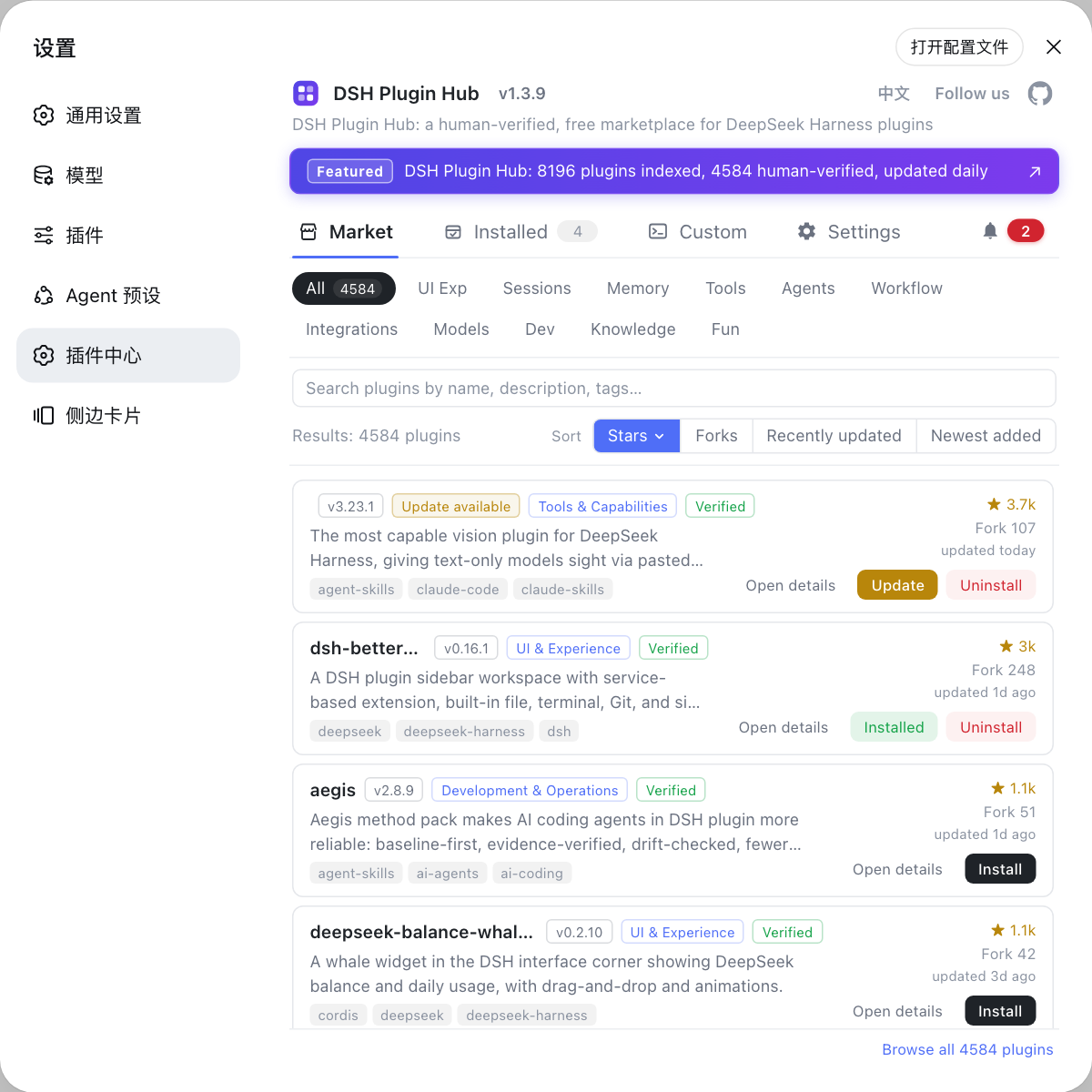
Hub in 2.2.5 still uses the same trio — search box, sort buttons and category filters. To work through all five query styles (Chinese name, English name, package name, topic and category), see five ways to search the market; to read the version, update time and verified badge on a card, see plugin card signals.
A fast combination routine
Bottom line: search a feature word first, sort by Stars for popularity, then use Not installed to skip what you already have. When filters, search and sort stack, the list is filtered by keyword, ordered by the sort condition, then split by install state. Three scenarios:
- Find hot plugins: clear the box → click Stars → pick ones with the verified badge;
- Find new plugins: click Recent → check new listings → open details to verify the description;
- Find an alternative for a feature: search the feature word → click Not installed → sort by Stars and pick one.
If the search still misses, do not give up — the plugin may simply not be in the catalog. Confirm its status on the DSH Plugin Hub detail page, or use Custom install to add it directly by npm/GitHub address.
Troubleshooting common issues
Cannot find it? Change the keyword first, then the sort, then the filter — three moves in order. Common issues:
| Issue | Likely cause | Fix |
|---|---|---|
| Search returns nothing | typo, mixed Chinese/English | try part of the name or a feature word, e.g. memory, translate |
| Too many results | keyword too broad | add a word to narrow down, or combine Not installed with Stars sorting |
| The hit is already installed | did not exclude installed | click Not installed to see only what you lack |
| Order does not change after sorting | toggled the same button without noticing | click the same button again to flip ascending/descending |
| Empty list after filtering | no results in that category | the filter falls back to All automatically; just operate again |
| The plugin is not in the catalog | not collected by the market | check the detail page, or use Custom install with an npm/GitHub address |
| Want an older version | the catalog shows only the latest | contact the author for historical versions, or install from the GitHub source |
Quick recap
In short: type in the search box to filter, use the sort buttons for order, filter by installed state — stack the three and lock on in seconds. Four reminders:
- Search by purpose first: when you forget the name, search the feature word — it hits more often than a full name;
- Not installed is your friend: always start with it when hunting new plugins to avoid repeats;
- Cross-check Stars with Recent: one shows popularity, the other recency — judge on both;
- Switch channels when stuck: confirm catalog coverage, or use Custom install with an address.
Sources: dshplugin/dsh-plugin-hub, dsh-plugin.org
FAQ
Open the plugin market (Settings → Plugin Market) and type in the search box to filter instantly: try a plugin name (memory), a category (search) or a feature word (translate, proxy). The list updates as you type; switch keywords or sorting if nothing hits.
The toolbar has a sort button group: Name / Recent / Stars / Forks. Click Recent for update time or Stars for popularity; click the same button again to toggle ascending/descending.
Use the category filters: All / Installed / Not installed. Click Not installed and the list shows only plugins missing from your environment; the number on each button is the count for that filter.
Check the keyword spelling, then try part of the name (e.g. memory for memory plugins). Still nothing? Confirm the plugin is in the catalog on the DSH Plugin Hub detail page, or use Custom install to add it directly by npm/GitHub address.
Yes. The search box, sort buttons and category filters work at the same time: filter by keyword first, sort by Stars for popularity, then use Not installed to skip plugins you already have.
Sources
- dshplugin/dsh-plugin-hub GitHub repository· GitHub
- dsh-plugin.org plugin market· dsh-plugin.org