Use npx @deepseek-ai/dsh web: first run and daily startup
npx @deepseek-ai/dsh web is the one-line official command to start DeepSeek Harness: npx automatically fetches the latest package and launches the web UI, defaulting to http://127.0.0.1:3080. This guide explains how the command works, what a first run goes through, how to start it daily, common startup issues, and how it differs from a global install.
Overview: one command does download plus launch
The npx route means run-on-demand: every execution pulls the package and starts it. DeepSeek Harness officially recommends this single line for a quick start (source). The whole flow has three steps:
- Fetch: npx obtains the latest
@deepseek-ai/dshfrom npm; - Initialize: the first run auto-creates the web profile and the
~/.dshdata directory; - Launch: the service starts and the browser opens
http://127.0.0.1:3080.
First run: what you will see
The first execution goes through four phases: download, initialize, start, open the browser. Steps:
- Open a terminal and run
npx @deepseek-ai/dsh web; - Wait for the npm download (slower the first time; an npm mirror speeds it up):
# Optional: switch to a faster npm mirror before the first run
npm config set registry https://registry.npmmirror.com
- Watch the logs, and the browser opens automatically once the service is up;
- Complete first-time setup on
http://127.0.0.1:3080(for example, configuring a model); - Keep the terminal window running; closing it stops the service.
The first run creates the ~/.dsh data directory, where configs, credentials, plugins and sessions live from then on (source).
Daily startup: the right way on day two
npx creates no local install, so you run the command again each time, but the cache makes the second run much faster. Steps:
- Open a terminal and run
npx @deepseek-ai/dsh webagain; - The browser opens straight into your previous workspace;
- To skip downloads entirely, install globally and run
dsh webdirectly:
# After a global install, start anytime
npm install -g @deepseek-ai/dsh
dsh web
The data directory is unchanged, so plugins and configs are fully interchangeable between both routes.
After startup: entering the plugin ecosystem
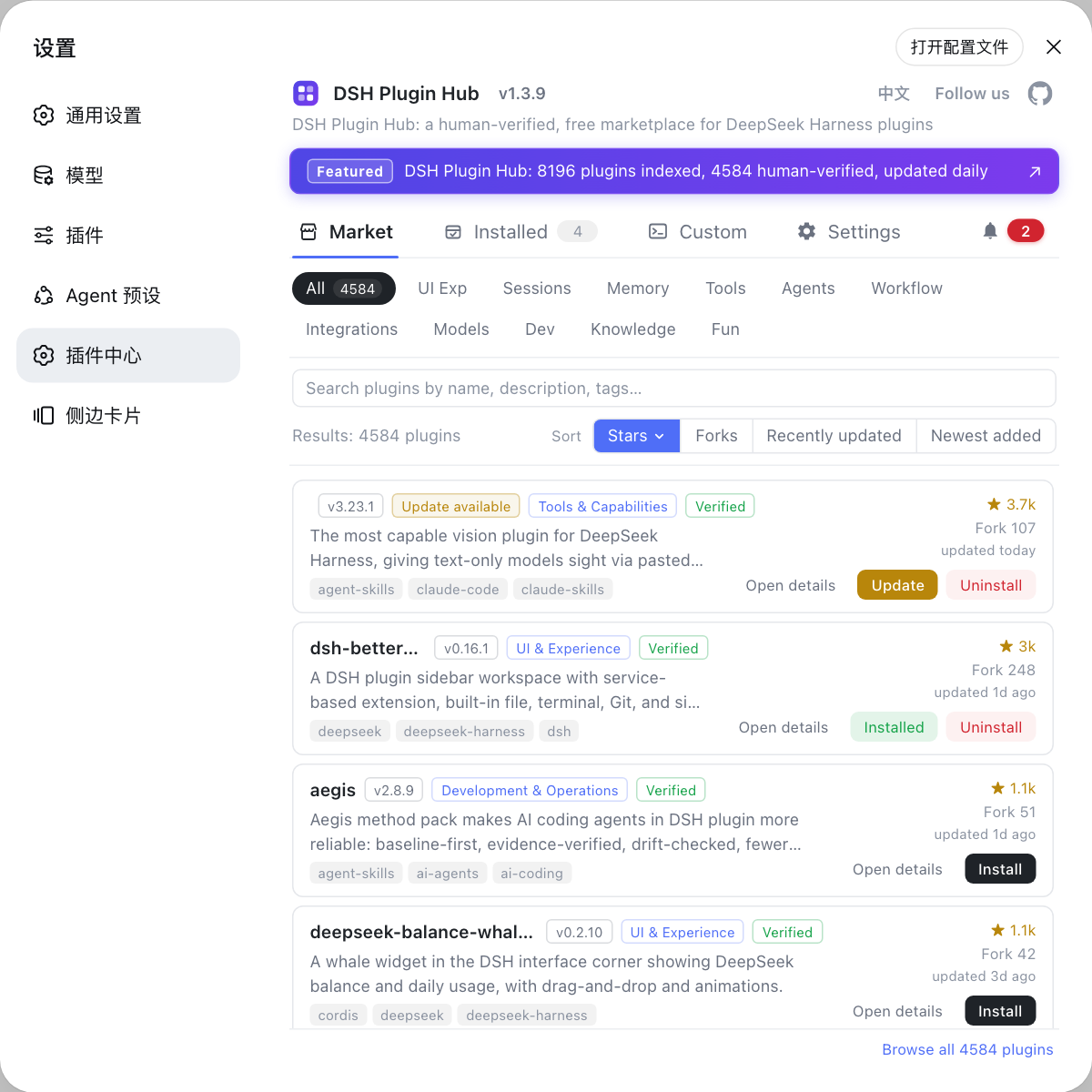
Once DSH runs, the next step is installing the plugin market. Steps:
- Run
dsh plugin --profile web add dsh-pluginto install DSH Plugin Hub; - Restart dsh web and open Settings → Plugin Market;
- Install community plugins with one click and refresh the page to activate.
Startup failed? Troubleshooting table
For startup problems, first confirm whether the command ran, then check why the page will not open. Common issues:
| Problem | Likely cause | Fix |
|---|---|---|
| npx says package not found | Network down / bad npm registry | Check the network; npm config get registry, switch to a mirror if needed |
| First download very slow | Slow default npm registry | npm config set registry to a mirror and retry |
| Browser does not open automatically | System browser policy | Open http://127.0.0.1:3080 manually |
| Page will not open | Service not started / port occupied | Check the terminal logs; change the port or run lsof -i :3080 to find the occupant |
| Service stops when terminal closes | npx service follows the terminal | For background use, install globally + run in background, or use another window |
| Still slow on the second run | npm cache not effective | The cache kicks in after the first success; nothing to do |
| Version looks old | npx cached an old package | npm cache clean --force and restart; it pulls the latest |
| Still fails after switching networks | Proxy configuration | Check system and npm proxy settings (npm config get proxy) |
npx vs global install: which to choose
Each route fits a different usage pattern — pick by how often you use it. Comparison:
| Dimension | npx route | Global install |
|---|---|---|
| Install action | None; fetch on demand | npm install -g @deepseek-ai/dsh once |
| Global footprint | None | Occupies the global bin |
| Version | Always latest | Manual updates (npm update -g) |
| Startup speed | Slow first time, cached later | Fastest — just dsh web |
| Best for | Quick trials, occasional use | Daily use, command-line work |
Quick reference
In one sentence: npx @deepseek-ai/dsh web runs the latest DeepSeek Harness without installing, opening 127.0.0.1:3080 by default; for daily use, install globally and run dsh web. Four reminders:
- The first run is slow by design — an npm mirror speeds it up significantly;
- Do not close the terminal — the npx-launched service follows the terminal process;
- All data lives in
~/.dsh— npx and global installs are fully interchangeable; - If the page will not open, check the port first — change the port or stop the process occupying 3080.
Sources: dsh CLI README, DeepSeek Harness docs - Quickstart, dshplugin/dsh-plugin-hub
FAQ
It is the official command to launch the DeepSeek Harness web UI: npx fetches the @deepseek-ai/dsh package from npm and runs the web subcommand, opening http://127.0.0.1:3080 in your browser, the default web address of dsh.
npx downloads the latest @deepseek-ai/dsh package (slow on first run), initializes the web profile and data directory (default ~/.dsh), then starts the service and opens the browser; the terminal keeps streaming run logs.
Yes. The npx route creates no global install, so each launch goes through npx again (cached and much faster after the first). If you want the dsh command available anytime, run npm install -g @deepseek-ai/dsh and then just dsh web.
Check that the service started and the port is not occupied in the terminal logs; keep the terminal window open. If it still fails, try a different port or check your proxy and firewall settings.
npx fetches on demand, keeps nothing in the global environment and always uses the latest version; a global install puts the dsh command on your system for faster, daily startup. Both share the same data directory ($DSH_HOME), so plugins and configs are interchangeable.
Sources
- dsh CLI README· deepseek-ai
- DeepSeek Harness docs - Quickstart· deepseek-harness
- dshplugin/dsh-plugin-hub GitHub repository· GitHub