DeepSeek Harness auto-update: desktop, CLI and plugin layers
Auto-update in DeepSeek Harness has three layers: the desktop app has a built-in update check and also offers Check for Updates, but downloading and installing both wait for you; the command-line core has no update switch, so you either launch it through npx, which re-resolves @latest on every start, or schedule the update command as a system task; the plugin side gets its prompts from DSH Plugin Hub's check on startup and its update badge. DSH plugins sit on that plugin side and get the prompts, while the command-line core has no switch at all. This article treats the three layers separately and states the cost of each.
Three separate layers: desktop updates, dsh core updates and DSH plugin prompts
Auto-update in DeepSeek Harness is really three independent problems: the desktop app is an Electron shell with a built-in update check and a manual check in its menu, the command-line core is an npm global or npx temp package that needs an external mechanism to fetch the newest version, and plugins are managed by the dsh plugin channel with built-in checking and prompting (source). Compare them:
| Layer | Built-in auto-update | How to achieve it | Cost |
|---|---|---|---|
| Desktop app (Electron) | Yes, but it only checks | Startup channel query plus a ~10 minute poll; Check for Updates in the menu | Download and install wait for your confirmation |
| dsh core (global npm) | No | A scheduled task running npm install -g @deepseek-ai/dsh@latest | Restarting your resident service after each update |
| dsh core (npx) | Effectively updates on each start | Pass @latest so npx re-resolves | A possible download wait per start |
| Plugins | Yes: check and prompt, never silent install | DSH Plugin Hub check on startup plus update badge | You confirm once before it upgrades |
Find out which group you are in: if you installed the desktop app, manage updates in its app menu and read the next section; on the command line, run npm ls -g @deepseek-ai/dsh. Expect: a version means a global install, so follow the scheduling section; (empty) while you normally start with npx means the npx section applies.
The desktop app checks for updates itself: built-in polling and Check for Updates
The desktop app is the only layer with a built-in update check: it queries a fixed update channel asynchronously on startup and polls on a roughly 10 minute baseline, with ±20% jitter and backoff to one hour after failures; an automatic check never pops up and never downloads an installer, so a new release first shows as an update-available state and the download starts only once you pick it; you can also click Check for Updates in the app menu at any time (source). Three steps to confirm you are not behind:
- Read the current version — open the first app menu item, About DeepSeek Harness. Expect: a native panel showing the app icon, product name and the currently installed release version.
- Trigger a check by hand — click Check for Updates in the app menu. Expect: feedback covering checking, failure or up-to-date with the installed version number; a newer release moves into a downloadable state.
- Confirm the CLI follows along — if you installed the dsh command that the desktop app offers, open a new terminal and run
dsh --version. Expect: the same version as the desktop app, because that command reuses the runtime installed by the desktop app and changes with it.
Why the desktop app can do this and the CLI cannot: the desktop version and @deepseek-ai/dsh always use the same exact version number, so shipping a new dsh means shipping a new desktop release, and the app carries its own update channel to move itself onto that release. The command-line core is just an npm package with no resident process to do the same. For the mechanics of updating the app and pairing it with the CLI, see How to update the DeepSeek Harness desktop app.
Least effort for DeepSeek Harness: start it through npx and resolve the latest
npx has no resident install to update, so it resolves the package against @latest on every run, which is effectively an update on every start with no extra configuration (source). Three steps to make it routine:
- Pass the latest tag when starting — run
npx -y @deepseek-ai/dsh@latest web. Expect: npx resolves against latest and runs, with-yskipping the install prompt. - Confirm you really got the newest — in another terminal compare
npm view @deepseek-ai/dsh versionwithdsh --version. Expect: they match, proving this start used the newest stable release. - Clear the cache if you suspect a stale copy — run
npm cache clean --forceand repeat step 1. Expect: it re-downloads; npx keeps temporary installs under~/.npm/_npx.
State the trade-off plainly: each start may involve a download check, which shows up as slow startup on a poor network. If you already installed globally with npm and set up autostart, do not mix in npx as well, or the two setups will run different versions and mislead your troubleshooting.
Auto-updating a global DeepSeek Harness install: schedule the command as a system task
A global install has no "resolve latest on start" opportunity, so the right approach is to put the update command on a system schedule and let the OS run it daily; the update itself is fast, and the real cost is restarting the resident service afterwards (source). On three platforms:
- macOS: schedule with launchd — create
~/Library/LaunchAgents/org.dsh.update.plist, useStartCalendarIntervalto declare when it runs, and setProgramArgumentsto/bin/sh -c "npm install -g @deepseek-ai/dsh@latest", then load it withlaunchctl bootstrap gui/$(id -u) <plist>. Expect: it runs on schedule, with output captured byStandardOutPath. - Linux: schedule with a systemd timer — create
~/.config/systemd/user/dsh-update.service(ExecStart=/usr/bin/npm install -g @deepseek-ai/dsh@latest) anddsh-update.timer(OnCalendar=daily,WantedBy=timers.target), then runsystemctl --user daemon-reload && systemctl --user enable --now dsh-update.timer. Expect:systemctl --user list-timersshows the next run. - Windows: schedule with Task Scheduler — create a task with a Daily trigger at a fixed time, and use the full path to
npm.cmdas the program withinstall -g @deepseek-ai/dsh@latestas arguments. Expect: it runs on schedule, and the last run result confirms success. - Restart the resident service after the scheduled run — if you host it as a background service per DeepSeek Harness autostart, restart that service so the process picks up the new version. Expect:
dsh --versionreports the new version.
Decide one thing first: auto-update means the service may change version without you knowing. If you depend on a specific version's behavior, skip scheduled updates and upgrade manually after a release notification.
How to learn about a new DeepSeek Harness release immediately
If you would rather be notified than auto-upgrade, three queries and one subscription cover it (source). In order:
- See the gap — run
npm outdated -g --depth=0. Expect: when the package is listed, the Current and Latest columns show what you run versus what is available; no output means you are current. - Query the newest on the source — run
npm view @deepseek-ai/dsh version. Expect: the newest stable release on the source; if it looks older than announcements, checknpm config get registryfor a lagging mirror. - Subscribe to releases — on the
deepseek-ai/deepseek-harnessrepo page choose Watch, then Custom, and tick only Releases. Expect: one GitHub notification per release, without noise. - Read the changelog before upgrading — confirm what changed instead of following blindly. See How to check the dsh version and read the changelog.
DSH Plugin Hub plugin-side checking: startup comparison and the update badge
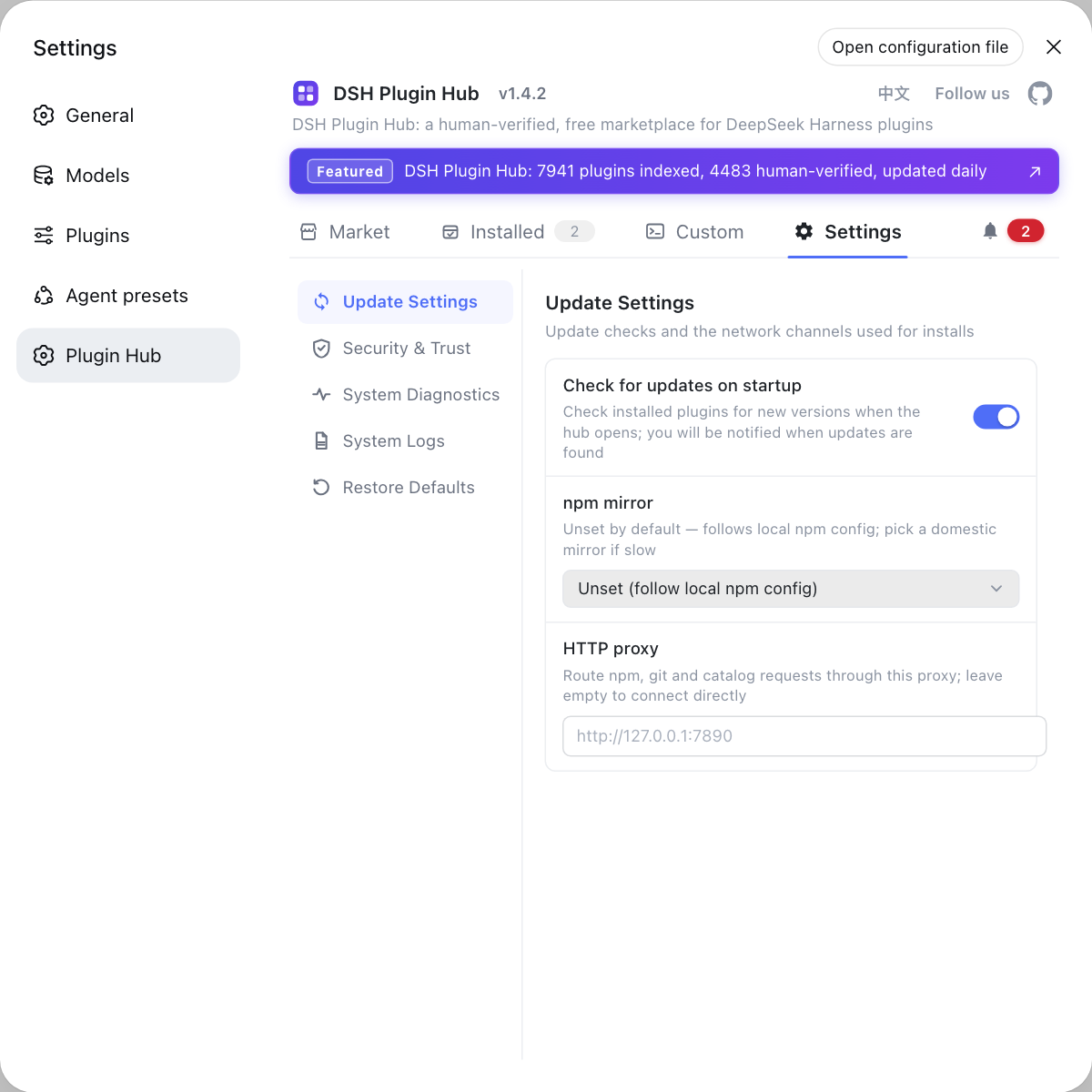
Plugins never upgrade silently, but they do prompt: DSH Plugin Hub has check-for-updates on startup, which compares catalog data against installed versions and shows an update badge at the end of a row when a newer version exists (source). Three steps:
- Turn the check on — open the Settings page and confirm check-for-updates on startup is enabled. Expect: a version comparison happens on each start.
- Read the installed list — open the Installed page and look for rows carrying the update badge. Expect: those are the plugins with a newer version available.
- Upgrade one by one — click the badge and confirm in the dialog. Expect: the plugin is upgraded in place; for several at once, follow the batch approach in How to batch update DSH plugins.
Why plugins are not fully automatic: an in-place upgrade replaces code that is currently loaded, and dsh usually needs a restart before it takes effect, so a silent run would lead people to conclude "it updated but nothing changed". The market leaves that final confirmation to you.
Five reminders apply throughout:
- The three layers never drive each other: the desktop app checks for updates on its own, the core runs through npm and scheduled tasks, and plugins go through market badges, so no layer updates another along the way.
- Give scheduled updates a log: otherwise a failure passes silently and all you see later is that the version never changed.
- Do not schedule updates on an unattended service and walk away: a new release can change how plugins load, so someone should confirm it still starts.
- A mirror affects your sense of whether an update exists:
npm viewreads whatever the source has cached, so checknpm config get registrybefore concluding. - Back up before upgrading: for what survives an upgrade and how to back up, see Will updating DeepSeek Harness lose my config.
Managing the desktop app in its menu, the core on scheduled tasks and plugins through market prompts keeps the three from being confused. DSH Plugin Hub is the official plugin market built into DeepSeek Harness: its Settings page manages check-for-updates on startup along with the npm mirror and proxy channel, while the installed list marks plugins with newer versions so a single confirmation upgrades them in place, with no need to query each one from the command line.
Sources: npm Docs - npx, Apple developer documentation (launchd), systemd documentation - systemd.timer, dshplugin/dsh-plugin-hub GitHub repository
FAQ
The desktop app does; the command-line core does not. DeepSeek Harness for desktop has a built-in update check and also offers Check for Updates in the app menu, while downloading and installing both wait for your confirmation. A dsh installed globally with npm or launched through npx has no update switch and will not install new versions by itself. On the plugin side, DSH Plugin Hub provides the check on startup and the update badge.
It checks automatically but never downloads for you. DeepSeek Harness for desktop queries a fixed update channel asynchronously on startup and polls on a roughly 10 minute baseline with ±20% jitter, backing off to one hour after failures. Automatic checks never pop up or download an installer: a new release first shows as an update-available state in the bottom-left account row, and the download starts only once you pick it. You can also click Check for Updates in the app menu at any time, and the desktop version and @deepseek-ai/dsh always share the same exact version number.
Both work, at different costs. Launching with npx -y @deepseek-ai/dsh@latest web re-resolves against the latest tag on every run, so each start effectively updates, at the cost of a possible download wait; a global install can instead run npm install -g @deepseek-ai/dsh@latest on a schedule via launchd, a systemd timer or Windows Task Scheduler, at the cost of restarting your resident service afterwards.
Three ways to hear about a new DeepSeek Harness release right away: run npm outdated -g --depth=0 to see the gap between Current and Latest, run npm view @deepseek-ai/dsh version for the newest stable release on the source, and on the GitHub repo page choose Watch then Custom and tick only Releases so you get notified without noise.
DSH plugins never upgrade silently, but they do prompt: DSH Plugin Hub has check-for-updates on startup, which compares catalog data with installed versions and shows an update badge at the end of the row when a newer version exists. Clicking it and confirming installs the upgrade in place.
Related Terms
- auto-update
- In this context auto-update means obtaining new versions without manual work, rather than a built-in update switch. The dsh core achieves it through npx resolving the latest tag or through a scheduled task running the update command, while DSH plugins get update prompts from the market.— dshplugin/dsh-plugin-hub GitHub repository
- StartCalendarInterval
- StartCalendarInterval is a launchd plist key on macOS that schedules a job at fixed clock times using fields such as Hour and Minute, which is how an update command can be placed on a daily schedule.— Apple developer documentation
- systemd timer
- A systemd timer is a scheduling unit made of a .timer file paired with a .service file. It declares when to run through OnCalendar and is enabled with WantedBy=timers.target, which suits running a dsh update command on a schedule.— systemd documentation
- update badge
- The update badge is a status marker in the DSH Plugin Hub installed list, shown at the end of a row when a newer plugin version is available. Clicking it and confirming installs the upgrade in place, independently of the dsh core version.— dshplugin/dsh-plugin-hub GitHub repository
Sources
- npm Docs - npx· npm
- Apple developer documentation - launchd.plist (StartCalendarInterval)· Apple
- systemd documentation - systemd.timer· freedesktop.org
- dshplugin/dsh-plugin-hub GitHub repository· GitHub
- DeepSeek Harness desktop README· deepseek-ai