DSH update keeps data: config, sessions, plugins
Updating DSH does not lose data: an update only replaces the program itself — your keys, config, sessions and plugins all live in the separate $DSH_HOME data directory, and update commands never touch them. The real risk is not losing data but plugin incompatibility after the upgrade, so back up first and verify each plugin's compatibility afterwards.
Overview: what an update touches and what it doesn't
DeepSeek Harness splits "program" and "data" into two directory trees: the program is an npm package or source repo, the data is $DSH_HOME (default ~/.dsh). Only the program gets replaced during an update; the data directory stays independent. Once you understand this, "will updating wipe my stuff" stops being scary. The official docs define the data directory this way: model keys are stored in $DSH_HOME/.credentials.yaml, user config in $DSH_HOME/settings.yaml, and profiles under $DSH_HOME/profiles/<name> (source). Update commands — rerunning npx, git pull, or npm install -g — all touch program files only, never $DSH_HOME.
What an update changes: program vs data directory
An update changes three things only: program code, npm dependencies, and build output; everything under $DSH_HOME — keys, config, sessions, profiles — stays untouched. Broken down by install method:
- npx: every run pulls the latest package from npm, which is essentially a temporary download of program files; the data directory is fully independent (source). Rerunning
npx @deepseek-ai/dsh webkeeps your model keys, sessions and plugins. - Source build:
git pullupdates the repo code,pnpm installupdates dependencies,pnpm run buildrebuilds the output — all inside the repo directory (source), never touching the data directory. - Global install:
npm install -g @deepseek-ai/dshoverwrites the global package, again without touching the data directory.
$DSH_HOME holds all your assets: settings.yaml (user config), .credentials.yaml (model keys, write-only, never echoed), profiles/<name>/ (each profile's plugin dependencies and composition config), sessions (chat data), and cordis.patch.yml (local preferences shared across profiles) — none of these are touched by updates.
What to back up before updating
Back up the whole ~/.dsh directory for maximum safety; copy only ~/.dsh/sessions if all you want to keep is chat history. Backing up is a pure copy operation that does not affect a running DSH and can be done anytime:
# Option 1: back up the whole directory (safest — config, keys, sessions, plugin deps)
cp -r ~/.dsh ~/.dsh-backup

# Option 2: back up sessions only (most common, small footprint)
cp -r ~/.dsh/sessions ~/.dsh-sessions-backup

# Option 3: back up sessions plus config and keys
cp -r ~/.dsh/sessions ~/.dsh/settings.yaml ~/.dsh/.credentials.yaml ~/.dsh-backup/
Back up the data directory only — do not drag node_modules along, since dependencies can be reinstalled while the data in $DSH_HOME is irreplaceable. To restore, copy the backup back:
cp -r ~/.dsh-backup/sessions ~/.dsh/sessions
To roll back the dsh program itself: overwrite with npm install -g @deepseek-ai/dsh@old-version for a global install, or git checkout an old tag and rebuild from source — these also leave the data directory alone, so config, sessions and plugins keep working after the rollback.
Verify after the update: plugin compatibility
The update itself does not lose plugins, but a new version may be incompatible with old plugins — that is the only real concern with a preview update. The official README explicitly states DSH is in developer preview and breaking changes happen (source). Verify in three steps after updating:
- Confirm the version is in place:
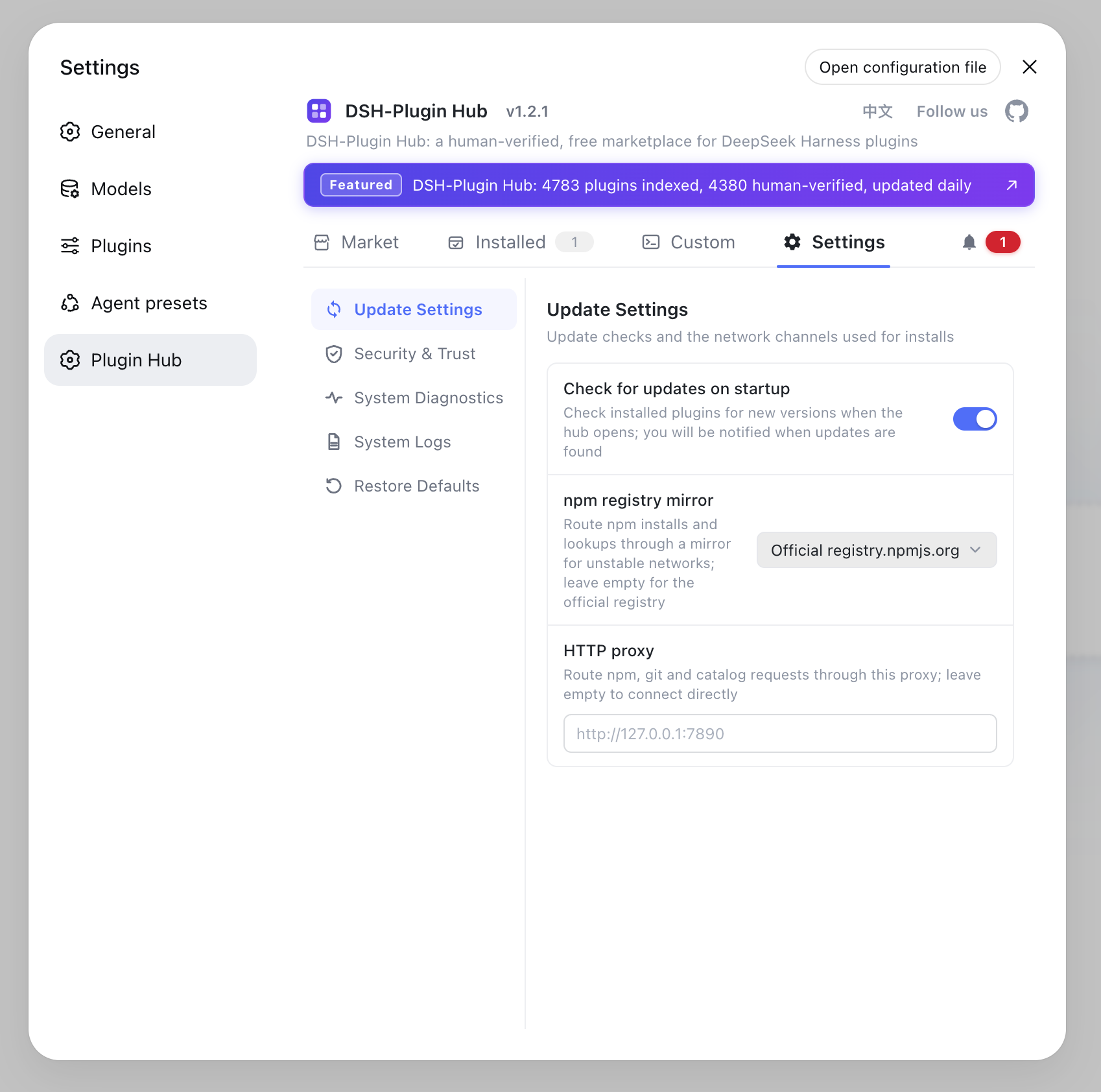
dsh --versionshould match the target version, then start the Web UI and send one simple task to confirm the main flow works. - Check plugins one by one: with DSH Plugin Hub installed, open "Settings → Plugin Market"; every plugin page marks its compatible DSH version status (verified / unconfirmed).
verifiedmeans compatibility has been manually checked; keep an eye onunconfirmedones after an update. - If a plugin does not load: check whether it is a compatibility issue, then reinstall it from the Hub; plugins installed from git may be missing build output, so switch to the npm version instead. The Hub lets you inspect and reinstall in one place, much faster than going back and forth on the command line.
Notes before and after updating
In one sentence: back up the data directory, update the program, verify plugin compatibility. Three reminders:
- Before: copy
~/.dsh(or at leastsessions) — it costs almost nothing and guarantees recovery. - After: run your main flows to confirm both the core and plugins work before returning to daily use.
- On failure: restore the backup first (updates do not corrupt data), then deal with program version and plugin compatibility — never delete
~/.dshoutright, that is where the real data loss happens.
Sources: DeepSeek Harness Docs - Configure Providers, dsh CLI README, DeepSeek Harness Docs - Package and Publish Plugins
FAQ
No. An update only replaces the dsh program; config, keys and sessions live in a separate $DSH_HOME data directory — keys in .credentials.yaml, profiles under $DSH_HOME/profiles, sessions stored separately. Update commands never touch them.
Backing up the whole ~/.dsh directory is the safest option — sessions, config, keys and plugin dependencies are all inside it. If you only care about chats, copy ~/.dsh/sessions alone; you can skip node_modules to save space.
Check the DSH version each plugin targets: preview updates can be breaking. With DSH Plugin Hub installed, open the plugin market to see compatibility status, then reinstall or switch to a compatible version if needed.
Yes. npx pulls the latest package each run but only executes it — the $DSH_HOME data directory (default ~/.dsh) is fully independent. Rerunning npx @deepseek-ai/dsh web keeps your config, sessions and plugins.
Copy the backup back into place, for example cp -r ~/.dsh-backup/sessions ~/.dsh/sessions. For a global install, npm install -g @deepseek-ai/dsh@old-version overwrites it; from source, git checkout an old tag and rebuild.
Sources
- DeepSeek Harness Docs - Configure Providers· deepseek-harness
- dsh CLI README· deepseek-ai
- DeepSeek Harness Docs - Package and Publish Plugins· deepseek-harness