DeepSeek Harness autostart: keep dsh running on boot
dsh is a foreground process that stops when the terminal closes, so autostart has to be delegated to the operating system's service manager: launchd on macOS, a systemd user service on Linux, Task Scheduler on Windows. Every DeepSeek Harness plugin runs inside the dsh process itself, so hosting that single process autostarts all DSH plugins at once. The skeletons differ, but three things must be right everywhere: use the absolute path of dsh, declare the environment, and append --no-open to the start command.
Why DeepSeek Harness stops with the terminal: autostart belongs to the service manager
dsh runs as a foreground process attached to the current terminal session, and it is reaped when that session ends, so it cannot make itself start on boot; the operating system's process manager has to launch it (source). Confirm two things before configuring anything:
- Get the absolute path of the executable — run
which dsh(on Windows,where dsh). Expect: something like/usr/local/bin/dsh, or a full path inside an nvm version directory; always write that absolute path into the service configuration. - Note how you normally start it — the command you type by hand, for example
dsh web. Expect: move that command into the service config verbatim, only appending--no-open, without inventing extra flags.
Why the absolute path matters: a service manager does not go through your shell and does not read the PATH you set in .zshrc or .bash_profile, so a bare dsh web simply will not resolve. This is especially common on macOS; the full error signature and fix is in DeepSeek Harness errors on macOS.
DeepSeek Harness autostart on macOS: a launchd LaunchAgent
The right slot on macOS is a user-level LaunchAgent, a plist under ~/Library/LaunchAgents/; it loads at login and can reach your own data directory, which fits dsh better than a system-wide LaunchDaemon (source). Five steps:
-
Create the plist — add
~/Library/LaunchAgents/org.dsh.web.plistwith this core content:xml<?xml version="1.0" encoding="UTF-8"?> <!DOCTYPE plist PUBLIC "-//Apple//DTD PLIST 1.0//EN" "http://www.apple.com/DTDs/PropertyList-1.0.dtd"> <plist version="1.0"> <dict> <key>Label</key> <string>org.dsh.web</string> <key>ProgramArguments</key> <array> <string>/usr/local/bin/dsh</string> <string>web</string> <string>--no-open</string> </array> <key>RunAtLoad</key> <true/> <key>KeepAlive</key> <true/> <key>EnvironmentVariables</key> <dict> <key>PATH</key> <string>/usr/local/bin:/opt/homebrew/bin:/usr/bin:/bin</string> </dict> <key>StandardOutPath</key> <string>/tmp/dsh-web.out.log</string> <key>StandardErrorPath</key> <string>/tmp/dsh-web.err.log</string> </dict> </plist> -
Substitute your own path — replace
<string>/usr/local/bin/dsh</string>with the result ofwhich dshfrom step 1. Expect: the path matches the real install location; on nvm it is a full path inside a version directory. -
Declare PATH — add the directory holding
nodetoPATHunderEnvironmentVariables. Expect: no moreenv: nodestyle errors at startup. -
Load and start it now — run
launchctl bootstrap gui/$(id -u) ~/Library/LaunchAgents/org.dsh.web.plist(older systems acceptlaunchctl load -w). Expect: no output means it loaded successfully. -
Confirm the process is running — run
launchctl list | grep org.dsh.web. Expect: the label appears with a PID in the first column rather than a dash.
DeepSeek Harness autostart on Linux: a resident systemd user service
On Linux, make it a systemd user service: it starts with your user session, journald collects its logs, and enable-linger keeps it alive while you are logged out (source). Five steps:
-
Create the unit file — add
~/.config/systemd/user/dsh.service:ini[Unit] Description=DeepSeek Harness Web After=network.target [Service] ExecStart=/usr/local/bin/dsh web --no-open Restart=on-failure RestartSec=5 [Install] WantedBy=default.target -
Replace the ExecStart path — substitute the output of
which dsh. Expect: an absolute path, so the service environment can resolve the command. -
Reload and enable — run
systemctl --user daemon-reload && systemctl --user enable --now dsh. Expect:enablestarts it on every boot and--nowstarts it immediately. -
Allow it to run while logged out — run
loginctl enable-linger $USER. Expect: the service survives logout; without this it only exists while you are logged in. -
Check status and logs — run
systemctl --user status dsh, andjournalctl --user -u dsh -ffor logs. Expect: active (running) with normal startup output in the journal.
DeepSeek Harness autostart on Windows: Task Scheduler and the Startup folder
Windows has no direct equivalent of launchd or systemd for resident services; the durable approach is Task Scheduler with an At log on trigger, while the Startup folder is the quick option (source). Four steps:
- Find the real dsh entry point — run
where dshin a terminal. Expect: for a global npm install this is usually%APPDATA%\npm\dsh.cmd; note it down. - Create a basic task — open Task Scheduler, choose Create Task, set the trigger to At log on, and for the action choose Start a program with the full
.cmdpath from step 1 andweb --no-openas arguments. Expect: saving and running the task manually brings the service up. - Or use the Startup folder (simpler) — press
Win+R, typeshell:startup, and copy a dsh shortcut into it, appendingweb --no-opento the Target field in Properties. Expect: it runs at your next login, though only after you log in. - Confirm the port is listening — run
netstat -ano | findstr 3080. Expect: a listening line with a PID, proving the service really started.
DSH plugin autostart: required settings, verification and pitfalls
On every platform, getting these three wrong means the configuration looks complete but never works; and verification always reads the port, never the config file. Line them up:
- Use an absolute path for the executable — on all three platforms, use the path found in step 1 instead of the bare name
dsh. Expect: no command-not-found errors in the autostart log. - Declare the environment you rely on — at minimum ensure
nodeis on PATH; if you changed$DSH_HOME, declare that variable in the service definition too. Expect: the autostarted instance loads the same profile as your manual runs. - Append
--no-open— a background service does not need to pop a browser each time. Expect: the service runs without opening a window, and you visithttp://127.0.0.1:3080yourself. - Verify by port — run
lsof -i :3080on macOS and Linux, ornetstat -ano | findstr 3080on Windows. Expect: a listener means success; if there is none, read the autostart log first, then check for a port conflict (see DeepSeek Harness port already in use).
Five more are the pitfalls people hit most:
- Do not install it as a system-wide root service: dsh's config and plugins live in your user directory, so running it as root or as a system service reads a different
$DSH_HOME, which shows up as "it autostarted but all my plugins are gone". - Read the log before editing the config when it loops:
KeepAliveandRestart=on-failurerestart the process again and again, which looks like constant rebooting, while the real cause is usually the first log line. - A port conflict makes autostart fail silently: when 3080 is taken by another program the process exits or errors out, and the configuration was never wrong, so do not keep rewriting the plist or unit file.
- Autostart only covers whether the process starts: whether plugins load and models connect belongs to a different troubleshooting path, so do not judge them together.
- Reload after every edit: for launchd,
launchctl bootoutthenbootstrap; for systemd,daemon-reloadthenrestart. Otherwise the old configuration keeps running.
Use DSH Plugin Hub to confirm the autostarted instance has the right plugins
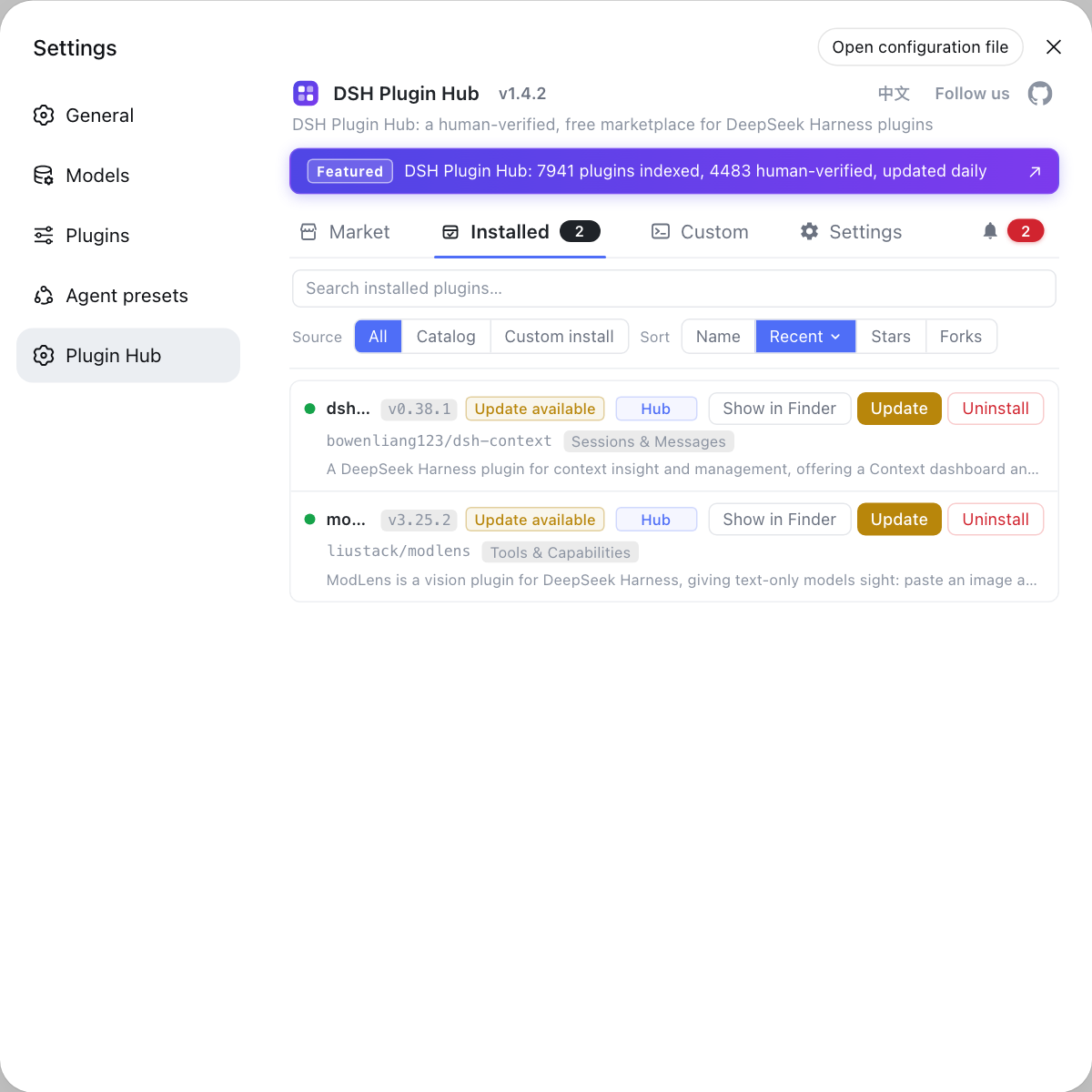
The autostarted instance and your manual runs share the same profile directory, so the DSH Plugin Hub installed list tells you exactly what that profile contains and avoids the "service is up but plugins are missing" surprise. Open http://127.0.0.1:3080 on the autostarted instance and check the Installed page. If the list differs from what you expect, the autostarted instance is most likely using a different $DSH_HOME; go back to setting 2 above and check the environment.
Sources: Apple developer documentation (launchd), systemd documentation, Microsoft Learn - Task Scheduler, dsh CLI README
FAQ
DeepSeek Harness is a foreground process, so autostart has to be delegated to the OS service manager, and you must point it at the absolute path of the dsh executable rather than the command name. A service manager does not inherit your terminal PATH, so writing dsh web alone usually resolves to nothing. Run which dsh (or where dsh on Windows) and use that path.
DeepSeek Harness autostart on macOS uses a launchd LaunchAgent: put the plist under ~/Library/LaunchAgents/, set RunAtLoad so it starts at login, set KeepAlive so the process is restarted if it exits, then load it with launchctl. Declare PATH in EnvironmentVariables as well, otherwise node will not be found.
A DeepSeek Harness systemd user service is one unit file: create dsh.service under ~/.config/systemd/user/, put the start command in ExecStart, set Restart=on-failure and WantedBy=default.target, then run systemctl --user enable --now dsh. To keep it running while you are logged out, also run loginctl enable-linger for your user.
Append --no-open to the DeepSeek Harness start command. dsh web opens a browser automatically on the local machine, which is convenient interactively but becomes noise for a background service that restarts often. With --no-open it only serves, and you visit http://127.0.0.1:3080 yourself.
Verify DeepSeek Harness autostart by port, not by reading the config file. After a reboot or a fresh login, run lsof -i :3080 (on Windows: netstat -ano | findstr 3080); only a listening process counts as working. If nothing listens, read the autostart log first, then check whether another program has taken the port.
Related Terms
- LaunchAgent
- A LaunchAgent is a per-user background task in macOS launchd, configured by a plist under ~/Library/LaunchAgents/. It loads at user login, which suits a resident service like dsh that lives in your home directory, as opposed to a system-wide LaunchDaemon.— Apple developer documentation
- systemd user service
- A systemd user service is a service unit running as your user, with unit files under ~/.config/systemd/user/ and managed by systemctl --user. Combined with loginctl enable-linger it can keep running even when the user is not logged in.— systemd documentation
- KeepAlive
- KeepAlive is a launchd plist key: when set to true, the process is automatically restarted after it exits. It suits resident services, and it is also the reason a crashing process keeps coming back, so it must be read together with the logs.— Apple developer documentation
- --no-open
- --no-open is a dsh web startup flag that serves the Web UI without opening a browser. Interactive starts open the browser by default, so a service that runs in the background should pass this flag.— dsh CLI README
Sources
- Apple developer documentation - Managing background processes (launchd)· Apple
- systemd documentation - systemd.service and user instances· freedesktop.org
- Microsoft Learn - Task Scheduler· Microsoft
- dsh CLI README· deepseek-ai