Fix port 3080 already in use when starting DeepSeek Harness
Port 3080 already in use when starting DeepSeek Harness means a leftover or duplicate process holds the port and the new instance cannot bind — the browser is often still showing the old instance, which is why "the page opens but config changes never apply". Locate the owner (lsof -i :3080 / netstat -ano | findstr :3080), free the port or switch with dsh web --port 8080, then verify; prevent it with graceful shutdowns and process-list checks.
DeepSeek Harness port 3080 in use: old process holds the port, new instance cannot start
The classic symptom of port 3080 already in use: an old dsh process still holds 3080, the new instance cannot bind, and the browser keeps showing the old instance — everything looks normal except your config changes never take effect. It is a frequently reported runtime issue on the dshbase troubleshooting page (source):
- You start
dsh weband the terminal reports port 3080 in use (or silently switches ports and prints a new one); - The browser opens
http://127.0.0.1:3080and the page loads fine — because it is the old instance; - You change a config and restart, but nothing changes — the new instance never came up;
- Key judgment: a loading page ≠ a healthy service; first confirm you are connected to the freshly started instance.
Why DeepSeek Harness reports port conflicts: leftover processes, duplicate instances, firewall interference
Port 3080 conflicts come from three sources: leftover processes (not fully exited), duplicate instances (multiple starts), and firewall or proxy interference (an occupancy illusion). In detail:
- Leftover processes: closing the terminal window or force-killing dsh can leave child processes behind that still hold 3080 (source).
- Duplicate instances: running the desktop app and
dsh webagainst the same profile at once, or starting several web instances, leaves the later ones unable to bind. - Firewall / proxy interference: system firewall rules or a global proxy may intercept or forward 3080 traffic, showing up as "port in use with no process" —
lsoffinds nothing and you should check proxy rules instead. dsh weblistens on127.0.0.1:3080by default (confirmed in the official README, source); when the port is occupied, cases 1 and 2 are the usual cause.
Fix DeepSeek Harness port conflicts: locate the process, free or switch ports, verify
Follow the locate-then-act order: find the owner with lsof/netstat, kill it or switch ports, then open the browser to confirm the new instance. Step by step:
-
Find the process holding 3080: macOS / Linux:
bashlsof -i :3080(On Linux you can also inspect the listener with
ss -tlnp | grep :3080) Windows (PowerShell):powershellnetstat -ano | findstr :3080Note the PID (the
PIDcolumn of lsof / the last column of netstat). If the owner is not a system service, continue; if no process shows up yet the port is still blocked, skip to step 4 and check the proxy/firewall. -
Free the port (kill the owner): macOS / Linux:
bashkill -9 <PID>Windows:
powershelltaskkill /PID <PID> /FRun
lsof -i :3080(or netstat) again — no output means the port is free. -
Switch ports (alternative when you do not want to kill anything) —
--portbelongs to the web app and must come afterdsh web:bashdsh web --port 8080When the terminal prints
http://127.0.0.1:8080, open http://127.0.0.1:8080 (source). -
Check the firewall / proxy: when
lsoffinds no process but the port still will not open, check whether a global proxy forwards127.0.0.1traffic too — add the local address to the direct/bypass list, or temporarily disable the proxy and retry. -
Verify: open
http://127.0.0.1:3080(or the new port) and confirm it is the freshly started instance; config changes should now apply immediately.
How to verify a DeepSeek Harness port change and restore the default port
After switching ports, verify two things: the new port is really listening and the page loads; to restore 3080, kill the old owner and run dsh web again. In order:
-
Confirm the new port is listening:
bashlsof -i :8080A dsh process in
LISTENstate means success; no output means the service did not start — recheck the fix section. -
Verify in the browser: open http://127.0.0.1:8080; a page that loads and applies config changes immediately means the whole chain works.
-
Restore the default 3080: first kill the old process holding 3080 (macOS/Linux
kill -9 <PID>, Windowstaskkill /PID <PID> /F), then run:bashdsh webThe terminal printing
dsh web: http://127.0.0.1:3080means the default port is back. -
Free the port in one shot on Linux (optional): once you confirm the owner is dsh, use
fuserto release it directly:bashfuser -k 3080/tcpThen
lsof -i :3080again — no output means the port is free.
Notes: DeepSeek Harness port conflicts — locate before killing
- Close dsh with
Ctrl+Cfor a graceful shutdown — the first Ctrl+C lets plugins clean up; press again to force exit if it hangs. Closing the window directly leaves the most leftovers. - Before starting, list processes:
ps aux | grep dshon macOS/Linux,tasklist | findstr dshon Windows — handle old instances first. - Do not run the desktop app and
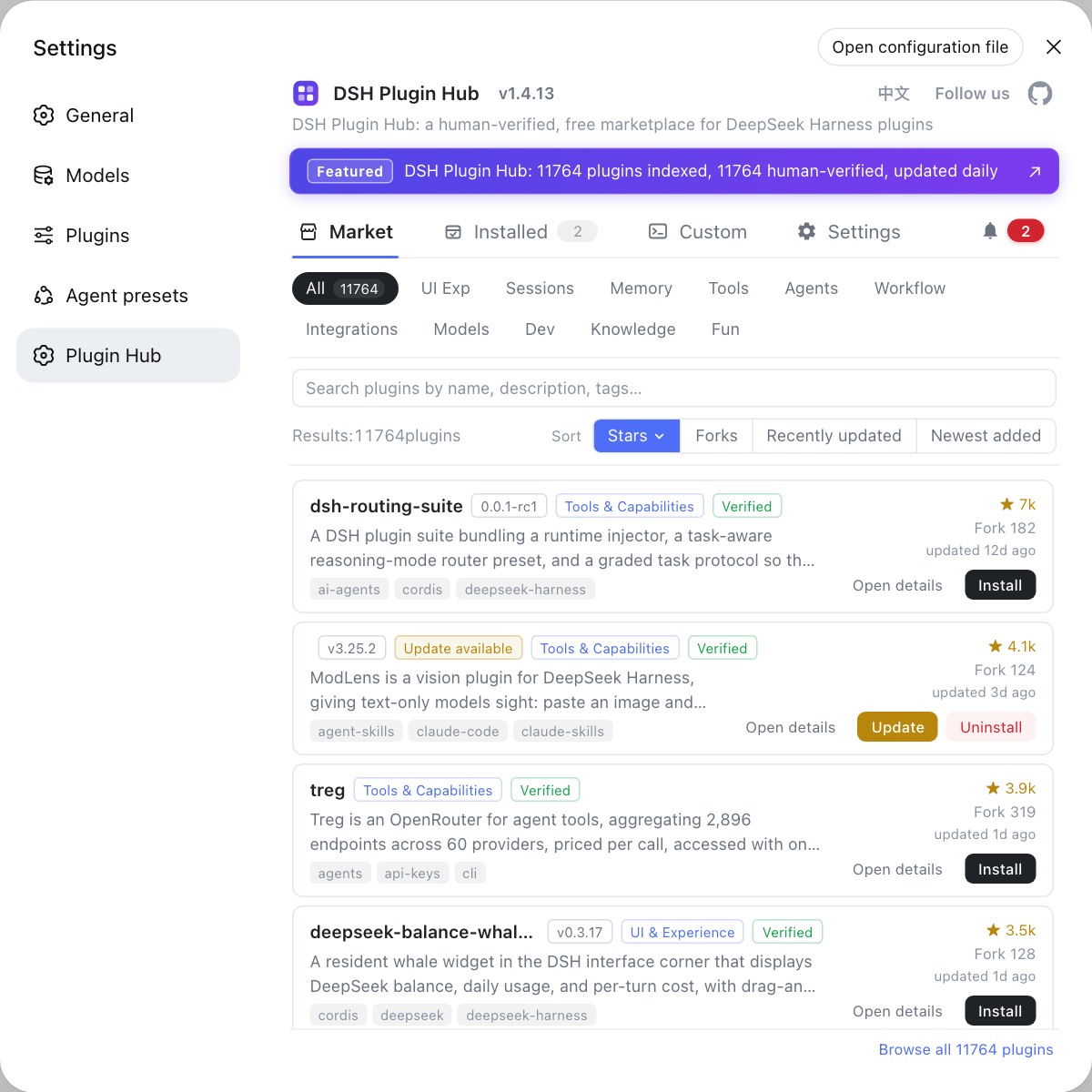
dsh webagainst the same profile simultaneously; concurrent writes also cause session problems. - Plugin load failures can also break the Web UI — for plugin-related faults, check install history and errors in the DSH Plugin Hub at Settings → Plugin Market instead of guessing.
- See install error troubleshooting for other DeepSeek Harness install issues.
Sources: dshbase troubleshooting, DeepSeek Harness CLI behavior reference, DeepSeek Harness README
FAQ
DeepSeek Harness reports port 3080 in use because an old dsh process still holds it, so the new instance fails to bind or moves elsewhere — the browser may keep showing the old instance, which is why the page loads but your config changes never apply. Find the owner with lsof -i :3080 (macOS/Linux) or netstat -ano | findstr :3080 (Windows) (source: dshbase troubleshooting).
To free a DeepSeek Harness port, on macOS/Linux run lsof -i :3080 to get the PID, then kill -9 <PID>. On Windows run netstat -ano | findstr :3080, then taskkill /PID <PID> /F. After killing, restart dsh web and open http://127.0.0.1:3080 to confirm you are on the new instance.
Switch DeepSeek Harness to another port with --port: run dsh web --port 8080 and open http://127.0.0.1:8080. The --port flag belongs to the web app, so it must come after dsh web (source: DeepSeek Harness CLI behavior reference).
To prevent DeepSeek Harness port conflicts, close dsh with Ctrl+C for a graceful shutdown instead of closing the terminal window; before starting a new instance, list running processes with ps aux | grep dsh (Windows: tasklist | findstr dsh) to make sure no old instance is left behind.
Related Terms
- port in use
- A port in use means a process is already listening on that port, so a new process cannot bind it; the web service may fail to start or silently switch ports, while the page may keep pointing at the old instance.— dshbase troubleshooting
- lsof
- lsof is the macOS/Linux command that lists open files; lsof -i :3080 finds the process holding port 3080 and its PID, the first command for locating port conflicts.— dshbase troubleshooting
- netstat
- netstat shows network connections and listening ports; on Windows, netstat -ano | findstr :3080 reveals the PID of the process holding port 3080.— dshbase troubleshooting
- graceful shutdown
- A graceful shutdown lets a process clean up resources before exiting; the first Ctrl+C on dsh web triggers graceful shutdown and gives plugins up to 5 seconds to clean up, avoiding leftover processes holding the port.— DeepSeek Harness CLI behavior reference