npm uninstall dsh: remove DeepSeek Harness globally
Uninstalling dsh from npm is one line — npm uninstall -g @deepseek-ai/dsh (the argument is the package name, not the command name). The work is in what follows: handling EACCES permission errors, finding out why the command still runs, and deciding what to do with the npx temp directory and the ~/.dsh data folder. DSH plugins and every DeepSeek Harness plugin live inside a profile rather than the global directory, so they survive the program's removal. This guide walks five steps: identify the install → uninstall → troubleshoot → clean leftovers → verify.
DSH plugin removal step 1: identify how dsh was installed
What you run depends on how dsh was installed, so identify that first — it saves half the trouble, and one command shows it. Four install styles and their removal actions:
| How it was installed | How to tell | How to remove it |
|---|---|---|
npm install -g | npm ls -g --depth=0 lists @deepseek-ai/dsh | npm uninstall -g @deepseek-ai/dsh |
pnpm add -g | the package appears in the pnpm global list | pnpm remove -g @deepseek-ai/dsh |
npx only | not in the global list, yet the command runs | nothing to remove; clear ~/.npm/_npx |
| source build | a cloned repository exists locally | delete the repository directory (data in ~/.dsh is separate) |
The full comparison of all three install styles lives in How to uninstall DeepSeek Harness; this guide takes the npm / pnpm path deep enough to troubleshoot. Steps:
- Stop the running dsh (close its terminal window or press Ctrl+C) and confirm the port is free:
lsof -i :3080prints nothing (Windows:netstat -ano | findstr 3080); - List global npm packages:
npm ls -g --depth=0. Expected:@deepseek-ai/dsh@<version>appears, which means a global npm install; - Check where that global directory is:
npm prefix -g. Expected: something like/usr/local,/opt/homebrewor~/.nvm/versions/node/<version>— an nvm path means the global directory follows the Node version; - Check for other entry points too:
which -a dsh(Windows:where dsh). Expected: exactly one path, under that prefix'sbin. Several paths means two or more installs, and removing one leaves the other.
On nvm / fnm: each Node version has its own global packages. If step 2 shows the package but the command survives the uninstall, you probably switched versions — nvm use <the version you installed under> and remove it there.
DSH plugin removal step 2: npm and pnpm variants
Once you know it is a global install, removing DeepSeek Harness takes one command; for pnpm use its own subcommand. Steps:
- For a global npm install:
npm uninstall -g @deepseek-ai/dsh
-
Expected: the terminal reports
removed ... packages(orup to date) with no errors, and the global list no longer contains the entry; -
For a global pnpm install:
pnpm remove -g @deepseek-ai/dsh
-
Expected: pnpm reports the package removed; if you once ran
pnpm setup, confirm thedshlink is gone from the bin directory next topnpm root -g; -
If it says the package does not exist (other than an unrelated
npm ERR! code E404), it was already removed — skip ahead to verification.
The argument is always the package name @deepseek-ai/dsh. Writing dsh fails with E404 because no package has that name, and that is the most common reason an uninstall command "does nothing".
npm uninstall DeepSeek Harness: fixing EACCES / EPERM permission errors
EACCES has a single root cause: the current user cannot write to the npm global directory where DeepSeek Harness was installed — usually because it was installed with sudo, or Node came from a system package manager. Do not reach for sudo by reflex; pick the path that matches the install:
- Installed with
sudo npm install -g: match it, and uninstall withsudo npm uninstall -g @deepseek-ai/dsh. Expected: the uninstall succeeds; the downside is the global directory still belongs to root, so the next global install hits the same wall; - Node managed by nvm / fnm: no sudo needed at all — run
nvm use <that version>(orfnm use) and then the plain uninstall command. Expected: it just works, because the global directory lives in your home directory; - System Node (Homebrew, apt, the official pkg) with a root-owned global directory: the uninstall still needs sudo (or path 1), but move future global packages into your home directory while you are here:
npm config set prefix ~/.npm-global
Expected: npm prefix -g then prints ~/.npm-global; remember to add ~/.npm-global/bin to PATH or newly installed global commands will not be found. Note this only affects packages installed afterwards — the copy already sitting in the system directory does not move, so it still needs sudo to remove;
4. Never use sudo inside an nvm setup just to get past the error: sudo npm resolves to a different Node and a different global directory as root, which can install packages into root's home and manufacture a second install that is harder to remove.
The dsh command still runs after uninstalling DeepSeek Harness
"Uninstall succeeded but the DeepSeek Harness command works" almost always means one of three things: another install, a shell hash cache, or npx all along. Rule them out one by one:
- List every entry point:
which -a dsh(Windows:where dsh). Expected: if a path is still printed, note the directory —/opt/homebrew/bin,/usr/local/bin,~/.nvm/versions/node/*/binor$PNPM_HOME— and remove that copy through its own package manager (see the table in step 1); - Recheck after switching Node versions: run
nvm ls, then for each versionnvm usefollowed bynpm ls -g --depth=0, uninstalling wherever@deepseek-ai/dshshows up; - Clear the shell command cache: run
hash -r(orrehashin zsh), thendsh --version. Expected: if the cache was the culprit, it now reports command not found; - Confirm it is not npx: if it was never installed globally, the
dshyou run can only come from npx's temporary environment. Runls ~/.npm/_npxand clear it if non-empty (next section). Expected: no runnabledshremains.
Version symptoms (updated but the version did not change) are a separate trail, covered in dsh updated but version unchanged.
DSH plugin leftovers and the ~/.dsh data folder
Uninstalling DeepSeek Harness removes the program, never your data; leftovers split into npm caches and user data, decided separately. Handle them in order:
- npx temporary environment (only if you used npx):
rm -rf ~/.npm/_npx
Expected: the directory is gone; the next npx @deepseek-ai/dsh web downloads again and no data is lost;
- npm download cache (only to reclaim disk; not needed for correctness):
npm cache clean --force
Expected: ~/.npm/_cacache is emptied and the next install downloads again. Note it does not touch ~/.npm/_npx — the two are different locations;
-
The
~/.dshdata directory: it holdssettings.yaml,.credentials.yaml,profiles/(with installed plugins) and session logs undersessions/. Keep it if you only wanted the program gone — a reinstall brings configuration, plugins and sessions back, which is what "uninstalling does not touch data" means; -
Delete the data directory only when you are finished with dsh:
cp -r ~/.dsh ~/.dsh.bak && rm -rf ~/.dsh
Expected: the data directory is gone, backed up first and restorable from .dsh.bak. For the layered approach that clears chat history while keeping config and plugins, see How to delete a session and How to reset dsh;
- Plugins outlive the program: they are independent dependencies inside a profile, so they stay on disk. To clear them too, delete
~/.dsh/profiles/<name>— details in Cleaning up DSH plugin leftovers.
DSH plugin removal verification and things to watch out for
Verify three places: the global package list, the command entries, and whether the command runs — clean on all three means it is gone. Steps:
npm ls -g --depth=0. Expected:@deepseek-ai/dshno longer appears;which -a dsh(Windows:where dsh). Expected: no output at all;- In a fresh terminal,
dsh --version. Expected: command not found.
Things to watch out for:
- Stop the process before uninstalling: a running dsh holds files open; closing the service first is the safest order.
- Pass the package name:
npm uninstall -g @deepseek-ai/dsh, neverdsh. - Be sparing with sudo: use it only when the original install used sudo or the global directory genuinely belongs to root; in an nvm setup it creates a second install instead of removing one.
~/.dshis data, not the program: uninstalling never deletes it, and deleting it without a backup throws away settings, credentials, plugins and sessions.- nvm users check every version: each Node version has its own global packages, so recheck after switching.
- Uninstall and update are different channels: to change versions, do not uninstall and reinstall — see the three routes in npm update dsh.
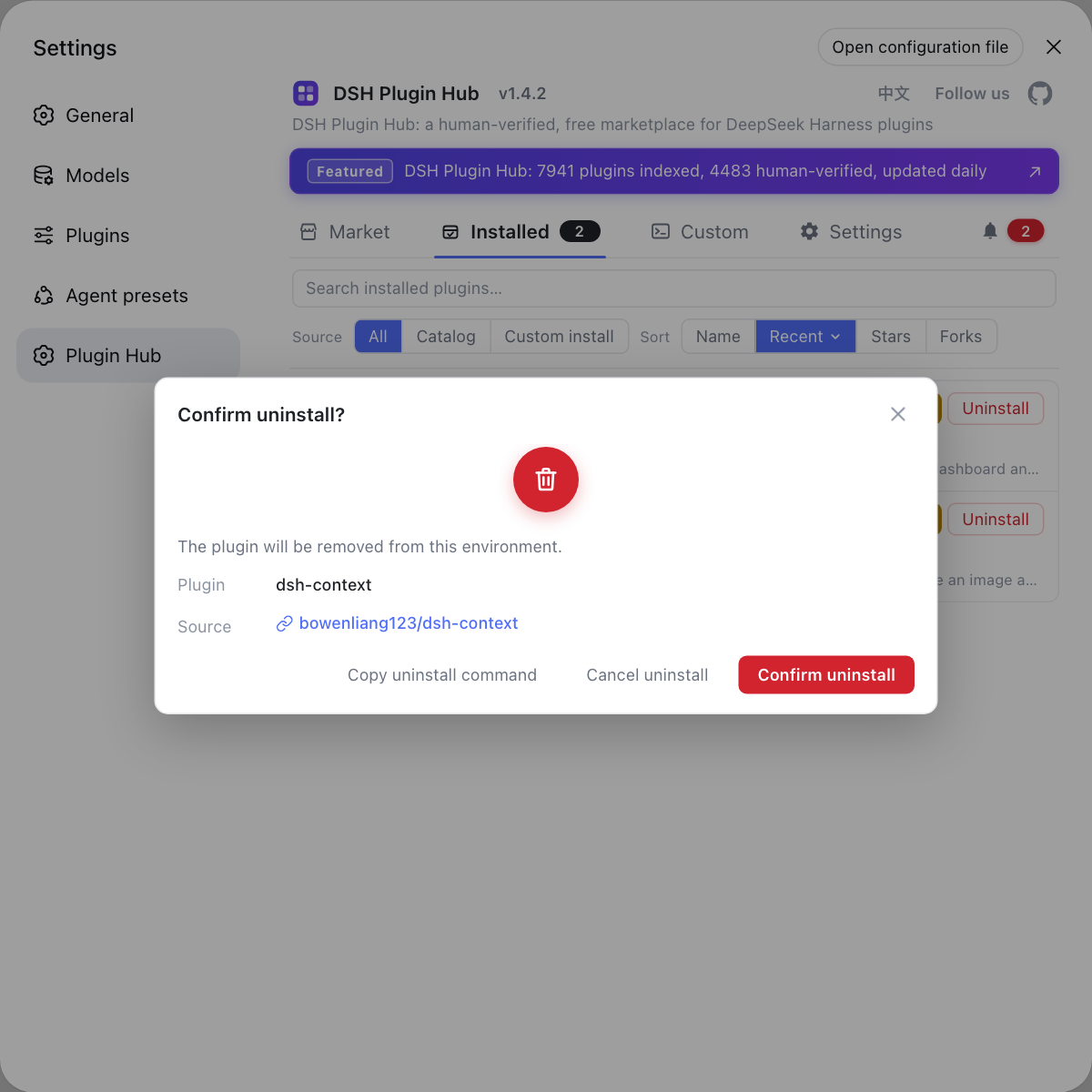
Removing the program only handles the CLI, so check the DeepSeek Harness plugin side with a visual list. The installed list in DSH Plugin Hub shows each plugin's source (marketplace or manual), version and update state, so you can see before uninstalling which ones came from the catalog and which you added by hand — and clean up without deleting too much or too little. To remove a single plugin through the UI, follow Uninstalling plugins with DSH Plugin Hub.
Sources: npm Docs - npm uninstall, deepseek-ai/deepseek-harness, official Quickstart.
FAQ
Removing DeepSeek Harness from a global npm install is one command: npm uninstall -g @deepseek-ai/dsh takes away the package and the dsh executable link. If you installed it with pnpm, use pnpm remove -g @deepseek-ai/dsh instead, then check that the dsh link is gone from the bin directory next to pnpm root -g. Stop the running dsh first (close the terminal or press Ctrl+C).
Fixing EACCES while uninstalling DeepSeek Harness starts from how it was installed. If you installed it with sudo, uninstall with sudo npm uninstall -g @deepseek-ai/dsh so the two match. With nvm or fnm there is no need for sudo at all — switch back to the Node version you installed it under (nvm use / fnm use) and run the same command. On a system Node whose global directory belongs to root, uninstall with sudo, and then set npm config set prefix to move future global packages into your home directory.
When the DeepSeek Harness command still runs after npm uninstall, there are three causes: (1) more than one install exists — list every entry point with which -a dsh (Windows: where dsh) and uninstall each one through its own package manager; (2) the shell cached the command path — run hash -r (or rehash in zsh) and try again; (3) you were running it through npx all along, so there was never a global install to remove — clear ~/.npm/_npx instead.
After uninstalling DeepSeek Harness, decide the two places separately. ~/.dsh holds settings, credentials, profiles and installed plugins: keep it if you only want the program gone, since a reinstall keeps all of it; delete it only when you are done with dsh, and back it up first. On the npx side there are two independent locations — ~/.npm/_npx for temporary run environments and ~/.npm/_cacache for download cache. Removing them only means the next start downloads again; no user data is involved.
Three checks confirm DeepSeek Harness is completely uninstalled: (1) npm ls -g --depth=0 no longer lists @deepseek-ai/dsh; (2) which -a dsh prints nothing (Windows: where dsh); (3) in a fresh terminal, dsh --version reports command not found. Passing all three means the program itself is gone, and only the ~/.dsh data directory remains for you to keep or delete.
Related Terms
- npm uninstall -g
- npm's global removal subcommand. It takes a package name, not a command name: it uninstalls that package from the global directory and removes the executable links it registered. So removing DeepSeek Harness means writing @deepseek-ai/dsh, not dsh.— npm Docs - npm uninstall
- EACCES / EPERM
- The permission errors npm raises when the current user cannot write to the npm global directory (prefix). The usual root cause is a global directory owned by root, common with a system-package-manager Node or a history of sudo global installs.— npm Docs - npm uninstall
- npm prefix -g
- npm prefix -g prints the active global installation prefix: global packages live in <prefix>/lib/node_modules and executable links in <prefix>/bin. With nvm or fnm that prefix changes per Node version, which is why each version carries its own global packages.— npm official documentation
- ~/.npm/_npx
- The npx run environment: npx extracts temporarily used packages into hashed subdirectories here and reuses their node_modules. It is the main thing npx leaves on disk; deleting it just means the next run downloads again, with no effect on user data.— npm official documentation