How to uninstall DeepSeek Harness: npx, npm global, source
Uninstalling DeepSeek Harness works by install type: npx leaves nothing behind, npm globals run npm uninstall -g, and source builds delete the cloned repo. This guide covers the steps for all three routes, verification commands to confirm a clean removal, data retention and full cleanup — plus the right way to uninstall plugins, and a troubleshooting table at the end.
Overview: uninstall has two layers — the binary and the data
Uninstalling removes the program only; data under $DSH_HOME (default ~/.dsh) is kept separately. Knowing these two layers prevents accidental deletion (source):
| Layer | What it is | Default behavior | How |
|---|---|---|---|
| Binary | program and commands | removed by install type | npx: nothing / npm uninstall -g / delete repo |
| Data | ~/.dsh directory | kept | manual rm -rf ~/.dsh (optional, be careful) |
Route 1: npx — nothing to uninstall
npx pulls a temporary package on every run and creates no local install, so there is nothing to uninstall. Steps:
- Confirm you never installed globally:
which dshreports "not found" (if it resolves, you are on Route 2); - Optionally clear the npx temp cache:
rm -rf ~/.npm/_npx
- Keep
~/.dshuntouched — the nextnpx @deepseek-ai/dsh webstill starts normally.
Fallback: want to restore after clearing the cache? Just run npx @deepseek-ai/dsh web again — nothing needs to be reinstalled.
Route 2: uninstall a global npm install
Installed with npm install -g @deepseek-ai/dsh? Remove it with npm uninstall -g. Steps:
- Stop the running dsh web service first (close its terminal window or press Ctrl+C);
- Run the uninstall command:
npm uninstall -g @deepseek-ai/dsh
- Wait for npm to report the package removed; no errors should remain in the output.
Fallback: an EACCES permission error — retry with sudo. "Package not found" means it was already removed; move straight to verification.
Route 3: uninstall a source build
A source install has no global side effects; the build artifacts live inside the repo, so deleting the directory completes the uninstall. Steps:
- Note the repo path (where you cloned it, e.g.
~/deepseek-harness); - Delete the whole directory:
rm -rf ~/deepseek-harness
- Clean up any environment variables or PATH entries you configured for it.
Fallback: to keep uncommitted changes, git stash or copy them elsewhere first. Deleted paths cannot be recovered — run ls to confirm the directory contents before removing.
Confirm the removal is clean
Three checks after uninstalling. Steps:
which dsh: after a global install was removed, the command should no longer resolve;npm list -g --depth=0: confirm@deepseek-ai/dshis gone from the global list;ls ~/.dsh: confirm the data directory is still there (if you want to keep it) with its files intact.
Data retention and full cleanup
A default uninstall keeps all $DSH_HOME data; only a full reset wipes it. Data directory contents (source):
| File / directory | Contents |
|---|---|
~/.dsh/settings.yaml | user config |
~/.dsh/.credentials.yaml | model credentials (write-only, never echoed) |
~/.dsh/profiles/<name>/ | per-profile plugin dependencies |
~/.dsh/sessions | session data |
Full-reset steps:
- Back up what you want to keep: copy
~/.dsh/sessionsand the config files elsewhere; - Make sure no dsh process is running;
- Run:
rm -rf ~/.dsh
- Reinstalling afterwards starts from a clean slate; credentials must be re-entered.
The right way to uninstall a plugin
Want to remove a single plugin rather than all of dsh? Use the Plugin Market (provided by DSH Plugin Hub) or the dsh plugin command — leave the binary alone. Two ways:
Way 1: uninstall from the Plugin Market UI
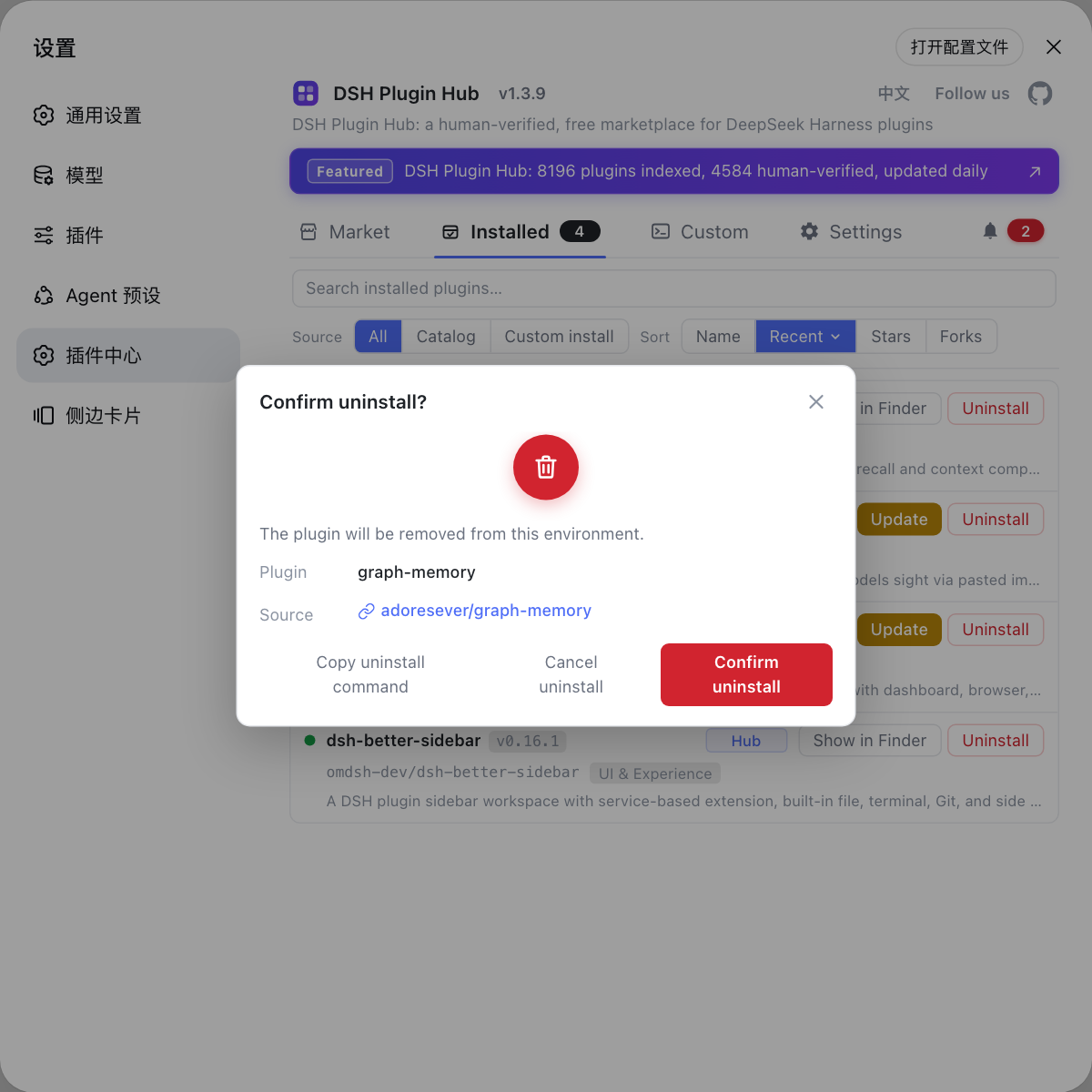
- Open Settings → Plugin Market → Installed;
- Find the target plugin and click Uninstall at the row tail;
- Review the plugin and its source in the confirmation dialog, then confirm;
- Once the live progress finishes the plugin disappears from the list;
$DSH_HOMEconfigs are untouched.
Way 2: uninstall from the command line
# List installed plugins first to confirm the package name
dsh plugin --profile web list

# Uninstall by package name
dsh plugin --profile web remove dsh-plugin
Not sure about the package name? list first, then remove. Plugin uninstall only removes the dependency; to clear leftover cache directories, manually inspect the plugin's folders under $DSH_HOME.
Troubleshooting common issues
Hit an error or doubt while uninstalling? Locate it in the table first. Common issues:
| Issue | Likely cause | Fix |
|---|---|---|
EACCES on npm uninstall -g | no write access to global dirs | retry with sudo, or switch to a user-level npm prefix |
which dsh still resolves | global package not fully removed, or npx cache left over | re-run npm uninstall -g @deepseek-ai/dsh, clear ~/.npm/_npx |
| Port 3080 still in use | dsh process still running | find and stop the dsh process before uninstalling |
| Data "disappeared" after uninstall | ~/.dsh deleted by mistake | data is unrecoverable — always back up before wiping |
| Plugin settings still present after uninstall | only the dependency was removed | expected; residual configs live under $DSH_HOME, clean them manually |
| Reinstall starts abnormally | incomplete uninstall, cache conflict | clear the cache per route, then npx @deepseek-ai/dsh web again |
Quick recap
In short: uninstall the binary by install type, back up before wiping data, and uninstall plugins through the Plugin Market or dsh plugin remove.
Four reminders:
- Removing the binary keeps your data —
rm -rf ~/.dshis a data wipe, not an uninstall; back up first; - Credentials cannot be recovered — keys in
.credentials.yamlare write-only and never echoed; you must re-enter them after a full reset; - Uninstall plugins via the Plugin Market — Settings → Plugin Market → Installed → Uninstall, or
dsh plugin --profile web remove <package>; - Reinstalling is easy — the npx one-liner brings it back, and your kept data is still there.
Sources: dsh CLI README, DeepSeek Harness docs - Quickstart, dshplugin/dsh-plugin-hub
FAQ
By install type: the npx route has nothing installed to remove (optionally rm -rf ~/.npm/_npx to clear the cache); npm globals run npm uninstall -g @deepseek-ai/dsh; source builds delete the cloned repo (rm -rf ~/deepseek-harness). Uninstalling touches only the program, never the ~/.dsh data.
No. npx pulls a temporary package on every run and creates no local install. At most clear the cache with rm -rf ~/.npm/_npx; keep the ~/.dsh data directory.
Run npm uninstall -g @deepseek-ai/dsh to remove the global command. Verify with which dsh (it should no longer resolve) and npm list -g --depth=0 (no @deepseek-ai/dsh in the list).
Delete the cloned repository directory, e.g. rm -rf ~/deepseek-harness. A source install has no global side effects and its build artifacts live inside the repo, so deleting the directory completes the uninstall.
By default nothing is lost: uninstalling removes only the program; everything under $DSH_HOME (default ~/.dsh) — configs, credentials and sessions — stays. For a full wipe, delete it by hand with rm -rf ~/.dsh after backing up the sessions.
Sources
- dsh CLI README· deepseek-ai
- DeepSeek Harness docs - Quickstart· deepseek-harness
- dshplugin/dsh-plugin-hub GitHub repository· GitHub