How to update dsh: npx auto-update, npm update -g, or git pull
Updating dsh takes three steps: check the current version, update according to your install type — npx always uses the latest, global installs run npm update -g, source builds run git pull plus a rebuild — then verify the version. This guide covers backup before updating, the update commands for all three install types, post-update verification and a troubleshooting table.
Overview: know how you installed, then pick the update command
How you update dsh depends on how you installed it: npx stays latest automatically, npm globals use the update command, and source installs re-pull and rebuild. All three routes share the same data directory (~/.dsh), so updating the binary does not affect plugins or configs (source). Three steps overall:
- Check: confirm the current and the latest version;
- Update: run the matching command for your install type;
- Verify: check the version number and restart to confirm.
The update path for each install type, at a glance:
| Install type | Update command | Manual? | Best for |
|---|---|---|---|
| npx one-liner | None (always pulls latest) | Almost never | People who want zero setup |
| npm global install | npm update -g @deepseek-ai/dsh | Yes | Heavy terminal users of dsh |
| Source build | git pull + rebuild | Yes | Developers who modify source |
Step 1: check the current version
First find out what version you have and what the latest is, then decide whether to update. Steps:
- Open a terminal and run the version command that matches your install type:
# Globally installed: current version
dsh --version

# npx route: current version (same command)
npx @deepseek-ai/dsh --version
- Query the latest version on npm:
npm view @deepseek-ai/dsh version
- Compare the two numbers: identical means you are up to date; otherwise move to the next step (source).
Tip: forgot how you installed it? Run
which dsh— a path means global install; no output means the npx route.
Step 2: back up before updating (optional but recommended)
Take 10 seconds to back up the data directory so you can always roll back. Everything lives in ~/.dsh:
# Back up the data directory (configs, sessions and plugin list)
cp -r ~/.dsh ~/.dsh.backup-$(date +%Y%m%d)

# Confirm the backup
ls ~/.dsh.backup-*
If an update fails or plugins misbehave, compare against the backup instead of losing your setup.
Step 3: update by install type
Three install types, three update routes — pick the one you originally used.
Route 1: npx (automatic)
npx re-pulls the latest version on every run, so it updates itself — no command needed. Just make sure the npm cache does not hold a stale package:
# Start directly; this already runs the latest version
npx @deepseek-ai/dsh web
If the launched version still looks old, the cache is probably stale — force a refresh:
# Clean the npm cache and restart
npm cache clean --force
npx @deepseek-ai/dsh web

# More thorough: delete the npx cache directory and restart
rm -rf ~/.npm/_npx
npx @deepseek-ai/dsh web
Route 2: npm global install
If you installed with npm install -g @deepseek-ai/dsh, upgrade with npm update -g — one command. Steps:
- Run the global update command:
npm update -g @deepseek-ai/dsh
- Wait for npm to download and replace the old version; output with
changedor a version number means success; - Confirm the version with
dsh --version.
If you used pnpm or yarn, use the equivalent:
pnpm add -g @deepseek-ai/dsh@latestoryarn global add @deepseek-ai/dsh.
Route 3: source build
If you cloned and built from source, pull the latest code in the repo directory and rebuild. Steps:
# Enter the source repo (where you originally cloned)
cd ~/dev/deepseek-harness

# Pull the latest code
git pull

# Reinstall dependencies and rebuild (same as the initial install)
npm install
# Run the build command from the repo docs, e.g. npm run build
- After the build finishes, restart dsh web:
npx @deepseek-ai/dsh web
Conflict fallback: if git pull fails with "local changes", stash them first, then pull:
git stash        # save local changes
git pull         # pull the latest
git stash pop    # restore local changes (resolve conflicts manually if any)
Step 4: verify after the update
Do not jump straight in after updating — confirm the version and functionality first. Steps:
- Re-run the version command and confirm the number is now the latest (compare with the
npm viewresult); - Restart dsh web and confirm the service starts and the page opens;
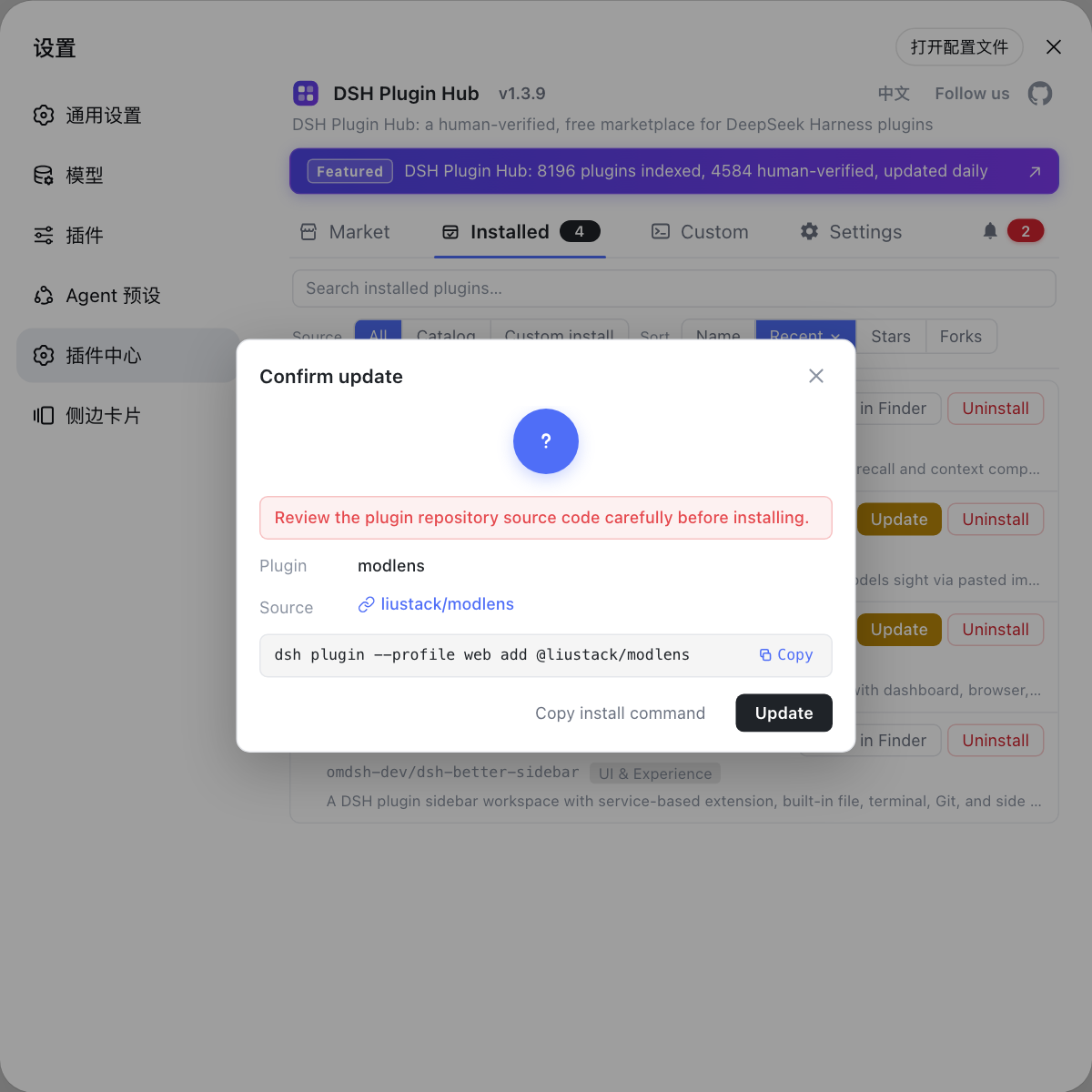
- Open Settings → Plugin Market and confirm installed plugins load normally (with DSH Plugin Hub installed, you will see the plugin list and versions);
- Check Settings → System Logs for any update-related errors.
Update failed? Troubleshooting table
Read the error type first, then fix accordingly. Common issues:
| Problem | Likely cause | Fix |
|---|---|---|
| npx still launches an old version | Stale npm cache | npm cache clean --force and restart, or remove ~/.npm/_npx |
npm update -g fails with EACCES | No write access to global dir | sudo npm update -g @deepseek-ai/dsh, or switch to the npx route |
| Download timeout / slow network | Default npm registry unreachable | npm config set registry to a mirror and retry |
git pull reports conflicts | Local source changes | git stash → pull → git stash pop to restore |
| Plugins stop working after update | Plugin incompatible with new dsh | Reinstall the plugin from Plugin Market, or wait for the author |
| Web page does not open after update | Port occupied / service not restarted | Restart dsh web; check whether port 127.0.0.1:3080 is in use |
| Version command prints nothing | Not globally installed | Use npx @deepseek-ai/dsh --version, or install globally first |
| Unsure whether the update worked | Only watched the install output | Compare dsh --version with npm view @deepseek-ai/dsh version |
Still stuck? Open Settings → System Logs for the full error and handle it accordingly.
One more thing: updating dsh vs updating plugins
This guide updates the DeepSeek Harness (dsh) core; plugins are updated separately in the Plugin Market. Do not mix them up:
- dsh core: use one of the three routes above;
- DSH plugin: open Settings → Plugin Market → Installed, update plugins one by one, or run
dsh plugin --profile web listto check versions. If a plugin update fails, reinstall it from DSH Plugin Hub.
Quick reference
In one sentence: check with dsh --version, update by install type (npx automatic / npm update -g / git pull + build), then restart and verify. Four reminders:
- Back up
~/.dshbefore updating so you always have a way back; - The npx route barely needs manual updates — only a stale cache requires a forced refresh;
- Global installs are one command:
npm update -g @deepseek-ai/dsh; - Always verify after updating: version + restart + Plugin Market.
Sources: dsh CLI README, DeepSeek Harness docs - Quickstart, dshplugin/dsh-plugin-hub
FAQ
Pick the command that matches how you installed it: npx always fetches the latest on every run (force a refresh with npm cache clean --force if needed); a global install upgrades with npm update -g @deepseek-ai/dsh; a source build runs git pull and rebuilds. Then confirm with dsh --version.
Run dsh --version for a global install, or npx @deepseek-ai/dsh --version for the npx route. To compare with the latest, run npm view @deepseek-ai/dsh version — matching numbers mean you are up to date.
No. npx pulls the latest version on every run, so it self-updates. Only a stale npm cache can block new versions — run npm cache clean --force and restart npx @deepseek-ai/dsh web, or clear the ~/.npm/_npx directory.
Run npm update -g @deepseek-ai/dsh to upgrade to the latest. If you used pnpm or yarn, use its equivalent, e.g. pnpm add -g @deepseek-ai/dsh@latest. On an EACCES permission error, consider sudo or switch to the npx route.
No. The dsh binary and the data directory (~/.dsh) are separate, so updating the binary leaves plugins and configs untouched. Update plugins themselves from Settings → Plugin Market; if a plugin update fails, reinstall it from DSH Plugin Hub.
Sources
- dsh CLI README· deepseek-ai
- DeepSeek Harness docs - Quickstart· deepseek-harness
- dshplugin/dsh-plugin-hub GitHub repository· GitHub