How to update DeepSeek Harness and its plugins
Updating DeepSeek Harness has two layers: the binary (npx stays latest, npm update -g, source git pull) and plugins (click Update in the Plugin Market or reinstall via command). This guide walks through prepare, update the binary, update plugins, and post-update checks — each with commands, plus a troubleshooting table.
Overview: updates come in two layers — binary and plugins
The binary is the program, plugins are the extensions, and the two update independently. Knowing the layers prevents confusion (source):
- Binary update: swap
@deepseek-ai/dshfor a new version; - Plugin update: upgrade installed plugins to newer versions;
- Layers are independent: updating the binary never updates plugins, and vice versa.
The ways for each layer at a glance:
| What to update | Way 1 | Way 2 | Way 3 |
|---|---|---|---|
| dsh binary | npx (always latest) | npm update -g | git pull + rebuild |
| DSH plugin | Plugin Market "Update" button | Command-line overwrite | Batch update |
Step 1: prepare before updating
Record the version, back up sessions, then act — so you always have a way back. Steps:
- Record the current version for comparison and rollback:
dsh --version
# or the npx route
npx @deepseek-ai/dsh --version
- Back up key session data:
cp -r ~/.dsh/sessions ~/.dsh-sessions-backup
- Confirm enough disk space and a stable network; keep the terminal window running and do not interrupt the process.
Step 2: update the binary
How you update the binary depends on how you installed it — run the matching command.
Route 1: npx (automatic)
npx re-pulls the latest version on every run, so no manual update is needed. Just start:
npx @deepseek-ai/dsh web
Fallback: if the version has not changed, clean the cache and restart:
npm cache clean --force && rm -rf ~/.npm/_npx
npx @deepseek-ai/dsh web
Route 2: npm global update
If you installed globally, upgrade to the latest in one command:
npm update -g @deepseek-ai/dsh
Confirm the version with dsh --version afterwards; on an EACCES permission error add sudo, or switch to the npx route.
Route 3: source build update
If you cloned and built from source, pull the latest code and rebuild:
# Enter the source repo directory
cd ~/dev/deepseek-harness

# Pull the latest code (git stash first if you have local changes)
git pull

# Reinstall dependencies and rebuild (same as the initial install)
npm install
# Run the build command from the repo docs, e.g. npm run build
Once the build finishes, restart dsh web to use the new version.
Step 3: update plugins
Use the Plugin Market for a visual plugin update — one by one or in batch.
Route 1: Plugin Market (recommended)
- Open Settings → Plugin Market → Installed (install DSH Plugin Hub first);
- Rows showing an Update button have a new version; click Update and confirm the plugin and its source in the dialog;
- Wait for the in-place reinstall; refresh the page after the progress finishes;
- For multiple updates, go through them one by one or batch-process them in the list.
Route 2: command-line overwrite
Prefer the terminal? Overwrite-install to the latest directly:
# Overwrite install: re-fetches the latest version if already installed
dsh plugin --profile web add <package>
If a plugin update fails (e.g. a git source missing build artifacts), reinstall the npm version from DSH Plugin Hub — a more reliable source.
Step 4: check after updating
Run a verification round to confirm it is a real update, not a fake one. Steps:
- Confirm the version number changed (
dsh --version); - Open
http://127.0.0.1:3080and confirm the UI works; - Open the Installed list in the Plugin Market and confirm plugin states and refreshed versions;
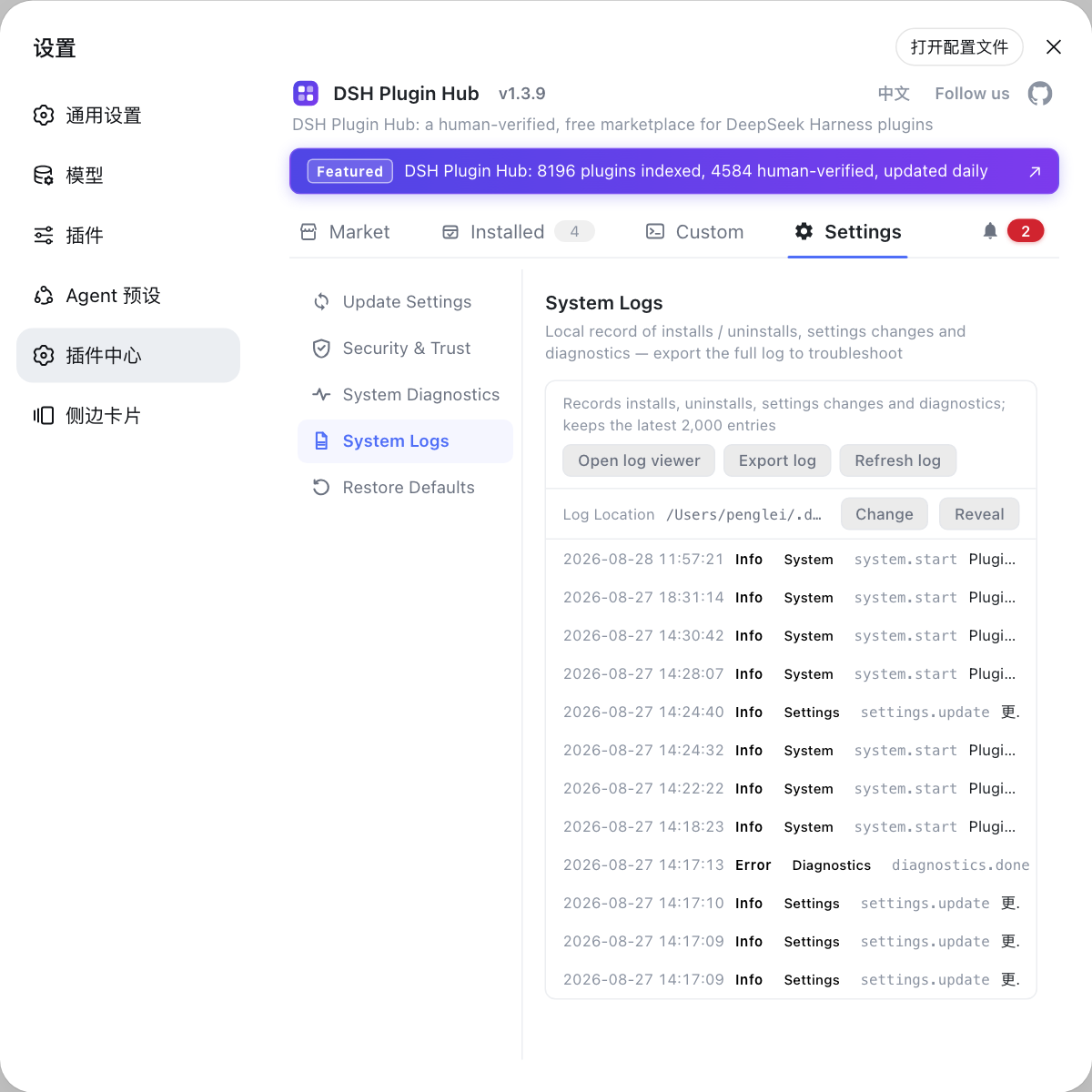
- Check the system logs for update-related errors; the notification center records both successes and failures.
Update failed? Troubleshooting table
Read the error type first, then fix accordingly. Common issues:
| Problem | Likely cause | Fix |
|---|---|---|
| Binary version unchanged | Stale npx cache | npm cache clean --force and restart, or remove ~/.npm/_npx |
npm update -g fails with EACCES | No write access to global dir | sudo npm update -g @deepseek-ai/dsh, or switch to npx |
| Download timeout | Slow default npm registry | npm config set registry to a mirror and retry |
git pull reports conflicts | Local source changes | git stash → git pull → git stash pop |
| Plugin Update button not shown | Plugin already latest | Nothing to do; or clear the cache and re-enter the Plugin Market |
| Plugin stops working after update | Plugin incompatible with this dsh | Restart dsh → reinstall from Plugin Market, or switch to the npm version |
| Update interrupted midway | Network dropped / terminal closed | Re-run the update command; retry binary and plugins separately |
| Unsure whether the update worked | Never confirmed the version | Compare dsh --version with npm view @deepseek-ai/dsh version |
Quick reference
In one sentence: update the binary and plugins separately — binary by install type (npx / npm update -g / git pull + build), plugins via the Plugin Market "Update" button or a command-line overwrite; back up before, verify after. Four reminders:
- Record the version and back up sessions before updating so you always have a way back;
- The binary and plugins are two different things — no single command updates both;
- Prefer the Plugin Market for plugins: visual, with progress and records;
- Four checks after updating: version, web page, plugin list, system logs.
Sources: dsh CLI README, dshplugin/dsh-plugin-hub, DeepSeek Harness docs - Quickstart
FAQ
Two layers: the binary update, swapping @deepseek-ai/dsh for a new version, and the plugin update, upgrading installed plugins. They are independent — updating the binary never updates plugins and vice versa.
The npx route fetches the latest on every run; npm globals run npm update -g @deepseek-ai/dsh; source builds git pull and rebuild in the repo directory. Restart dsh web and confirm the version after updating.
Install DSH Plugin Hub, open Settings → Plugin Market → Installed, click Update on any row that shows it and confirm. The command line works too: dsh plugin --profile web add <package> overwrites to the latest.
Record the current version (dsh --version) for an easy rollback, confirm enough disk space and a stable network, and optionally back up sessions from ~/.dsh/sessions. Keep the terminal window open and do not interrupt the process.
Restart dsh web and refresh first; if issues remain, reinstall the affected plugin from the Plugin Market or overwrite-install via command line. Check the system logs for the exact error and follow the matching guide.
Sources
- dsh CLI README· deepseek-ai
- dshplugin/dsh-plugin-hub GitHub repository· GitHub
- DeepSeek Harness docs - Quickstart· deepseek-harness