How to upgrade dsh: three routes, pinning and downgrading versions
Upgrading dsh means moving to a new version: check the current and latest versions first, then upgrade by install type — npx stays latest, npm update -g for globals, git pull plus rebuild for source — and pin or downgrade with @version when needed. This guide covers upgrade vs update, three upgrade routes, backup before upgrading, and version pinning and downgrading.
Overview: upgrading changes the version, never your data
An upgrade only swaps the program's version number; configs, sessions and plugins under ~/.dsh are all preserved. Three principles (source):
- Check before upgrading: compare the current and latest versions;
- Upgrade by install type: npx, npm and source each have their own command;
- Versions are manageable: pin or downgrade whenever needed.
The upgrade paths at a glance:
| Scenario | Command | Note |
|---|---|---|
| Upgrade to latest (npx) | npx @deepseek-ai/dsh web | Always fetches the latest on every run |
| Upgrade to latest (npm global) | npm update -g @deepseek-ai/dsh | One command |
| Upgrade to latest (source) | git pull + rebuild | Run inside the repo directory |
| Pin to a specific version | npm install -g @deepseek-ai/dsh@<version> | Blocks automatic upgrades |
| Downgrade to an older version | Same, with an older version number | Fast rollback when something breaks |
Step 1: check the current and latest versions
Know your version landscape before acting, and avoid blind upgrades. Steps:
- Open a terminal and check the current version:
# Current version (global install)
dsh --version

# Current version (npx route)
npx @deepseek-ai/dsh --version
- Check the latest version on npm:
npm view @deepseek-ai/dsh version
- Compare the numbers: if the current version is lower than the latest, an upgrade is due; for the differences between versions, check the changelog on dsh-plugin.org or the official release page.
Step 2: back up before upgrading (strongly recommended)
Back up the data directory before upgrading so you can always roll back if the new version misbehaves. Everything lives in ~/.dsh:
# Back up (configs, sessions, plugin list)
cp -r ~/.dsh ~/.dsh.backup-$(date +%Y%m%d)

# Also record the current version for comparison
dsh --version > ~/.dsh.version.old
Step 3: upgrade by install type
Upgrade commands map one-to-one to install types — pick the one you originally used. Three routes:
Route 1: npx (always latest)
npx re-pulls the latest version on every run, so no manual upgrade is needed. Just start:
npx @deepseek-ai/dsh web
Fallback: if the launched version is still old, the cache is stale — force a refresh:
npm cache clean --force
rm -rf ~/.npm/_npx
npx @deepseek-ai/dsh web
Route 2: npm global upgrade
If you installed globally, npm update -g upgrades to the latest in one step. Steps:
# Upgrade to the latest
npm update -g @deepseek-ai/dsh

# Confirm the version
dsh --version
If you used pnpm or yarn, use the equivalent:
pnpm add -g @deepseek-ai/dsh@latestoryarn global add @deepseek-ai/dsh.
Route 3: source build upgrade
If you cloned and built from source, pull the latest code in the repo directory and rebuild. Steps:
# Enter the source repo directory
cd ~/dev/deepseek-harness

# Pull the latest code (git stash first if you have local changes)
git pull

# Reinstall dependencies and rebuild (same as the initial install)
npm install
# Run the build command from the repo docs, e.g. npm run build
Once the build finishes, restart dsh web to use the new version.
Step 4: pin or downgrade the version
When a new version feels off or a plugin is incompatible, pin or downgrade. Steps:
# Install a specific version globally (@ then the version)
npm install -g @deepseek-ai/dsh@0.1.0-rc.8

# Confirm the version is back to the target
dsh --version

# Start a pinned version with npx (to verify the old version temporarily)
npx @deepseek-ai/dsh@0.1.0-rc.8 web
After pinning, npm update no longer bumps it automatically — a good fit for environments that need stability (source). To list all historical versions on npm, run npm view @deepseek-ai/dsh versions.
Step 5: verify after the upgrade
Confirm the version and functionality after upgrading, to avoid a "fake upgrade". Steps:
- Re-run the version command and confirm the number changed;
- Restart dsh web and confirm the page opens;
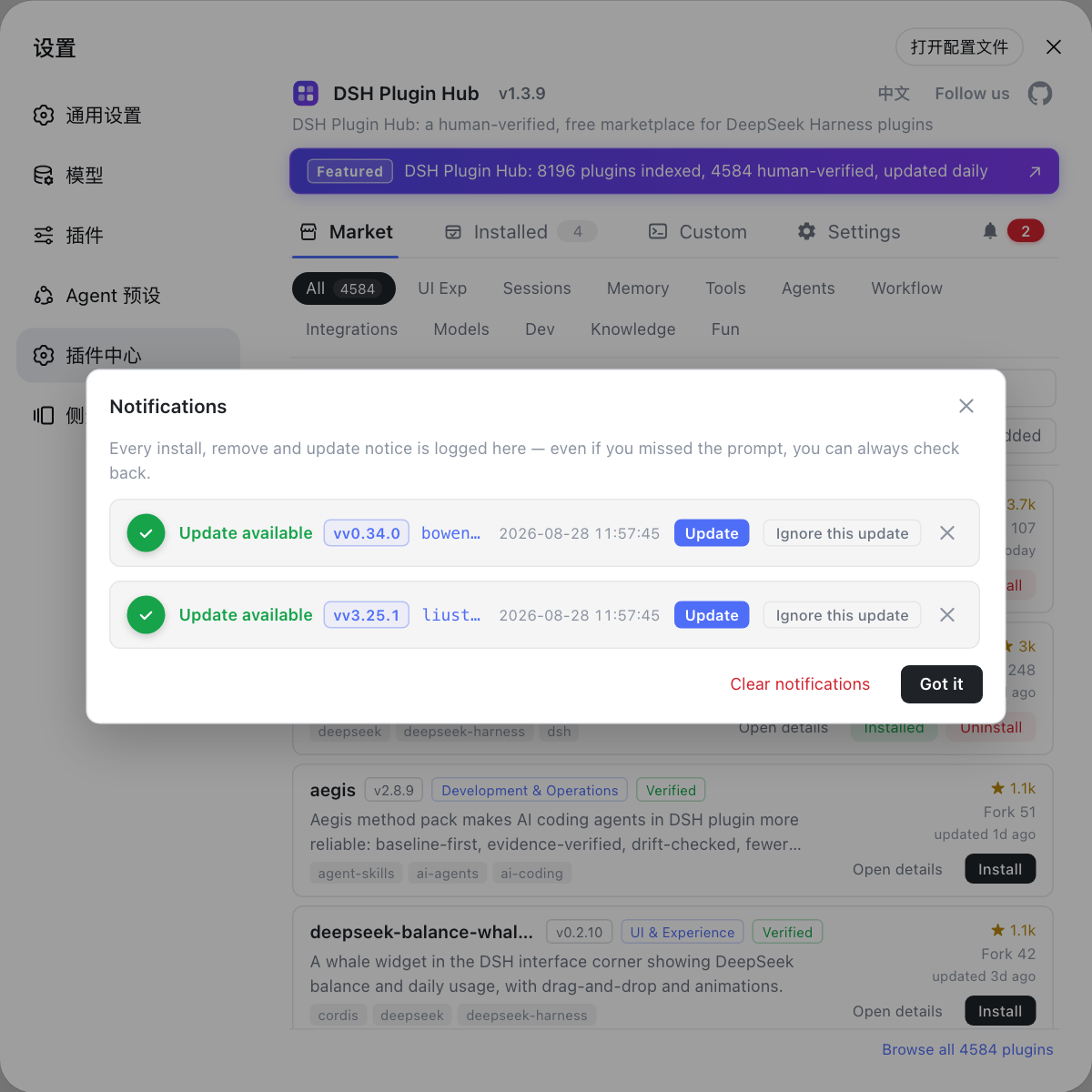
- Open Settings → Plugin Market and confirm installed plugins load normally (with DSH Plugin Hub installed, you will see the plugin list and versions);
- Check the notification center and system logs for any upgrade errors.
Upgrade failed? Troubleshooting table
Read the error type first, then fix accordingly. Common issues:
| Problem | Likely cause | Fix |
|---|---|---|
| Version unchanged after upgrade | Stale cache / command did not finish | Clean the cache (npm cache clean --force) and retry; check the output |
npm update -g fails with EACCES | No write access to global dir | sudo npm update -g @deepseek-ai/dsh, or switch to the npx route |
| Download timeout | Slow default npm registry | npm config set registry to a mirror and retry |
git pull reports conflicts | Local source changes | git stash → git pull → git stash pop |
| Plugins stop working after upgrade | Plugin incompatible with new dsh | Restart dsh, then reinstall the plugin from Plugin Market |
| Want to go back to an old version | New version changed behavior | Downgrade with npm install -g @deepseek-ai/dsh@<old version> |
| Do not know which versions exist | Never listed versions | npm view @deepseek-ai/dsh versions lists all historical versions |
| Web page does not open after upgrade | Port occupied / service not restarted | Restart dsh web; check whether port 127.0.0.1:3080 is in use |
One more thing: keep plugin versions in sync too
After upgrading the dsh core, watch plugin compatibility as well. The DSH Plugin Hub plugin pages show the compatible version each plugin is marked with; after upgrading, open Settings → Plugin Market and update any outdated plugins one by one to keep both in sync.
Quick reference
In one sentence: back up and check versions before upgrading, upgrade by install type (npx automatic / npm update -g / git pull + build), pin with @version when you need stability, then restart and verify. Four reminders:
- Record the old version before upgrading so you can downgrade easily;
- The npx route needs no manual upgrade — just clean the cache;
- Pin versions with
@version:npm install -g @deepseek-ai/dsh@<version>; - Restart before troubleshooting plugins after an upgrade, then consider reinstalling.
Sources: dsh CLI README, DeepSeek Harness docs - Quickstart, dshplugin/dsh-plugin-hub
FAQ
In daily usage they overlap: updating usually means syncing to the latest patch, upgrading means moving to a higher or a specific version. Both just change the version number with the same commands: npx stays latest, npm globals run npm update -g, source pulls and rebuilds.
The npx route fetches the latest on every run; globals run npm update -g @deepseek-ai/dsh; source builds git pull and rebuild in the repo directory. Restart dsh web and confirm with dsh --version after upgrading.
Current: dsh --version (global) or npx @deepseek-ai/dsh --version. Latest: npm view @deepseek-ai/dsh version. Comparing the two tells you whether an upgrade is needed.
Install a specific version globally: npm install -g @deepseek-ai/dsh@<version>, for example @0.1.0-rc.8; for npx, run npx @deepseek-ai/dsh@<version> web. Once pinned, npm update will not bump it automatically — good for stable environments.
Usually yes. Plugins live in the profile and $DSH_HOME data stays, so upgrading the binary does not affect installed plugins. If a plugin is incompatible with the new version, reinstall it from Settings → Plugin Market.
Sources
- dsh CLI README· deepseek-ai
- DeepSeek Harness docs - Quickstart· deepseek-harness
- dshplugin/dsh-plugin-hub GitHub repository· GitHub