Uninstall DSH plugins in DSH Plugin Hub (UI guide)
The easiest way to uninstall a DSH plugin is the visual interface of DSH Plugin Hub: Settings → Plugin Market → Installed list → click Uninstall, with live progress. Follow four steps — open the entry, click uninstall, clean leftovers, handle failures — then clean leftover config, cache and node_modules by directory; if an uninstall or update fails, reinstall in the Hub or switch to the npm build as a fallback.
Overview: four steps of UI uninstall, no commands needed
With DSH Plugin Hub installed, Settings → Plugin Market becomes the visual plugin management entry — install, update and uninstall all happen with buttons. Compared with the CLI dsh plugin --profile web remove <package>, the UI approach wins on clarity: a browsable list, live progress, result dialogs, and visible failure reasons (source). The full flow runs in four steps:
- Open the entry: Settings → Plugin Market, go to the installed plugins list;
- Click uninstall: find the plugin, click Uninstall and confirm;
- Clean leftovers: remove the plugin's config, cache and dependency directories as needed;
- Fallback on failure: if uninstall or update fails, reinstall in the Hub or switch to the npm build.
Each step is unpacked below.
Step 1: open the plugin market and find the uninstall entry
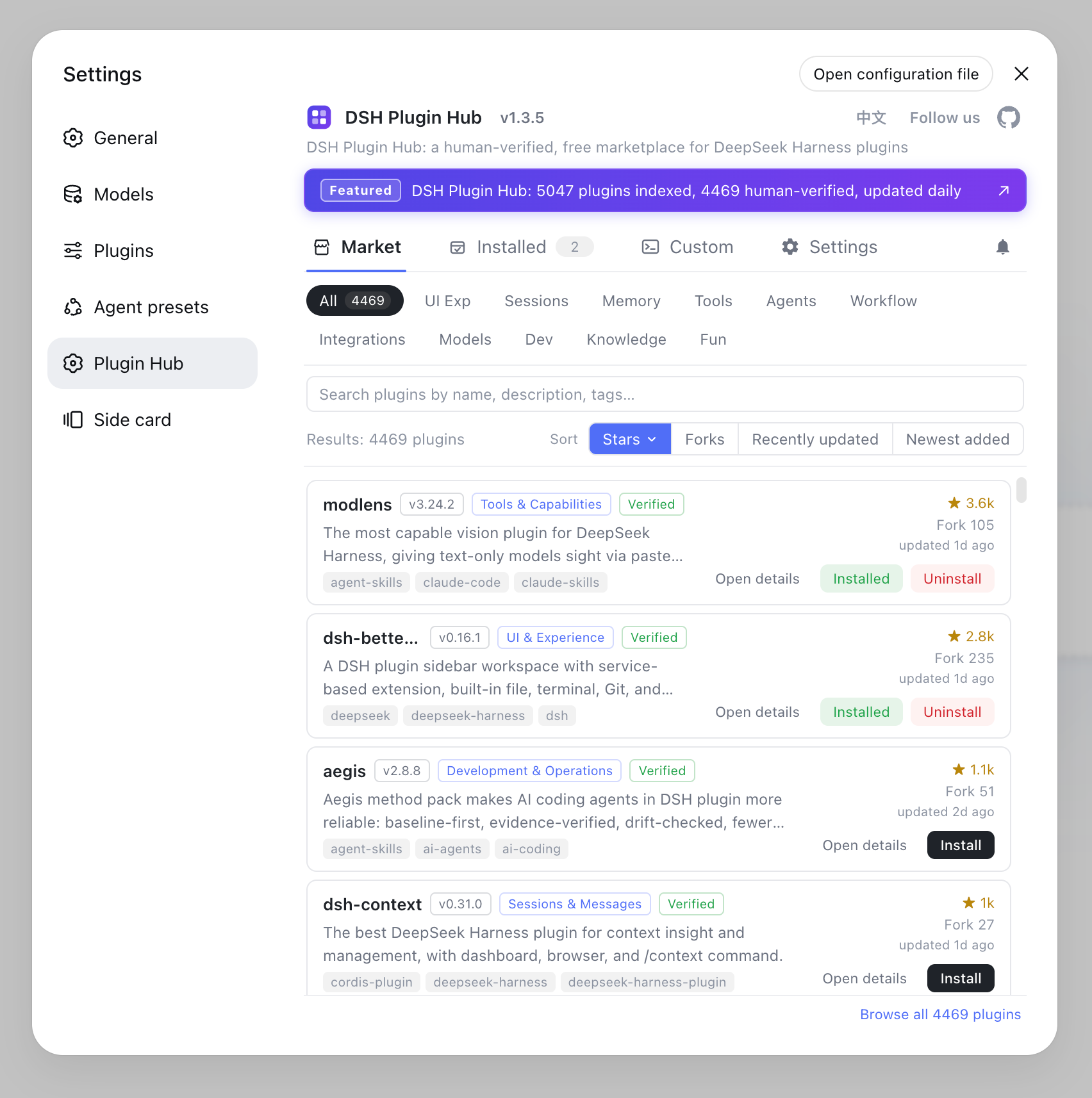
The uninstall entry lives in the installed plugins list under Settings → Plugin Market — every row has an uninstall action at the end. Steps:
- Start the DeepSeek Harness Web UI and open the Settings page;
- Find Plugin Market (this entry only exists once DSH Plugin Hub is installed — install the Hub first if you do not have it);
- Switch to the Installed plugins list to see every plugin installed in the current profile with its version;
- Locate the target plugin and click its Uninstall button.
Every entry in the installed list shows its source (catalog plugin / manual install) and version, so double-check you picked the right plugin before uninstalling — uninstall is irreversible and a wrong click means reinstalling.
Step 2: click uninstall and watch live progress
Clicking Uninstall opens a confirmation dialog, then the removal runs with live progress and a final result. The flow:
Click Uninstall → confirmation dialog → live progress (removing dependencies…) → done / failed
- Confirmation dialog: the app asks you to confirm before anything is executed;
- Live progress: the removal is shown in the dialog in real time — no need to watch a terminal;
- Result feedback: success shows the result view; failure shows the error and what to do next.
Once finished, the plugin disappears from the installed list. The whole flow shares the same task queue as install and update, so a failure is always reported clearly — there is no "clicked and nothing happened".
Step 3: clean leftovers after uninstalling
Uninstalling mainly removes the dependency from the profile; for a thorough cleanup, delete the plugin's config and cache directories as well. Check three places (see Remove DSH plugin leftovers for details):
- Dependencies (node_modules): usually removed automatically; if a leftover directory remains under
~/.dsh/profiles/<name>/node_modules, delete the plugin's folder manually. - Config directories: a plugin may create its own config directory under
$DSH_HOME; uninstall does not delete it automatically — find and remove the matching folder. - Cache: some plugins write cache files; clean them according to the plugin docs or by directory name.
A simple way to check the cleanup: restart the DSH Web UI after uninstalling and confirm the plugin no longer appears in the installed list and nothing errors — an error usually means stale build files in a leftover directory, so delete it and restart.
Step 4: what to do when uninstall or update fails
A failed uninstall or update usually means an incomplete package — git-distributed plugins often miss build output; switch to the npm build or reinstall in the Hub as the fallback. Steps:
- Read the failure reason: the Hub's error dialog shows the message — check whether it is dependencies, network, or the package itself;
- Reinstall to overwrite: click install/update on the plugin again in the plugin market to overwrite the incomplete state;
- Switch to the npm build: when git-distributed output is missing (errors often mention things like
entry file missing), switch to the npm version from the plugin detail page in the Hub — the Hub marks each plugin's source (npm package / GitHub source), so pick a more reliable channel; - Still stuck: manually delete the plugin's dependency directory under
~/.dsh/profiles/<name>and reinstall, or force it once withdsh plugin --profile web remove <package>on the command line.
Notes on UI uninstall
In one sentence: the Hub UI is for everyday management; a thorough cleanup still means looking at the data directory. Three reminders:
- Uninstall does not wipe data: it only removes dependencies — sessions and config under
$DSH_HOMEare untouched; see the leftover-cleanup guide for a full wipe. - Accidental uninstall can be redone: reinstall from the plugin market or the site's detail page in one click; the source tag is re-marked after reinstall.
- Check the source on failure: the Hub marks source and compatibility status for every plugin, so when an uninstall fails, judge from the source whether the package or the environment is at fault.
Sources: DeepSeek Harness Docs - Package and Publish Plugins, dsh CLI README, dshplugin/dsh-plugin-hub
FAQ
Install DSH Plugin Hub first, open Settings → Plugin Market → Installed plugins, find the target plugin and click Uninstall, then confirm and wait for the live progress to finish — fully visual, no commands needed.
Under the hood they are the same — both remove the plugin dependency from the profile. The difference is interaction: the plugin market uses buttons with live progress and a result dialog, while the CLI runs dsh plugin --profile web remove <package> and you read the output yourself. The UI is friendlier for beginners.
Uninstalling mainly removes the dependency from the profile. For a full cleanup, check the plugin's config and cache directories under $DSH_HOME and delete the matching folders; see _Remove DSH plugin leftovers_ for details.
A failed uninstall is usually caused by an incomplete package, e.g. git-distributed plugins missing build output. Try reinstalling from the plugin market first; if it still fails, switch to the npm build in the Hub — it marks the source of each plugin (npm package / GitHub source) so you can pick a more reliable channel.
Yes. When an update fails, reinstalling that plugin from the plugin market overwrites the current state; the Hub shows live progress and the failure reason, so follow the hint to switch to a compatible build or clear the cache and retry.
Sources
- DeepSeek Harness Docs - Package and Publish Plugins· deepseek-harness
- dsh CLI README· deepseek-ai
- dshplugin/dsh-plugin-hub GitHub repository· GitHub