Reinstall DSH without losing data: uninstall & ~/.dsh
Uninstalling DeepSeek Harness does not lose data: the program and data are separate — removing the program only touches the npm package or source repo, while config, keys and sessions live independently in $DSH_HOME (default ~/.dsh). Follow four steps — back up, uninstall by method, confirm the data survived, reinstall or migrate — and everything is still there afterwards; migrating to a new machine is a simple copy of ~/.dsh.
Overview: four steps — data always stays independent
Uninstalling dsh is not deleting data: the program lives in the core, the data lives in $DSH_HOME (default ~/.dsh), and the two do not affect each other. DeepSeek Harness keeps program and data apart: the program is an npm package or source repo, while the data directory is defined by $DSH_HOME and defaults to ~/.dsh (source). So whether data survives an uninstall-and-reinstall depends entirely on whether you touched ~/.dsh. The full flow runs in four steps:
- Back up: copy
~/.dsh(or at leastsessions) to a safe location first; - Uninstall: remove the program according to your install method;
- Confirm: check that the
$DSH_HOMEdata directory is intact and was not deleted; - Reinstall / migrate: run it again or move the data directory to a new machine.
Each step is unpacked below.
Step 1: uninstall the core by install method
The uninstall command depends on how you installed: npx leaves nothing, npm global runs npm uninstall -g, source builds delete the repository. Three install methods map to three removal approaches:
# Method 1: npx (no local install, nothing to remove; optionally clear the npx cache)
rm -rf ~/.npm/_npx

# Method 2: npm global install of the dsh command
npm uninstall -g @deepseek-ai/dsh

# Method 3: source build (delete the cloned repository)
rm -rf ~/path/to/deepseek-harness
npx pulls packages temporarily from npm on every run and leaves no persistent local install, so there is no core to uninstall — at most clear the ~/.npm/_npx cache directory; a source-built DeepSeek Harness has no global side effects, so deleting the repository directory completes the uninstall (source). On machines where dsh was installed globally, which dsh shows the command path and Method 2 removes it.
Step 2: know the difference between uninstalling and wiping data
Uninstalling removes only the program; everything under $DSH_HOME — config, keys, sessions, profiles — is kept as-is, and only a manual rm -rf ~/.dsh actually wipes the data. This is the most important distinction in this guide. The data directory holds all your assets (source):
| File / directory | Contents | On uninstall |
|---|---|---|
$DSH_HOME/settings.yaml | user configuration | kept |
$DSH_HOME/.credentials.yaml | model keys (write-only) | kept |
$DSH_HOME/profiles/<name>/ | each profile's plugin dependencies and composition config | kept |
$DSH_HOME/sessions | session data | kept |
~/.dsh as a whole | everything above | only rm -rf removes it |
So the key to "uninstall and reinstall without losing data" is to leave ~/.dsh alone. If it ever gets touched by accident, restore from the backup you made in Step 1:
cp -r ~/.dsh-backup/sessions ~/.dsh/sessions
Step 3: does my data survive a reinstall?
A reinstall only replaces the program, and $DSH_HOME stays intact — rerunning npx @deepseek-ai/dsh web brings back your config, sessions and plugins. By install method:
- npx reinstall: rerun
npx @deepseek-ai/dsh web; the web profile re-initializes automatically and your model keys, history and installed plugins are all still there (source). - Global reinstall:
npm install -g @deepseek-ai/dshoverwrites with a new version; the data directory is unaffected. - Source reinstall: clone again,
pnpm install && pnpm run build, then start — the data is retained as well.
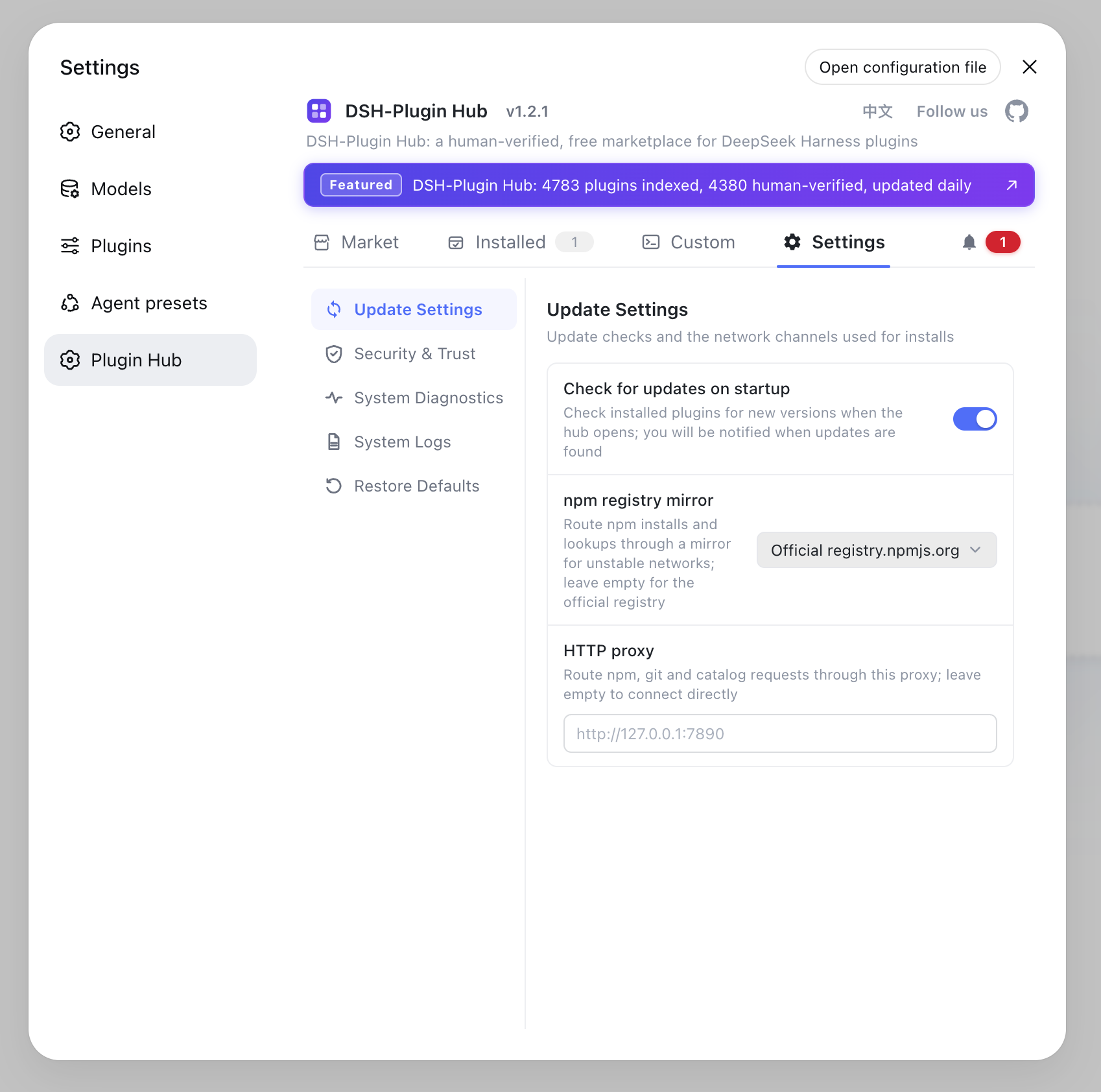
Verify the data in three steps after reinstalling: ① dsh --version confirms the core version; ② start the Web UI and check that history sessions are still there; ③ open Settings → Plugin Market to check installed plugins — with DSH Plugin Hub installed, the installed list shows everything and missing plugins can be reinstalled in one click.
Step 4: migrate data to a new machine
Moving to a new machine is a straight copy of the ~/.dsh directory — config, sessions and keys travel together. Migration steps:
# 1. Package the data directory on the old machine (skip node_modules to shrink it a lot)
tar -czf dsh-data-backup.tar.gz -C ~ .dsh

# 2. Copy it over and extract to the same location on the new machine
tar -xzf dsh-data-backup.tar.gz -C ~
Two things to watch: .credentials.yaml holds model keys — after the move, confirm on the new machine that the keys still work and are not blocked by security software; $DSH_HOME defaults to ~/.dsh, and if you want it elsewhere, set the $DSH_HOME environment variable to the new directory before starting (source). Absolute paths recorded inside profiles (such as workspace directories) may be invalid on another machine, so re-point them as needed after migrating.
Notes on uninstall-and-reinstall
In one sentence: do not delete ~/.dsh when uninstalling and your data survives; if you want a fully fresh start, back up first, then wipe. Three reminders:
- Back up before anything: whatever you uninstall or wipe,
cp -r ~/.dsh ~/.dsh-backupfirst — it costs almost nothing. - Verify with
which dsh: after uninstalling, no output means the program is gone; confirm~/.dshis intact before reinstalling. - No manual plugin reinstall needed: as long as
$DSH_HOMEis kept, plugin dependencies are kept too; if a plugin does not load, reinstall it in one click from Settings → Plugin Market in DSH Plugin Hub.
Sources: dsh CLI README, DeepSeek Harness Docs - Configure Providers, Official Quickstart
FAQ
No. Uninstalling only removes the program; data lives in the separate $DSH_HOME directory (default ~/.dsh): config in settings.yaml, keys in .credentials.yaml, profiles under profiles/, sessions under sessions/. As long as you do not delete ~/.dsh, everything stays.
npx leaves no local install, so there is nothing to remove (optionally clear the ~/.npm/_npx cache); a global install runs npm uninstall -g @deepseek-ai/dsh; a source build is uninstalled by deleting the cloned repository. None of these touch the data directory.
Yes. Rerunning npx @deepseek-ai/dsh web re-initializes the web profile automatically; everything in $DSH_HOME — config, sessions and plugin dependencies — is still there. Upgrading to a new version keeps the data too.
Copy the whole ~/.dsh directory to the same location on the new machine — config files and keys come along. Note .credentials.yaml holds model keys (verify they still work after the move), and absolute paths inside profiles such as workspace directories may need to be re-pointed.
Uninstalling removes only the program and leaves $DSH_HOME intact; wiping data means manually deleting ~/.dsh, which removes config, sessions and keys. Only wipe when you want a fully fresh start, and back up ~/.dsh/sessions first.
Sources
- dsh CLI README· deepseek-ai
- DeepSeek Harness Docs - Configure Providers· deepseek-harness
- DeepSeek Harness Docs - Quickstart· deepseek-harness