npm update dsh: npm update -g vs install @latest vs npx
There are three npm routes to update dsh, and they behave differently: npm update -g only takes the highest version inside the recorded range, npm install -g @deepseek-ai/dsh@latest crosses majors, and npx users need an explicit @latest while watching for a stale cache. A DeepSeek Harness plugin is a separate case: DSH plugins are updated through the dsh plugin channel rather than npm, which the last section separates. This article covers when each route applies, how to run it, and how to verify afterwards.
Three npm routes to update DeepSeek Harness: update -g, @latest, and npx
The division of labor is: routine patch upgrades go through npm update -g, crossing a major goes through npm install -g @deepseek-ai/dsh@latest, and npx users have no installed version to update and must resolve @latest every run (source). Compare them:
| Your current setup | Update command | Key limitation |
|---|---|---|
Global install (npm i -g) | npm update -g @deepseek-ai/dsh | Only the highest version inside the recorded semver range; majors are not crossed |
| Global install, newest wanted | npm install -g @deepseek-ai/dsh@latest | Re-resolves against the latest tag and overwrites, crossing majors |
| Running via npx | npx @deepseek-ai/dsh@latest web | No resident install; may reuse a stale copy under ~/.npm/_npx |
| Source clone | git pull and rebuild | Not managed by npm, so npm update commands do nothing here |
Find out which group you are in first: run npm ls -g @deepseek-ai/dsh. Expect: output means a global install; if it prints (empty) while you normally start with npx @deepseek-ai/dsh, you are in the third group.
Updating DeepSeek Harness with npm update -g: when it is enough and when it is not
npm update -g means "take the highest version inside the recorded range", so minor and patch releases move while majors do not, which is where people most often misjudge it (source). Four steps to run it and check:
- See what is installed — run
npm ls -g @deepseek-ai/dsh. Expect: one line with the version currently installed globally. - See what can move — run
npm outdated -g --depth=0. Expect: if the package is listed, the Current and Latest columns show the gap between what you have and what is available. - Update — run
npm update -g @deepseek-ai/dsh. Expect: it finishes without errors; if the version does not move while Latest is clearly higher, the semver range is holding it back, so use the next section. - Check the running command — run
dsh --version. Expect: the new version. If it still reports the old one, do not update again yet; run the checks in the fifth section first.
Note: npm update -g without a package name updates every global package, so avoid it when you are unsure how other packages depend on each other.
Forcing the newest DeepSeek Harness: npm install -g @deepseek-ai/dsh@latest
To cross a major or be certain of the newest stable release, use @latest so npm re-resolves against the latest tag and overwrites the install; this is the essential difference from update -g (source). Three steps:
- Confirm what the newest is — run
npm view @deepseek-ai/dsh version. Expect: the newest stable version on the registry; note it down to compare later. - Force-install the newest — run
npm install -g @deepseek-ai/dsh@latest. Expect: it downloads and overwrites, and the version it reports matches step 1. - Verify it took effect — run
dsh --version. Expect: the same version you noted in step 1, proving the major upgrade landed.
A useful side effect: replacing @latest with an exact version such as @deepseek-ai/dsh@1.3.9 pins the install, which also lets you go back to a known-good release. See Which DeepSeek Harness version to choose.
Updating DSH plugins you run through npx: @latest and the cache
npx has no resident installation, so it re-resolves the package on every run, but it may reuse an older copy from its local cache; writing @latest explicitly is the most direct way to make npx resolve the newest tag (source). Three steps:
- Start with an explicit latest tag — run
npx -y @deepseek-ai/dsh@latest web. Expect: npx resolves against latest and runs;-yskips the install confirmation prompt. - Clear the cache if you suspect a stale copy — run
npm cache clean --forceand repeat the previous step. Expect: it re-downloads and runs the newest version; npx keeps its temporary installs under~/.npm/_npx. - Confirm the version — in another terminal run
dsh --version, or read the version line in the startup log. Expect: it matchesnpm view @deepseek-ai/dsh version.
The most common confusion: npx and a global install are two independent setups, and updating one does nothing to the other. If you have both a global dsh and occasional npx runs, they will keep running different versions; see How to update dsh: npx and git pull for the core.
Confirming the DeepSeek Harness version really changed after updating
Three version numbers must be kept apart: what is installed globally, what the command actually runs, and what the registry considers newest; when they disagree the problem is usually PATH or the npm source, not the update command. Four checks:
- Installed version — run
npm ls -g @deepseek-ai/dsh. Expect: the version npm records in the global directory. - Running version — run
dsh --version(on Windows, also runwhere dshto see the path). Expect: it matches the previous step; a mismatch means PATH resolves to a different install. - Registry version — run
npm view @deepseek-ai/dsh version. Expect: the newest stable release on the source, which tells you whether anything else is available. - npm source — run
npm config get registry. Expect: if it points at a mirror while step 3 looks too old, mirror sync is lagging; add--registry https://registry.npmjs.orgto query the official source directly.
For the complete list of update commands for both the core and plugins, see dsh update command cheat sheet.
Five reminders apply throughout:
- Updating the core is not updating plugins: plugins are managed by the
dsh pluginchannel through pnpm, a separate maintenance path; see How to upgrade dsh to the latest version. npm update -gwithout a package name updates everything: it can bump unrelated global packages and introduce incompatibilities, so update only the package you mean to.- Source clones ignore npm updates: those installs need
git pulland a rebuild, andnpm update -ghas no effect on them. - Switching Node versions can bring the old version back: the global directory moves with the Node version, so after an nvm switch
dsh --versionmay report a different install; usenpm root -gto confirm which global directory is in play. - Fix the network first when it hangs or crawls: it is usually a slow source or a proxy issue; see DeepSeek Harness update stuck or slow.
Use DSH Plugin Hub to see plugin state after updating DeepSeek Harness
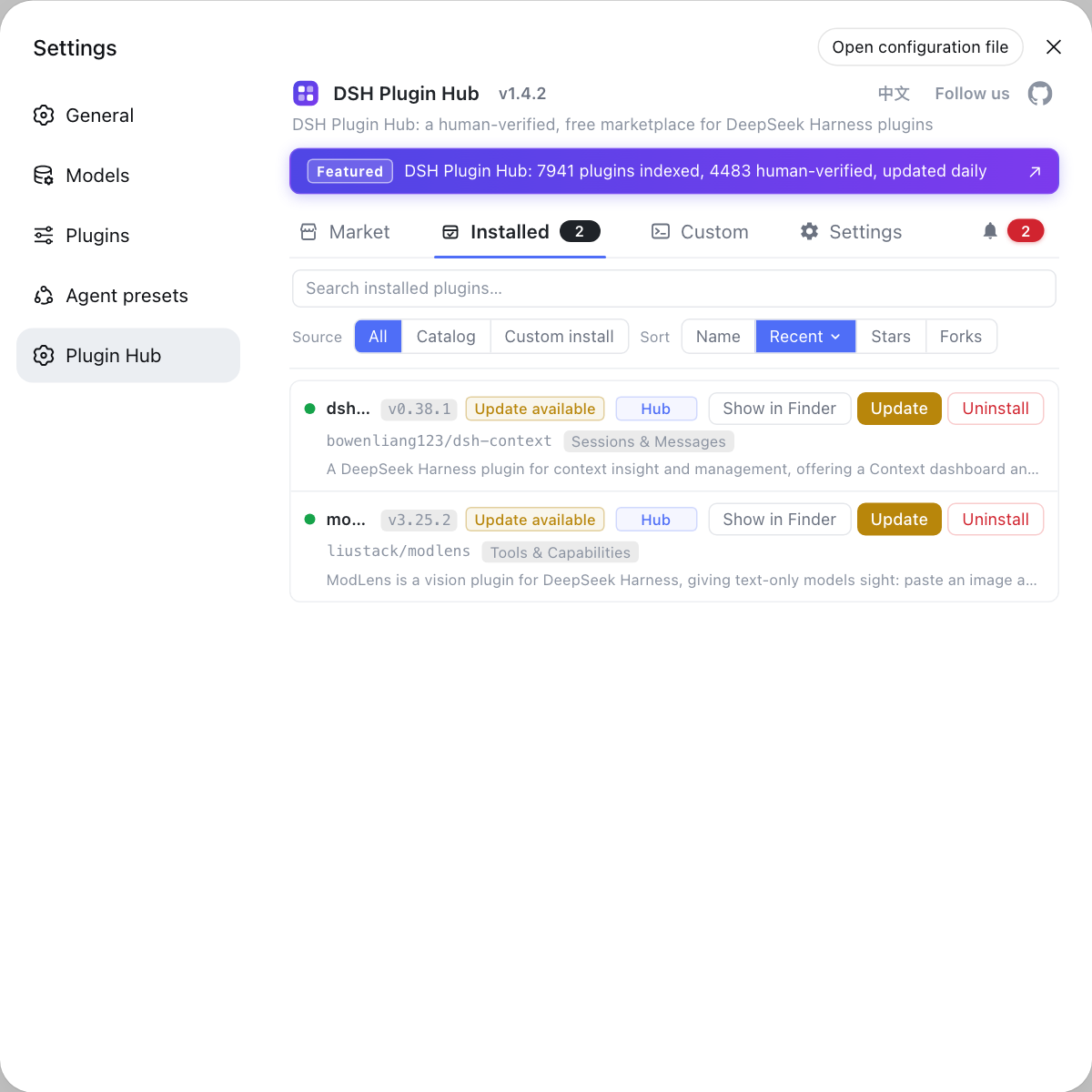
npm updates the dsh core, while plugin versions and update availability belong to DSH Plugin Hub, the official plugin market built into DeepSeek Harness, whose installed list marks which plugins have updates. After updating the core and restarting dsh, open the Installed page: update the plugins carrying the update badge one by one, so "the core did not update" and "the plugin did not update" do not get tangled into one problem.
Sources: npm Docs - npm update, npm Docs - npm install, npm Docs - npx, deepseek-ai/deepseek-harness GitHub repository
FAQ
Updating DeepSeek Harness with npm does not always reach the newest version. npm update -g only moves the package to the highest version allowed by the recorded semver range, so it will not cross a major. To force the newest version, run npm install -g @deepseek-ai/dsh@latest; either way, confirm with dsh --version afterwards.
When upgrading DeepSeek Harness, the first respects the version range and effectively takes the highest version inside it, which suits patch-level upgrades. The second re-resolves against the latest tag and reinstalls, so it can cross majors. Use update for stability and install @latest when you must have the newest, and the two do not conflict.
Running DeepSeek Harness through npx means there is no resident installation to update, so it resolves the package on every run, but it may hit an older copy in its local cache. Writing npx @deepseek-ai/dsh@latest forces resolution against the latest tag; the cache lives in ~/.npm/_npx and can be cleared if you suspect a stale copy.
Three checks confirm the DeepSeek Harness update actually landed: npm ls -g @deepseek-ai/dsh for the installed version, dsh --version for the version actually running, and npm view @deepseek-ai/dsh version for what the registry considers newest. When they disagree, check npm config get registry and your PATH first.
If you already updated DeepSeek Harness with npm and npm view still shows an older version, your npm source is probably a mirror, and mirror sync lags behind, so npm view reads stale data from the mirror. Run npm config get registry to see the source, and if needed query the official registry directly with --registry https://registry.npmjs.org.
Related Terms
- npm update -g
- npm update -g is npm's global update command: it moves globally installed packages to the highest version allowed by their recorded semver range. It never leaves that range, so for a project like DeepSeek Harness that ships majors, crossing one requires npm install -g <pkg>@latest instead.— npm Docs
- latest tag
- The latest tag is the default dist-tag on the npm registry for a package, and npm install <pkg>@latest resolves to the newest stable release. Unlike a pinned version number, it moves automatically as the maintainer publishes.— npm Docs
- npx cache
- The npx cache is where npx stores packages it downloads on demand, typically under ~/.npm/_npx. Running a package through npx may reuse a stale copy from that cache, which an explicit @latest or a cache clean avoids.— npm Docs
- --depth=0
- The --depth=0 flag on npm ls and npm outdated lists only top-level dependencies without expanding the tree. It is the cleanest way to check which packages are installed globally and at what versions.— npm Docs