dsh update commands cheat sheet: DeepSeek Harness plugins
Updating dsh comes down to two kinds of action: updating the harness itself and updating DSH plugins. Pick the harness command that matches how you installed it, and handle plugins either through dsh plugin --profile (which forwards to pnpm) or the update button in the plugin market. This article pins each command down in a command, scenario, and verification table, without repeating troubleshooting steps.
DeepSeek Harness update commands: npx, global npm, and source builds
Harness updates split into three paths by install method, and they do not mean the same thing (source). Find your row first:
| How you installed it | Update command | When to use it | How to verify |
|---|---|---|---|
| npx, no install | Re-run npx @deepseek-ai/dsh web | Trying it out, no global install | dsh --version (or the UI version) has moved forward |
| Global npm install | npm update -g @deepseek-ai/dsh | You use the dsh command in a terminal daily | dsh --version prints a different version |
| Built from source | git pull then pnpm install then pnpm run build | Tracking latest code, editing source | pnpm dsh web starts and the version has advanced |
The details behind the three paths:
- npx has no separate upgrade command. Every run resolves the published version available at that moment. Expected: a local npx cache hit reuses the old package, so if the version has not changed, clear the cache and try again.
- A global install is a single command.
npm update -g @deepseek-ai/dshonly changes the global package directory. Expected: your user data directory is untouched, so sessions and DSH plugin configuration stay where they are. - A source build must pull and then rebuild. After
git pullyou must run bothpnpm installandpnpm run build. Expected:pnpm dsh webonly consumes built artifacts and never rebuilds, so skipping the build hides your changes. - Mixed installs: confirm the version first. If you are not sure how you installed it, run
dsh --versionand match the table. Expected: a recognizable version usually tells you which path you are on.
The full walkthrough of all three install methods lives in how to update dsh.
DeepSeek Harness plugin update commands: how dsh plugin --profile works
DSH plugin updates all go through dsh plugin --profile <name> <pnpm args>, which forwards arguments to pnpm inside that profile directory, so the update subcommand matches pnpm (source). Choose by intent:
- Update every plugin in the profile. Run
dsh plugin --profile web update. Expected: pnpm raises every plugin in that profile's dependency manifest to its latest version. - Update a single plugin. Run
dsh plugin --profile web update <package>. Expected: other plugins keep their versions, which suits a targeted upgrade. - List what is installed and at which version. Swap the subcommand for
list. Expected: you get the profile's plugin inventory before deciding what to upgrade. - Switch to the graphical route. Click update in the market and confirm an in-place overwrite. Expected: both routes edit the same dependency manifest, so doing either first never double-installs.
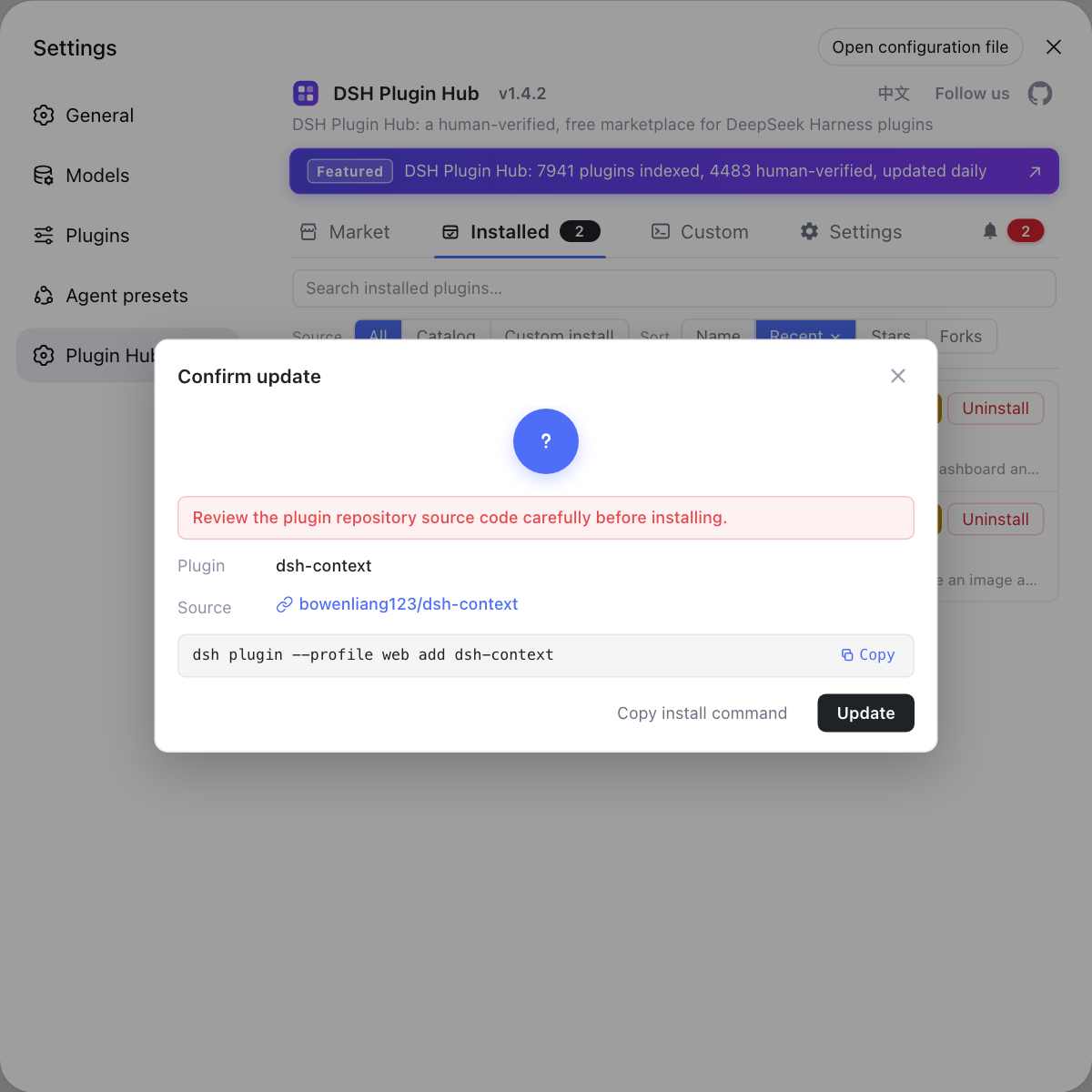
When a newer version is detected, DSH Plugin Hub exposes an update entry in the installed list and overwrites in place after you confirm. To walk through each install method one by one, see how to update dsh and the full update guide.
How to verify a DeepSeek Harness update: version, startup, plugins
Three checks follow any update: the version number, whether it starts, and whether DSH plugins still load (source). Go in order:
- Check the version. Run
dsh --version(equivalentlydsh -V). Expected: the version has moved forward, which proves the update took effect. - Check that it starts. Restart the process and open the Web UI. Expected: the page renders normally; if it does not start, inspect the port and foreground logs rather than updating again immediately.
- Check that plugins still load. Open the installed list and compare. Expected: the list looks normal and no DSH plugin reports a load failure, which means the new harness is still compatible with existing plugins.
- Check that sessions and config survived. Confirm your existing sessions and settings are present. Expected: a harness update only touches the program directory, so user data under
~/.dshis unaffected.
The complete list of command arguments and exit codes is in the dsh command cheat sheet.
Where to look when a DeepSeek Harness update hangs or fails
This article only covers how to write the commands; hangs and errors belong to the dedicated troubleshooting pieces (source). Route by symptom:
- The command sits still for a long time. See update hangs or runs slow. Expected: work through deciding whether it is really stuck, interrupting safely, clearing caches, speeding up the network, then retrying.
- The command errors out and exits. See update failed. Expected: identify whether the error belongs to permissions, a mirror, or the build step, then treat it accordingly.
- You want to roll back after upgrading. See how to pin a specific version. Expected: pin to a working version instead of reinstalling repeatedly.
- You only want to know the latest version. See check the version and read the changelog. Expected: get a version baseline before deciding whether to move at all.
Caveats and limits of DeepSeek Harness update commands
- The harness and DSH plugins are two separate tracks. A harness update command does not change plugins, and a plugin update does not upgrade the harness; do not expect one command to do both.
- The source path must rebuild.
git pullonly swaps code, whilepnpm dsh webconsumes built artifacts, so skippingpnpm run buildlooks like "the update did nothing". - The npx cache can mislead you. A cache hit on an old package means re-running changes nothing, so it can look updated when it is not.
- Plugin updates are bound to a profile. The
--profilevalue decides which plugin set is updated, and the wrong one updates the wrong place. - Read the notes during the developer preview. The official docs state plainly that breaking changes lie ahead, so skim the release entry before upgrading and pin a version if needed.
Plugin update entries live in the installed list of DSH Plugin Hub, alongside the plugin market, update detection, and log diagnostics in a single interface.
Sources: DeepSeek Harness README (official repository), dsh CLI README (official repository), dshplugin/dsh-plugin-hub
FAQ
DeepSeek Harness has three update paths, one per install method: re-run npx @deepseek-ai/dsh web if you never installed it globally, run npm update -g @deepseek-ai/dsh for a global npm install, or run git pull and rebuild if you work from source. If you are unsure which one applies, run dsh --version first and match it against the table.
The DSH plugin update command is dsh plugin --profile <name> update: without a package name it updates every dependency in that profile, and with a package name it updates only that plugin. The command forwards its arguments to pnpm inside the profile directory, so the subcommand syntax matches pnpm.
Both routes change the same dependency manifest inside DeepSeek Harness, so the result is identical. The plugin market suits seeing that a new version exists and then confirming an in-place upgrade, while the command line suits upgrading a known package or a whole batch. Pick one; they neither duplicate work nor conflict.
Verifying a DeepSeek Harness update takes three checks: dsh --version shows a newer version, the Web UI opens after a restart, and your DSH plugins still load with nothing abnormal in the installed list. The version number alone is not enough, because a correct version with failing plugin loads still needs a rollback or a plugin reinstall.
When a DeepSeek Harness update hangs, work through deciding whether it is really stuck, interrupting safely, clearing caches, speeding up the network, and retrying. When it fails outright, identify whether the error belongs to permissions, a mirror, or the build step. Dedicated troubleshooting articles cover both cases; this one only covers how to write the commands.
Related Terms
- npx re-run is the update
- npx re-run is the update means the DeepSeek Harness no-install path has no separate upgrade command: every execution of npx @deepseek-ai/dsh web resolves the published version available at that moment. A local npx cache hit reuses the previously downloaded version, so you may need to force-refresh the cache to be sure you get the newest one.— DeepSeek Harness README (official repository)
- npm update -g
- npm update -g is the npm form that upgrades a package to its latest version, used here to update a globally installed @deepseek-ai/dsh. It only touches the global package directory, not your user data directory, so updating DeepSeek Harness leaves sessions and plugin configuration untouched.— DeepSeek Harness README (official repository)
- dsh plugin --profile <name> update
- dsh plugin --profile <name> update is the DeepSeek Harness command form for updating DSH plugins: it forwards its arguments to pnpm inside the chosen profile directory. Without a package name it updates all dependencies of that profile; with one it updates only that plugin.— dsh CLI README
- source rebuild
- A source rebuild is the pnpm install and pnpm run build that follow git pull. The first restores dependencies and the second prepares repository artifacts, because pnpm dsh web only consumes already-built artifacts and never rebuilds on its own.— DeepSeek Harness README (official repository)
Sources
- DeepSeek Harness README (official repository)· deepseek-ai
- dsh CLI README· deepseek-ai
- dshplugin/dsh-plugin-hub GitHub repository· GitHub