dsh updated but version unchanged: PATH and cache checks
When dsh says it updated but the version did not change, separate three layers: the package installed on disk, the command PATH resolves, and the process currently running. DSH plugins and every DeepSeek Harness plugin are judged through the same PATH and cache mechanics, with their own entry point described at the end. Most of the time it is an unrestarted service; the rest is usually a second installation, a PATH ordering problem, an nvm-switched Node, or a stale command hash cache. Work through them in that order.
Three layers behind an unchanged DeepSeek Harness version: package, command, process
"Version unchanged" means three completely different things: the package never got installed, it was installed but the command resolves to a different copy, or the command is new while the running process is still old (source). Match your symptom first:
| Symptom | Which layer | What to do first |
|---|---|---|
npm ls -g @deepseek-ai/dsh still shows the old version | The package was not updated | Check the npm source and permissions; see What to do when a DeepSeek Harness update fails |
npm ls -g shows the new version but dsh --version shows the old one | PATH resolves to another install | Inspect PATH order with which -a dsh |
| The command reports the new version but the UI or behavior is unchanged | The process was not restarted | Restart dsh or the background service hosting it |
- See where the package landed — run
npm ls -g @deepseek-ai/dsh. Expect: the global version npm recorded. - See which copy the command uses — run
which dsh(Windows:where dsh). Expect: the path actually executed; compare it against the global directory from step 1. - See which copy the process uses — restart dsh and run
dsh --versionagain. Expect: only if it still disagrees do you need to dig into PATH and caches.
The most common cause: the DeepSeek Harness service was not restarted
Updating writes new files to disk, but a dsh process that is already running still holds the old code, so the version only changes after the process restarts, which is the single most frequent cause of "it updated but the version did not change" (source). Three steps:
- Stop the current process — press
Ctrl+Cin the terminal running dsh; if you host it as a background service, restart that withsystemctl --user restart dsh(Linux) orlaunchctl kickstart -k gui/$(id -u)/org.dsh.web(macOS). Expect:lsof -i :3080shows no listener first, then a listener again after the restart. - Confirm no stray process remains — run
pgrep -af dsh. Expect: only the one you just started; several means an old process still holds the port. - Verify the version again — run
dsh --version. Expect: the new version. If it is still old, keep going into PATH.
An easily missed detail: the browser tab belongs to the old process, so refresh it after restarting (a hard refresh if needed), otherwise the behavior you observe may still be from before.
DSH plugin PATH and multiple installs: the update landed on another copy
When several dsh installs exist on one machine, npm may have updated a different copy than the one you execute, so the version appears unchanged (source). Four steps:
- List every match — run
which -a dsh(Windows:where dsh). Expect: multiple lines, where the first is what the command runs; more than one line means several installs. - See which directory npm updated — run
npm ls -g @deepseek-ai/dshandnpm root -g. Expect: you can tell at a glance whether the global directory matches the copy resolved in step 1. - Check the active Node version — run
node -vandnpm prefix -g. Expect: if you use nvm, each Node version has its own global directory, so updating under one does not affect another. - Reinstall on the right copy — switch to the Node version you actually use and run
npm install -g @deepseek-ai/dsh@latest. Expect:npm root -gandwhich dshpoint to the same area, anddsh --versionchanges accordingly.
The guiding principle: rather than updating repeatedly across several installs, keep only one. Remove the extra global installs, or manage Node uniformly with nvm, so "updated but unchanged" stops recurring.
DeepSeek Harness command hash cache and npx cache
Interactive shells cache command-to-path mappings, so after a program is replaced or moved the cache may still point at the old path; if you run through npx, you may also hit a stale copy under ~/.npm/_npx (source). Three cleanup steps:
- Clear the shell cache — run
hash -r(works in bash and zsh), orrehashin zsh. Expect:which dshnow returns the real current path. - Clear the npm and npx cache — run
npm cache clean --force. Expect: the nextnpx @deepseek-ai/dsh@latestre-downloads instead of reusing a stale copy. - Verify again — run
which dsh,dsh --version, andnpm view @deepseek-ai/dsh versionin order. Expect: all three agree; if the last one is lower, continue to the next section.
DeepSeek Harness mirror lag: mistaking "not synced yet" for "update did not work"
npm view and npm outdated read cached data from your current source, and a mirror can lag behind official releases, which makes it look like there is nothing to update (source). Three checks:
- See the current source — run
npm config get registry. Expect: the registry address, telling you whether it is a mirror. - Query the official source directly — run
npm view @deepseek-ai/dsh version --registry https://registry.npmjs.org. Expect: compare with the previous result; a higher number here means mirror lag, not a failed update. - Switch or override the source when needed — if you are stuck on a mirror, pass
--registryto reinstall from the official source once. Expect: the version updates to the newest stable release on the official source.
Five reminders apply throughout:
- Restart before suspecting a failed update: an unrestarted process is the most common cause, so do not reinstall repeatedly as a first reaction.
- Do not update back and forth between installs: touching one while verifying another will never match; consolidate to a single install first.
- Write down the path
which dshreturns: it is the only reliable evidence of which copy the command uses. - The first start after clearing caches is slower: re-downloading is normal, so do not treat it as a new fault.
- If behavior is wrong after the version did change: that is a compatibility issue on a different path; see DSH plugin incompatible after a DeepSeek Harness update.
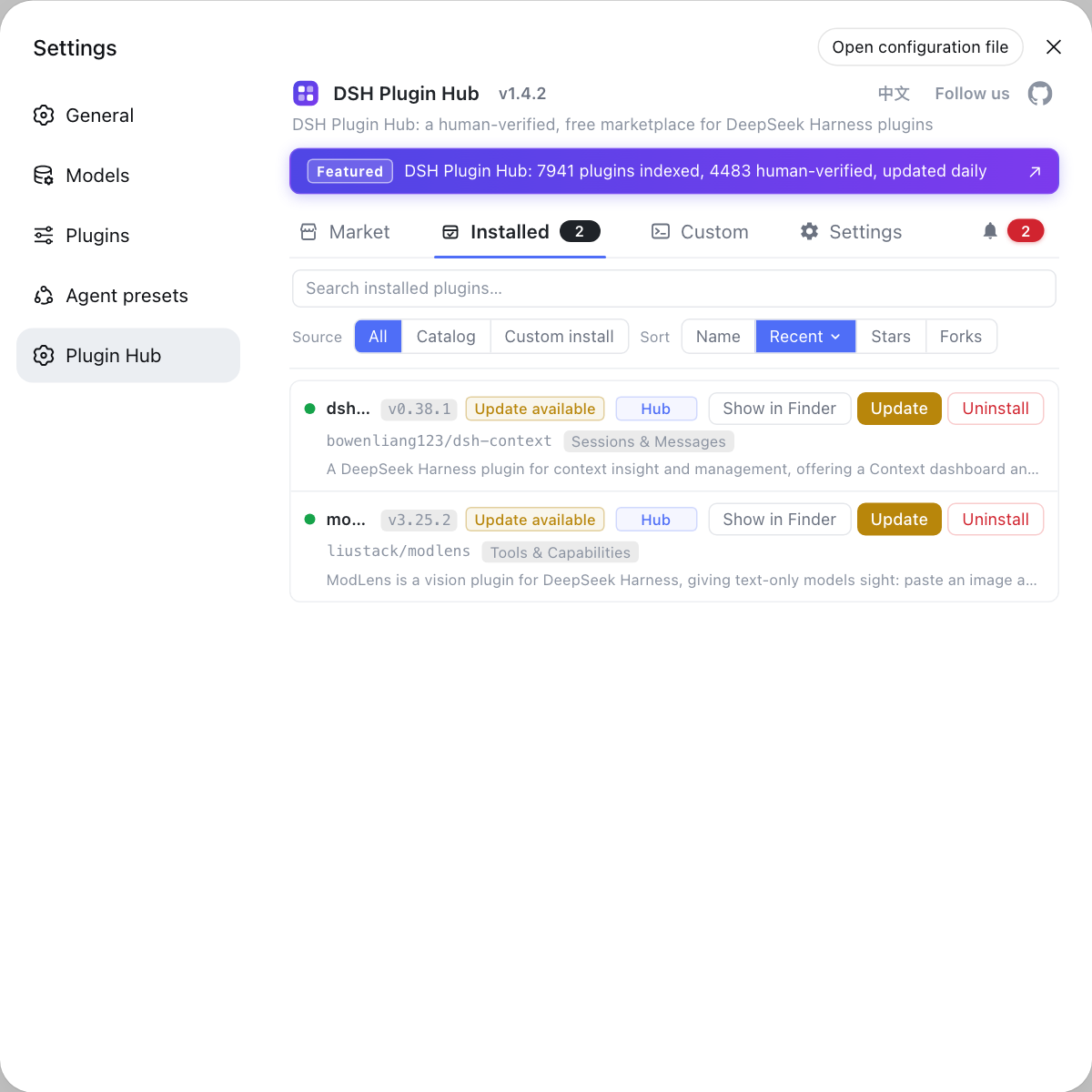
Once the core version is verified, plugin state is a separate check: DSH Plugin Hub is the official plugin market built into DeepSeek Harness, and its installed list shows each plugin's current version and update badge. When the version number is correct but the behavior still does not match expectations, confirm on that page whether the relevant plugin really reached the new version, instead of mistaking an un-updated plugin for a core update that did not take effect.
Sources: npm Docs - npm prefix, npm Docs - npm ls, GNU Bash Reference Manual (hash), deepseek-ai/deepseek-harness GitHub repository
FAQ
The most common cause of a DeepSeek Harness update that leaves the version unchanged is that the running process still holds the old code. Updating changes files on disk, and an already started service does not swap itself to the new version, so you must restart dsh (or the background service hosting it) and then run dsh --version again.
To tell which DeepSeek Harness copy got updated and which one the command uses, run which -a dsh (where dsh on Windows) to list every match on PATH; the first one is what the command actually executes. Then run npm ls -g @deepseek-ai/dsh and npm root -g to see which global directory npm updated. When they differ, the update landed on the other one.
The DeepSeek Harness version appears to revert after an nvm switch because npm's global directory moves with the Node version: each Node version has its own global node_modules, and packages updated under one are invisible under another. Use node -v and npm root -g to confirm which set is active, then update again under the one you actually use.
Yes: after a DeepSeek Harness update, bash and zsh may still cache the old path, so if that path was replaced the cache may still resolve to it. Run hash -r (works in bash and zsh), or rehash in zsh, then re-check which dsh and dsh --version to confirm.
A lower npm view version after a DeepSeek Harness update usually does not mean the update failed. It means your npm source is a mirror and mirror sync lags behind. Run npm config get registry to see the source, and if needed add --registry https://registry.npmjs.org to query the official source directly, so a lagging mirror is not mistaken for a failed update.
Related Terms
- PATH resolution
- PATH resolution is how a shell picks which executable to run when it searches the PATH variable from left to right. With several installs of the same program, PATH order decides which one actually runs, which is a common source of 'I updated it but nothing changed'.— GNU Bash Reference Manual
- npm global directory
- The npm global directory is where globally installed packages are written, determined by npm prefix -g and usually tied to the current Node version. Switching Node through a version manager changes that directory, so DeepSeek Harness global packages are not shared across Node versions.— npm Docs
- command hash cache
- The command hash cache is an interactive shell's mapping from command names to paths, kept for speed in bash and zsh. After a program is replaced or moved the cache may still point at the old path, which hash -r or rehash clears.— GNU Bash Reference Manual
- npm mirror lag
- npm mirror lag is the sync delay between a mirror and the official registry. It makes npm view and npm outdated read older version data, so 'the mirror has not synced yet' gets misread as 'my update did not take effect'.— npm Docs