Install a DSH plugin: search, one click, confirm, verify
The shortest way to install a DeepSeek Harness plugin takes four steps: open the plugin market, search or filter by category, click Install, and confirm the dialog — no terminal involved. DSH Plugin Hub turns that path into a GUI; below is what to click and what you should see at each step, plus how to prove the plugin is actually live.
DSH plugin one-click install overview
Installing a DSH plugin from DSH Plugin Hub never touches the terminal — the plugin market ties "find a plugin → install it → manage it" into one flow (source). For the command-line form see how to install a DSH plugin, for installing Hub itself see installing DSH Plugin Hub, and for the whole journey from entering the market to uninstalling see installing and uninstalling from the market. This article does one thing: break the shortest path into steps and say what you see at each one.
Install a DSH plugin in four steps: open, search, narrow, click
All four steps happen on a single page: enter the plugin market → search by name, description or tag (or narrow with a category tab) → click Install on the target card, which opens the confirm dialog rather than installing anything. The catalogue comes from dsh-plugin.org, which currently indexes 10000+ community plugins (source). In order:
- Open the plugin market — enter DSH Plugin Hub from the DeepSeek Harness sidebar; it opens on the market section. Expected: the plugin card list loads, with the indexed count and the search box at the top.
- Type a keyword in the search box — search covers plugin names, descriptions and tags, so a plugin or repository name is the most precise query, with a feature word such as "memory" as the fallback. Expected: the list narrows live and the result count updates above it. Query and sort tips are in how to search the plugin market.
- Narrow with a category tab or the installed / not-installed buttons — category tabs map to feature areas, while the two status buttons split installed from uninstalled plugins; their counts follow the current category and grey out when a count is zero. Expected: only the group you want remains and the target card is easy to spot.
- Click Install on the target card — nothing installs yet; this only opens the confirmation dialog. Expected: a dialog titled Confirm install; for an already installed plugin the button reads Installed and the dialog switches to update semantics.
What the DSH plugin confirm dialog shows
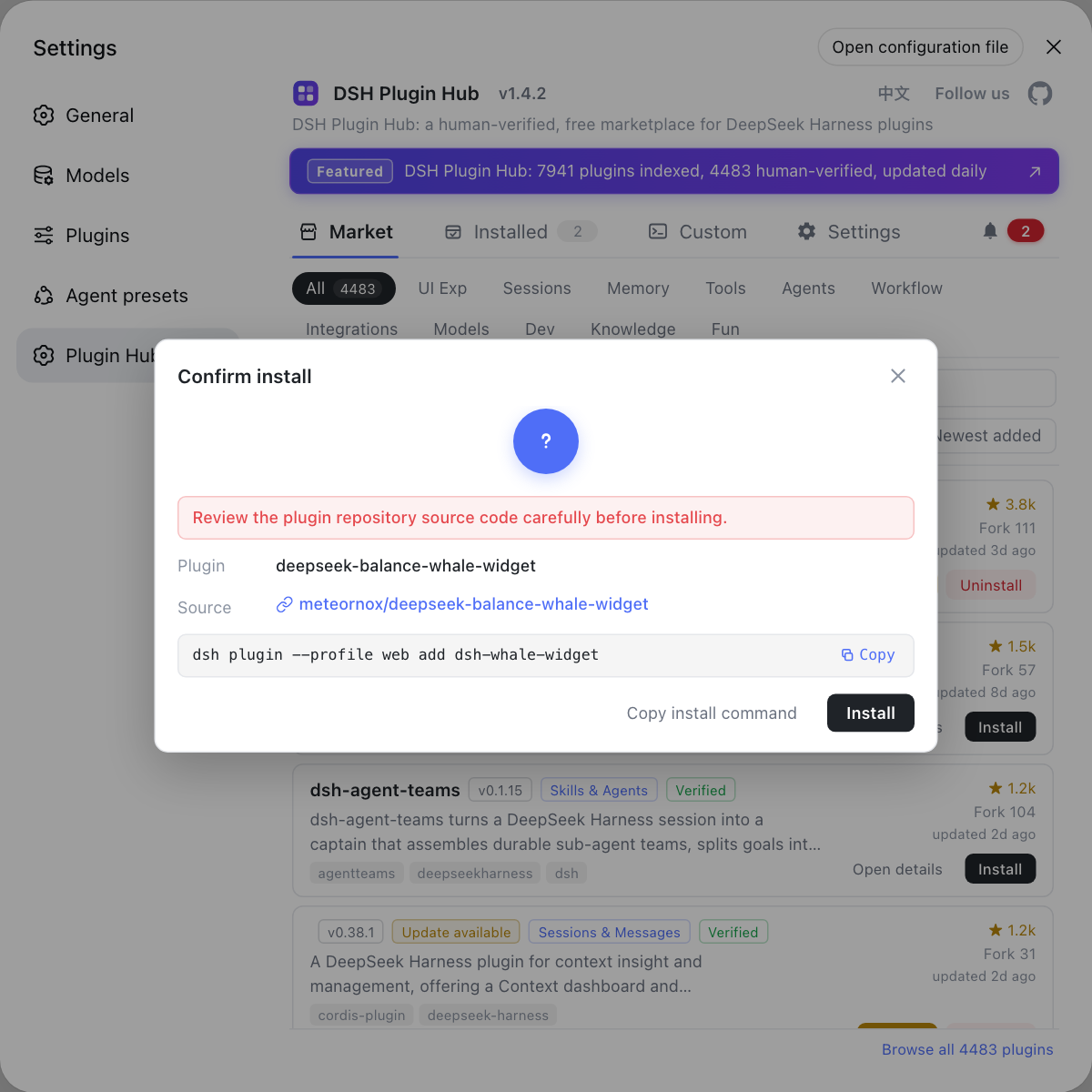
The confirm dialog is the trust gate before an install: it shows the plugin name, the source repository and the exact command that will run, and the install starts only after you click Install (source). Its header tells you to read the plugin repository source carefully before installing, so check all three fields:
- Check "Plugin" — make sure the name is the plugin you actually want, not a similarly named package.
- Check "Source" — that is the repository URL; open it, read the README and the code, and confirm the author and the maintenance state are trustworthy, because an installed plugin runs its code on your machine.
- Check "Command" — this is what Hub will run and the same command you could paste into a terminal; click Copy install command first when you want a record.
- Click Install — Expected: the dialog switches to live progress and streams output line by line; clicking Cancel ends the flow here and sends no request at all.
Instead of typing dsh plugin add in a terminal and checking the source yourself, the market in DSH Plugin Hub puts search, one-click install, the confirm dialog and installed-plugin management in one window, and shows the pending-restart state right after an install.
The first install from DSH Plugin Hub shows a confirmation with the plugin name, source repository and the command about to run — nothing starts until you confirm:
How to verify a DSH plugin is live
A successful install mounts only after a host restart: the result dialog reports the install succeeded and offers Restart now or Later, and the plugin enters the plugin tree on restart (source). Confirm it in four steps:
- Read the result dialog — "Installed" means the install command finished; a global npm CLI (
npm install -g) never appears in the installed list and needs no restart. - Choose Restart now — the host restarts and reloads the plugin tree, so the plugin takes effect immediately. Expected: the UI comes back and the tools or panels the plugin provides work.
- If you chose Later, follow up in the Installed list — the entry shows a pending-restart state and an inline Restart button that asks for confirmation first. Expected: after the restart the status dot turns running and the pending state disappears.
- Exercise it once in a conversation — call a tool the plugin provides (a memory lookup, a sidebar panel) and confirm it is both visible and working. Searching, source filtering, updating and uninstalling in that list are covered in managing installed plugins.
When a plugin is still missing after a restart — no tools, no panel — it simply was not activated; the triage order is in a DSH plugin installed but not active.
DSH plugin install caveats and limits
- A plugin installs into the current profile: both the CLI and Hub write into the profile directory, so switching profiles does not carry it along — install it again for another profile.
- Some plugins need a restart: Hub records a pending restart after a successful install or update and keeps reminding you; a restart does not lose installed files, it just reloads the plugin tree.
- Installing means running third-party code: read the source before confirming and install only plugins you trust; unused install channels can be turned off one by one under Settings → Security (source).
- A plugin outside the catalogue cannot be found in the market: those go through the custom install channels, since being indexed and being installable are two different things.
- Versions move: DeepSeek Harness is in developer preview and the official repository states that breaking changes will come (source), so treat the dialog wording here as the current state.
Sources: deepseek-ai/deepseek-harness, dsh-plugin.org plugin market, dshplugin/dsh-plugin-hub
FAQ
A DeepSeek Harness plugin installs from the DSH Plugin Hub market in four steps: open the plugin market, search or filter by category, click Install on the card, and click Install in the confirmation dialog. No terminal is needed, and search covers plugin names, descriptions and tags, so a plugin or repository name is the most precise query. Sorting and filtering tips are covered in the market search guide.
A DSH plugin install from DSH Plugin Hub starts by checking three fields in the confirm dialog: the plugin name, the source repository and the command about to run, then you click Install. The dialog also tells you to read the plugin repository source and confirm it is trustworthy first — this is the trust gate before an install, not an optional step, because an installed plugin runs its code on your machine. Click Copy install command first when you want a record.
A DSH plugin that installed successfully mounts only after a host restart, and the result dialog offers Restart now or Later. If you choose Later, the entry shows a pending-restart state and an inline Restart button that asks for confirmation; after the restart the status dot turns running, and calling a tool the plugin provides confirms it further.
No, but missing from the market does not mean uninstallable: the DSH plugin market only indexes public GitHub repositories that carry the dsh-plugin topic. Use the custom install channels in DSH Plugin Hub (npm package, GitHub source or dsh command) to put it into the current profile; it then lands in the Installed list tagged as a manual install.
Pending restart means the DSH plugin is already written into the current profile but the plugin tree has not loaded it yet, so it takes effect after a host restart — a normal post-install state, not an error. Update means the catalogue has a newer version than yours; it reinstalls over the current one, the dialog says Confirm update, and a restart is needed afterwards too.
Related Terms
- DSH Plugin Hub
- DSH Plugin Hub is the community plugin market client for DeepSeek Harness, providing plugin browsing, search, one-click install and installed-plugin management against the dsh-plugin.org catalogue.— dshplugin/dsh-plugin-hub GitHub repository
- one-click install
- A one-click install is the install path DSH Plugin Hub offers in the plugin market: you click Install, confirm the dialog, and Hub runs the dependency install in the current profile for you with no command to type.— dshplugin/dsh-plugin-hub GitHub repository
- install confirmation
- The install confirmation is the trust gate shown before an install, listing the plugin name, the source repository and the command about to run; nothing starts until the user clicks Install.— dshplugin/dsh-plugin-hub GitHub repository
- pending restart
- A pending restart is the state of a DSH plugin that installed or updated successfully but is not mounted yet: its files are in the current profile and the plugin tree loads it only after a host restart.— deepseek-ai/deepseek-harness
Sources
- deepseek-ai/deepseek-harness· GitHub
- dsh-plugin.org plugin market· dsh-plugin.org
- dshplugin/dsh-plugin-hub GitHub repository· GitHub