DeepSeek Harness install by platform: Windows, macOS, Linux
DeepSeek Harness has exactly three install paths on every platform: run it with npx, install the package globally, or build from source; the real differences are not the commands but each platform's paths, permissions and runtime. This walks through shared prerequisites, choosing a path, per-platform differences and the first-launch check, pointing every platform pitfall at its own troubleshooting guide.
DeepSeek Harness prerequisites on every platform: Node.js, a terminal and network
The prerequisites are identical on all three platforms: a working Node.js, a terminal you can run commands in, and network access to the npm registry and GitHub (source). Four checks:
- Confirm Node.js works — run
node -vandnpm -v. Expected: both print a version; a not-recognized orcommand not founderror means Node is missing or off PATH, covered by fixing pnpm and node PATH errors. - Confirm the package manager — the source path uses pnpm, so run
pnpm -vand enable it through Corepack if missing. Expected:pnpm -vprints a version. - Confirm the network — the zero-install path reaches the npm registry, and the source path also needs
git cloneagainst GitHub. Expected: the firstnpxrun does not hang on the download; mirror problems are in slow downloads. - Windows only: switch terminal and path habits — use PowerShell rather than legacy cmd, and keep both install and data directories free of non-ASCII characters and spaces. Expected: with a clean path, the truncation-class errors never appear.
Choosing a DeepSeek Harness install path: npx, global npm or from source
The official README ships two ready paths — the zero-install npx @deepseek-ai/dsh web and a source build — while the third option installs that same package globally to skip npx resolution on each start (source). Pick by intent:
| Your goal | Path | Command to copy |
|---|---|---|
| Try it without setting up an environment | zero-install npx | npx @deepseek-ai/dsh web |
| Daily long-term use | global npm install | npm install -g @deepseek-ai/dsh, then dsh web |
| Track the newest code or build on it | from source | the four steps below |
Building from source in four steps:
- Clone the repository —
git clone https://github.com/deepseek-ai/deepseek-harness.git. Expected: you get adeepseek-harnessdirectory. - Enter it and install dependencies —
cd deepseek-harness, thenpnpm install. Expected: dependencies install with noERR_PNPM_*class failure. - Build before running —
pnpm run buildprepares the repository artifacts, thenpnpm dsh webstarts it. Expected:pnpm dsh webuses the built artifacts and does not rebuild, so source edits need another build to show up. - Match the error word if it will not start — a missing
nodeorpnpmgoes to the environment guide, a port problem to the port guide. Expected: the error word maps to one article, so you never have to guess.
For the full trade-offs and uninstall notes across all three paths, read the three install methods compared.
DeepSeek Harness platform differences: Windows, macOS and Linux
The commands are one set across all three platforms, and the differences sit in paths and permissions: Windows is PATH and non-ASCII paths, macOS is launchd and filesystem format, Linux is global-install write permission and restricted environments. Go platform by platform:
- Windows — PATH and the not-recognized error — when the npm global prefix directory is missing from PATH,
dshcannot be typed even after a successful install. Expected: adding that directory to the user PATH and reopening the terminal fixes it, as detailed in dsh command not found. - Windows — non-ASCII paths, sandbox and runtimes — non-ASCII paths get truncated, the sandbox makes the HTTPS handshake fail, and native modules such as sharp may fail to load. Expected: match the error word and follow Windows platform errors.
- macOS — launchd does not inherit PATH — a startup job runs in the launchd environment, cannot find the
nodefrom your terminal, and crash-loops. Expected: writing the full PATH into the plist restores it, per macOS platform errors. - macOS — keep it off external volumes — formats such as exFAT lack an inode ownership check, so install or data directories on them fail. Expected: moving to an APFS local volume resolves it.
- Linux — fix global-install permissions first — with a system-wide Node,
npm install -gwrites into system directories and easily raises EACCES; the standard fix is nvm or an npm prefix under your home directory rather than escalating withsudo. Expected:npm config get prefixpoints into your home directory and installs stop asking for privileges. - Linux — a restricted environment may lack toolchain — a container or minimal image may not carry the toolchain needed to compile native modules, so the build step fails first. Expected: add the build dependencies or sidestep the build with the zero-install npx path.
First DeepSeek Harness launch: port, page and the plugin market
There is one success criterion: the terminal prints http://127.0.0.1:3080 and opening that address renders the Web UI (source). Confirm in three steps, then do the first useful thing:
- Read the terminal output — a local start prints
http://127.0.0.1:3080and opens your default browser. Expected: a rendered page means success; add--no-opento run the server alone without a browser. - Change the check when starting over SSH — only the host URL is printed and no browser opens. Expected: that is expected behaviour, not a failure; the local forwarding address belongs to the SSH client or editor.
- Route around a page that will not open — first confirm the server is still running in the foreground, then look at port usage. Expected: connection refused (ECONNREFUSED) means the service never started, see port 3080 unreachable.
- First thing after it starts: open the plugin market — the top navigation leads to the market, where you browse community plugins by category and stars. Expected: plugin cards render, which proves both the app and the catalog endpoint are working.
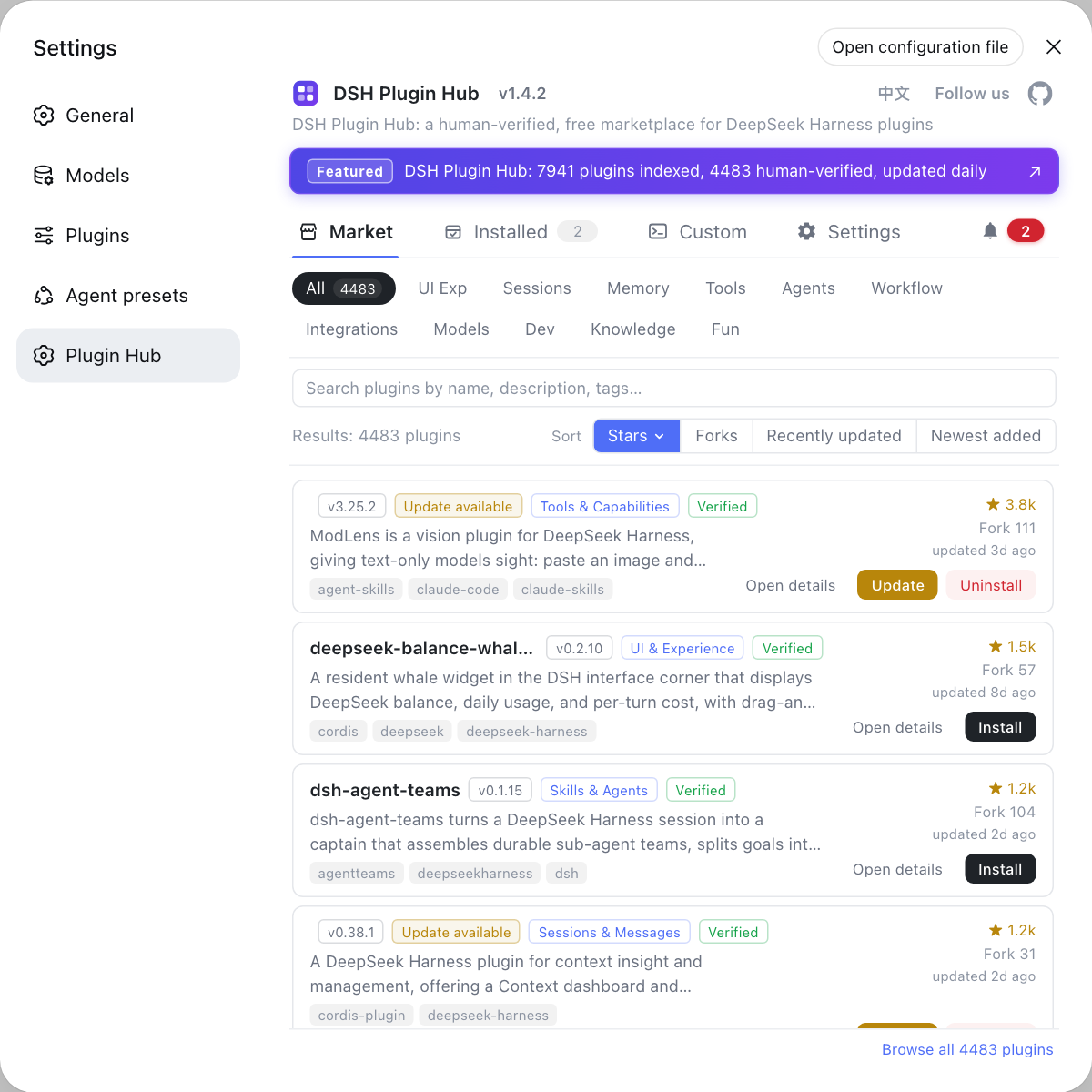
The plugin market is the official discovery surface built into DeepSeek Harness, folding search, categories, versions and updates into one page so installing a plugin never sends you back to the command line. For the workflow and filtering tips, see using the plugin market.
DeepSeek Harness per-platform install caveats
- The commands are uniform, the environments are not: all three install paths work everywhere, so the failures are environmental — PATH, permissions, filesystem format, native modules — so classify by platform before reading the exact error word.
- Do not reach for
sudoto bypass permissions: on Linux and macOS,sudo npm install -gchanges ownership of global directories and leaves a worse mess; change the prefix or switch to nvm instead. - External and network volumes are not install targets: exFAT is confirmed to fail on macOS, and synced or network drives are equally poor hosts for install and data directories on any platform.
- The source path needs a rebuild:
pnpm dsh webruns the built artifacts, so a source edit is invisible untilpnpm run buildruns again. - The data directory is the same everywhere: whichever path you choose, user-level data defaults to
~/.dsh, with the layout documented in where the DSH config files are.
Once the runtime is up, the next step is filling in plugins. DSH Plugin Hub is both the plugin market and the plugin manager, holding the installed list, update checks, logs and diagnostics in one place.
Sources: DeepSeek Harness README (official repository), user guide (official docs), dsh CLI README (official repository), dshplugin/dsh-plugin-hub
FAQ
The DeepSeek Harness README ships two ready paths: npx @deepseek-ai/dsh web for a zero-install run, or cloning the repository and running pnpm install then pnpm run build then pnpm dsh web. Keep the global install for daily long-term use, where it removes npx resolution on each start; if you are only trying it, stay on npx.
DeepSeek Harness on Windows usually hits this because the npm global prefix is missing from PATH, not because the install failed. Run npm config get prefix to find that directory, add it to your user PATH and reopen the terminal; if you would rather not touch PATH, switch to npx @deepseek-ai/dsh web, which needs no install.
Two macOS failures dominate in DeepSeek Harness: launchd does not inherit the terminal PATH, so a startup job cannot find node and crash-loops, and placing the install or data directory on an exFAT volume fails because that filesystem lacks an inode ownership check. Write the full PATH into the plist, and move onto an APFS local volume.
DeepSeek Harness differs least on Linux, and both common blockers are about permissions and environment. With a system-wide Node, a global install writes into system directories and easily raises EACCES, so the standard fix is nvm or an npm prefix pointing at your home directory rather than reaching for sudo; a restricted container may also lack the toolchain for native modules, which fails during the build step.
A successful first launch of DeepSeek Harness prints http://127.0.0.1:3080 and renders the Web UI when you open that address, with the plugin market already listing plugins in the top navigation. Launching over SSH only prints the host URL, which is expected behaviour rather than a failure.
Related Terms
- npx
- npx is the package runner bundled with Node.js that downloads and executes an npm package on demand. `npx @deepseek-ai/dsh web` therefore needs no prior install, leaves nothing behind globally, and is the fastest way to try DeepSeek Harness.— DeepSeek Harness README (official repository)
- @deepseek-ai/dsh
- @deepseek-ai/dsh is the official npm package name of DeepSeek Harness, and `web` is its default entry command that starts the local Web UI. Both the zero-install npx path and the global install path use this same package.— DeepSeek Harness README (official repository)
- --no-open
- --no-open is a `dsh web` startup flag that runs the server without opening a browser. It suits remote and headless machines, where launching a browser on the host is pointless.— DeepSeek Harness README (official repository)
- 127.0.0.1:3080
- 127.0.0.1:3080 is the default listen address and port of the DeepSeek Harness Web UI, reachable only from the machine that started it. When started over SSH it prints the host URL instead, and the local forwarding address belongs to the SSH client or editor.— DeepSeek Harness README (official repository)
Sources
- DeepSeek Harness README (official repository)· deepseek-ai
- DeepSeek Harness official docs - user guide· deepseek-ai
- dsh CLI README· deepseek-ai
- dshplugin/dsh-plugin-hub GitHub repository· GitHub