Fix DeepSeek Harness install errors: pnpm missing, node not in PATH
DeepSeek Harness install errors like 'pnpm' is not recognized and node: command not found mean the environment is not ready: both Node.js and pnpm are required, and both install directories must be on PATH. The order is fixed — node first, pnpm second — because pnpm is installed through npm and npm depends on node. Fix it in three steps: install Node, enable Corepack, verify with node -v && pnpm -v.
DeepSeek Harness install errors: what they look like and which comes first
node: command not found always shows up before 'pnpm' is not recognized — pnpm is installed through npm, and npm depends on node, so the whole chain breaks when node is unavailable. The exact messages (source):
node: command not found— running any node command (node --version) prints this, meaning node is not installed or not on PATH;'pnpm' is not recognized as an internal or external command(Windows) /pnpm: command not found(macOS/Linux) —pnpm --versionfails, meaning pnpm is not installed or not on PATH;- How to tell: run
node --version, thennpm --version, thenpnpm --version— start fixing from whichever step errors out. Node is the foundation; always fix node first.
Why DeepSeek Harness installs fail: Node and pnpm missing or off PATH
There are two root causes: Node and pnpm are either missing or not on PATH, and the fix order is often reversed — install node first, then pnpm; both are indispensable. In detail:
- The dsh launcher needs node on PATH:
dshis a Node.js program and cannot start without it; the dshbase troubleshooting page calls this out explicitly (source). - dsh plugin needs pnpm: the plugin install command calls pnpm, and the install aborts when pnpm is missing (source).
- Install order: pnpm is installed through npm (
npm install -g pnpm) or Corepack, and npm ships with node — so the order is node → npm → pnpm. - PATH write-through: if a tool is installed but the command is not found, its install directory is almost always missing from PATH; the node installer ticks "Add to PATH" by default, while the npm global directory is often forgotten.
Fix DeepSeek Harness environment errors: install Node, enable Corepack, verify
Follow the fixed order: install Node and confirm it is on PATH, then enable Corepack or install pnpm globally, then verify both with a single node -v && pnpm -v. Step by step:
-
Install Node (LTS): download the LTS installer from nodejs.org and tick "Add to PATH" in the wizard (the macOS pkg installer configures PATH automatically). Open a new terminal and run:
bashnode --versionExpected output:
v20.xor newer. If it still sayscommand not found, skip to step 4 to add PATH manually. -
Confirm npm works: npm ships with node:
bashnpm --versionExpected output: an npm version number (e.g.
10.x.x). If it errors, PATH is misconfigured — go to step 4. -
Enable Corepack to get pnpm (recommended) — Corepack is bundled with Node, one command turns it on:
bashcorepack enableWith no error output, verify directly:
bashpnpm --versionExpected output: a pnpm version number (e.g.
9.x.x). Prefer the classic route instead? Then:bashnpm install -g pnpm -
Add PATH manually (when node/pnpm are installed but commands are not found) — first locate the npm global directory:
bashnpm prefix -g- Windows: add the output directory (e.g.
C:\Users\You\AppData\Roaming\npm) to "System environment variables → Path", save, and open a new terminal; - macOS / Linux: run
echo 'export PATH="$(npm prefix -g)/bin:$PATH"' >> ~/.zshrc(zsh) or append to~/.bashrc, then runsource ~/.zshrcor open a new terminal.
- Windows: add the output directory (e.g.
-
Final verification — run both at once; both should print version numbers:
bashnode -v && pnpm -vTwo version lines means the environment is ready; then run
dsh --version— a version number means DeepSeek Harness is usable.
How to verify a DeepSeek Harness environment: version trio and a full startup test
A single node -v && pnpm -v && dsh --version tells you whether the environment is ready — three version lines mean node, pnpm and dsh all work, and a dsh web startup test closes the loop. In order:
-
Version trio:
bashnode -v && pnpm -v && dsh --versionThree version lines mean node / pnpm / dsh are all usable; whichever line reports
command not found, fix that link in the corresponding step above. -
Confirm the commands come from the right place (in case you have two installs and PATH resolves to an old one): macOS / Linux:
bashwhich node && which pnpm && which dshWindows:
powershellwhere node & where pnpm & where dshThe printed paths should point to the directories you just installed into; if they point at an old version, reorder PATH.
-
Start the Web UI for a full-chain test:
bashdsh webWhen the terminal prints
dsh web: http://127.0.0.1:3080, a browser page that loads means the whole chain from node to dsh works. -
Verify the pnpm channel with a real plugin install (optional): only when dsh can call pnpm to install plugins is the environment truly closed-loop:
bashdsh plugin --profile web add <package>A clean install and
dsh plugin --profile web listshowing the package means pnpm is being invoked correctly. -
Pin the pnpm version with Corepack (optional): when a project requires a specific pnpm version:
bashcorepack prepare pnpm@<version> --activatepnpm --versionnow prints the pinned version.
Notes: DeepSeek Harness — fix node before pnpm
- The error order dictates the fix order: fix
node: command not foundfirst,'pnpm' is not recognizedsecond — do not skip steps. - Opening a new terminal is required for PATH changes to take effect.
- On Windows, close the environment variables window with OK and use a freshly opened terminal.
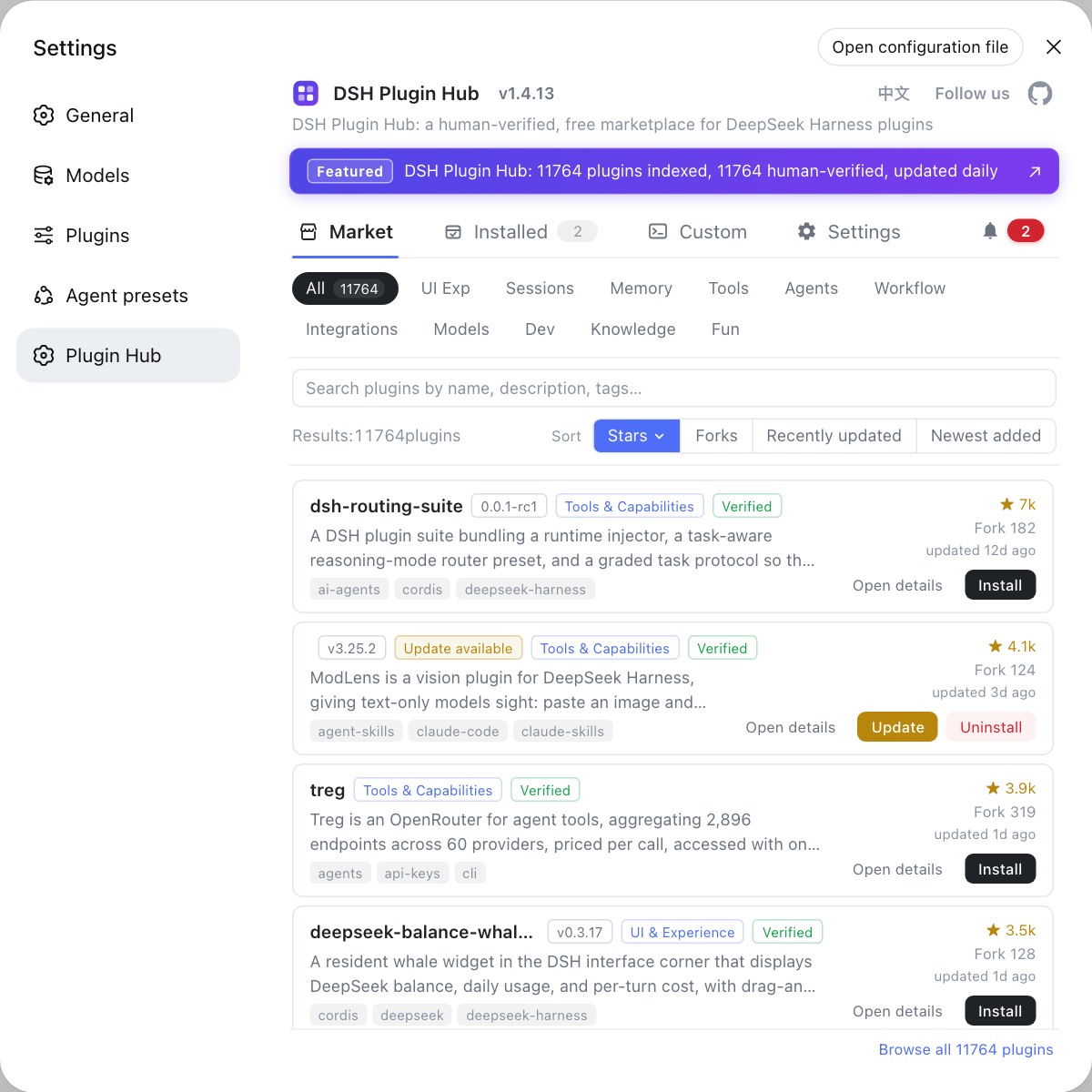
- Once the environment is ready, the easiest way to add plugins is Settings → Plugin Market — the DSH Plugin Hub store browses and installs plugins graphically, without touching the command environment.
- See install error troubleshooting for other DeepSeek Harness install issues.
Sources: dshbase troubleshooting, Node.js official site, pnpm official docs
FAQ
DeepSeek Harness reports 'pnpm' is not recognized: pnpm is not installed or its install directory is not on PATH — the dsh plugin command calls pnpm to manage plugins, so the install aborts when pnpm is missing. Confirm with pnpm --version, then install it with npm install -g pnpm or enable Corepack (source: dshbase troubleshooting).
In DeepSeek Harness, the node error precedes the pnpm error: pnpm is installed through npm and npm depends on node, so when node is not on PATH even npm cannot run. The fix order is therefore fixed — node first, pnpm second: install Node and put it on PATH, then install pnpm.
DeepSeek Harness uses Corepack to get pnpm: Corepack ships with Node.js, and corepack enable makes the system pull the pnpm version pinned by the project's packageManager field, while npm install -g pnpm installs pnpm straight into the npm global directory. Either works — verify with pnpm --version afterwards.
When DeepSeek Harness cannot find node or pnpm, add the missing directories to PATH: run npm prefix -g to find the npm global bin directory. On Windows add it to System environment variables → Path; on macOS/Linux run echo 'export PATH="$(npm prefix -g)/bin:$PATH"' >> ~/.zshrc (zsh) or append to ~/.bashrc, then open a new terminal and verify with node --version and pnpm --version.
Related Terms
- pnpm
- pnpm is a fast, disk-space-efficient Node.js package manager using content-addressed storage; the dsh plugin command in DeepSeek Harness relies on it to install plugins.— pnpm official documentation
- Corepack
- Corepack is the package-manager bootstrap tool bundled with Node.js; after corepack enable, it provisions the pnpm/yarn version pinned by a project's packageManager field automatically.— Node.js documentation
- PATH environment variable
- PATH is the list of directories the operating system searches for executables; a 'not recognized' / 'command not found' message usually means the command's install directory was never added to PATH.— dshbase troubleshooting
- npx
- npx is the package runner shipped with npm; npx @deepseek-ai/dsh fetches and runs dsh temporarily without a global install.— npm documentation