DeepSeek Harness won't start: triage, Node env, port 3080
A DeepSeek Harness that will not start is usually not broken — the failure sits in one of three layers: the command layer (dsh, node or pnpm cannot be found), the startup layer (the command runs and then exits with an error, such as a taken port), or the access layer (the service prints an address but the page will not open). Identify the layer first, fix that layer, then use the terminal output and the system log to pin down the failing step — far faster than reinstalling, and it keeps your configured profile intact.
Triage a DeepSeek Harness startup failure: three symptoms, three layers
There is only one test: read the last line the terminal printed — a missing command is the environment layer, an error exit is the startup layer, and a running command with an unopenable page is the access layer (source). Find your row below and jump to that section:
| What the last terminal line looks like | Which layer | Where to fix it |
|---|---|---|
'dsh' is not recognized / command not found: dsh | Environment: the command is not found | Section two, or the dsh command-not-found guide |
node: command not found / pnpm: command not found | Environment: runtime missing | Section two, or the install environment guide |
EADDRINUSE or a port error, then exit | Startup: the port is taken, no service | Section three, or the port-in-use guide |
| Missing build output, or an Error then a non-zero exit | Startup: artifacts missing or misconfigured | Section two, the four source steps |
dsh web: http://127.0.0.1:3080 printed, but the page will not open | Access: the service runs, the path is wrong | Section three, or the 3080 guide |
| The page opens but is blank, or a plugin panel is empty | Access / plugin: the plugin did not load | The Web UI blank-page guide |
One easy-to-miss check first: only the web mode serves a browser UI. If you ran headless, sdk or acp, having no page is not a fault at all — the modes are compared in the dsh run modes guide.
The environment layer: Node, pnpm and PATH for DeepSeek Harness
A missing command is an environment-layer failure, meaning the DeepSeek Harness startup dependencies cannot be found on the system; it has nothing to do with a DSH plugin, and reinstalling DSH will not fix it (source). Work through these in order:
- Confirm Node is present — run
node -v. Expected: a version number prints; "command not found" means Node is not installed or not on PATH. - Confirm pnpm is present — run
pnpm -v. Expected: a version number prints; if not, add it withnpm install -g pnpm, reopen the terminal and check again. - Fix PATH — add Node and the global bin directory to the system PATH, reopen the terminal and repeat steps 1 and 2. The Windows specifics are in dsh command not found.
- Rule out "not installed globally" with npx — run
npx @deepseek-ai/dsh webso npx fetches the official package and executes it. Expected: the terminal printsdsh web: http://127.0.0.1:3080and the browser opens. - Build the artifacts first when running from source — follow the official four steps:
git clone https://github.com/deepseek-ai/deepseek-harness.git,cd deepseek-harness,pnpm install,pnpm run build, then start withpnpm dsh web.pnpm run buildprepares the repository artifacts andpnpm dsh webreuses those built artifacts without rebuilding, so skipping the build breaks startup (source).
When environment-layer errors only appear after you installed a plugin, the cause is usually a stale PATH or an incomplete dependency install — walk through DeepSeek Harness install errors: environment item by item.
Port 3080 and the access layer: DeepSeek Harness listen failures
This layer splits in two: EADDRINUSE means another process holds the port and no service started, while connection refused usually means the service is not running or the address and port are wrong (source). Handle it in this order:
- Confirm the service is actually running — go back to the terminal that started dsh and check whether the process is alive and printed an address. Expected: the terminal shows
dsh web: http://127.0.0.1:3080; a closed window or an exited process means it is not running. - Find what holds port 3080 —
lsof -i :3080on macOS and Linux,netstat -ano | findstr :3080on Windows. Expected: the owning PID is listed; confirm it is not DSH before ending it. - Retry on another port — run
dsh web --port 8080and open http://127.0.0.1:8080. Expected: the service starts on the new port and the page opens. - Do not loosen the listen address — the shipped
dsh webchooses loopback and rejects--host 0.0.0.0: the web carrier owns no TLS, authentication or Origin policy, so binding a non-loopback address exposes the server directly (source). - Change approach for SSH and remote use — a start over SSH only prints the host URL, and local access relies on your SSH client forwarding the port, so do not widen the listen address. The full address and port walkthrough is in 127.0.0.1:3080 unreachable, and a page that opens blank is covered in the Web UI blank page guide.
One thing worth knowing: a listen failure (EADDRINUSE and the like) rejects initialization, and the boot process reports the failed fiber — the whole startup fails explicitly instead of quietly moving to another port (source).
Reading logs when DeepSeek Harness fails to start
Terminal output is the first place and the System Logs page of Hub is the second: the former records what happened during startup itself, while the latter records plugin install, uninstall, update and settings changes, which tells you whether a plugin install caused the failure (source). Read them in this order:
- Read the whole terminal output — focus on the lowest error and the first
Error; together they decide your layer. Expected: you can match one row of the triage table above. - Check the exit code — dsh exits non-zero for invalid commands, flags belonging to another mode, misconfiguration and startup failures (source). Expected: a non-zero
echo $?proves the start really failed rather than appearing unresponsive. - If it broke after a plugin install, go to Settings → System Logs — filter by the install / uninstall / update categories and by the error level to find that operation. Expected: the entry shows time, level, category and line-by-line output, telling you whether the failure happened at install time or startup time.
- Use the page buttons to keep or hand over the log — Open log viewer for the whole file, Copy all and Export for a record, Open file to reveal the log in your file manager. Expected: you hold a complete log to compare against or send to the plugin author.
Read the log first when a start fails: the System Logs page of DSH Plugin Hub records install, uninstall, update and diagnostics activity by category and level, which pinpoints the failing step.
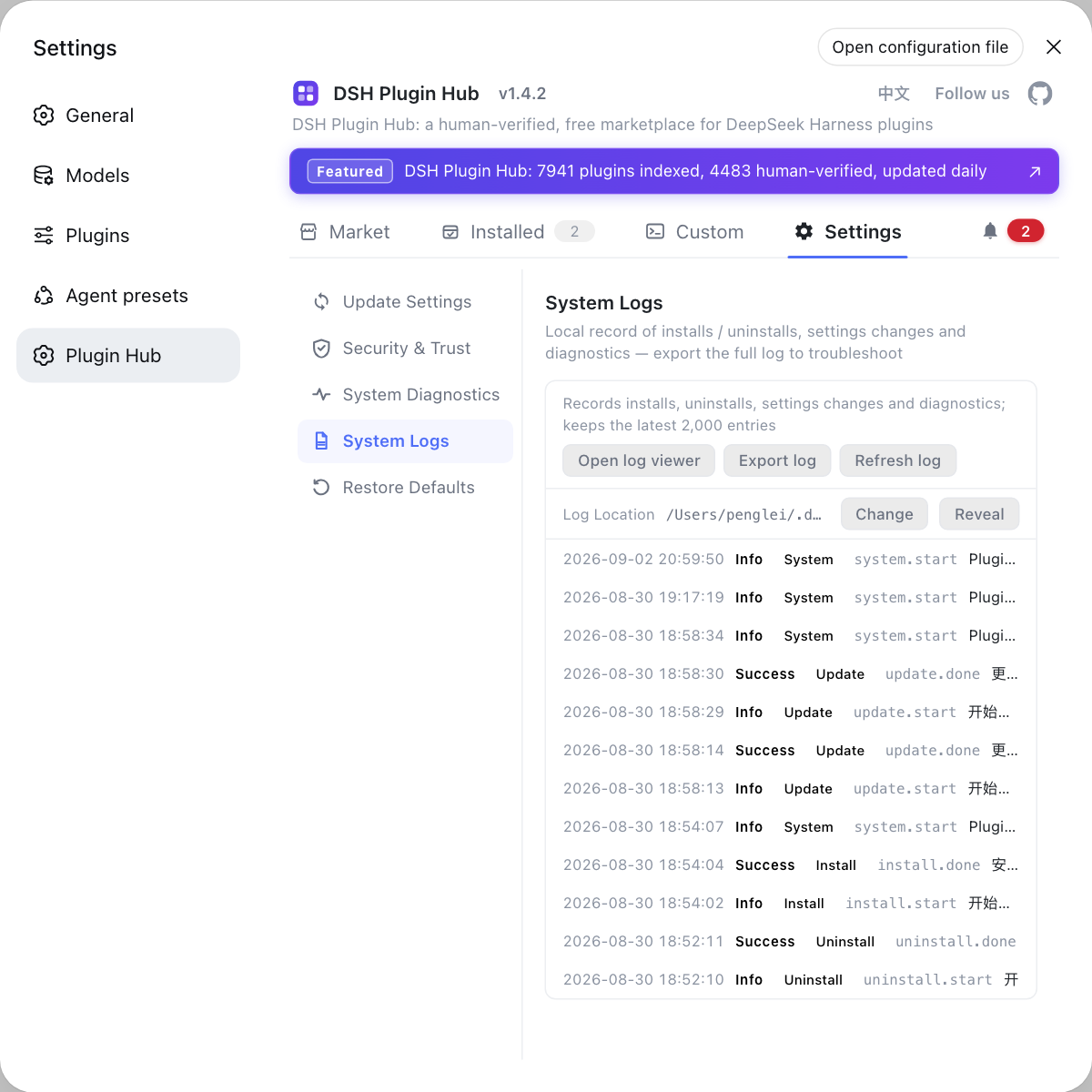
If the conclusion is that a single plugin broke the host, walking the profile directory by hand is the slow way — the Installed list of DSH Plugin Hub (dsh-plugin.org) shows source tag, version and update time inline, handles uninstall and update in the same window, and its system log lets you replay each step.
DeepSeek Harness startup failure caveats and limits
- Triage before you act: skipping straight to a reinstall can throw away a configured profile and its credentials, when the real problem was only a port or PATH.
- Do not kill port owners blindly:
lsof -i :3080shows who holds it — make sure it is not another service you need, or simply switch ports instead. - When the host breaks after a plugin install, read the install record first: this pattern usually means a source-distributed plugin is missing its entry file, and the Hub post-install check fails such broken packages and revokes the pending restart (source).
- Do not guess at errors with no confirmed cause: send the terminal output and the system log to the official Discussions rather than changing configuration at random.
- Versions move: DeepSeek Harness is in developer preview and the official repository states that breaking changes will come (source), so treat the commands and wording here as the current state.
Sources: DeepSeek Harness README, web server subsystem doc, dsh CLI README, dshplugin/dsh-plugin-hub
FAQ
Read the last line the terminal printed: a missing dsh command is the environment layer, a command that starts and then exits with an error is the startup layer, and a command that keeps running while the browser cannot open the page is the access layer. Almost every DeepSeek Harness startup failure lands in one of those three layers, so identifying the layer first beats reinstalling and losing your configured profile.
That error means the DeepSeek Harness startup dependencies cannot be found, which is an environment-layer failure and has nothing to do with a DSH plugin. Run node -v and pnpm -v to see whether versions print; if they are missing, install Node.js and add it to PATH, or run npm install -g pnpm to add pnpm, then reopen the terminal and run npx @deepseek-ai/dsh web.
EADDRINUSE means port 3080 is already taken, and a listen failure makes the DeepSeek Harness web server reject initialization while the boot process reports the failed fiber. Find the owner with lsof -i :3080 (or netstat -ano | findstr :3080 on Windows), free it or switch with dsh web --port 8080; if you get connection refused instead, confirm the service is running at all.
Running DeepSeek Harness from source requires the repository build output to exist first, otherwise dsh web fails on startup with an explicit error. Follow the official four steps: git clone the repository, cd into it, pnpm install, pnpm run build, then start with pnpm dsh web; pnpm run build prepares the artifacts and pnpm dsh web reuses them without rebuilding, so skipping the build breaks startup.
Terminal output is the first place, because dsh prints its startup URL line, argument errors and port errors there, and it exits non-zero for invalid commands, misconfiguration and startup failures. In the GUI you can open the System Logs page of DSH Plugin Hub to review install, uninstall, update and diagnostics records by category and level, which tells you whether a plugin install caused the failure.
Related Terms
- dsh web
- dsh web is an alias for dsh --profile web and starts the interactive DeepSeek Harness Web UI, listening on 127.0.0.1:3080 by default and opening a browser on a local start.— DeepSeek Harness README
- 127.0.0.1:3080
- 127.0.0.1:3080 is the default address of the DeepSeek Harness Web UI: 127.0.0.1 means only the local machine can reach it and 3080 is the default port, changeable with dsh web --port.— DeepSeek Harness README
- EADDRINUSE
- EADDRINUSE is the system error for an already-used port, meaning another process is listening on the port DeepSeek Harness wants, so the web server rejects initialization and reports the failed fiber.— DeepSeek Harness web server subsystem doc
- fiber
- A fiber is one runtime unit in the DeepSeek Harness boot process; when one fails to initialise the boot process reports the failed fiber, so the fiber named in an error points at the failing stage.— DeepSeek Harness web server subsystem doc
Sources
- DeepSeek Harness README (run and run-from-source)· deepseek-ai
- DeepSeek Harness web server subsystem doc· deepseek-ai
- dsh CLI README (modes, flags and exit codes)· deepseek-ai
- dshplugin/dsh-plugin-hub GitHub repository· GitHub