DeepSeek Harness run modes: web, headless and acp
In npx @deepseek-ai/dsh web, web is just one entry to a single dsh command: that same launcher also runs headless, sdk, sdk-minimal and acp modes, and web is an alias for --profile web. The thing to get right is the boundary — the dsh launcher only consumes --profile-style startup flags, and everything after is handed to the booted app. Once you know that line, you know what flags to pass and which mode to pick. This post walks each dsh mode and gives a short 'when to use which' checklist.
The boundary first: launcher flags vs app arguments
The dsh launcher parses only its own flags; the first token it does not recognize starts the app's arguments. This is the key to dsh's many commands. Official examples (source):
dsh --profile web --port 8080          # --port belongs to the web app
dsh --profile tui --resume <id>        # assuming the tui profile is installed; --resume belongs to the terminal app
dsh --profile headless "run the tests" # the quoted job goes to the headless app
dsh --profile web --help               # the web app's flags, not the launcher's
dsh --help                             # the launcher's own help
Under the hood, src/args.ts owns the command grammar and src/bin.ts loads only the selected runner. So invalid commands, options from another mode, configuration errors and boot failures exit nonzero (source), letting you branch in scripts.
The common run modes at a glance
dsh is 'the sole supported Node application launcher'; a profile is an ordered stack of plugin-bundle patch layers, and different profiles map to different use cases. Official Entry modes table (source):
| Command | Purpose |
|---|---|
dsh web | Alias of --profile web, boots the interactive Web UI |
dsh --profile headless "job" | Run one fresh persisted session, print the final answer, exit |
dsh --profile sdk | Serve SDK clients over JSON-RPC stdio (default) |
dsh --profile sdk-minimal | Serve SDK clients with a standalone minimal agent tree |
dsh --profile acp | Serve automation clients over stdio until disconnect |
dsh plugin --profile <name> <pnpm args> | Manage a profile's plugins by forwarding to pnpm |
The web, headless, sdk, sdk-minimal and acp profiles auto-initialize from shipped templates on first use; any other profile must be created via dsh plugin (source). The invoking directory is always the default workspace root.
Interactive mode: dsh web (i.e. npx @deepseek-ai/dsh web)
dsh web is for a human in the browser and is the default entry the official Quickstart recommends, equivalent to npx @deepseek-ai/dsh web. After launching, the command prints the access address (source). In the Web UI, open Settings > Models, enter the DeepSeek API key and save — model routing becomes available immediately without a server restart; then click Select workspace, add and select the project directory — the session input stays disabled until a workspace is selected (source). Then start a session and send tasks; the agent can read/edit workspace files, run commands, delegate work, and the Web UI asks before actions needing approval.
Use this for day-to-day work, watching the agent step by step and intervening.
One-shot mode: dsh --profile headless
headless opens no browser; it runs one new session, prints the final answer and exits — ideal for scripts and CI. Its semantics are "run one fresh persisted session, print the final answer and exit" (source). Wrap the job in quotes:
dsh --profile headless "run the tests"
Because each run is a fresh session, it naturally suits batch jobs, scheduled tasks and one-shot jobs in a pipeline — no need to watch a server and click manually.
Modes for code: sdk / sdk-minimal / acp
These three are for programs, not a human, communicating over stdio. They differ in what they serve and the size of the agent tree (source):
dsh --profile sdk— serves SDK clients over JSON-RPC stdio; the SDK default.dsh --profile sdk-minimal— serves SDK clients with a standalone minimal agent tree, for the smallest usable subset.dsh --profile acp— serves automation clients over stdio until the client disconnects, for embedding DSH in other automation tools.
The Python runtime wheel packages this same command: the SDK defaults to sdk, and the minimal example selects sdk-minimal (source). If you call DSH from Python, follow the official Python SDK guide; the profile choice is decided there.
When to use which: a decision checklist
Ask first 'is a human or code using it' and then 'interactive or one-shot'. Decide in this order:
- A human in the browser, stepping and intervening →
dsh web(npx @deepseek-ai/dsh web, ordsh webonce globally installed). - Script / CI / scheduled one-shot →
dsh --profile headless "job". - Driving DSH from an SDK (Python, JS, etc.) →
dsh --profile sdk; minimal casesdk-minimal. - Embedding DSH in an automation client tool →
dsh --profile acp, keeping stdout connected. - Changing the port or inspecting a mode's flags → put flags after the command, e.g.
dsh --profile web --port 8080,dsh --profile web --help. - Installing / removing plugins →
dsh plugin --profile <name> <pnpm args>.
After launching: one-click plugins with DSH Plugin Hub
Whichever mode you pick, power comes from plugins — and the easiest way to add them is Settings > Plugin market in DSH Plugin Hub. Install the Hub itself in one command: dsh plugin --profile web add dsh-plugin. After restarting dsh web, open Settings > Plugin market to reach the DSH Plugin Hub market home — browse the catalog by category, with cards showing name, description, stars and last update:
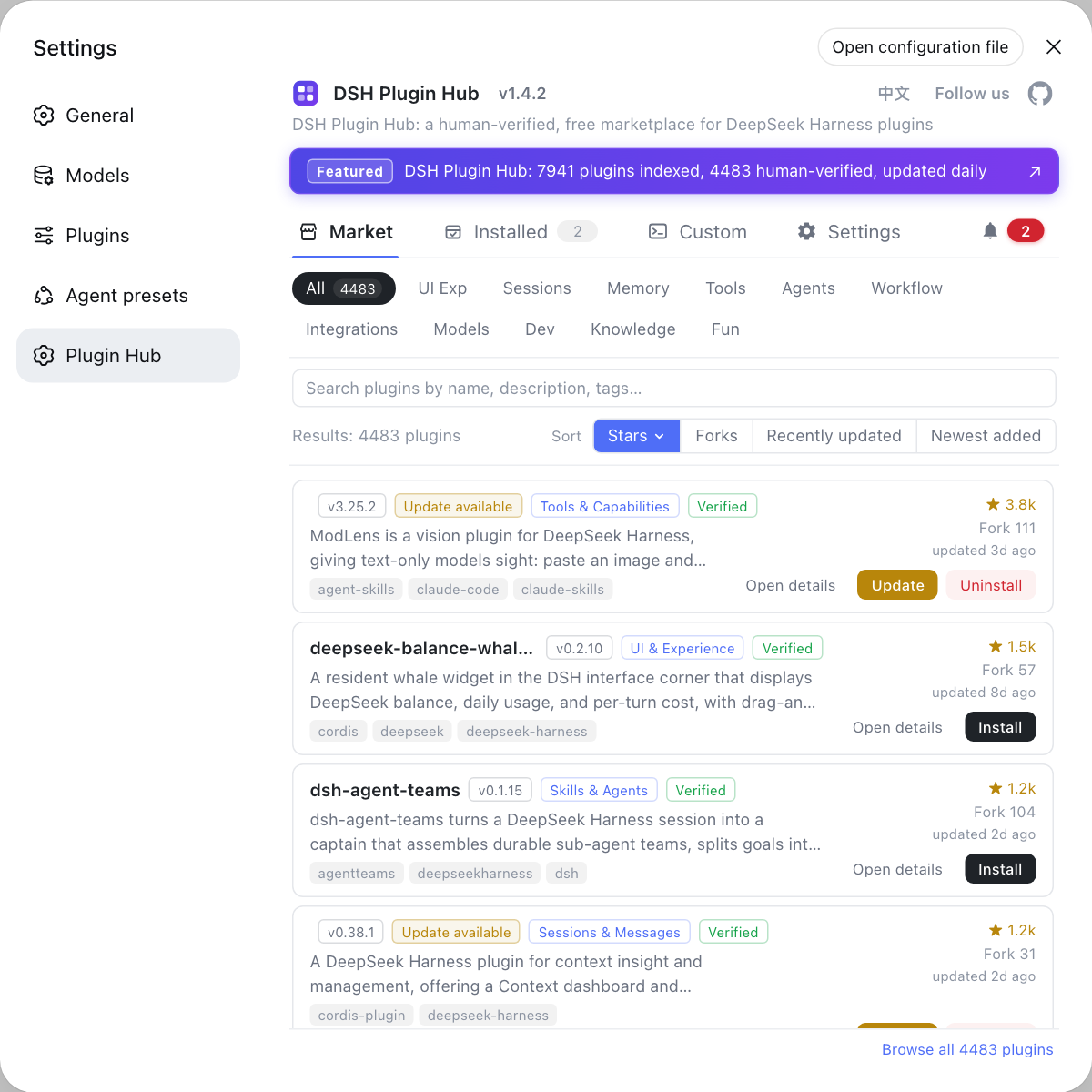
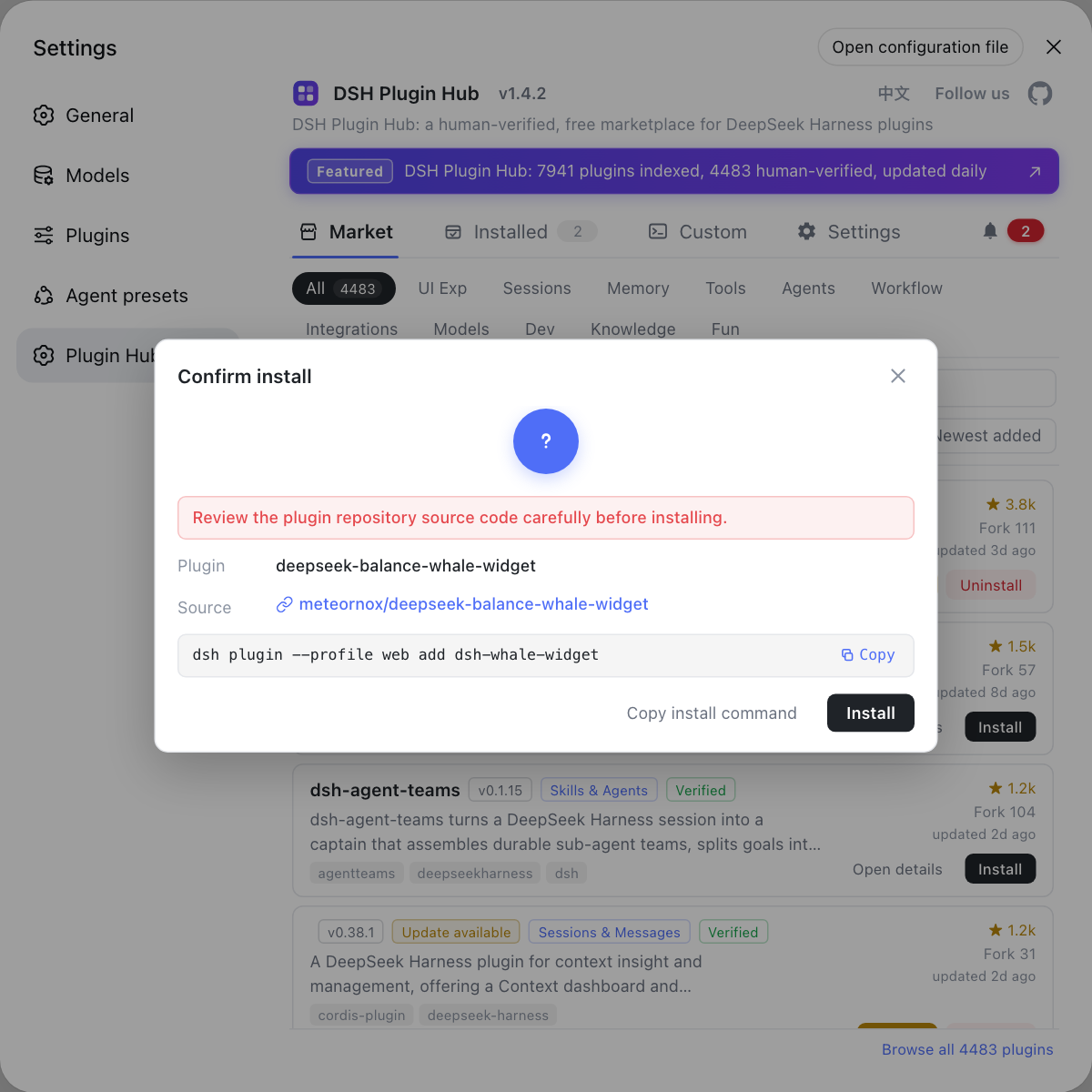
Click any plugin to one-click install; a serial queue runs in the background with live progress, and most plugins take effect after a page refresh:
Once you have chosen your mode and wired up plugins, you can launch as needed. To instead understand what npx actually downloads and where the data lives, see What npx @deepseek-ai/dsh web does: cache and install.
Sources: dsh CLI README, official Quickstart, npm @deepseek-ai/dsh
FAQ
dsh is DeepSeek Harness's sole launcher. Common modes are dsh web (--profile web), dsh --profile headless "job", dsh --profile sdk, dsh --profile sdk-minimal and dsh --profile acp — Web UI, one-shot job, SDK, minimal agent tree and automation clients respectively.
dsh web boots an interactive Web UI for a human in the browser; dsh --profile headless "job" runs one fresh persisted session, prints the final answer and exits — for scripts or CI one-shot jobs.
--profile <name> picks the profile to boot. web, headless, sdk, sdk-minimal and acp auto-initialize on first use and get aliases (dsh web equals dsh --profile web); other profiles must be created via dsh plugin first. To change the web port write dsh --profile web --port 8080.
sdk serves SDK clients over JSON-RPC stdio and is the default; sdk-minimal serves SDK clients with a standalone minimal agent tree; acp serves automation clients over stdio until disconnect. All are for code, not a human in a browser.
dsh parses only its own flags; the first token it does not recognize starts the app's arguments. For example in dsh --profile web --port 8080, --port belongs to the web app; dsh --profile web --help shows the web app's help, while dsh --help shows the launcher's.
Invalid commands, options from another mode, configuration errors and boot failures all exit nonzero, so check the exit code directly in your script instead of parsing text output.
Related Terms
- dsh web
- dsh web is an alias for dsh --profile web and boots the interactive Web UI of DeepSeek Harness; written as npx @deepseek-ai/dsh web in scripts, npx first pulls the official package, then runs dsh.— dsh CLI README
- headless
- headless is one of dsh's profiles, running one fresh persisted session, printing the final answer and exiting without a browser — suited to one-shot jobs in scripts or CI.— dsh CLI README
- exit code
- An exit code is the return value a process ends with; the dsh launcher exits nonzero on invalid commands, arguments from another mode, config errors or boot failures, so it is suitable for success checks in scripts.— dsh CLI README
Sources
- dsh CLI README· deepseek-ai
- DeepSeek Harness docs - Quickstart· deepseek-harness
- @deepseek-ai/dsh - npm· npm