DSH plugin picks by scenario: code, research, memory, agents
The fastest way to choose DSH plugins is to start from the scenario rather than a top list: aegis for coding, dsh-deepread for research, graph-memory for long-term memory and dsh-agent-teams for multi-agent work. Below is a scenario-to-category map, real verified plugins for four common scenarios, and the steps to review and update everything afterwards inside DSH Plugin Hub.
DSH plugin selection overview
DeepSeek Harness splits all of its capability into eleven plugin categories, so "which plugin should I install" has a different answer for every user — start from the scenario, then pick the plugin. How plugins relate to DSH is covered in What a DSH plugin is, and the category system in How DSH plugins are categorised. This article is not a ranking (see popular DSH plugins or the starter shortlist); it gives a requirement-first path: locate the category with the mapping table, then compare plugins inside it.
Scenario before plugin: how to pick DSH plugins by need
Picking follows three steps — scenario, then category, then plugin: describe the problem you want solved, map it to a category, and only then compare individual plugins. Doing it backwards (reading a ranking first and hunting for a use) is how people end up with plugins they never open. The eleven top-level categories of DeepSeek Harness map to scenarios as follows (category names follow the dsh-plugin.org plugin market):
| What you want to solve | Plugin category | What such plugins do |
|---|---|---|
| Make the AI edit code more safely | Development & Operations | Coding method packs, change verification, runtime injection |
| Read long articles, papers, PDFs with citations | Data & Knowledge | Deep reading, evidence tracing, research workspaces |
| Have the AI remember projects and preferences | Memory & Context | Cross-session memory, context compression, vector recall |
| Split one goal across several agents | Skills & Agents | Sub-agent teams, task decomposition, orchestration |
| Schedule and run tasks automatically | Workflow & Automation | Task boards, scheduled automation, visual flows |
| Connect chat apps, phones, remote machines | Integrations & Connections | Bot gateways, mobile access, remote channels |
| Swap models, track cost and quota | Models & Reasoning | Provider access, usage ledger, cost metering |
| See what is actually inside the context | Sessions & Messages | Context inspection, session migration, message recall |
| Restyle the UI or add widgets | UI & Experience | Themes, skins, panels, desktop widgets |
| Handle data and visualise it | Data & Knowledge | Knowledge bases, chart rendering, research reports |
| Just for fun | Entertainment | Desktop pets, memes, playful injections |
Three steps to fix the scenario:
- Write down the single problem that bothers you most right now, for example "every new session I re-explain the project background";
- Find its category in the table above (here: Memory & Context);
- Inside that category, filter by stars, recent update and the verified badge, and install one primary plugin only.
Which DSH plugins to install for four common scenarios
The four most frequently asked scenarios — coding, research, long-term memory and multi-agent work — each have verified representatives, and every name below is a real entry in the plugin market. Install one per scenario first; add a second only when the gap is real.
Scenario 1: writing and changing code
- aegis (Development & Operations, verified): makes a coding agent align to a real baseline before editing and prove completion with fresh evidence, cutting rework and making changes safer;
- superdesign-skill (Development & Operations, verified): adds design judgement to coding agents so mediocre AI-generated UIs become presentable front ends — useful when the task is visual.
Scenario 2: research and long documents
- dsh-deepread (Data & Knowledge, verified): evidence-first deep reading that turns articles, books and PDFs into traceable claims and evidence, for cases where conclusions need sources;
- dsh-scholar (Data & Knowledge, verified): an integrated workspace for computational research that keeps project conversations, material, code and experimental evidence in one place;
- misakanet (Data & Knowledge, verified): a git-based, dependency-free experience library that lets plugins share and retrieve verified debugging knowledge asynchronously, so you do not repeat the same dead ends.
Scenario 3: long-term memory and context
- graph-memory (Memory & Context, verified): extracts structured triples from conversations into a knowledge-graph memory that its description says compresses context by roughly 75% while recalling across sessions;
- mnemon (Memory & Context, verified): LLM-supervised persistent memory with graph-based cross-session recall, shipped as a single binary with no API keys;
- For a broader comparison of memory plugins, see the overview of DSH memory plugins.
Scenario 4: multi-agent work and orchestration
- dsh-agent-teams (Skills & Agents, verified): turns the current session into a team lead that forms persistent sub-agent teams, splits dependency-aware tasks and schedules them;
- dsh-evolve-modes (Skills & Agents, verified): gives agents composable working states, thinking strategies and quality gates, with cross-session rule learning kept under human review.
Afterwards: manage everything in DSH Plugin Hub
Plugins installed by scenario all land in the Installed list of DSH Plugin Hub, where source, version, updates and uninstalls live in one place instead of the command line. DSH Plugin Hub is the community plugin market embedded under Settings → Plugin Market; the management path is:
- Open Settings → Plugin Market and switch to the Installed page to confirm the plugins you just installed are listed;
- Check the source tag on each row to tell catalog plugins from manually installed ones, and verify version and update time;
- When you need to filter by name or source (All / Catalog / Custom install), use the search box and filters at the top of the list, together with the sort button group (Name / Recent / Stars / Forks, asc or desc);
- When a newer version exists the row shows an Update action — click it to overwrite in place;
- For plugins you no longer need, click Uninstall at the end of the row; a confirmation appears before anything is removed.
Once the scenario list above is installed, every plugin lives in that list with its source tag, version and update time, plus update, uninstall and reveal-in-Finder actions — one place to manage, kept current with new releases:
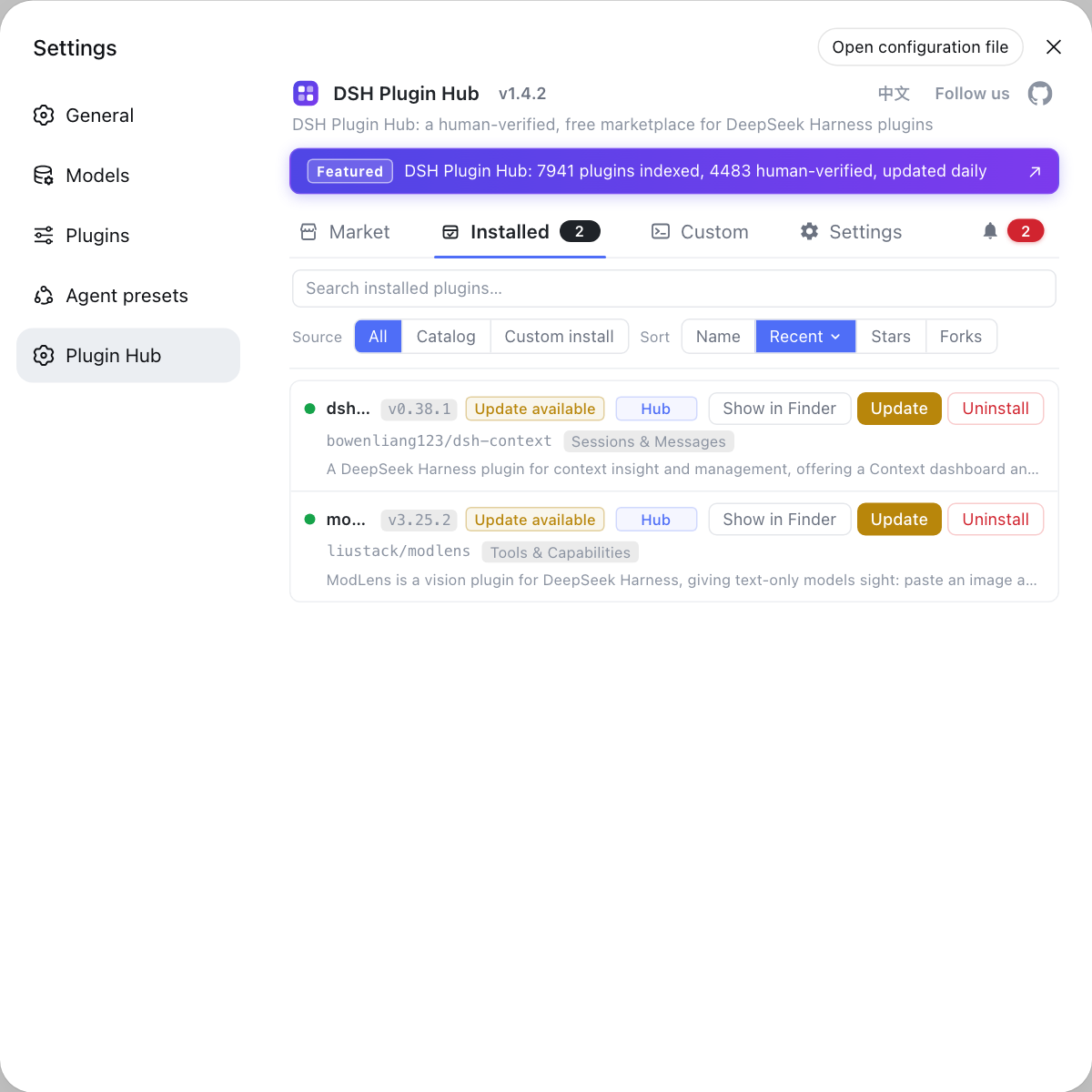
Rather than comparing versions across repositories by hand, manage them from the Installed list of DSH Plugin Hub: source tags separate catalog plugins from manual installs, and both updating and uninstalling ask for confirmation first.
DSH plugin caveats and limits
- Keep one primary plugin per category: memory and context plugins overlap heavily; running several injects duplicated context, wasting budget and possibly interfering;
- Plugins run with local permissions: a DSH plugin can execute code on your machine, so prefer entries with the verified badge and a traceable source — see how to install DSH plugins safely;
- Prefer npm distribution: a GitHub-source plugin whose repository does not commit build output will be missing its entry file after install; the npm prebuilt version is more reliable;
- Versions move: DeepSeek Harness is in developer preview and the official repository states that breaking changes will come (source), so treat plugin names and descriptions here as a starting point and confirm against the live market page;
- Install the market entry point first: if DSH Plugin Hub is not installed yet, add it following the starter shortlist so that browsing and installing happen inside the app.
Sources: dsh-plugin.org plugin market, deepseek-ai/deepseek-harness, dshplugin/dsh-plugin-hub
FAQ
Pick a DSH plugin in three steps: name the problem, map it to a category, then compare plugins inside that category. For coding, start with aegis, which makes a coding agent align to a real baseline before editing; for research, dsh-deepread turns articles and PDFs into traceable claims and evidence; for long-term memory, graph-memory distils conversations into a knowledge-graph memory. Starting from the scenario stops you from installing several overlapping plugins.
Browsing DSH plugin categories is walking the shelf; picking by scenario is shopping with a requirement in hand. DeepSeek Harness splits plugins into eleven top-level categories: UI & Experience, Sessions & Messages, Memory & Context, Tools & Capabilities, Skills & Agents, Workflow & Automation, Integrations & Connections, Models & Reasoning, Development & Operations, Data & Knowledge and Entertainment. Scenario picking narrows that down to the one category your problem lives in.
Install one primary DSH plugin per scenario rather than many similar ones. Overlapping DSH plugins inject duplicated context or compete for the same interfaces, which is especially true for memory and context plugins — running several at once wastes context budget and can interfere with each other. Add a second plugin only when the first has a real gap.
Everything you install lands in the Installed list of DSH Plugin Hub. DSH Plugin Hub is the community plugin market built into DeepSeek Harness: the Installed list tags each row as catalog or manual, shows version and update time, and offers update, uninstall and reveal-in-Finder actions, so you never have to manage plugins from the command line.
Most DSH plugins need a restart of dsh web before they load. After installing, confirm the plugin appears in the Installed list of DSH Plugin Hub, then restart dsh web. If it still does not work, the plugin is usually not loaded by the current profile or is missing its build output — check the plugin-not-loading troubleshooting steps.
Related Terms
- DSH plugin
- A DSH plugin is an extension package for DeepSeek Harness (DSH): models, tools, UI, memory and multi-agent abilities are all plugged in through it under the everything-is-a-plugin architecture.— deepseek-ai/deepseek-harness
- scenario-based picking
- Scenario-based picking means deciding which problem you want to solve first and then choosing plugins against it, mapping the need onto a DeepSeek Harness plugin category instead of installing from a popularity list.— dsh-plugin.org plugin market
- DSH Plugin Hub
- DSH Plugin Hub is the community plugin market for DeepSeek Harness built by the dsh-plugin.org team, embedded under Settings → Plugin Market, where you browse, search and install, update or uninstall plugins in one click.— dshplugin/dsh-plugin-hub GitHub repository
- verified
- verified is the badge the plugin market puts on plugins whose compatibility and other details have been manually reviewed; it is a useful signal when choosing, not the only criterion.— dsh-plugin.org plugin market
Sources
- dsh-plugin.org plugin market· dsh-plugin.org
- deepseek-ai/deepseek-harness· GitHub
- dshplugin/dsh-plugin-hub GitHub repository· GitHub