DSH plugin categories: types & how to pick (DeepSeek Harness)
DSH plugins are grouped into 11 categories by capability: UI, sessions, memory, tools, agents, workflow, integration, models, dev, knowledge and entertainment — the plugin market and the site's plugin library both use this taxonomy. This guide explains what each category solves and names real representative plugins, then gives a four-step picking path: category → verification → activity → install.
Overview: where the 11 categories come from
Categories are decided by what problem a plugin solves: changing the UI, managing sessions, storing memory, adding capabilities, automating work — each plugin gets exactly one main category. The DeepSeek Harness plugin marketplace (dsh-plugin.org plugin market and the built-in market of DSH Plugin Hub) organizes all listed plugins into 11 categories (source): UI, sessions, memory, tools, agents, workflow, integration, models, dev, knowledge and entertainment. Once you know what each category is for, finding a plugin becomes a matter of browsing by need instead of guessing. The six core categories come first, then the five specialized ones.
DSH plugin 11 categories in detail
1. UI & Experience: make the Web UI better
UI plugins solve "uncomfortable to use": sidebars, terminal UIs, status widgets — they directly improve everyday operations. Representative plugins:
- dsh-better-sidebar (omdsh-dev/dsh-better-sidebar): a sidebar workbench with files, terminal, Git and side-chat pages that turns the Web UI into an all-in-one workspace; around 2,679 community stars.
- Other directions: terminal UIs (TUI), balance widgets, and more.
2. Sessions & Messages: manage every conversation
Session plugins manage the messages themselves: session lists, message editing, export, batch delete, conversation navigation — making chats manageable. Representative plugins:
- dsh-context (bowenliang123/dsh-context): context visualization and management with a Context panel, browser and /context command that surfaces what the model actually sees; around 917 stars — great for anyone who wonders "what did the model read".
- Other directions: session archive, export, batch delete, message editors, conversation navigation.
3. Memory & Context: let DSH remember you
Memory plugins solve "the model forgets once context runs long": cross-session persistent memory, knowledge-graph recall, memory-as-files — fewer repeated explanations. Representative plugins:
- mnemon (mnemon-dev/mnemon): LLM-supervised cross-session persistent memory with intent-aware recall and automatic deduplication based on a knowledge graph; around 507 stars.
- engramory (tinqiao-oss/engramory): a portable memory protocol using Markdown files as long-term memory with zero infrastructure; around 169 stars — ideal for users who like "memory as files".
4. Tools & Capabilities: give the model hands and eyes
Tool plugins give the plain-text model new abilities: vision, file access, external commands — one of the busiest directions in the community. Representative plugins:
- modlens (liustack/modlens): paste an image and get structured JSON evidence (OCR, layout, semantics), adding vision to plain-text models; around 3,615 stars — effectively a standard for vision tooling.
5. Skills & Agents: hand tasks to automation
Agent plugins drive automation: multi-agent teams, loop detection, auto-approval — let DSH do the work itself. Representative plugins:
- dsh-agent-teams (tkr520521/dsh-agent-teams): multi-agent team orchestration where several agents collaborate to finish complex tasks.
- Other directions: auto-approval, agent relay, loop detection, all grouped here.
6. Workflow & Automation: chain up repetitive actions
Workflow plugins orchestrate multiple steps into fixed flows: scheduled tasks, auto-retry, task boards, delayed tasks — built for repetitive work. Representative plugins:
- dsh-taskify (gearvoid/dsh-taskify): breaks tasks into trackable execution flows with a task board to follow progress.
- Other directions: cron scheduled tasks, auto-retry, task boards, long-task orchestration.
7. Models & Reasoning: connect more models, control cost
Model plugins manage model access and cost: subscriptions as providers, cost stats, balance checks, usage dashboards. Representative plugins:
- dsh-plugin-subscriptions (v1ki/dsh-plugin-subscriptions): uses ChatGPT, Claude and Grok subscriptions as LLM providers without API keys; around 245 stars.
- dsh-cost-meter (creakono/dsh-cost-meter): per-session cost stats with real-time spend, budgets, balances and usage heatmaps; around 162 stars.
- Other directions: balance widgets (e.g. dsh-deepseek-balance), usage dashboards.
8. Dev, Knowledge, Integration & Fun: specialized plugins
These four categories target specific scenarios: dev serves plugin developers, knowledge handles docs and retrieval, integration connects external services, fun is for entertainment. Representatives:
- Development & Operations (dev): code review, error locating, skill management, Git workflows — e.g. dsh-error-lens visualizes error messages for fast diagnosis.
- Data & Knowledge (knowledge): document retrieval, knowledge bases, literature management — e.g. dsh-zotero connects a Zotero library, and dsh-obsidian connects Obsidian notes.
- Integrations & Connections (integration): connects external apps and services, fitting DSH into your toolchain.
- Entertainment (fun): non-production fun plugins.
How to pick a plugin by category: four steps
Follow "category → verification → activity → install" — do not judge a plugin by its name alone. Steps:
- Pick a category: define the problem first — want a better UI? Check UI. Want more models? Check Models. Want vision? Check Tools.
- Check verification:
verifiedmeans compatibility has been manually checked — prefer these; be more careful withunconfirmed. - Check activity: stars and recent update time reflect whether a plugin is maintained; be cautious with plugins that have not been touched for a long time.
- Install: install DSH Plugin Hub from the CLI, then one-click from Settings → Plugin Market, or copy the install command from dsh-plugin.org:
# 1. Install the DSH Plugin Hub itself first
dsh plugin --profile web add dsh-plugin

# 2. Restart dsh web, open Settings → Plugin Market, and install by category
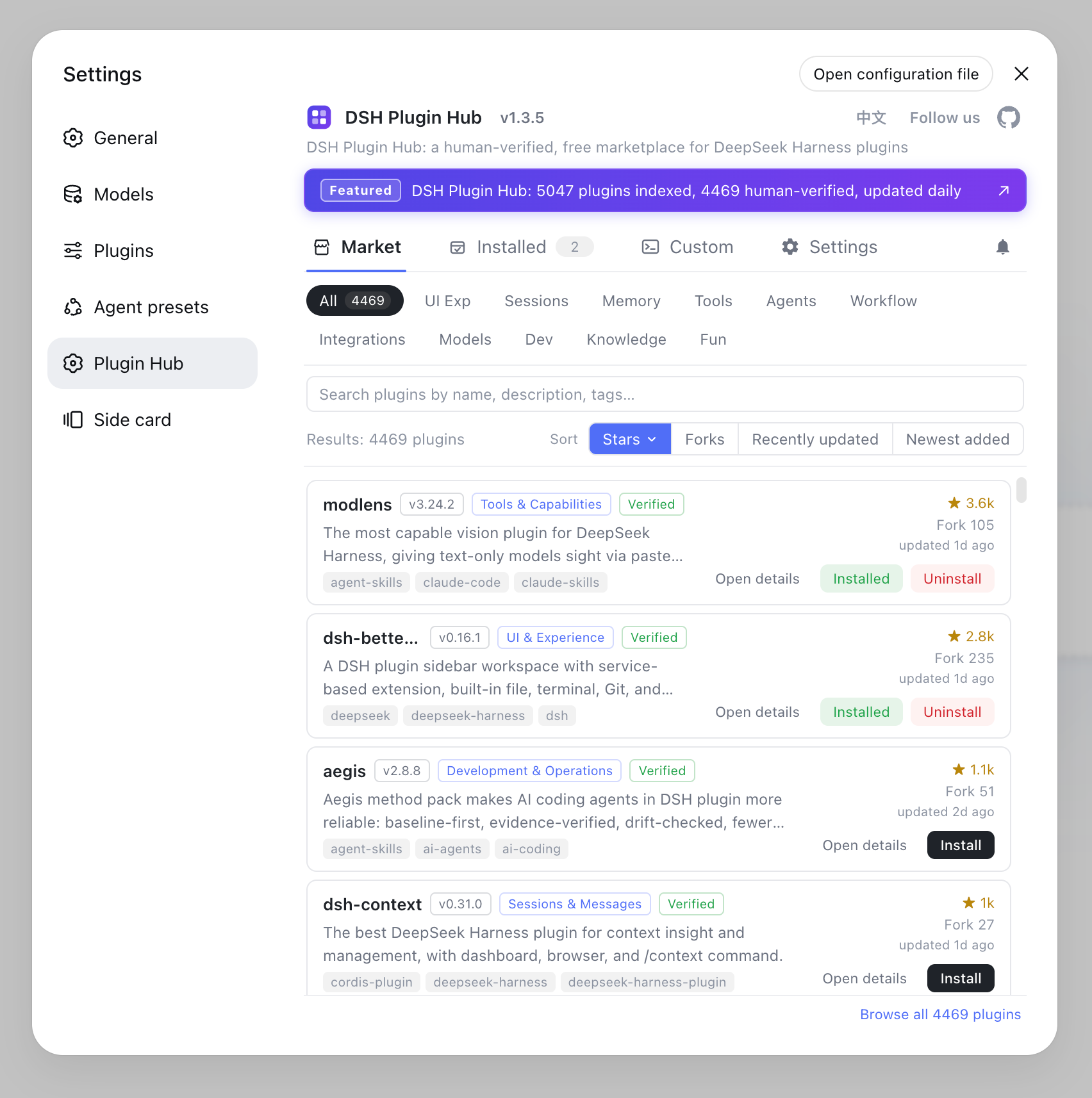
Notes on picking by category
In one sentence: the category is the entry point, not the verdict — verify status and activity before installing. Three reminders:
- Categories follow the main capability: each plugin belongs to exactly one category, and plugins in the same category still differ — read descriptions once inside.
- Install the Hub to see the full picture: with DSH Plugin Hub installed you can browse all 4,800+ listed plugins by category inside the app, smoother than the web page.
- Categories evolve: as the plugin count grows, categories may be adjusted — follow what the plugin market shows today.
Sources: dsh-plugin.org Plugin Hub, dshplugin/dsh-plugin-hub, DeepSeek Harness Docs - Plugins Overview
FAQ
Plugins are grouped into 11 categories by capability: UI & Experience, Sessions & Messages, Memory & Context, Tools & Capabilities, Skills & Agents, Workflow & Automation, Integrations & Connections, Models & Reasoning, Development & Operations, Data & Knowledge, and Entertainment. Both the plugin market and the site's plugin library use these categories.
Sessions, memory, tools, UI and agents are the busiest: session plugins manage messages and context, memory plugins add long-term recall, tool plugins give models vision and other abilities, UI plugins reshape the Web UI, and agent plugins drive automation and multi-agent teams.
Filter by category in the plugin market or the site's plugin library, then judge by three things: verification status (verified means manually checked), stars and recent activity, and whether the description matches your need. Want a better UI? Check the UI category. Want more models? Check the Models category.
UI plugins change the look and operations of the Web UI (sidebars, terminal UIs, widgets); tool plugins give the model new capabilities (vision, file access, external commands). Which category a plugin belongs to depends on its main job — modlens, which adds vision, is a tool plugin.
Usually not — each plugin gets one main category based on the problem it mainly solves. To see the full picture of a category, browse it directly; if unsure, filter by search plus verification status.
Sources
- dsh-plugin.org Plugin Hub· dsh-plugin.org
- dshplugin/dsh-plugin-hub GitHub repository· GitHub
- DeepSeek Harness Docs - Plugins Overview· deepseek-harness