DSH Plugin Hub 2.2.5: market, notifications, custom install
2.2.5 is not a reskin: it pulls four daily jobs — browsing the market, watching progress, installing something outside the catalog and tuning market behavior — into one interface. The test of any release is whether it changes the path your hands take every day, and this one changes exactly that: the market toolbar, the notification center, the three custom-install cards and the five settings groups can all be checked against the official screenshot index (2.2.5 index). The entry to DSH Plugin Hub has not moved; what changed is how you work once you are inside.
DSH Plugin Hub 2.2.5 market: search, sort and categories on one toolbar
The real change is not extra buttons but compression: search, result count, sort and category now share one toolbar, so the filter state and the card state are visible at the same moment. Previously you had to keep asking "am I still filtered to Installed?"; now the toolbar sits beside the list and a wrong filter is obvious.
| UI area | In 2.2.5 | How to use it |
|---|---|---|
| Search box | Sits next to the result count | Search a function word; if the count hits zero, check the filter first |
| Sort | Name / Recent / Star / Fork, both directions | Recent, descending, when hunting new plugins |
| Category | All / Installed / Not Installed | Switch to Not Installed before browsing |
| Card | Name, version, badge, category, verified, topics, Star/Fork, update time | Read state first, risk hints second |
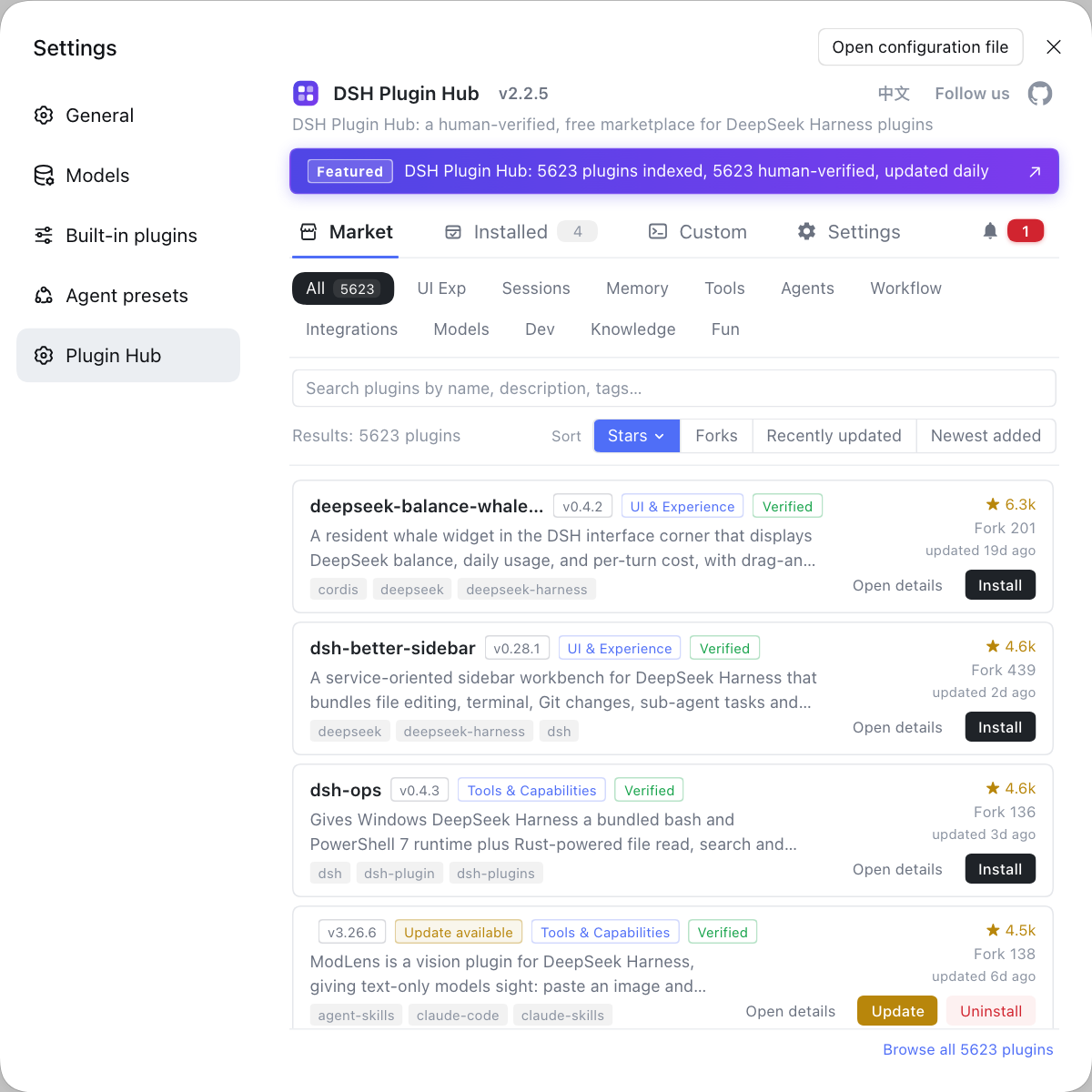
- Open Settings → Plugin Market, stay on the market tab and confirm all four toolbar controls are present.
- Type a function word and watch the result count change; if it does not move, the category filter is probably hiding results.
- Switch the category to Not Installed, sort by Recent descending and scan the first ten cards to build a candidate pool.
- Open one card and confirm that version, category and topics match the job you have in mind.
This section only produces candidates; it does not decide whether to install. Stop at five to ten cards and let the card signals do the rest. For the whole loop, see your first five minutes in dsh plugin market.
Notifications and system logs: DSH Plugin Hub separates progress from history
2.2.5 splits "happening now" from "already happened": the notification center owns live progress and restart reminders, while system logs own an exportable trail of operations. The division is practical — watch notifications during an install, open logs after it fails, and the two never drown each other.
- After clicking Install, open the notification center and confirm the task moves from in progress to complete, noting any pending-restart reminder.
- If the task fails, copy the full log from the notification center first so the failure context survives.
- Switch to system logs, filter by install-related category and error level, and find the entry at the same timestamp.
- Use Export Logs or Copy Full Text to take the evidence away before deciding whether to retry or change the source.
History entries can be deleted one by one or cleared at once; copy what you need before clearing, or the next investigation has no baseline. System logs also let you relocate the log directory and open the file, which matters when you need long-term records. The full triage sequence is in how to read notifications when a plugin install fails.
Custom install: DSH plugin input formats and validation
The three custom-install cards are not three interchangeable attempts; they exist so that a format error is caught before a request leaves your machine. Each card shows a channel name, an example, an input field and a format hint, so pasting into the wrong card fails in place (2.2.5 index).
| Channel | Accepts | Best for | Trade-off |
|---|---|---|---|
| NPM package | Package name, npm or pnpm install command | The plugin is published to npm | You get a prebuilt artifact |
| GitHub source | owner/repo or a repository URL | Source only, no npm release | A local build may be required; no build, no entry |
| DSH command | dsh plugin --profile <name> add/update | Docs gave you a command, or you need to update an existing target | Only add and update are allowed |
- Decide what you actually hold: a package name, a repository address or an official command.
- Pick the matching card, paste, and wait for format validation; if it fails, read the recommended format instead of forcing an edit.
- After validation, check the plugin name and source in the confirmation dialog before approving.
- Once installed, open Installed, filter by manual source and confirm the plugin carries the manual-install label.
The cards isolate input formats rather than complement one another. For each channel's boundaries and error output, see the three custom install channels.
Settings in dsh plugin market: updates, mirror, proxy and trust
The settings page has five fixed groups in 2.2.5 — Update Settings, Security Trust, System Diagnostics, System Logs and Restore Defaults — and daily work touches the first two most often. Update Settings holds the check-at-startup toggle, an npm mirror dropdown and a proxy address field, each with a title and explanation, so nothing has to be guessed (2.2.5 index).
- Open Settings → Plugin Market → Settings and check whether the three Update Settings values match your network.
- On a restricted network, pick a working npm mirror; if mirror lag produces a 404, switch back to the official registry briefly to confirm.
- If outbound traffic needs a proxy, enter the proxy address on the settings page instead of scattering it across terminal windows.
- If you never use a custom-install channel, turn off its switch under Security Trust to shrink the surface for executable code.
- Save, restart DeepSeek Harness, then load the market list once to confirm the configuration took effect.
Restore Defaults is not a magic button: it resets all five groups together, so record the current values first. Per-field guidance and validation live in how to configure DSH Plugin Hub settings.
Upgrading to 2.2.5: a three-part DeepSeek Harness verification
The correct order is record the current state, update, then verify in three places; skip the record and you have no baseline when something breaks. The 2.2.5 changes cluster in the market, notifications, custom install and settings, so confirm all four open after the upgrade.
- Record the current Hub version, the Harness core version, and every installed plugin with its version.
- Update to 2.2.5 through the update prompt under Settings → Plugin Market → Installed or through the official channel, then wait for completion.
- Restart DeepSeek Harness, reopen the market and confirm that cards load and search returns results.
- Open the notification center and system logs and confirm both show records from before and after the upgrade.
- Pick any installed plugin and walk the cancel path of an update or uninstall confirmation to confirm the dialog still behaves.
A read-only check after the upgrade
Reading without changing anything separates "the UI moved" from "the feature works".
# 1. Confirm Hub is still present in the current profile
dsh plugin --profile web list | grep -i hub
# 2. Confirm the Hub load layer exists in the composed config
dsh --profile web --dump-config | grep -in hub
# 3. Record the post-upgrade CLI version for comparison
dsh --version
Expected: all three commands print something. If one is empty, confirm the --profile value first and check whether Hub lives in another profile; do not reinstall immediately.
The three checks map to three kinds of evidence: the interface opens, the data loads and operations leave records. If any one fails, read how to read the Hub changelog before deciding to roll back or wait for a patch. Never reinstall repeatedly without a recorded baseline.
For the broader picture of what the market contains, DSH Plugin Hub is the entry point, and the practical browsing route is in dsh plugin market first week.
FAQ
DeepSeek Harness 2.2.5 places the search box, result count, sort buttons and category filter on one toolbar, so the filter state and the cards share a single screen. Sorting still offers Name, Recent, Star and Fork with both directions, and categories remain All, Installed and Not Installed. The change is placement: you no longer page around to confirm which filter is active.
DeepSeek Harness splits the two by time: the notification center answers what just happened, while system logs answer why it happened. The notification center lists install, uninstall and update history, in-progress task progress and pending-restart reminders. System logs record operations by category and level, can export the full text, and help locate a failure across download, unpack, dependency and load stages.
DeepSeek Harness splits custom install into three cards — NPM package, GitHub source and DSH command — and each card accepts exactly one format. The NPM card takes a package name or an npm install command, the GitHub card takes a repository address, and the DSH command card accepts only dsh plugin --profile <name> add or update. Paste into the wrong card and format validation stops it before any install request is sent.
DeepSeek Harness keeps plugin market settings in a separate layer, so upgrading Hub does not automatically enable update checks at startup. The settings page has five groups: Update Settings, Security Trust, System Diagnostics, System Logs and Restore Defaults. After upgrading, open Update Settings and confirm the toggle, npm mirror and proxy match your network, or the market may keep behaving under the old configuration.
DeepSeek Harness leaves three proofs: the market loads cards, the installed list shows versions and sources, and system logs contain the operation you just performed. A new interface alone does not prove the upgrade. Run one search, one install confirmation and one post-restart entry check, and all three must line up before you call the upgrade complete.
Related Terms
- DSH Plugin Hub 2.2.5
- DSH Plugin Hub is the official plugin market interface built into the DeepSeek Harness desktop app, and release 2.2.5 covers five main screens and four confirmation dialogs. It consolidates browsing, installing, updating, uninstalling and troubleshooting into one interface.— https://api.dsh-plugin.org/images/releases/2-2-5/index.json
- notification center
- The notification center is the dialog in DSH Plugin Hub that collects install, uninstall and update history together with in-progress task progress. It also raises pending-restart reminders and supports copying the full log, deleting one record or clearing everything.— https://api.dsh-plugin.org/images/releases/2-2-5/index.json
- system logs
- System logs are the DSH Plugin Hub page that records installs, uninstalls, settings changes and diagnostics, grouped by category and level. It can open a log viewer, copy the full text, export logs and reveal the log file location.— https://api.dsh-plugin.org/images/releases/2-2-5/index.json
- custom install
- Custom install is the DSH Plugin Hub panel that bypasses the market catalog and installs a plugin manually through one of three input cards: NPM package, GitHub source or DSH command. Each card carries an example, an input field and format validation, and installation starts only after the input passes.— https://api.dsh-plugin.org/images/releases/2-2-5/index.json
Sources
- DSH Plugin Hub 2.2.5 UI screenshot index· dsh-plugin.org
- DSH Plugin Hub plugin page· dsh-plugin.org
- deepseek-ai/deepseek-harness (source repository)· GitHub