DSH plugin market: first 5 minutes, search and categories
The first visit to dsh plugin market rarely goes wrong because you install the wrong thing; it goes wrong because you scroll hundreds of cards without knowing where the entry is, what to type, which sort to pick or which card details matter. This is not another "what is a marketplace" explainer. It is a five-minute route: minute 0–1 to recognize the entry, minute 1–2 to narrow the list, minute 2–3 to order it, minute 3–4 to read a card, and minute 4–5 to complete one install and verify it (DSH Plugin Hub 2.2.5 index).
DSH plugin market minute 0–1: enter from Settings and learn four tabs
In DeepSeek Harness the plugin market always starts at Settings → Plugin Market, and before searching anything you should recognize the four top tabs: Plugin Market, Installed, Custom Install and Settings. Each tab answers a different question — find new plugins, manage what is already there, install something outside the catalog, or change how the market behaves — and every later step depends on knowing which one you are in.
- Open DeepSeek Harness, go to Settings and click Plugin Market; the entry exists on both the desktop app and the web UI.
- Read the top navigation left to right and confirm the four tabs:
Plugin Market,Installed,Custom Install,Settings. - Check the language switch in the top-right corner so the interface matches your habit; card titles differ between languages, which matters when a search returns nothing later.
- Stay on Plugin Market and look at the toolbar: search box, result count, sort button and category filter. These four controls are all you need for the next three minutes.
Nothing gets installed in this minute. If you skip the tabs, you will later mistake the Installed list for "the market cannot find this plugin".
DeepSeek Harness minute 1–2: narrow the list with the search box
The search box is the first filter: start from the fact you are most sure about — a remembered name, a package name, or only a feature — and let the result count tell you how wide the current view is.
- Type an English plugin name such as
memory,searchorthemeand watch the result count fall from hundreds to tens. - If the English name returns nothing, try a Chinese keyword; Chinese names, English names and package names can match different entries in
dsh plugin market. - When you only remember the feature, search a topic label from the cards, such as
mcp,officeortui. Do not paste a whole sentence from the description. - If the count hits zero, clear the box first, then check whether the category filter is still on Installed. Finding no new plugins while filtered to Installed is expected behavior.
The goal is not one perfect hit; it is a candidate list that fits on one screen. If it still does not fit, the keyword is too broad — move to a more specific feature term.
dsh plugin market minute 2–3: sort and filter decide what you read first
Once results exist, sort decides who you look at first and the category filter decides which group you look at; combining the two beats rewriting the keyword.
The sort control offers four modes — Name, Recent, Star and Fork — each with ascending and descending order. The category filter has three settings: All, Installed and Not Installed. Use them in this order:
| Your goal | Sort | Category | Why |
|---|---|---|---|
| Find a freshly listed plugin | Recent, descending | Not Installed | See recent updates without old installs in the way |
| Find something the community watches | Star, descending | Not Installed | Stars are not fit, but they make a decent candidate pool |
| Find something maintained long-term | Fork, descending, then Recent | Not Installed | Fork count usually means people changed and used it |
| You already know the name | Name, ascending | All | Jump straight to it without caring about popularity |
- Switch the category filter to Not Installed so anything you already have disappears.
- Sort by Recent, descending, and scan the first ten entries to see whether anything new landed.
- Switch to Star, descending, and compare the first ten with the previous set; low overlap means "new" and "popular" are two different groups.
- Stop on whichever sort matches your goal. Sorting only changes reading order — do not keep toggling it.
By the end of this minute you should hold a shortlist of five to ten plugins instead of several hundred cards.
DSH Plugin Hub cards at minute 3–4: read more than stars
A card carries three layers of information: identity (name, version, category), state (installed, update available) and risk hints (verified badge, topics, last update). Read state first, risk hints second, stars last.
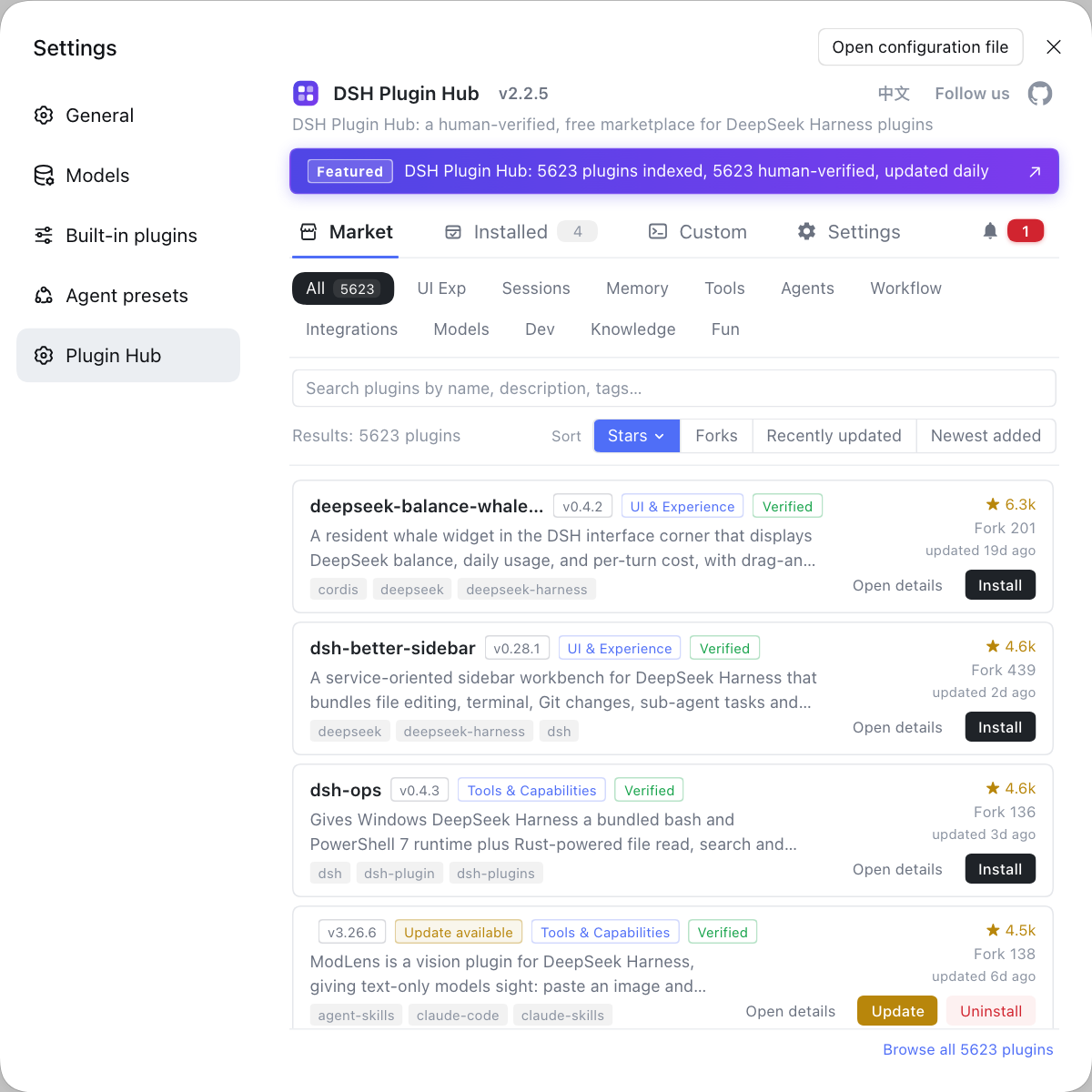
- Check the top-right state. Installed means skip it; Update Available means you already run an older build; Install means it is genuinely new to you.
- Compare version and last update time. An old update time with a mature version often signals a stable plugin; a fresh update time with a 0.x version signals rapid change.
- Read category and topics. The category tells you whether it is UI, memory, model or tooling; topics tell you the specific problem it solves.
- Treat the verified badge as "source passed basic validation", never as "permissions are safe". Permissions and dependencies deserve a look before you install.
- Read Star and Fork. High stars mean attention; high forks mean people actually modified it. Low numbers on both do not make a plugin unusable, but set expectations.
A card is a summary, not the whole story. Open the detail view for the full description, dependencies and version history. On a first visit, the real win is refusing to be led by star count alone.
DeepSeek Harness minute 4–5: install confirmation and three states
Clicking Install does not write anything immediately; a confirmation dialog lists the plugin name, source repository and exact command, and after approval the card becomes Installed — which still does not mean the plugin is active.
- Click Install on a shortlisted card and wait for the confirmation dialog.
- Check three things in the dialog: whether the plugin name is the one you chose, whether the source repository is credible, and whether the install command matches what you expect.
- Confirm and wait. The card should move from Install to Installed. If it fails, do not click repeatedly; open notifications or system logs and read the reason.
- Switch to the Installed tab and search for the plugin by name to confirm it really appears in the list.
- Restart DeepSeek Harness or reload the profile as prompted, then check whether the menu, command or panel the plugin promised has appeared.
- If the entry never shows up, go back to Installed to check version and state, then read the activation stage in system logs. Do not uninstall and reinstall blindly.
Keep the three states apart: installable → installed → active. The market card can only prove the first two; the third is proven by the interface after a restart.
After five minutes in dsh plugin market: where to go next
One first visit only needs a single loop — search, sort, read a card, install, verify. After that you can branch into the Installed list, Custom Install or Settings as needed.
- To see, update or remove what you installed, open the Installed tab and filter by source to separate catalog installs from manual ones.
- To install something the catalog does not list, open Custom Install and use one of its three channels: npm package, GitHub source or a dsh command.
- To adjust profiles, mirrors, proxies or security trust, open Settings.
- To study the market more systematically, read what dsh plugin market is and plugin search tips.
- To understand what actually happens after you click Install, read how DSH plugin installation works.
Notes: things not to do on a first visit
- Do not install on star count alone. Stars measure attention, not permissions, dependencies or build scripts.
- Do not treat Installed as Active. Without a restart and a check of the entry, you will think the plugin failed to install.
- Do not keep swapping keywords at zero results. Clear the search and inspect the category filter first.
- Do not reach for Custom Install immediately. If the catalog has it, the market gives you source, version and a confirmation dialog for free.
- Do not install several plugins with the same job at once. Install one, verify one, then decide on the second — rollback stays simple that way.
The point of a first visit is not quantity. It is a repeatable five-minute route: know the entry, narrow the list, read the cards, verify activation. Next time you only need to start at the search box.
FAQ
DeepSeek Harness puts the plugin market at Settings → Plugin Market, and the same entry exists on both the desktop app and the web UI. After you open it, the top bar offers four tabs: Plugin Market, Installed, Custom Install and Settings. Do not guess the entry from a plugin card; learn all four tabs first so that finding, checking, manually installing and configuring plugins later all land in the right place.
DeepSeek Harness does not limit the dsh plugin market search box to display names; keywords inside package names and topic labels on cards usually match as well. When a query returns nothing, try the English name or the package name before changing the topic. The result count sits next to the search box, and if it drops to zero, clear the keyword and check whether the category filter is still stuck on Installed.
DeepSeek Harness exposes four sort modes because each answers a different question. Name is best when you already know the plugin; Recent surfaces newly listed or freshly updated work; Star and Fork estimate community attention. Every sort toggles ascending and descending, so start with Recent descending and cross-check against Star descending when you are hunting for something new.
DeepSeek Harness treats verified as a source and basic-information check, not as a security guarantee. The badge does not cover permission scope, dependency risk or build scripts. Before you click Install, inspect what the plugin asks for, how many dependencies it pulls and whether it runs a build step; those three signals sit much closer to real risk than the badge does.
DeepSeek Harness shows a confirmation dialog with the plugin name, source repository and the install command it is about to run, and the card switches from Install to Installed after you confirm. Being listed under Installed is still not the same as being active. Restart the app or reload the profile as prompted, then check that the menu, command or panel the plugin promises really appears.
Related Terms
- dsh plugin market
- dsh plugin market is the full name of the plugin marketplace built into DeepSeek Harness, reached through Settings → Plugin Market. It organizes community plugins by category, popularity and update time into a searchable, one-click-install catalog.— https://dsh-plugin.org/plugins/dshplugin/dsh-plugin-hub
- DSH Plugin Hub
- DSH Plugin Hub is the official community plugin market interface for DeepSeek Harness, with five main screens: Plugin Market, Installed, Custom Install, Settings and System Logs. It handles browsing, installing, updating and uninstalling community DSH plugins.— https://api.dsh-plugin.org/images/releases/2-2-5/index.json
- verified badge
- The verified badge is a source-check marker on a plugin market card that shows the listing passed basic validation of its metadata. It does not cover permission scope, dependency safety or build-script risk, so it cannot be the only reason to install something.— https://api.dsh-plugin.org/images/releases/2-2-5/index.json
- install confirmation dialog
- The install confirmation dialog is the safety gate dsh plugin market shows before any real installation begins, listing the plugin name, its source repository and the command about to run. Downloading and writing into the profile start only after you approve it.— https://api.dsh-plugin.org/images/releases/2-2-5/index.json
Sources
- DSH Plugin Hub 2.2.5 UI screenshot index· dsh-plugin.org
- DSH Plugin Hub plugin page· dsh-plugin.org
- deepseek-ai/deepseek-harness (source repository)· GitHub