DSH Plugin Hub custom install: npm, GitHub and dsh commands
Paste a GitHub URL into the NPM package card and a red error appears immediately — not because the plugin is broken, but because custom install in dsh plugin market refuses to guess what format you meant. The entry splits into three cards — NPM package, GitHub source and DSH command — and each accepts one kind of input, rejecting the rest before a request leaves the machine (2.2.5 index). Instead of listing features, this article takes one plugin through all three channels: three inputs, three costs, three failure outputs, one shared confirmation dialog. The entry lives on the Custom Install tab of DSH Plugin Hub.
DeepSeek Harness custom install boundary: when to leave the catalog
Custom install is not "advanced install"; it is "out-of-catalog install", so anything the market already lists should be installed from the market first. The only test is whether the market has indexed the plugin. An indexed entry arrives with a version, category, verified badge and one-click install button, plus a source and confirmation dialog ready to go. An unlisted package has none of that, which is why you must supply the source yourself.
Before comparing the channels, be clear about when not to use them:
- If the market lists the plugin at a version that meets your need, install from the market; do not use custom install as practice.
- If you only want to try something briefly and are unsure of its source, look for an npm prebuilt release before attempting a source build.
- If the plugin lives in a private repository, custom install will not carry credentials for you — solve access first.
- If a plugin with the same name is already installed, uninstall or update it instead of stacking another copy through custom install.
These are not restrictions for their own sake. They preserve the real difference between market install and custom install: source label, update path and uninstall path all diverge after the fact.
NPM package channel: the lowest-friction path in dsh plugin market
The NPM card has the lowest failure rate of the three because it installs a prebuilt artifact, with no local build and no dependency on whether the repository committed its output. The cost is that you must confirm the package is actually published to npm at the version you want.
- On npm, confirm the package name and latest version, and note the full name including any
@scope/segment. - Return to Custom Install, choose the NPM card, and paste either the bare package name or a command of the form
npm install <package>. - Wait for format validation to pass, then check the plugin name and source in the confirmation dialog.
- After installation, open Installed, filter by manual source and confirm the entry exists with the right version.
The NPM card does not accept GitHub addresses or arguments beginning with -; those are treated as format errors or npm flags rather than a package name. It installs into the current profile's dependencies, not into the global CLI, so nothing appears as a system-wide command.
GitHub source channel: the cost of a DSH plugin with no npm release
The GitHub card covers the case where a repository exists but no npm package does, and its cost is that git distribution carries only committed files — no build output means no entry. That is not a bug in the channel; it is the boundary of source distribution.
- Confirm the repository is public and reachable; a private repository requires you to handle credentials yourself.
- Choose the GitHub source card and paste
owner/repo,https://github.com/owner/repoorgit+https://github.com/owner/repo. - After format validation, note that the server first checks whether the entry file declared in package.json actually exists in the source package.
- If dependencies carry build scripts during installation, decide whether to allow them; only allow repositories you trust.
- If the install reports a missing entry file, switch to the plugin's npm release or build it locally and install the result.
The biggest trap is not the network but "installed and unable to load". A quick look for committed lib or dist output before installing saves a rollback. For the security side of build scripts, see how to install plugins safely.
DSH command channel: dsh plugin market accepts only add and update
The DSH command card is the narrowest channel: it accepts only the official dsh plugin --profile <name> add and update verbs, and uninstall is deliberately absent. The benefit is that a command copied from documentation cannot also remove something you already installed.
# Official forms accepted by the card
dsh plugin --profile web add <package>
dsh plugin --profile web update <package>
# --profile is a required long option; there is no -p shorthand
- Copy the full command from the plugin documentation and confirm that the profile after
--profileis the one you want to install into. - Paste it into the DSH command card and wait for format validation; a missing
--profilefails immediately. - Check the confirmation dialog, approve it and wait for the install to finish.
- Return to the installed list and confirm the entry appears; in an update scenario, confirm the version has changed.
The command card means "forward these arguments to pnpm inside that profile directory", so it is equivalent to typing pnpm yourself, except the CLI aligns the path and profile. For bulk management, see how to manage installed plugins.
Install confirmation and failure output: three DSH Plugin Hub gates
Custom install runs third-party code, so it sets three gates: client-side format validation, entry validation for GitHub source, and a post-install entry check. Each gate blocks a different class of error, and reading the output starts with knowing which gate stopped you.
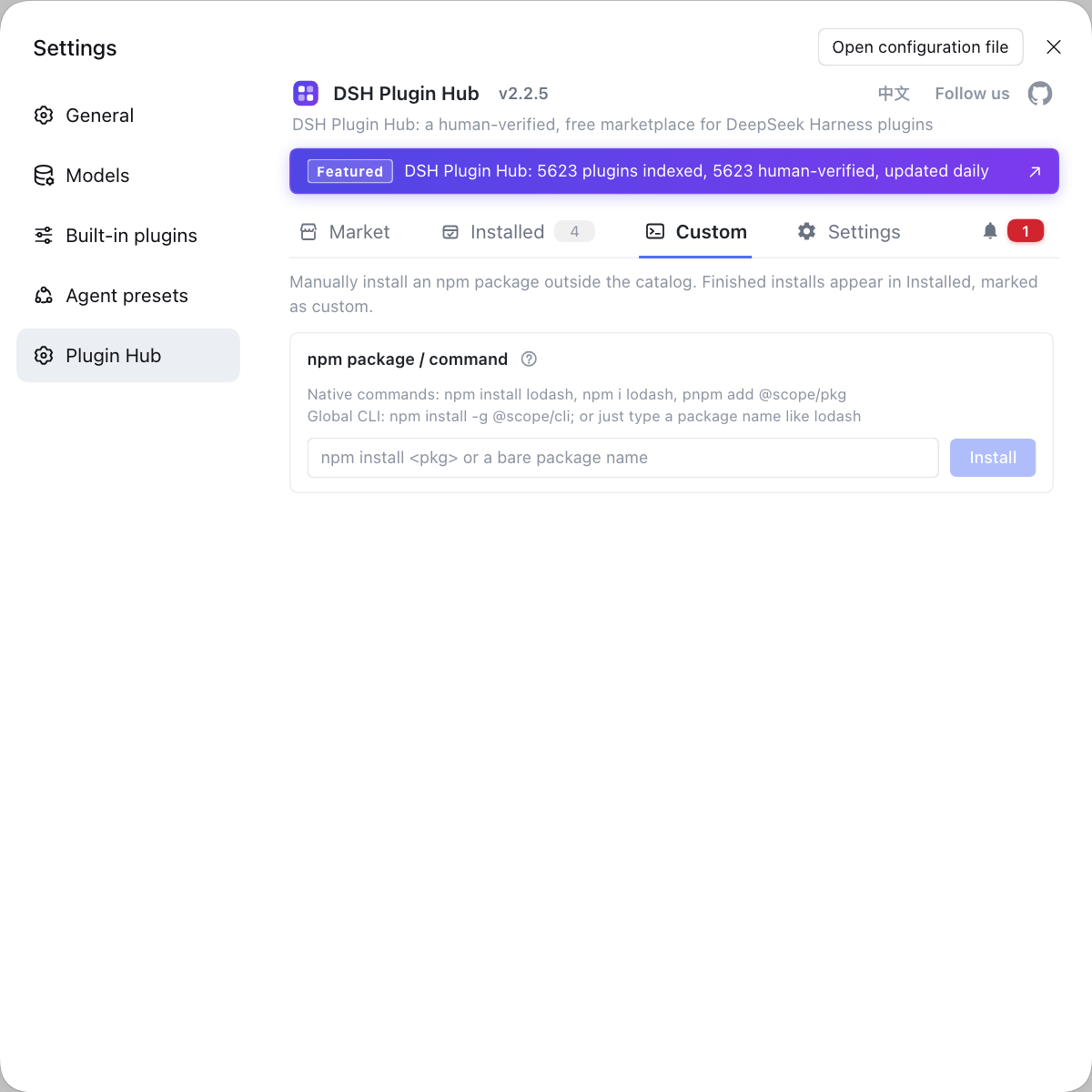
- Format validation fails: a red hint suggests the right format and no request was sent. Fix the format, not the network.
- The confirmation dialog appears: verify the plugin name, source repository and command; no dependency is written before approval.
- Entry validation fails: this only happens on the GitHub source channel, meaning the declared entry is absent from the source package. Switch to npm or build it yourself.
- Post-install validation fails: even when the install command exits with code 0, the host checks that the entry file exists and cancels the pending restart if it does not.
- Still unclear: copy the full log from the notification center and compare it against the download, unpack, dependency and load stages.
The most valuable part of a failure message is which gate stopped you, not the last red line. Format problems mean changing input, entry problems mean changing source, dependency problems mean reading logs — three entirely different responses.
After install: the manual source label for a DSH plugin
A successful custom install is not yet an active plugin: the entry carries a manual source label and the plugin mounts only after the host restarts. That is the most visible difference from a catalog plugin — a different source leads to a slightly different update and uninstall path.
- Open Installed, filter the source to manual installs and confirm the entry and version.
- Restart DeepSeek Harness as prompted, then open the menu, command or panel the plugin provides.
- The plugin is active only when that entry appears; if it does not, check the version in Installed and then the activation stage in system logs.
- For future updates, prefer the plugin's own release channel; for removal, use the uninstall button in the installed list, which confirms before removing.
A manual entry does not silently become a catalog entry when the market later indexes the same plugin, so do not mix the two source types in your head.
One final test: if you cannot say whether the package came from npm, GitHub or a command, you should not click Confirm in the dialog. A clear source is what makes later updates, rollbacks and uninstalls possible; a vague source only postpones the problem. To walk the whole flow from a fresh start, continue with installing your first plugin after npx @deepseek-ai/dsh web.
FAQ
DeepSeek Harness only lists public plugins that have been indexed, so a repository without the right topic, a release too new to be scanned or a private repository will not appear in search. Custom install puts that out-of-catalog package into the current profile, and it later appears in the installed list with a manual source label. Once the catalog indexes it, the same plugin can also appear as a regular listing.
DeepSeek Harness restricts the NPM package card to package names and npm or pnpm install commands, and format validation rejects a GitHub address in place. Use the GitHub source card for a repository, because each format has its own channel and a mismatch never sends an install request. That local gate is safer than typing the same thing into a terminal.
DeepSeek Harness distributes only the files committed to the repository through the GitHub source channel, so a repository that commits source without build output will lack the entry file declared in package.json. Prefer the plugin's prebuilt npm release when it exists. If only source exists, clone it locally, install dependencies, build it, and then install the built artifact into the profile.
DeepSeek Harness limits the DSH command card to installing and updating so that a pasted command cannot quietly remove an installed plugin. Uninstall stays on the installed list, where a confirmation step always runs first. Separating the two responsibilities leaves much less room for an accidental deletion from a copied command.
DeepSeek Harness shows a confirmation dialog with the plugin name, source repository and the exact install command, and nothing is written into the profile before you approve. When it fails, first decide whether the error belongs to format, source or entry-file validation, then copy the full log from the notification center. Avoid repeated submissions until you know whether the failure happened during download, unpack, dependency install or load.
Related Terms
- custom install
- Custom install is the DSH Plugin Hub entry that bypasses the market catalog and installs a plugin manually through one of three input cards: NPM package, GitHub source or DSH command. Each card carries an example, an input field and format error hints, and installation begins only after the input validates.— https://api.dsh-plugin.org/images/releases/2-2-5/index.json
- format pre-check
- Format pre-check is the local validation a custom install card performs before sending a request, rejecting input that does not belong to that channel and suggesting the right format in place. Its purpose is to stop a typo from triggering a real dependency installation.— https://github.com/dshplugin/dsh-plugin-hub
- entry file
- An entry file is the file a DSH plugin's package.json points to through main or exports, and it is where the host starts executing when loading the plugin. A missing entry file lets a plugin install successfully but fail to load.— https://github.com/deepseek-ai/deepseek-harness
- manual source
- Manual source is the origin label DSH Plugin Hub attaches to custom-install entries in the installed list, distinguishing them from catalog plugins. It lets you filter by source and manage out-of-catalog installs separately.— https://api.dsh-plugin.org/images/releases/2-2-5/index.json
Sources
- DSH Plugin Hub 2.2.5 UI screenshot index· dsh-plugin.org
- dshplugin/dsh-plugin-hub repository· GitHub
- deepseek-ai/deepseek-harness (source repository)· GitHub