npx @deepseek-ai/dsh web: install your first plugin
"The npx command ran, the page opened, and now what?" That is the most common pause after launching DeepSeek Harness with npx @deepseek-ai/dsh web. The command only brings up the web UI; the first plugin still needs a full pass — find the entry, search, confirm, restart, verify (source repository). This article walks that five-minute route, starting on the Settings tab of DSH Plugin Hub.
From npx @deepseek-ai/dsh web to Settings: the DSH Plugin Hub entry
Npx starts the web profile, and the plugin market lives at Settings → Plugin Market; confirm Hub is installed in that profile before discussing plugins. A missing entry usually means Hub is absent or inactive, not that the browser is broken.
# Start the web UI; the first run fetches and caches from npm
npx @deepseek-ai/dsh web
# The terminal prints the access URL; open it in a browser
# To see what the web profile contains, use another terminal
npx @deepseek-ai/dsh plugin --profile web list
# With a global dsh install, this also works
dsh plugin --profile web list
- Run
npx @deepseek-ai/dsh webin the terminal and wait for the access URL. - Open that URL in a browser and go to Settings in the left sidebar or top bar.
- Open Plugin Market; if the item is missing, confirm whether Hub is installed in the web profile first.
- Once inside, recognize the four top tabs: Plugin Market, Installed, Custom Install and Settings.
This step only finds the entry; nothing is installed. When the entry is missing, check whether Hub is installed before clearing browser cache.
Searching your first plugin in dsh plugin market: three filters
Do not browse for the first plugin; search for it with one function word, one Not Installed filter and one sort, cutting the list below ten. The goal is completing one full install quickly, not making the optimal choice.
- Think of a function you use daily and compress it into one English word, such as
memory,searchortheme. - Type it into the search box and watch the result count; if it is too broad, add a scenario word.
- Switch the category to Not Installed to remove anything already present.
- Sort by Recent, descending, scan the first five, and pick one whose version and update time are acceptable.
- Click Open Details to confirm the function matches your need, then return to the card.
The selection criterion for a first plugin is low risk and easy verification, not the strongest feature set. UI entries and themes are usually easier to verify than plugins that touch file permissions, which makes them good first candidates.
Two steps when the search returns nothing
- Clear the keyword and set the category back to All, removing the false zero caused by the Installed filter.
- Try another form: if the English name fails, use the package name; if that fails, use a topic.
If both fail, check GitHub to see whether the plugin is published at all instead of cycling synonyms in the market.
Install confirmation and restart: DeepSeek Harness load timing
Clicking Install completes the write; only a restart completes the mount, and the three items in the confirmation dialog must all match. This is the easiest step to skip and the most common source of problems.
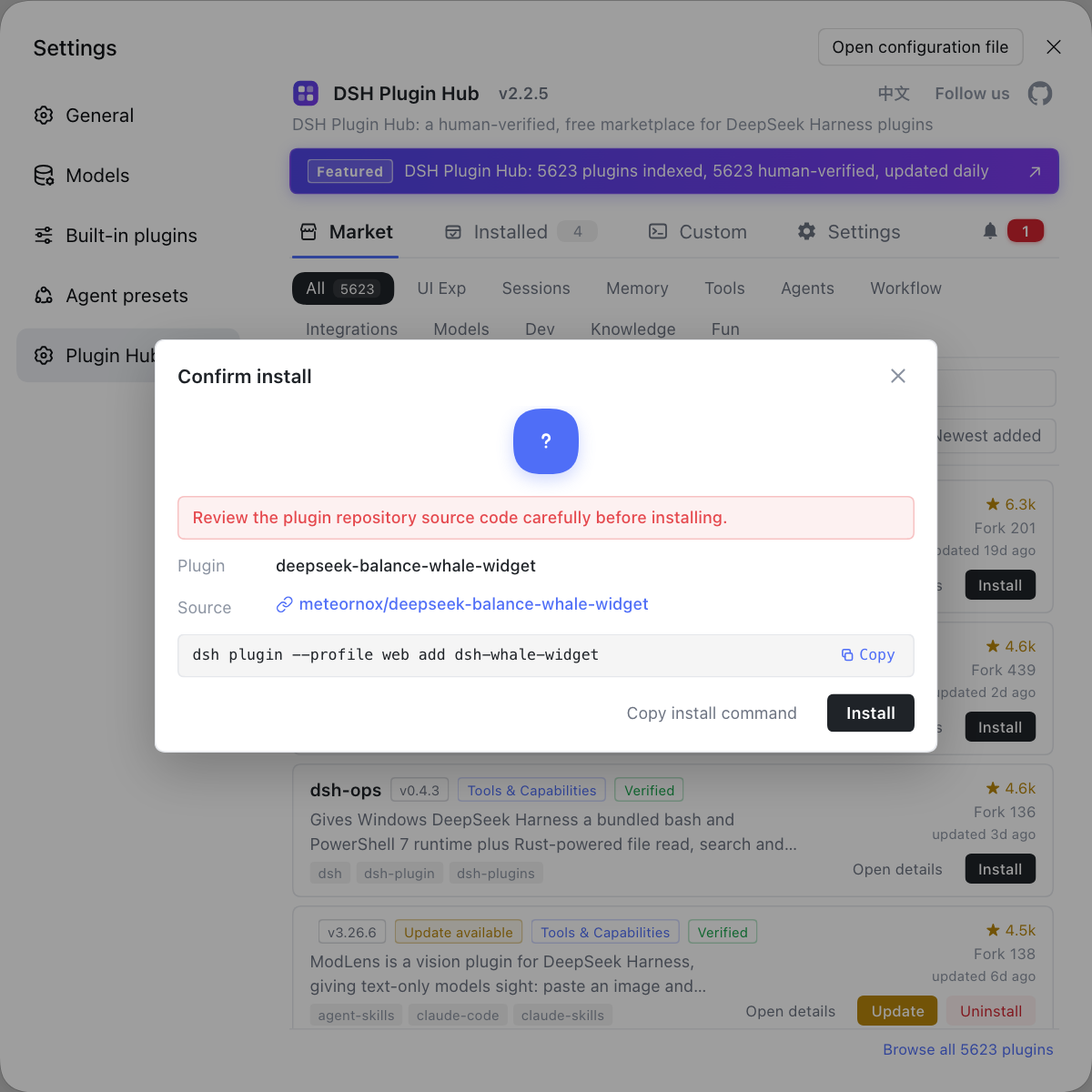
- Click Install on the target card and wait for the confirmation dialog.
- Verify the plugin name, source repository and command about to run; confirm only when all three match.
- Wait for progress to finish and watch notifications for a pending-restart reminder.
- Return to the terminal, stop the current npx process and run
npx @deepseek-ai/dsh webagain. - Refresh the page and confirm the card state changes from Install to Installed.
Pending restart is not a failure; it means load timing has not arrived. Restart when you see it instead of clicking Install again. A repeated install only overwrites the same version and will not make the entry appear sooner.
Three activation signals for a DSH plugin: is it really running?
Activation needs three signals: the entry appears, invocation works and logs are clean; pass all three before calling the first install successful. Installed alone is not enough.
- Entry signal: after restart, the menu, panel or command the plugin provides really appears.
- Invocation signal: use the capability once, such as generating a theme or running a search, and confirm it returns a result.
- Log signal: open Settings → Plugin Market → System Logs and confirm there is no activation error for that plugin.
- When all three pass, return to the installed list and record the version and source.
- If any fails, follow how to read notifications when an install fails instead of uninstalling and reinstalling blindly.
Change one variable at a time: restart, check the entry, then read logs. The invocation signal is the most convincing, because a UI can be cached but a real call cannot fake success.
| Signal | What it looks like | What to check if it fails |
|---|---|---|
| Entry | A menu, panel or command appears | Was the plugin installed in the right profile, and did you restart? |
| Invocation | One capability returns a result | Are permissions and dependencies satisfied? |
| Log | No activation error for this plugin | Locate download, unpack, dependency or load stage |
If you installed the wrong one: dsh plugin market uninstall and rollback
Uninstall rather than deleting directories; after removal, restart and confirm the entry is gone, then decide whether to try another plugin. Installing the wrong first plugin is normal, and a clear exit path matters more than getting it right once.
- Open Installed, find the target plugin and click Uninstall at the end of its row.
- Read the confirmation dialog, verify the plugin name and source, then remove it.
- Restart the npx process, refresh the page and confirm the entry disappeared.
- If the entry remains, check whether it was installed in another profile, then review residue in the usual order.
- To try a different plugin, search the market again instead of repeatedly installing and removing on the same card.
Uninstalling is part of the lifecycle, so there is no reason to feel defeated by a wrong pick. Walk install, verify and uninstall once in the first week, and later conflicts will have a ready path. To continue with updates, read the update badge stays lit; to understand the npx command itself, see what npx does when starting the web UI.
FAQ
DeepSeek Harness puts the plugin market at Settings → Plugin Market once the web UI is running. If that item is missing, DSH Plugin Hub is not installed or not active in the web profile. Confirm Hub with the CLI, restart the web UI and refresh the page before trying the market again.
DeepSeek Harness responds best to a two-step search for a first plugin: one specific function word such as memory or search, then the category filter set to Not Installed. Once the results shrink below ten, choose by version and update time. Do not turn the first install into a complex selection exercise.
DeepSeek Harness loads plugins from the profile manifest when the host starts, and the web host is that npx process. Installation only writes the package into the profile, and a running process does not swap modules on its own. Restart the npx process or reload as prompted before the plugin mounts.
DeepSeek Harness needs three signals: the plugin entry or command appears after a restart, one real invocation works, and system logs show no activation error. Installed in the list only proves the write finished. Only when all three signals line up is the plugin actually running.
DeepSeek Harness backs out through the uninstall button in the installed list, then confirms in the dialog and removes it, then restarts the web UI to confirm the entry is gone. Do not delete the profile directory by hand. If residue remains, check manifest, cache and configuration in order instead of rebuilding the whole environment.
Related Terms
- npx @deepseek-ai/dsh web
- npx @deepseek-ai/dsh web is the official command that starts the DeepSeek Harness web UI, with npx fetching and executing @deepseek-ai/dsh and web acting as an alias for --profile web. It needs no global install, and the first run caches the package in the npm directory.— https://github.com/deepseek-ai/deepseek-harness
- web profile
- The web profile is the configuration stack in DeepSeek Harness started by dsh web, located under $DSH_HOME/profiles/web. It decides which plugins and patches the web UI loads, so a plugin must be installed into this profile to appear there.— https://github.com/deepseek-ai/deepseek-harness
- install confirmation dialog
- The install confirmation dialog is the safety gate DSH Plugin Hub shows before installation, listing the plugin name, source repository and command about to run. Downloading and writing into the profile begin only after approval.— https://api.dsh-plugin.org/images/releases/2-2-5/index.json
- activation check
- An activation check is the post-install process of confirming a plugin truly works, covering the entry appearing after restart, a successful real invocation and an error-free log. It is not the same thing as the list saying Installed.— https://github.com/deepseek-ai/deepseek-harness
Sources
- deepseek-ai/deepseek-harness (source repository)· GitHub
- DSH Plugin Hub 2.2.5 UI screenshot index· dsh-plugin.org
- DSH Plugin Hub plugin page· dsh-plugin.org