DSH plugin market: a 60-second pre-install check
Sixty seconds is roughly how long anyone is actually willing to spend before clicking Install; past that, most people just confirm. So this checklist holds only four things that fit in that window: permission scope, dependency count, build scripts and rollback cost (2.2.5 index). It does not ask you to read source; it asks you to move between the detail page, the install prompt and the source repository inside DSH Plugin Hub. If any of the four is unclear, do not install yet.
First 20 seconds: DSH plugin permission scope and dependency count
The first 20 seconds answer two questions: what does it need to touch, and how much does it pull in? These two decide the blast radius and are also the fastest things to see on a detail page.
- Work backward from function: a UI-only plugin does not need network access, and a summarizer does not need whole-disk file access.
- Find the capability declaration in the detail page or install prompt, compare it with the function, and ask the source repository if it is unclear.
- Check the dependency count, then scan for unfamiliar packages or scopes unrelated to the function.
- When the dependency tree is clearly larger than peers, open the repository's dependency list instead of trusting the number alone.
| Function type | Reasonable permission | Worth flagging |
|---|---|---|
| UI theme | Read theme configuration | Whole-disk access, network requests |
| Memory retrieval | Read and write the memory directory | Access to unrelated user directories |
| Web search | Network requests | Full local file access |
| Document processing | Read and write a specific document folder | Opening a local port, running arbitrary commands |
Read permissions and dependencies together: broad permissions with few dependencies may mean built-in capability, while many dependencies with narrow permissions may only widen the supply chain. The two risks do not cancel each other.
Middle 20 seconds: DSH plugin build scripts, platform and version
The middle 20 seconds answer whether code runs during installation and whether the result can run at all. Build scripts decide install-time risk; platform and version decide post-install usability.
- During a source install, watch for a prompt allowing build scripts and only approve repositories whose source you can verify.
- If unsure, refuse the script and use the npm prebuilt release; refusal usually just means it will not install, which is safer than running an unknown script.
- Check declared platform limits: whether Windows, macOS and Linux are all supported and whether any native module is required.
- Check version compatibility: whether the Harness range the plugin requires includes your current version, and do not cross a major version casually.
- If platform or version does not match, confirm in the detail page or repository instead of hoping it works after install.
Build scripts are the one step that executes before you ever use the plugin. The risk sits at the moment you click Confirm, not at runtime, so this is the one place to be conservative.
Last 20 seconds: leaving a rollback point in dsh plugin market
The last 20 seconds do one thing: prepare how to get out before you get in. A rollback point is not a system backup; it is three artifacts that let you return to the previous state.
- Record the version of a same-named plugin in the installed list, or record "not installed" if there is none.
- Back up the current profile's
package.json, which holds both the dependency list and the load list. - Record the key configuration related to this plugin, especially anything you edited by hand.
- Locate the uninstall entry: the Uninstall action at the end of an installed row, which confirms before removing.
- Put all three somewhere you can find later instead of keeping them in your head.
Of version, manifest and configuration, the manifest is the most overlooked and the most useful: it tells you what should have been installed and what should load at startup. A version number alone leaves restoration to guesswork.
Minimal fallback when you have no backup
- Check the installed list's version record and confirm whether a same-named plugin existed.
- Check the profile's package.json backup or version control history.
- If neither exists, uninstall the current version and reinstall the last known good version.
- Restart and verify the entry, then make a backup this time.
The install confirmation dialog: DSH Plugin Hub's last gate
The confirmation dialog is the final chance to see the source clearly, listing the plugin name, source repository and install command. Before clicking Confirm, all three should match what you concluded earlier.
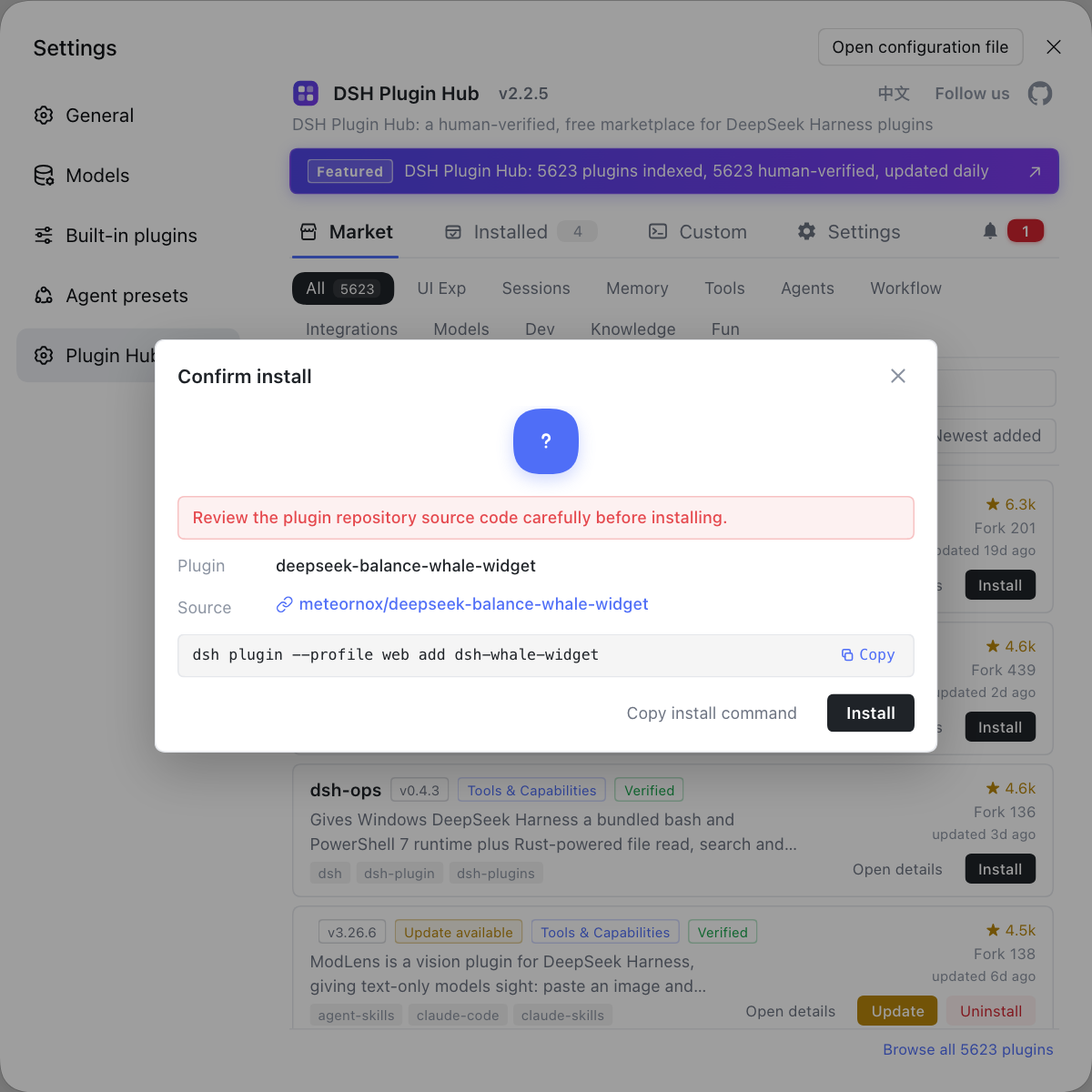
- Verify the plugin name is the one you chose, watching for same-name entries from different authors.
- Verify the source repository matches the detail page and the repository you inspected.
- Read the command about to run and confirm there is no extra global install or script flag.
- Click Confirm only when all three line up; otherwise cancel and recheck the detail page.
- After confirming, do not click repeatedly — wait for progress, and check notifications first if it fails.
The dialog is not ceremony: it puts "what you think you are installing" and "what will actually run" on one screen. Everything decided in the previous 60 seconds gets one final review here.
Three minutes after install: DeepSeek Harness verification and rollback rehearsal
Post-install verification has two steps: prove it works, then prove you know how to remove it. Only after both is the install closed out.
- Restart DeepSeek Harness and open the menu, command or panel the plugin provides.
- Invoke the capability once, confirming that more than a UI element appeared.
- Check the installed list for version, source label and state, then check system logs for activation errors.
- Open the uninstall confirmation, read what it will remove, and click Cancel — a rollback rehearsal without changing anything.
- Record the version, source and verification result in your environment notes for the next update.
Change one variable at a time during verification: restart, then check the entry, then read logs. If all three signals pass, the install can stay; if any fails, follow how to read notifications when an install fails instead of uninstalling and reinstalling blindly.
Three cases where you should stop verifying
- The host crashes repeatedly or cannot enter a session after the plugin starts.
- The entry appears but throws a permission or path error on every call.
- System logs show continuous activation failures.
Uninstall first and return to a known-good state before investigating. The permission and dependency judgments here also line up with how to install plugins safely.
FAQ
DeepSeek Harness rewards checking permission scope first because it decides what the plugin can touch and has the widest blast radius. Then check dependency count, build scripts and rollback cost. None of the four requires reading source, since the detail page, install prompts and source repository are enough; if any one is unclear, do not install yet.
DeepSeek Harness makes sense of permissions by working backward from function: a summarizer does not need whole-disk file access, and a UI tweak does not need network requests. Dependency count has no absolute threshold, but an unfamiliar package unrelated to the function, or a dependency tree far larger than peers, justifies opening the repository.
DeepSeek Harness runs build scripts at install or build time, so only approve repositories whose source you can verify. If unsure, refuse and switch to the plugin's prebuilt npm release. Refusing usually means the install fails, which is safer than executing a script of unknown origin.
DeepSeek Harness needs three things for a rollback point: the current plugin version, the profile manifest and the key configuration. Back up the installed list and the profile's package.json before installing or updating. A version number alone is not enough, because the manifest and config are what restoration actually needs.
DeepSeek Harness requires a restart first, then a check that the plugin's entry or command really appears, then one real invocation of its capability. After that, open the uninstall confirmation and click Cancel, which proves you know where rollback lives. Do not actually uninstall just to test it.
Related Terms
- pre-install check
- A pre-install check is the four-part review of permission scope, dependency count, build scripts and rollback cost performed before clicking Install in dsh plugin market. It trades a few dozen seconds for avoiding a possible uninstall and residue cleanup.— https://dsh-plugin.org/plugins/dshplugin/dsh-plugin-hub
- install confirmation dialog
- The install confirmation dialog is the safety gate DSH Plugin Hub shows before installation begins, listing the plugin name, source repository and command about to run. Downloading and writing into the profile start only after approval.— https://api.dsh-plugin.org/images/releases/2-2-5/index.json
- rollback point
- A rollback point is a recoverable state saved before an install or update, usually consisting of the current version, the profile dependency manifest and key configuration. It determines whether you can return to the previous state instead of reinstalling.— https://github.com/deepseek-ai/deepseek-harness
- build script
- A build script is a script that a DSH plugin or its dependencies run automatically during install or build. Because it executes code before the plugin ever runs, its source must be confirmed before you allow it.— https://github.com/dshplugin/dsh-plugin-hub
Sources
- DSH Plugin Hub 2.2.5 UI screenshot index· dsh-plugin.org
- deepseek-ai/deepseek-harness (source repository)· GitHub
- dshplugin/dsh-plugin-hub repository· GitHub