Plugin market install failed: read DSH Plugin Hub alerts
You click Install three times, the card spins, the dialog closes, and the error is nowhere to be found — the classic plugin market install failure is not a missing error but an error that appeared exactly once. DSH Plugin Hub actually leaves three evidence sources: the confirmation dialog, the notification center and system logs (2.2.5 index). Most people only watch the dialog and lose the trail when it closes. This article follows a triage table: pick the right source first, then use logs to pin the failure to a stage. The entry is on DSH Plugin Hub.
Three evidence sources in DeepSeek Harness: dialog, notifications, logs
The three sources answer three different questions: the dialog answers "did this action fail", the notification center answers "what just happened", and system logs answer "why did it happen". Using the wrong source leads to refreshing the wrong screen.
| Your situation | Where to look | What you get | Limitation |
|---|---|---|---|
| Just clicked Install, dialog still open | Confirmation dialog | Plugin name, source, command to run | Summary only; gone when closed |
| Dialog closed, task failed | Notification center | History, progress, failure context | Cannot be recovered after clearing |
| Failure known, cause unknown | System logs | Category, level, time, full entries | Many records; requires filtering |
- Open the notification center before installing so it has a chance to record the whole process.
- When the dialog appears, screenshot or copy the plugin name and source before clicking Confirm.
- After a failure, copy the full log from notifications first, then find the same timestamp in system logs.
- Only if both sources are empty should you reproduce once — and only once.
The sources do not replace each other. The dialog confirms on the spot, notifications let you look back, and logs locate the cause. Reverse that order and you are searching a haystack.
DSH Plugin Hub notifications: progress, failure and pending restart
Read three record types first: failed tasks, tasks stuck in progress, and tasks with a pending-restart reminder. Successful records only need a glance — their main value is a timeline.
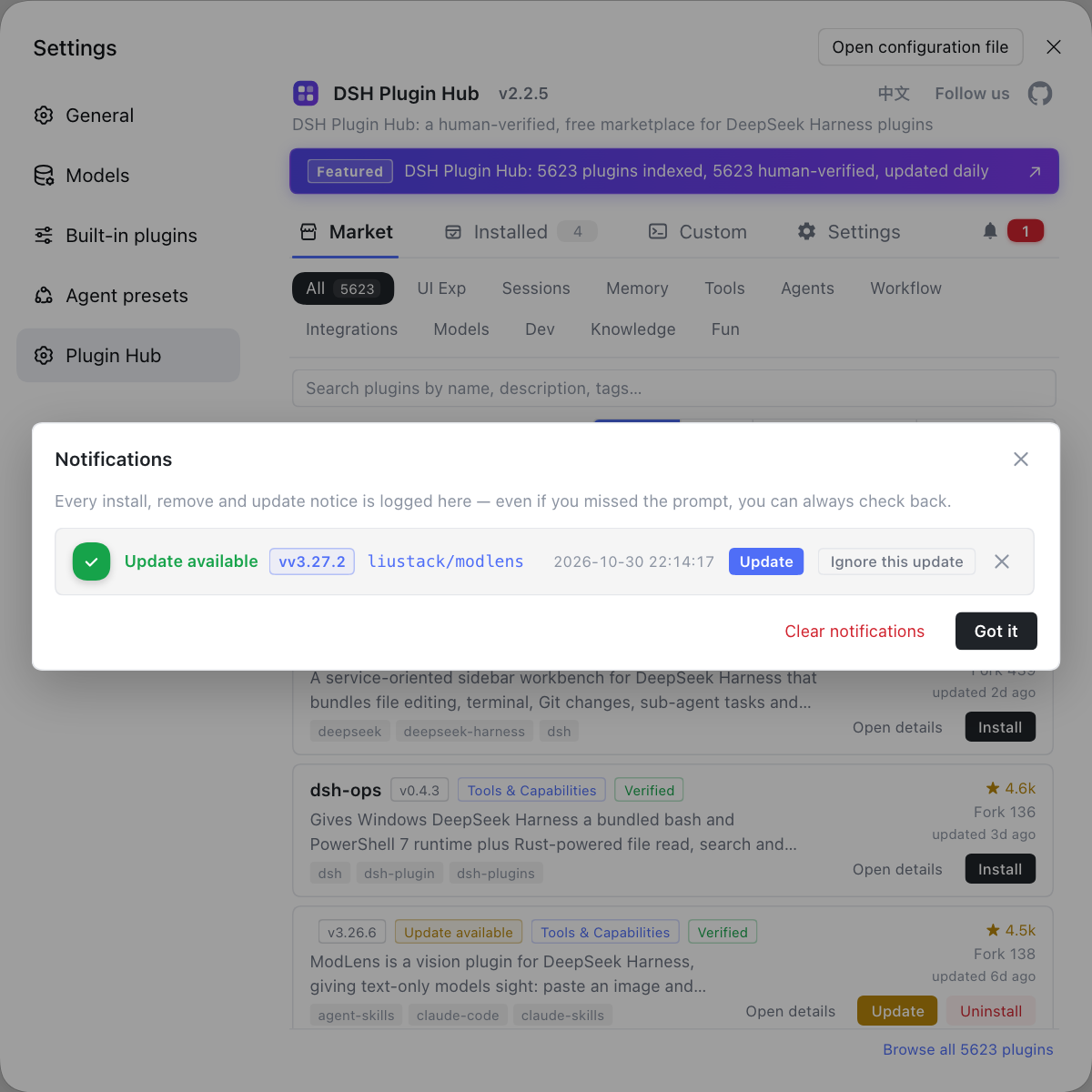
- Open the notification center and read the three most recent records in reverse chronological order.
- Open the failed task and copy the full log; do not record only the last red line.
- For a task stuck in progress, decide whether the network is slow or the process is wedged, and do not resubmit repeatedly.
- A pending-restart reminder means the install was written but never mounted — restart the host instead of reinstalling.
- Copy or screenshot the evidence you need before clearing; a one-click clear cannot be undone.
Pending restart is the most misread state: users assume the install failed when it simply has not been restarted. In notifications the two look different — a completed install has a completion record, a real failure does not. Telling them apart removes half of all unnecessary reinstalls.
Before clearing, keep at least three things
- The full log of the failed task, copied rather than screenshotted at the last line.
- The plugin name and source repository from this attempt, for checking the market or repository later.
- The operation timestamp, to align with entries in system logs.
With those three, a cleared notification history still leaves you a reproducible trail.
Filtering dsh plugin market system logs by category and level
Filter in the order category, then level, then time until only a few lines remain. Reading from the top rarely finds the line that matches this failure among hundreds of records (2.2.5 index).
- Open Settings → Plugin Market → System Logs and click Refresh first.
- Filter the category to the operation type involved: install, uninstall, update or settings change.
- Filter the level to error or warning; if no error appears, check info level to confirm the request was sent at all.
- Align entries with the reproduction time and read only records added after this operation.
- Use Copy Full Text or Export Logs to take evidence away instead of transcribing it by hand.
The log page can also relocate the log directory and open the file. If you expect long-term troubleshooting, point logs at your own working directory so future comparisons are easier. Beyond category and level, time is the most reliable anchor: note the minute you clicked Install, then return to that minute.
From logs to four DSH plugin stages: download, unpack, dependency, load
The same "install failed" message demands completely different fixes depending on the stage: download points at network, unpack at files, dependency at the package manager and load at the entry. Identify the stage before acting.
- Download: the log shows timeouts, connection resets or 404s. Check proxy and mirror; on a 404, verify with the official registry instead of renaming the package.
- Unpack: the log shows a corrupt archive, write failure or permission denial. Check disk space, target directory permissions and antivirus interference.
- Dependency: the log shows pnpm resolution failure, a rejected build script or a version conflict. Check dependency declarations, build-script approval and package manager version.
- Load: the log shows a missing entry file, module resolution failure or activation error. Check the package.json entry against the actual artifact, which is common with source installs.
The four stages produce four evidence types: network, file, dependency and code errors. Match the log keyword to a stage, then return to the triage table at the top for the response. A fuller failure map is in the plugin install failure map.
| Stage | Common log clue | Check first | Do not do |
|---|---|---|---|
| Download | Timeout, connection reset, 404 | Proxy, mirror | Rename the package |
| Unpack | Extraction failed, write failed, permission denied | Disk, directory permissions, antivirus | Download again and again |
| Dependency | pnpm resolution, build script, version conflict | Dependency declarations, build approval | Delete the lockfile by hand |
| Load | Missing entry, module resolution, activation failed | Entry artifact, version compatibility | Reinstall immediately |
Verifying the fix: is the DeepSeek Harness plugin active?
Fixed is not the same as active; verify three places — the installed list, the entry after restart, and the absence of new activation errors in logs. A green card only proves the write completed.
- Return to Installed and confirm the entry exists, the version is right and the source label is correct.
- Restart DeepSeek Harness and reopen the menu, command or panel the plugin provides.
- Invoke the plugin capability once, confirming that more than a UI element exists.
- Check system logs again and confirm there is no new error for the same plugin.
- If it still fails, keep this round of logs and timestamps, then re-run the four-stage mapping.
Do not change several variables at once during verification: restart, check the entry, then read logs. One change at a time is the only way to know which step fixed it. For where to configure notifications and logs, see how to configure DSH Plugin Hub settings; for more on install-stage logging, see how to read plugin market install logs.
FAQ
DeepSeek Harness keeps failed tasks in the notification center, where you can copy the full log before closing it. The dialog only shows a summary; notifications retain the task progress and failure context. If the notification center has also been cleared, open system logs and filter by category and level around the same timestamp.
DeepSeek Harness notifications are worth reading for three cases: failed install or update tasks, tasks stuck in progress for a long time, and tasks carrying a pending-restart reminder. The first two point at the cause of failure, while the third explains why a finished install has not taken effect. Copy evidence out before clearing history, because deletion cannot be undone.
DeepSeek Harness system logs should be narrowed in three steps: category first, level second, timestamp last. Filter the category to install, uninstall or settings change, then filter the level to errors and warnings, then align the entry with your reproduction time. Category answers which operation, level answers how severe, and time isolates the handful of lines that matter.
DeepSeek Harness leaves different signatures at each stage: download failures are timeouts or 404s, unpack failures are archive or file-write errors, dependency failures are pnpm resolution or build-script errors, and load failures are missing entry files or activation errors. Identify the stage before deciding whether to change network, change source or fix dependencies instead of reinstalling.
DeepSeek Harness needs three confirmations: the installed list shows the entry and version, the plugin's entry point or command appears after a restart, and system logs contain no new activation error for it. A card turning green only proves the write finished. The plugin is active only when the entry appears and can actually be invoked.
Related Terms
- notification center
- The notification center is the DSH Plugin Hub dialog that collects install, uninstall and update history, in-progress task progress and pending-restart reminders. It supports copying the full log, deleting one record and clearing everything at once.— https://api.dsh-plugin.org/images/releases/2-2-5/index.json
- system logs
- System logs are the DSH Plugin Hub page that records installs, uninstalls, settings changes and diagnostics, grouped by category and level. It supports opening a log viewer, copying full text, exporting logs, refreshing and locating the log file.— https://api.dsh-plugin.org/images/releases/2-2-5/index.json
- pending-restart reminder
- A pending-restart reminder is a notification-center record stating that a plugin has been written but not yet mounted. It explains why an entry has not appeared after installation, and the fix is to restart the host rather than install again.— https://api.dsh-plugin.org/images/releases/2-2-5/index.json
- install stage
- Install stage refers to the four steps a DSH plugin passes from request to loadable state: download, unpack, dependency installation and load activation. Each stage fails with distinct log signatures and requires a different response.— https://github.com/dshplugin/dsh-plugin-hub
Sources
- DSH Plugin Hub 2.2.5 UI screenshot index· dsh-plugin.org
- dshplugin/dsh-plugin-hub repository· GitHub
- deepseek-ai/deepseek-harness (source repository)· GitHub