dsh-our-free-model not working: quota and connection
"It worked yesterday and cannot connect today." Anyone using dsh-our-free-model eventually says this, and behind it can sit three completely different failures: the plugin did not load, the model is unavailable, or quota and network are blocking the way (community repository). This article follows a triage table: one action separates the three, then logs and failure codes narrow the layer, and finally you switch back and re-enable in a safe order. For plugin updates or reinstalls, the entry is DSH Plugin Hub.
Three categories first: DSH plugin loading, model availability, quota and network
Each category has a different test: plugin loading asks whether an entry exists, model availability asks whether a request returns, and quota or network asks what the response code is. Separating them saves half of all pointless restarts.
| Symptom | Likely category | First action |
|---|---|---|
| No plugin panel or entry at all | Plugin did not load | Check the installed list and profile |
| Entry exists but no free model to select | Model unavailable | Check the model list and plugin state |
| Model selectable, every message fails | Quota or network | Read the failure code and request log |
| Intermittent, occasional timeouts | Network or upstream fluctuation | Compare timestamps and proxy settings |
- Open the installed list and confirm dsh-our-free-model is in the current profile.
- Restart the host and see whether the plugin panel or entry appears.
- Once the entry appears, check whether a free model is selectable in the model list.
- If the model is selectable but requests fail, move to the next section on failure codes.
- If none of the three fits, record the timestamp and label it community report / unverified.
The key is not skipping steps. Editing model configuration when the plugin never loaded, or restarting repeatedly when quota is exhausted, pushes the problem in the wrong direction.
Reading logs and failure codes: layer-by-layer DeepSeek Harness triage
The order is whether the request left, then the response code, then model name and endpoint, then network and proxy; locate the layer before discussing fixes. Failure codes beat interface copy.
- Request never left: the plugin or local forwarding port is down; confirm plugin loading and port state first.
- 401 / 403: credentials or forwarding-port authentication; the free channel is supposed to need no official key, so check the plugin's own auth settings.
- 404: endpoint or model name mismatch; check whether the forwarding address or model identifier changed.
- 429: quota or rate limiting, usually from upstream; a local restart generally has no effect.
- Timeout / connection reset: network, proxy or upstream fluctuation; confirm outbound access, then retry later.
Read logs by layer: host logs show whether the plugin loaded, the plugin panel shows channel state, and request records show response codes. Only when all three point at the same layer is the conclusion solid. Official provider configuration is documented in the official docs; adjacent model issues are covered in model connection troubleshooting.
The single most time-saving test
Whether the request left the machine carries the most information in triage.
- Failure during local preparation: the plugin or forwarding port is down, so inspect plugin loading.
- Request sent and a 4xx returned: handle the layer indicated by the code.
- Request sent and nothing returned: inspect network, proxy and timeouts.
Temporary switch back to the official model: DSH plugin damage control
Stop the bleeding before investigating: switching back changes only which provider is current and requires no uninstall. You keep working, and the free channel keeps its evidence.
- Open Settings → Model and switch the current model back to the official provider.
- Confirm the official key is still valid; the change takes effect on the next request.
- Send one short message and confirm a normal return, ruling out a host-wide failure.
- Preserve the free channel's failure time, code and logs instead of clearing them.
- Once work settles, investigate the free channel separately.
Switching back is not giving up on free models; it separates "work must continue" from "the channel needs debugging". Doing both at once leads to flipping between configurations until nobody can tell which one is active.
Re-enabling: update, restart and verify inside DSH Plugin Hub
Re-enable in four steps — update, restart, select model, send a test message — each with an observable result. Do not stop at a UI label that says enabled.
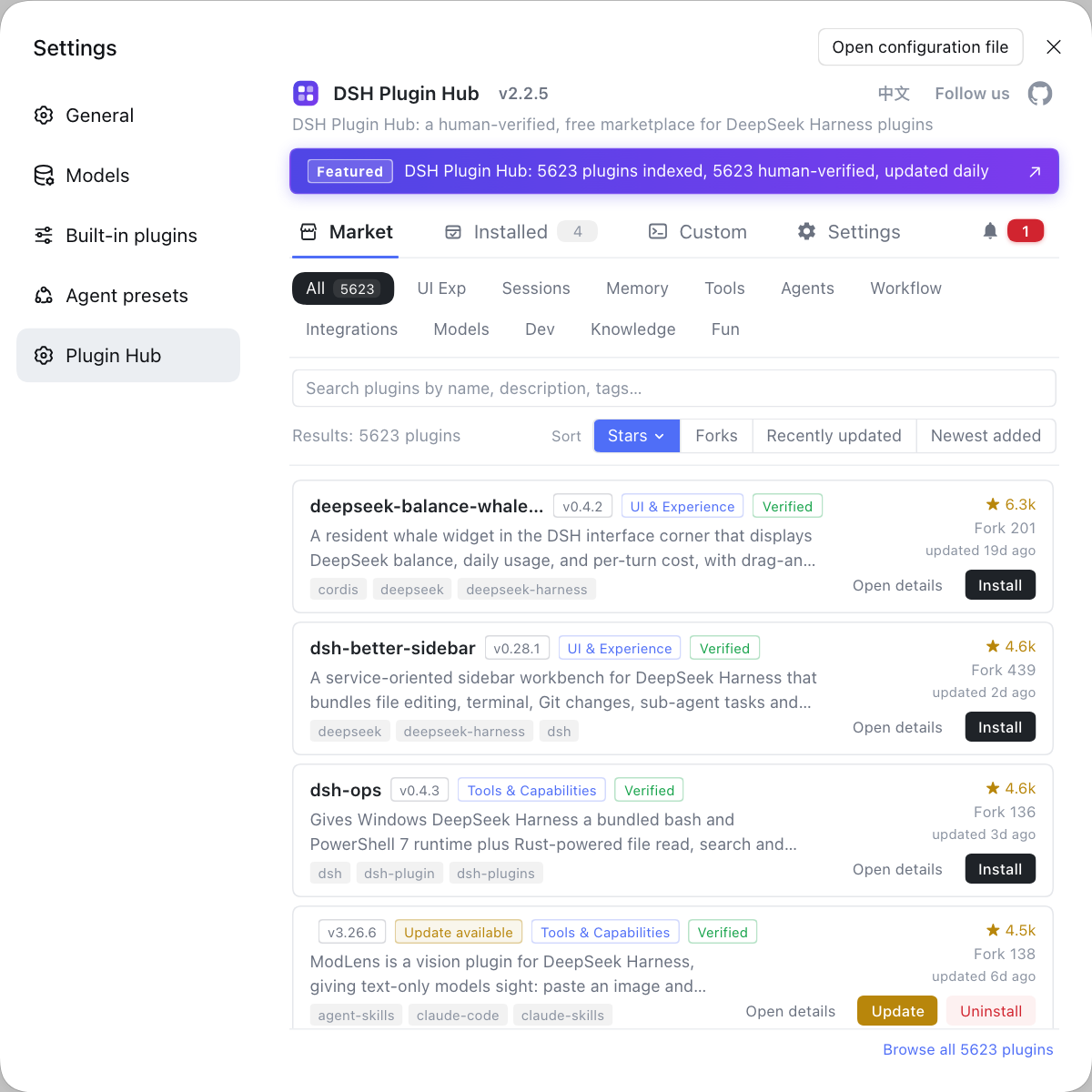
- Check the installed list for an update to dsh-our-free-model and apply it if present.
- Restart DeepSeek Harness and wait for the plugin panel and model list to reload.
- Return to Settings → Model, switch back to the free model and confirm the identifier belongs to that channel.
- Send a test message and confirm a real response rather than an error fallback.
- Open the plugin's usage dashboard and confirm this call was recorded.
Of the four steps, the test message and usage record are the most convincing. An enabled label and a populated model list may only mean loading finished; a request that leaves and returns proves the channel works.
What remains uncertain: the unverified edges of DeepSeek Harness free models
Quota, upstream and stability of the free model belong to the plugin maintainer, so many statements must stay labeled community report / unverified rather than official promises. Say this boundary up front.
- Quota rules: the community disagrees on how quota is counted and when it resets; trust the plugin panel and upstream messages.
- Upstream model list: the list changes with upstream, and a model available today may disappear tomorrow; make no long-term availability promise.
- Rate-limit thresholds: the exact 429 threshold and recovery time are not transparent; judge from actual responses.
- Terms and compliance: whether a use case is allowed is yours to confirm; community experience is not a compliance conclusion.
- Fix status: whether an update resolves an issue should follow repository release notes; never write "officially fixed".
Labeling these as unverified does not lower the article's value; it avoids presenting uncertainty as fact. When recording an incident, capture at least three things:
- The timestamp and failure code.
- The plugin version and any upstream message.
- The network and proxy environment at the time.
Free models are positioned for trial and experience, so stability and ownership are yours to assess. For how it differs from official models, see what dsh-our-free-model is; for the full switch and rollback procedure, see switching between free and official models.
FAQ
DeepSeek Harness should be checked for plugin loading first: whether the installed list has an entry and whether a panel or menu appears after restart. If the plugin and entry exist, then check model availability; if the plugin is absent, fix installation and loading instead of editing model configuration. Mixing the two checks leads to endless restarts with no conclusion.
DeepSeek Harness should first show whether the request left the machine: failures during local preparation usually mean the plugin or forwarding port is down, while failures after the request is sent call for the response code. A 401 points at credentials or forwarding-port auth, 404 at the endpoint or model name, 429 at quota or rate limiting, and a timeout back to network or proxy.
DeepSeek Harness restarts usually do not fix quota, because quota is decided by the upstream behind the plugin, not by the local process. On a 429 or an explicit quota message, switch back to the official model to keep working, then wait for upstream recovery or another provider. Treating quota as a loading problem only wastes time.
DeepSeek Harness lets you switch the current model back to the official provider under Settings → Model, and the change takes effect on the next request without a restart. Send one short message to confirm a normal return before continuing work. Investigate the free channel separately so the two configurations do not interfere.
DeepSeek Harness should first update or reinstall dsh-our-free-model, then restart and confirm the plugin entry and model list appear, then switch back and send a test message. Verify that requests use the local forwarding port and that the model name belongs to the free channel. A UI saying enabled is not proof; an actual response is.
Related Terms
- dsh-our-free-model
- dsh-our-free-model is a class of DSH plugin that connects to free frontier models without login or an API key, while also providing a local usage dashboard and an OpenAI-compatible forwarding port. It adds a model provider channel rather than replacing the official model mechanism.— https://github.com/zouyuxuan122/dsh-our-free-model
- model provider
- A model provider is the unit of model integration in DeepSeek Harness, officially supporting DeepSeek configuration, third-party providers and custom model APIs. Changes usually take effect on the next request.— https://deepseek-harness.github.io/deepseek-harness/guide/providers
- OpenAI-compatible port
- An OpenAI-compatible port is a forwarding address the plugin exposes locally that follows the OpenAI API contract, letting DeepSeek Harness reach the free model channel like a standard provider. It is the mechanism that makes zero-configuration access possible.— https://github.com/zouyuxuan122/dsh-our-free-model
- quota and rate limiting
- Quota and rate limiting are restrictions the free model channel places on call count or frequency, usually decided by the upstream behind the plugin. They live outside the local process, so restarting the host generally cannot lift them.— https://github.com/zouyuxuan122/dsh-our-free-model
Sources
- Community plugin repository - dsh-our-free-model· community
- DeepSeek Harness official docs - configuring models (provider mechanism)· deepseek-harness
- DSH Plugin Hub plugin page· dsh-plugin.org