DSH Plugin Hub settings: updates, npm mirror and proxy
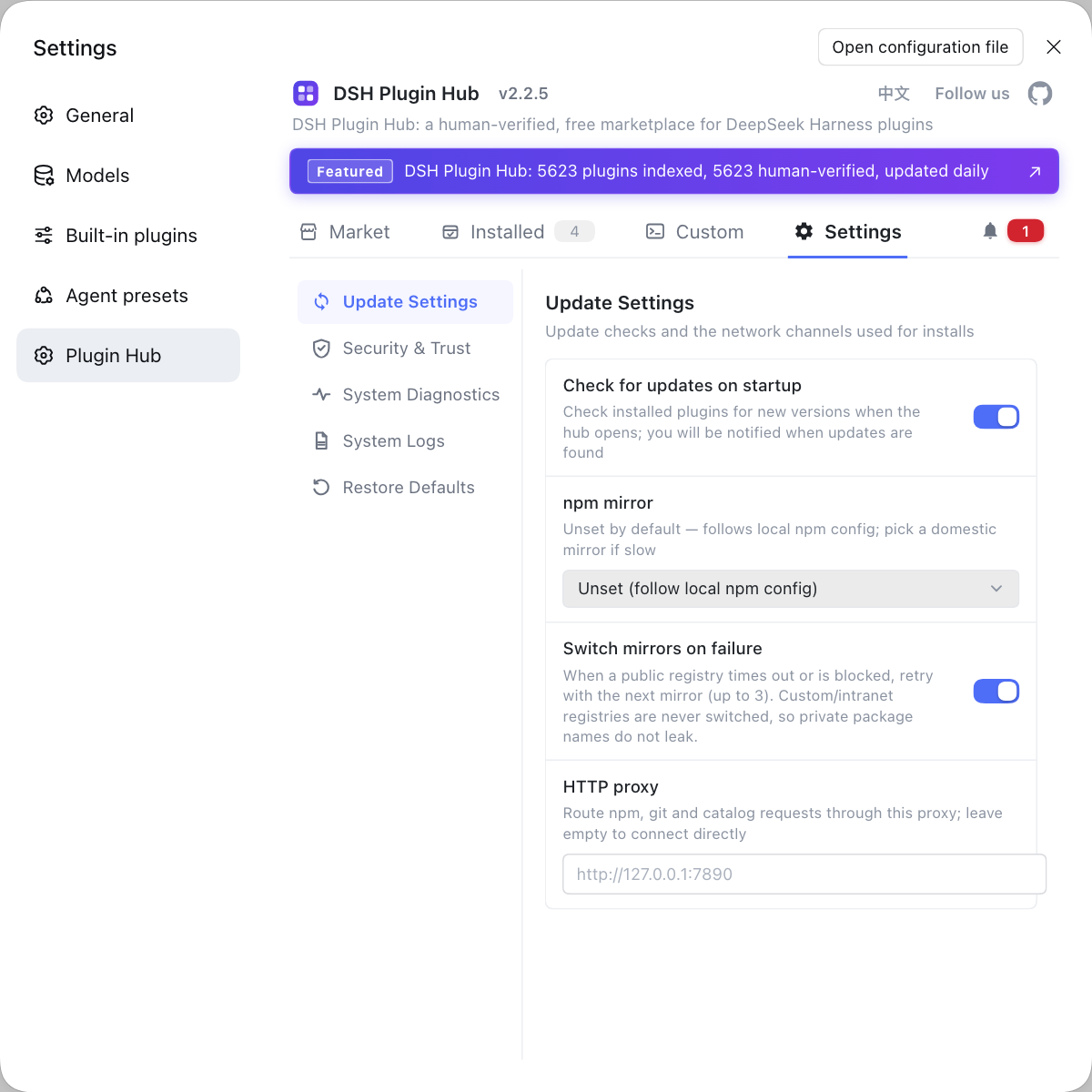
Many people treat the DSH Plugin Hub settings page as a master switch for plugins, then hunt for a plugin's model, permissions or hotkeys and find nothing — because this page only governs how the market itself behaves. The left side has five fixed groups: Update Settings, Security Trust, System Diagnostics, System Logs and Restore Defaults (2.2.5 index). This article reads them by the question each group answers rather than reciting the UI top to bottom. The entry sits on the Settings tab of DSH Plugin Hub.
What the DSH Plugin Hub settings page does and does not control
This page controls market-level behavior — where versions are checked, where packages come from, whether requests use a proxy and which install channels are allowed — and it controls nothing about how an installed plugin runs. Keeping that boundary straight prevents most wasted clicking.
- Open Settings → Plugin Market → Settings and read the five group names before changing anything.
- Decide which question you are answering: network, trust, health, history or reset.
- If the question is about one plugin's model, permissions or shortcuts, leave this page; those live in the plugin's own settings.
- Note the current values of the three Update Settings fields so you have a baseline.
A settings page is only useful if you know which layer it owns. Everything below stays inside the market layer.
Update settings in dsh plugin market: startup check, mirror and proxy
Update settings answer one question only: where the market looks for new versions, where it fetches packages and whether requests leave through a proxy. Each field covers a different link in the chain, and each one fails with a distinct symptom.
| Setting | What it controls | Typical symptom when wrong | Suggested value |
|---|---|---|---|
| Check for updates at startup | Whether opening the market looks for new versions | Update prompts never appear | Enable if you update often |
| npm mirror | Which registry packages come from | Install timeouts or mirror 404s | A registry reachable on your network |
| Proxy address | Whether market requests go through a proxy | Blank list or request timeouts | Match the proxy your terminal uses |
- Open Settings → Plugin Market → Settings and read the current values of the three fields.
- Decide on the startup check by habit: enable it if you update often, disable it for faster startup and check manually.
- Choose an npm mirror that is stable on your network; when
ERR_PNPM_FETCH_404appears, switch back to the official registry briefly before touching the package name. - Keep the proxy address consistent with
http_proxyandhttps_proxyin your terminal, so the browser working does not leave the market unable to fetch. - Save without closing the page; the next step is to prove the change with a real request.
Mirror and proxy are different links: the mirror decides which repository packages come from, the proxy decides how requests leave the network. If both are wrong, fix the proxy first, otherwise you cannot tell whether a 404 is mirror lag or no connection at all.
Still timing out with both configured? Check these three combinations
- Browser works but the market cannot fetch: the proxy only applies to the browser layer and the host process did not inherit it — set the proxy on the settings page instead.
- The list loads but installs return 404: the mirror is lagging; switch back to the official registry to confirm rather than renaming the package.
- Both look fine yet timeouts are intermittent: note the timestamp and compare it with system logs to see which registry that request used.
Three combinations, three fixes. Do not reach for Restore Defaults, which would also wipe the values that are already correct.
Security trust: deciding the three DSH Plugin Hub channel switches
The Security Trust group decides which custom-install methods are allowed, not which plugins may run. It maps to the NPM, GitHub and DSH channels, and disabling one disables the corresponding custom-install card (Hub repository).
- Ask whether you will use custom install at all in the near term; if not, all three channels can be off.
- If you only use prebuilt npm packages, keep NPM and disable GitHub source and DSH command.
- If you follow source or documentation commands, enable only the one you need instead of turning everything on.
- After disabling, open Custom Install and confirm the card is disabled and offers a link back to settings.
The value of this group is a smaller source surface, but it does not replace pre-install checks. An enabled channel only means the input format is allowed, not that a given package is trustworthy; permissions, dependencies and build scripts still need review. See how to install plugins safely.
Diagnostics and system logs: two separate dsh plugin market evidence paths
System diagnostics answer whether the market is healthy now, while system logs answer what just happened; only together do they locate a problem. Many people dig through hundreds of log lines without first reading the diagnostic conclusion.
- Open System Diagnostics and check whether overall market status is healthy; the exact checks follow the current interface.
- Switch to System Logs and filter by category: install, uninstall, settings change or diagnostics.
- Filter by error or warning level and find the entry matching your reproduction time.
- Use Copy Full Text or Export Logs to take the evidence away before deciding whether to change configuration or retry.
- For long-term retention, change the log location to your own working directory and save.
The log page also offers Open Log Viewer and Open File: the first reads in the interface, the second locates the file in Finder. Both show the same records, only in different reading modes. The full triage order is in how to read notifications when a plugin install fails.
Restore Defaults: when to reset DeepSeek Harness plugin market settings
Restore Defaults is a group-level reset, not a single-field undo; it suits "the configuration is scrambled and I cannot say what changed" rather than "one field is wrong". In the second case, editing that field is faster and leaves a correct mirror and proxy intact.
- Before touching it, copy or screenshot the three update settings and the three security trust switches.
- Confirm that the problem is overall configuration chaos, not one specific error.
- Run Restore Defaults and restart DeepSeek Harness.
- Reopen the market and confirm the list loads; then re-enter the mirror and proxy values you still need.
- If the problem disappears after the reset, one original value was the root cause; add values back one at a time to find it.
Restore Defaults does not clear caches and does not reinstall Hub. If the problem is a version mismatch or a front-end asset 404, resetting settings will not help; see Hub blank but CLI works.
Verifying the change: three steps for a DSH plugin settings update
Saving is not the same as taking effect; only a real request proves it. The order is fixed: restart, load the list, install a known plugin.
# 1. Record the current CLI version for later comparison
dsh --version
# 2. Check which market configuration the current profile sees (read-only)
dsh --profile web --dump-config | grep -in -E 'registry|proxy|mirror'
# 3. After restarting, load the market list and watch for timeouts or 404s
- Restart DeepSeek Harness after saving so the new configuration is loaded.
- Load the market list once and confirm cards appear; if the list is blank, check the proxy first.
- Install a small, known plugin and watch whether a mirror 404 or timeout still occurs.
- Check system logs to confirm the request used the registry you configured rather than the old one.
- Once all three pass, record these values in your own environment notes.
Change one variable at a time during verification: adjust the mirror, verify it, then adjust the proxy and verify again. Change both together and a failure tells you nothing about which one caused it. The interface descriptions also line up with the Hub 2.2.5 release tour.
FAQ
DeepSeek Harness keeps them separate: DSH Plugin Hub settings govern market behavior such as update checks, npm mirrors, proxies and security trust, while an individual plugin's parameters belong to that plugin's own configuration layer. If you cannot find a switch for a plugin, confirm whether you are in market settings or plugin settings before searching the same page repeatedly.
DeepSeek Harness exposes three update settings: the startup check is a toggle deciding whether opening the market looks for new versions, the npm mirror is a dropdown deciding which registry packages come from, and the proxy is an input deciding whether market requests go through a proxy. Prefer a mirror that is reachable on your network, and switch back to the official registry temporarily when mirror lag produces a 404.
DeepSeek Harness uses Security Trust to control the NPM, GitHub and DSH custom-install channels; disabling one disables its card and shows a link back to settings. Turning off channels you never use reduces the surface for executable code at the source. Catalog installs are not affected by these three switches, so do not confuse the two.
DeepSeek Harness requires three steps to prove a settings change: restart the host, load the market list once, and install a known plugin to see whether timeouts persist. A saved label is not proof, because only a real request exercises the configuration. If it fails, check system logs to see which registry the request actually used.
DeepSeek Harness restores update settings, security trust, system diagnostics and system logs together, not just the field you changed last. Record the mirror, proxy and channel switch values before you touch it. If only one value is wrong, editing that value is safer than letting Restore Defaults undo correct configuration.
Related Terms
- update settings
- Update settings is the first group on the DSH Plugin Hub settings page, containing the check-at-startup toggle, the npm mirror dropdown and the proxy address field. It decides which network path the market uses when checking versions and fetching plugins.— https://api.dsh-plugin.org/images/releases/2-2-5/index.json
- security trust
- Security trust is the DSH Plugin Hub settings group that controls the custom-install channel switches for NPM, GitHub and DSH. Disabling a channel disables its card, while catalog installs remain unaffected.— https://github.com/dshplugin/dsh-plugin-hub
- system diagnostics
- System diagnostics is the DSH Plugin Hub settings group that checks whether the market is currently healthy, which is a different job from the system logs that record what happened. Diagnostics answers whether things work now; logs answer what just occurred.— https://api.dsh-plugin.org/images/releases/2-2-5/index.json
- restore defaults
- Restore defaults is the final group on the DSH Plugin Hub settings page and returns market settings to their default values. It acts on the whole group rather than a single field, so current values should be recorded first.— https://api.dsh-plugin.org/images/releases/2-2-5/index.json
Sources
- DSH Plugin Hub 2.2.5 UI screenshot index· dsh-plugin.org
- dshplugin/dsh-plugin-hub repository· GitHub
- deepseek-ai/deepseek-harness (source repository)· GitHub