DSH plugin market first week: browse to uninstall
"I installed seventeen plugins in week one and uninstalled all of them in week two." That sentence captures the typical beginner curve with dsh plugin market: a few days of excited shopping, then days of untangling conflicts and residue (2.2.5 index). The problem is not the plugins but the pace — the first week should build a habit, not a pile. This article splits seven days into five stages with one job each, starting from the market page of DSH Plugin Hub.
Days 1–2 in dsh plugin market: browse, search, read cards
The first two days are for building a map, not installing: learn what the four tabs do and use search plus categories to cut candidates to ten or fewer. Once the map exists, every later step gets faster.
| Day | One job only | Done when |
|---|---|---|
| Day 1 | Learn the tabs and toolbar | You can explain Plugin Market, Installed, Custom Install and Settings |
| Day 2 | Search and read cards | You hold five to ten candidates, each with a written purpose |
- Open Settings → Plugin Market and click each of the four tabs once, learning the layout without installing anything.
- Search function words across three groups: what you use daily, what you want to try once, and what looks fun but uncertain.
- Keep only two or three candidates per group, narrowing with category and topics.
- Read each candidate card for version, update time, category, topics and verified, leaving stars for last.
- Write the shortlist into a note with a "why I need it" line, and delete anything you cannot justify.
Day one is about knowing the roads; day two is about subtraction. By the end you should have a shortlist with reasons, not a screen full of bookmarks.
Day two search recipe
- Search the function word you use every day — the must-have zone.
- Search one capability you have wanted to try but are unsure about.
- Search one completely unfamiliar topic only to understand the ecosystem, without installing.
- Keep two or three per group and move the rest into "look later".
- Delete any candidate whose purpose you cannot write down.
Days 3–4: install, confirm and verify DSH plugin activation
Installation starts on day three, one plugin at a time: install, restart, verify, then move to the next. Install three at once and you cannot tell which one broke things.
- Pick the first candidate, click Install, and read the plugin name, source and command in the confirmation dialog.
- Confirm and wait, watching notifications for a pending-restart reminder.
- Fully quit and restart DeepSeek Harness, then open the entry or command the plugin provides.
- Invoke the capability once, confirming that more than a UI element appeared.
- Check system logs for activation errors; if clean, install the next one.
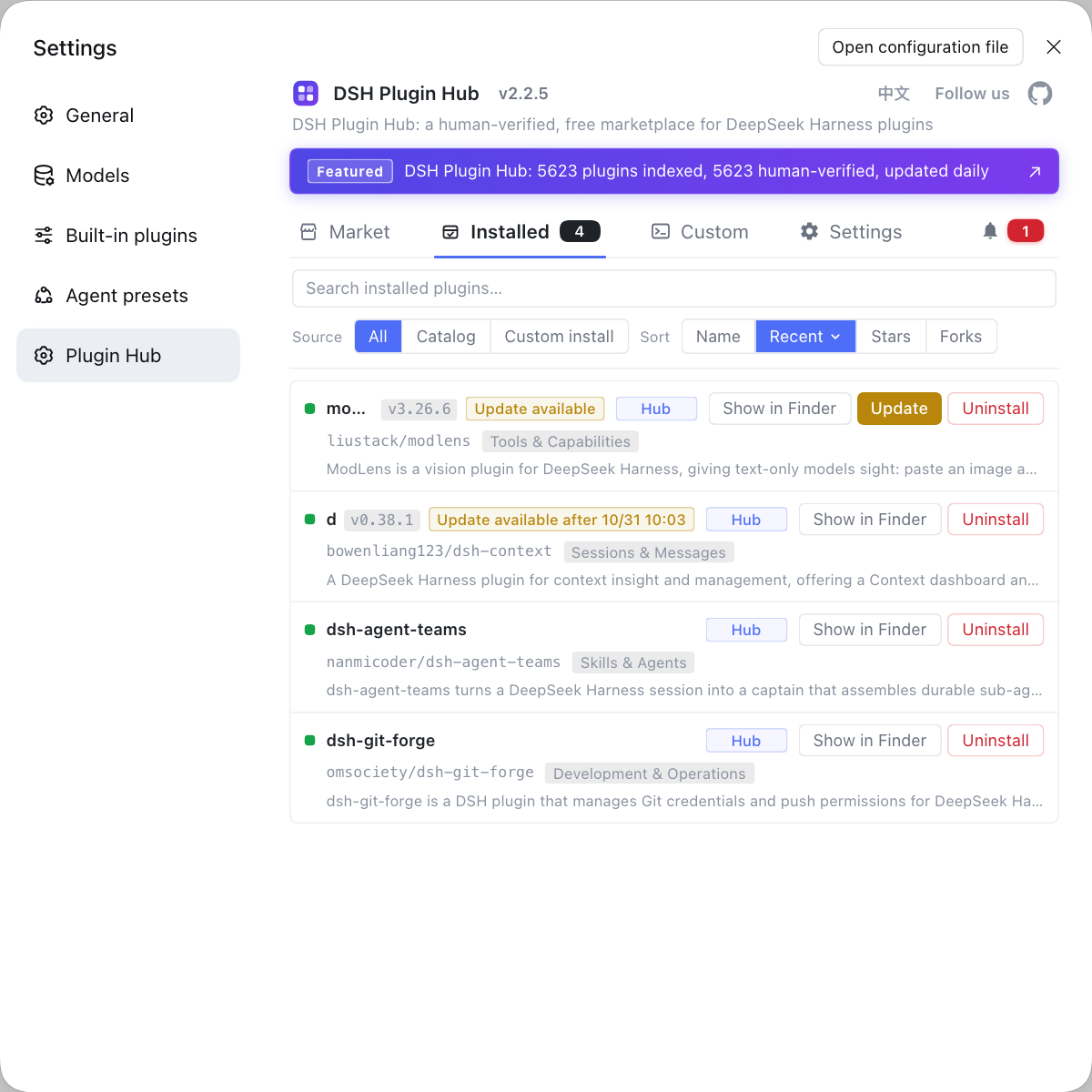
Two days later, the ideal state is two or three working plugins, each with an entry you can point to and a use you can describe. When an install fails, do not retry in a loop; follow how to read notifications when an install fails and treat the failure as part of week one's learning.
Day 5: updating plugins and pinning versions in DSH Plugin Hub
Day five is dedicated to updates: see which plugins really have a new version, then decide whether to update and whether to pin. Updating is not "click whenever offered"; it is a small version decision.
- Open the installed list and note which entries show Update Available.
- For each one, read the version details in the update dialog and judge whether the changes affect what you use.
- Update one at a time, then restart and verify the entry after each.
- For plugins you choose not to update, record the reason; consider pinning only when you need to hold a version.
- If an update fails, work through restart, retry once, then roll back.
The value of day five is experiencing a full update cycle while the plugin count is small. The first update with dozens installed is much riskier. For a badge that will not clear, see the update badge stays lit.
Days 6–7: uninstall a DSH plugin, clean residue, rehearse rollback
Days six and seven subtract: uninstall one plugin you genuinely do not need, complete the residue cleanup and rehearse a rollback without changing anything. Knowing how to uninstall is part of knowing how to manage.
- Pick a plugin you installed but never used from the installed list and click Uninstall.
- Read the uninstall confirmation, verify the plugin name and source, then remove it.
- Check residue in the order manifest, cache, configuration, logs.
- Open another plugin's uninstall confirmation, read it, then click Cancel to learn where rollback lives.
- Record the plugin name, version and cleaned items in your notes.
Uninstalling is not failure; it is management. Walk the full loop once in week one, and later conflicts or replacements will not catch you off guard.
| Residue | Location | Handling |
|---|---|---|
| Manifest | The profile's package.json | Confirm neither field still contains the old package name |
| Cache | pnpm store | Reclaim unreferenced content when needed |
| Configuration | Profile and config layer | Delete only keys belonging to the target plugin |
| Logs | The location shown on the system logs page | Export first, then clear |
For exact residue locations, see what remains after an uninstall.
End of week: a DeepSeek Harness environment checklist
At week's end, four signals show a healthy environment: every plugin has a purpose and a verification record, no update is left hanging, and no obvious residue remains. Meeting all four matters more than the install count.
- You can state one sentence for every installed plugin: what you use it for.
- Every plugin has a verification record: where the entry is and whether invocation works.
- No update badge stays lit without a decision, or you have recorded why you are not updating.
- Uninstalled plugins left no obvious residue, and the profile manifest has no old package names.
- You know where uninstall and rollback live, and you have rehearsed at least once.
The first week is about managing, not accumulating. When you return to the market next week, you will notice you no longer chase stars and new arrivals but ask first which of your problems a plugin solves. To strengthen search technique, read five ways to search for a plugin; for pre-install checks, read the 60 seconds before clicking Install.
FAQ
DeepSeek Harness works better if the first two days are spent browsing rather than installing, because the goal is a map: what Plugin Market, Installed, Custom Install and Settings each do, and how search plus categories narrow candidates to ten or fewer. Without that map you install several overlapping plugins and uninstall them all the following week.
DeepSeek Harness has no fixed number, but installing one and verifying one at a time, keeping the first week to three to five, is far easier to manage. Every install needs a restart and an entry check to prove it works. The more you install at once, the harder it is to tell which plugin caused a problem.
DeepSeek Harness needs three proofs: the plugin entry or command appears after a restart, one real invocation works, and system logs show no activation error. A card that says Installed only proves the write completed. Only when all three line up should the plugin stay in your environment.
DeepSeek Harness lifecycles include updates and uninstalls from the start, so it is not early. Running one update on day five and one uninstall plus residue cleanup on days six and seven teaches the rollback path while the plugin count is small. Learning to uninstall after installing dozens costs much more.
DeepSeek Harness habits look healthy when four signals hold: every installed plugin has a purpose you can state, each has a verified entry, no update badge stays lit without a decision, and uninstalled plugins leave no obvious residue. Meeting all four means you moved from installing to managing.
Related Terms
- first week in dsh plugin market
- The first week in dsh plugin market is the stage when a beginner builds a plugin routine, spreading browse, install, verify, update and uninstall across seven days. Its goal is walking the lifecycle once, not maximizing the number of installs.— https://dsh-plugin.org/plugins/dshplugin/dsh-plugin-hub
- installed list
- The installed list is the DSH Plugin Hub screen that manages plugins in the current environment, showing source labels, versions and update times while offering update, uninstall and reveal-in-Finder actions. It is the main entry for verification and cleanup.— https://api.dsh-plugin.org/images/releases/2-2-5/index.json
- activation check
- An activation check is the process of confirming a plugin really works after installation, covering the entry appearing after restart, one successful invocation and an error-free log. It is a different thing from the card saying Installed.— https://github.com/deepseek-ai/deepseek-harness
- residue cleanup
- Residue cleanup is the process of handling configuration, cache, profile overrides and logs after uninstalling a plugin. Market uninstall only removes the dependency and load manifest, so residue is handled separately in manifest, cache, config and log order.— https://github.com/dshplugin/dsh-plugin-hub
Sources
- DSH Plugin Hub 2.2.5 UI screenshot index· dsh-plugin.org
- DSH Plugin Hub plugin page· dsh-plugin.org
- deepseek-ai/deepseek-harness (source repository)· GitHub